
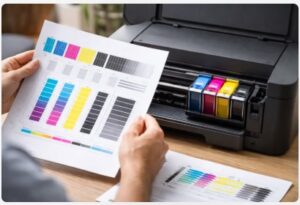
How to Check Ink Levels with a Test Page: The Complete Guide (No Software Needed)
You’re halfway through printing 50 wedding invitations when the colors start fading.
The magenta turns pink. Then pale. Then gone.
Panic sets in. You check the software—it says ink levels are fine. So what’s the deal? Is the printer broken?
I’ve been repairing printers for over a decade in my Chicago workshop, and I see this exact scenario at least twice a week. People show up with printers they think are dead. The software says there’s plenty of ink. But when I print a test page? One color bar is completely missing.
Just last month, a bride-to-be brought in her “broken” Epson in a panic. Her invitations were due in three days. The software showed full ink across the board. But the test page told a different story—no magenta at all. A $12 cartridge saved her from a $150 repair bill and a lot of tears.
Here’s the truth: software ink monitors lie sometimes. Old cartridges with frozen chips. Generic drivers that can’t read the levels. Reset chips that start over at 100% even when the tank’s half empty.
That’s why knowing how to check ink levels with a test page is a skill every printer owner needs. It takes about ten minutes, uses less ink than two wasted print jobs, and gives you the real answer—not what some chip thinks is in there.
In this guide, I’ll show you three ways to print that test page, how to read those color bars like a pro, what those weird patterns actually mean, and when to trust the paper over the pop-up.
Trust me—once you learn this, you’ll stop guessing and start knowing.
Quick Answer
To check ink levels with a test page:
- Print a test page from your printer settings or control panel
- Look at the CMYK color bars on the page
- Missing color = empty cartridge
- Faded or streaky bars = clogged printhead
Quick Summary
- Print a test page from computer settings, printer control panel, or download a PDF
- Read the color bars marked E (Empty) to F (Full) near the bottom of the page
- Missing or less than 25% color bar = replace that cartridge immediately
- Streaks or gaps = run printhead cleaning cycle (1-2 times)
- Perfect test page but blurry documents = check driver settings, not hardware
What a Test Page Actually Shows
A test page is like a check engine light—it shows you way more than just ink levels. When you know what test page shows ink levels and how to read everything else on there, you stop guessing and start fixing.
I’ve lost count of how many times a client has walked in thinking their printer was dead, only to leave with a simple fix after I showed them their test page. That little sheet of paper tells a story. You just need to know how to read it.
The Anatomy of a Printer Test Page
Let me break down what you’re actually looking at when that page comes out.
| Element | What It Tests | What It Reveals |
|---|---|---|
| Color Bars (CMYK) | Ink flow per channel | Missing colors = empty cartridge; banding = clogged nozzles |
| Grayscale Gradient | Black ink density | Patchy gradient = low black or printhead issue |
| Alignment Patterns | Cartridge positioning | Misaligned text/boxes = skewed cartridges |
| Text Samples | Sharpness/resolution | Fuzzy text = wrong driver settings or paper mismatch |
| Radial Gradients | Sustained ink flow | Patchy circles = intermittent clogging |
For a complete breakdown of all nine test page types—including text, color, CMYK, and photo tests—check out our complete printer test page guide.
The color bars are where most people start. They’re your printer test page color check in its purest form. Each bar represents one of the CMYK colors: Cyan, Magenta, Yellow, and Black. If a bar is completely missing, that cartridge is empty. If it’s got streaks or banding, you’re dealing with clogged nozzles.
The grayscale gradient tells you about your black ink density. A smooth fade from dark to light means your black cartridge is flowing correctly. Patchy or abrupt changes? That’s a red flag.
I pay close attention to the radial gradients too. Those circular patterns test sustained ink flow. If you see patchy spots in the circles but the color bars look fine, you’ve got intermittent clogging—the kind that shows up halfway through a big print job.
Why the Test Page Is More Reliable Than Your Printer’s Software
Here’s something that surprises most people: your printer’s software isn’t actually measuring ink. It’s reading a chip on the cartridge that counts how many times the printer thinks it fired.
When you’re comparing test page vs software ink levels, the test page wins every time. Software monitors rely on chip counters that can freeze, reset incorrectly, or just give up entirely. Third-party cartridges often don’t even have working chips—the software just shrugs and says “Ink Unknown.”
This reminds me of a client last year with an HP OfficeJet. For three weeks, her software kept warning “Low on Yellow.” She was nursing it along, trying to squeeze out every last drop. The software said 15% left.
She finally brought the printer to me, frustrated and convinced it was broken.
I printed a test page. The yellow bar? Completely gone. Nothing. The chip had frozen weeks ago, but the cartridge had been bone dry the whole time. She’d been printing without yellow ink for three weeks without knowing it.
According to Microsoft’s printer troubleshooting documentation, when driver issues prevent ink level monitoring, printing a diagnostic page is the recommended next step.
Manual inspection catches things software misses too—clogs, misalignment, printhead issues. I’ve seen software show full ink while the test page revealed a printhead so clogged it looked like a Jackson Pollock painting.
So next time your software gives you that little warning, print a test page. Trust what you see on paper. It never lies.
Ready to put that knowledge to work? Let’s grab that test page.
How to Print a Test Page (3 Methods for Any Printer)
I’ve got three reliable methods here, so no matter what setup you’re running—Windows, Mac, or just the printer itself—you’ll be covered.
The goal is simple: print test page check ink without jumping through hoops. I’ve used these methods on hundreds of printers in my shop.
Method 1: Print from Computer (Windows 11, 10, macOS)
For Windows 11:
- Click the Start button and open Settings
- Go to Bluetooth & Devices, then Printers & Scanners
- Find your printer and click on it
- Hit “Print test page”
For Windows 10:
- Open Settings and click Devices
- Select Printers & Scanners from the menu
- Click your printer, then hit Manage
- You’ll see “Print test page” right there
For macOS:
- Click the Apple icon in the top-left corner
- Go to System Settings, then Printers & Scanners
- Select your printer from the list
- Click Options & Supplies, then Utility
- Open Printer Utility and look for “Print Test Page”
Here’s a quick pro tip: if your test page won’t print, check your USB cable first. I once spent twenty minutes troubleshooting software only to realize the cable had come loose behind the desk. On Windows, you can also restart the Print Spooler service—it’s like giving your print queue a fresh cup of coffee.
Method 2: Print from Printer Control Panel (No Computer Needed)
This is my favorite method in the shop. No computer required. Just the machine itself.
HP Printers:
- HP A310/A320 series: Hold OK while pressing On twice
- HP OfficeJet Pro 9010/9020: Home screen → Setup → Reports → Printer Status Report
- HP 8500A series: Control panel arrow → Reports → Print Quality Page
Brother Printers:
- MFC-J1010DW: Press ink droplets icon → Improve Print Quality → OK → OK
- Advanced test (Maintenance 71): From ready state, press Ok, Go, Ok within three seconds. Arrow to MAINTENANCE 71, hit Ok, arrow to MCYK H, then press Ok five times
Canon Printers:
- TS8300 series: Home screen → Setup (tool icon) → Estimated ink levels
Epson Printers:
- Navigate to Control Panel → Maintenance → Nozzle Check
Need step-by-step for your specific model? Check out our complete guide on how to print a test page without a computer for HP, Brother, Canon, and Epson.
The Brother Maintenance 71 test is my secret weapon. A client brought in a Brother printer that “just stopped working.” The software showed full ink, but when I ran Maintenance 71, the magenta bar was completely absent. One cartridge swap and she was back in business.
Method 3: Download and Print a Test Page (Quick Alternative)
Sometimes the built-in methods don’t work. Driver issues, corrupted software, or printers that just won’t cooperate.
You can download a test page from LD Products—they offer free color and grayscale versions. I keep a PDF copy saved on my shop computer for exactly this reason.
How to use this method:
- Download the test page file to your computer
- Open it with any PDF viewer
- Hit print like you would any document
Save it once, reuse it anytime. No internet needed. I’ve used this when printer settings won’t open, when drivers are corrupted, or when I’m dealing with a printer that’s being particularly stubborn.
Just last month, a client’s HP driver was completely fried—wouldn’t even open the settings menu. But we downloaded a test page PDF, printed it from Chrome, and had our answer in two minutes.
Now that you’ve got that test page in your hands, let’s talk about how to actually read the thing.
How to Read Your Test Page Like a Pro
Learning to read printer test page ink patterns is like learning to read a map—once you know what you’re looking at, you’ll never get lost again.
I’ve trained half a dozen techs in my shop, and the first thing I teach them is how to spot trouble on a test page.
Reading the Color Bars (The “E to F” Method)
On most printers—especially HPs—you’ll see a scale marked “E” for Empty and “F” for Full near the bottom of the page.
Here’s how to read color bars test page like a pro:
Look at each color bar individually—Cyan, Magenta, Yellow, and Black. Between that E and F, you’ll see a brightly colored bar. That’s your actual ink level.
- 100% coverage from E to F? Your cartridge is full.
- 25% to 50% coverage? You’re getting low. Order a replacement now.
- Less than 25% or missing sections? Replace immediately.
According to HP’s official documentation, these color bars are designed to help you estimate remaining ink levels accurately.
I’ve had customers walk into my shop furious because their software said ink was full, but their prints looked terrible. Then I show them the color bar on their test page—just a tiny sliver at the bottom.
One guy insisted his HP was defective. “The computer says I have plenty of ink,” he kept repeating. I pointed to the test page. “Trust the bar. It’s the physical truth.” He swapped the cartridge, reprinted the test page, and the color bar came back full.
Interpreting Common Test Page Patterns
This test page ink troubleshooting guide will help you match what you see with what needs to happen next.
| Pattern on Test Page | Likely Cause | Solution |
|---|---|---|
| Missing entire color bar | Empty cartridge | Replace cartridge |
| Streaks or gaps in color bar | Clogged printhead nozzles | Run printhead cleaning cycle |
| Faded or dull colors | Low ink or old cartridge | Replace cartridge, reprint test page |
| Misaligned text/boxes | Cartridge not seated properly | Run alignment utility, reseat cartridges |
| Blurry or ghosting text | Printhead issue or wrong paper type | Check paper type setting, run alignment |
| Thin horizontal striations | Normal (Brother Maintenance 71 test) | No action needed |
| Vertical lines through colors | Dirty printhead or debris | Clean printhead, check for paper debris |
| Repeating dots (3-4x down page) | Stuck label or debris on roller | Check for stuck labels |
| White vertical line | Nozzle cluster failure | Deep cleaning cycle or printhead replacement |
When you’re dealing with faded colors test page meaning, it’s usually one of two things: low ink or an old cartridge that’s past its prime. Replace it, print another test page, and see if the colors come back.
And if you’re trying to fix streaks test page ink, start with a cleaning cycle. Nine times out of ten, that clears it up. If it doesn’t, run it again. If streaks still show after two cycles, swap the cartridge.
If you’re using an Epson printer, the nozzle check pattern might look slightly different. We’ve got a dedicated guide on reading the Epson test page that walks you through every detail.
What to Do After Reading Your Test Page
1. Color bar missing or less than 25% → Replace that cartridge. Don’t wait. Reprint the test page to confirm the new one is working.
2. Streaks present → Run the nozzle cleaning cycle. One or two passes usually does it. Reprint your test page. If streaks are still there, replace the cartridge.
3. Misalignment present → Run the alignment utility from your printer’s settings. Reseat the cartridges first—sometimes they just need to be snapped back in properly.
4. Perfect test page but documents print poorly → This one’s tricky. If the test page looks flawless but your actual documents are fuzzy or faded, the problem isn’t your ink. It’s your driver settings. Check your print quality settings, make sure you’re not on “Draft” mode, and verify your paper type matches what’s actually loaded.
Printhead cleaning cycles are usually the fix, but if you’re not sure how to run them properly, our step-by-step guide on printhead cleaning techniques breaks it down.
I ran into this with a law firm last year. Their test pages were perfect. Every single time. But legal documents came out looking like they’d been printed on a potato. Turned out their default driver was set to “Draft” for document printing. One setting change and everything was crisp again.
Advanced Troubleshooting: When the Test Page Tells a Story
Sometimes the test page doesn’t give you a simple answer. It tells a story—and you’ve got to read between the lines.
Over the years, I’ve seen test pages that looked perfect but hid major problems. I’ve seen printers that passed every diagnostic but still couldn’t print a decent document.
Scenario 1: Test Page Shows Ink, But Prints Are Faded
You printed the test page. Color bars look full. Everything seems fine. But your photos look washed out.
Here’s what I’ve learned: when you’re dealing with faded colors test page meaning but the test page itself looks good, the problem isn’t your ink supply. It’s how your printer is being told to print.
Check these three things first:
- Driver Quality Settings — If your printer is set to “Draft” or “Fast” mode, it’s using less ink on purpose.
- Paper Type Mismatch — Glossy photo paper needs different ink application than plain paper.
- Paper Quality — Cheap copier paper absorbs ink differently and can make colors look faded.
A law firm client taught me this lesson hard. They had an HP inkjet that printed perfect test pages every time. But their legal documents? Fuzzy. Blurry. Unprofessional.
I walked over to their computer, opened printer preferences, and saw it: Quality was set to “Draft.” Someone had changed it months ago to save ink and never switched it back. Five seconds later, their documents were crisp again.
Scenario 2: Self-Test Perfect, Documents Blurry
This scenario drives people crazy. The test page perfect but documents blurry puzzle.
You run the self-test right from the printer’s control panel. It comes out flawless. Then you print a Word document. Blurry. Fuzzy.
Here’s the truth: the self-test page is generated inside your printer. It doesn’t go through your computer’s drivers or settings. Your documents do.
When self-test sharp documents blurry happens, the problem is almost always in the rendering pipeline, not the hardware.
Windows Fixes:
- Switch from the generic Microsoft IPP Class driver to the full-feature vendor driver
- In your app’s print settings, set Quality to Normal or Best. DPI should be 600-1200
- Match Paper Type to what’s actually loaded
- For PDFs, print from Adobe Acrobat and choose “Actual size” (100%)
- In Excel, check Page Setup. Scaling should be 100%
macOS Fixes:
- Remove your printer queue and re-add it. Choose either AirPrint OR the vendor driver
- In the print dialog, go to Media & Quality and set Quality to Best
- Disable Two-Sided printing temporarily for testing
Updating or reinstalling printer drivers can feel tricky, but our printer drivers installation guide walks you through it step by step.
Here’s a pro tip: if Word prints sharp but PDFs are blurry, your browser’s PDF viewer is resampling the file. Use Adobe Acrobat with the system print dialog (Ctrl+Shift+P) and suddenly everything becomes crystal clear.
Scenario 3: Test Page Won’t Print at All
Sometimes you can’t even get that far. You hit “Print test page” and nothing happens. The printer not responding test page problem.
Don’t panic. Here’s my step-by-step checklist:
- Check your connection — USB cables come loose. Wi-Fi networks drop.
- Restart everything — Printer off. Computer off. Count to ten. Power up.
- On Windows: Restart Print Spooler — Go to Services, find Print Spooler, and hit Restart.
- Clear stuck jobs — Delete everything in the print queue and try again.
- Swap drivers — If you’re using a generic driver, try the full vendor driver.
Still nothing? We’ve got a full troubleshooting guide for when the test page won’t print—covering everything from print spooler issues to driver conflicts.
I had a small business owner bring in her printer because it “died completely.” Checked the queue, found 47 stuck jobs from a failed print run three weeks ago. Cleared them all, printed a test page in ten seconds. She cried happy tears.
Scenario 4: Test Page Shows One Color Missing Intermittently
This one’s tricky because it comes and goes. You print a test page—magenta is there. Print another an hour later—magenta is gone.
When you’re trying to detect cartridge issue test page problems that are intermittent, you’re usually dealing with one of three things.
- First occurrence: Run a nozzle cleaning cycle
- If the pattern improves but comes back: Dried ink buildup—run deep cleaning
- If the pattern doesn’t change after two cleanings: Replace the cartridge
- If the new cartridge still shows issues: Printhead failure—decide if repair is worth it
Epson’s official support site recommends running a nozzle check first, then a cleaning cycle—and if quality doesn’t improve after several cycles, turn the printer off and let it rest overnight.
I had a client with an Epson that kept losing yellow. We replaced the cartridge. Fine for a week, then yellow disappeared again. Turns out the printhead was failing. We replaced it, which cost about half what a new printer would. But for her, it was worth it because the printer had features she couldn’t find in new models.
Test Page vs. Software: Which One to Trust?
“If my printer software says I have ink, why bother with a test page?” I hear this weekly.
Fair question. The answer comes down to one simple truth: software reads a chip. The test page reads reality.
When you’re comparing test page vs software ink levels, you’re really asking whether to trust a counter or your own eyes. The software is convenient. The test page is honest.
Why Software Lies (Sometimes)
Those ink monitors don’t measure ink. They count how many times your printer thinks it fired and subtracts that from a preset number.
| Software Indicator | Test Page Reality |
|---|---|
| Reads ink levels from chip counters | Shows actual ink deposition on paper |
| Can freeze after third-party cartridge install | Always reflects current print quality |
| May show “Ink Unknown” with generic drivers | Works with any printer, any driver |
| Some chips reset prematurely | Color bars don’t reset—they show truth |
When software ink levels inaccurate is your problem, the test page doesn’t care. It shows you exactly what’s coming out of those nozzles. That’s why test page more reliable isn’t just my opinion—it’s physics.
Sometimes the problem isn’t the printer at all—it’s a connection issue. If your test page won’t print even though the printer seems fine, check out our printer offline fix guide.
When to Use Each Method
Use Software Ink Monitor When:
- You’re using genuine cartridges with functioning chips
- You need a quick glance without wasting paper
- Everything is printing fine and you’re just checking
Use Test Page Method When:
- Software shows levels that don’t match what you’re seeing on paper
- You use third-party or refilled cartridges
- Print quality has dropped
- Your printer has been sitting unused for weeks
- You’re troubleshooting alignment or clog issues
- You need to confirm cartridge replacement test page results before buying a new one
The Hybrid Approach (Best Practice)
Step 1: Check your software ink monitor for convenience.
Step 2: If prints look faded or software seems suspicious, print a test page.
Step 3: Inspect those color bars and diagnostic patterns.
Step 4: Compare what you see to the decision tree.
Step 5: Make your replacement decision based on the test page, not the software.
I tell my customers: “Software is a suggestion. The test page is a fact. When they conflict, always believe the paper.”
That line came from a client who almost replaced an expensive set of cartridges because his HP software said cyan was empty. He printed a test page on my recommendation. Full cyan bar. The chip had frozen weeks ago, but the cartridge was still going strong. He saved eighty bucks that day.
So when someone asks me can test page show ink levels, my answer is always yes—more accurately than anything that relies on a chip.
Preventing Ink Issues Between Test Pages
You know what’s better than fixing a printer problem? Never having it in the first place.
I learned this lesson the hard way early in my career. I’d spend hours unclogging printheads, cleaning rollers, and explaining to frustrated customers why their printer “broke” after sitting untouched for three months. Most of these issues are preventable with five minutes of attention a month.
The “Print Once a Week” Rule
Inkjet printers are designed to be used. When they sit, the ink in those tiny nozzles starts to dry out. A week? Probably fine. Two weeks? Getting risky. A month? You’re asking for clogs.
The beauty of using a printer maintenance test page is that it uses minimal ink—way less than a full document or photo—but it exercises every nozzle.
Set a reminder on your phone. Every Sunday, print a test page. Takes two minutes. Uses pennies worth of ink. Saves you hours of frustration.
I had a photographer client who traveled often, leaving her high-end Epson sitting for months. Every time she came back, she’d have to run three cleaning cycles. I suggested she have her assistant print a test page every week while she was away. Problem solved.
Store Cartridges Correctly
Keep unopened cartridges sealed until you’re ready to use them. The seal protects the ink from air exposure.
Store in a cool, dry place. Room temperature is ideal. 60-75°F is the sweet spot. Avoid extreme temperatures and humidity.
Not the garage. Not the basement. Not the car. Inside your home or office, in a cabinet or drawer away from windows and vents.
I learned this from a small business owner who bought cartridges in bulk. Smart move. But she stored them in her garage, right next to the water heater. By the time she opened them, the ink had degraded. Now she stores them in a closet inside, and her bulk-buy strategy actually works.
When to Run Preventative Maintenance
| Situation | Action |
|---|---|
| Printer unused >2 weeks | Print test page before important job |
| After installing new cartridge | Print test page to confirm installation |
| After moving printer | Print test page to check alignment |
| Before large print job | Print test page to verify all colors working |
After moving a printer is one people overlook. You jostle the machine. Cartridges shift. A quick test page saves you from printing 200 invitations with misaligned text.
Before large print jobs is my personal rule. I learned this after printing 50 flyers with a missing magenta bar. Never again.
And after installing new cartridges, always print a test page. I don’t care if the software says it’s full. Confirm the color bars are solid. Confirm there’s no streaking. It takes two minutes and confirms you didn’t get a defective cartridge.
Conclusion
When I started working on printers over a decade ago, I trusted the software too. I’d see that little ink gauge and think, “Okay, I’m good.”
Then I learned the hard way that those chips can freeze, reset, or just plain lie.
That’s why I’m so passionate about teaching people how to check ink levels with a test page. It’s the one method that never lets you down. The paper doesn’t lie. The color bars don’t freeze. What you see is what you’ve got.
Here’s what I want you to remember:
- Test pages beat software every time. Chips can fail. Color bars don’t. When in doubt, trust the paper.
- Three ways to print one. Computer settings, printer control panel, or download a PDF. You’ve got options.
- Read those color bars. That E to F scale tells you exactly how much ink you have left.
- Match patterns to solutions. Streaks mean clogs. Missing colors mean empty cartridges. Perfect test page with bad documents means driver issues.
- Prevention is everything. Print a test page every week or two. Store cartridges properly.
The quick ink check test page method I’ve shared here takes about two minutes. That’s it. Two minutes to save yourself from ruined prints, wasted paper, and the frustration of troubleshooting blind.
And when you’re not sure if a cartridge actually needs replacing? That’s when you confirm cartridge replacement test page results before spending money. I’ve saved customers hundreds of dollars over the years by showing them a test page with plenty of ink left when the software said empty.
Now you’re equipped to diagnose printer issues like a pro. No more guessing. No more trusting chips that might be lying to you.
Bookmark this guide for when print quality drops—and it will, because all printers act up eventually. When that day comes, you’ll know exactly what to do.
And if all this troubleshooting makes you realize your printer is just too old to keep up, don’t miss our printer buying guide—it’ll help you pick the right machine so you’re not back here in six months.
Happy printing. And remember—when software gives you doubt, print it out and see what’s really happening.
FAQ
What is a printer test page?
A diagnostic page that checks print quality, color accuracy, and ink flow. It helps spot streaks, missing colors, and faded prints so you can fix issues fast.
How do I check ink levels using a test page?
Print the test page, then look for the color bars—usually halfway down the page. On HP printers, these bars have an “E” (Empty) to “F” (Full) scale. Estimate what percentage of the brightly-colored bar appears between E and F. If a color bar is missing entirely, that cartridge is empty.
Can a test page show ink levels if my printer uses generic drivers?
Yes. If your basic Windows driver doesn’t populate ink information in settings, printing a test page is the most reliable alternative. The test page is generated by the printer itself and doesn’t rely on driver software.
Why does my test page have streaks or gaps?
Streaks, lines, or missing sections usually mean the printhead is dirty, clogged, or the cartridge is running low. Run a printhead cleaning cycle (1-2 times) and reprint the test page. If the problem persists, replace the cartridge.
Do test pages waste ink?
No. A test page uses less ink than printing multiple failed documents while troubleshooting blind. It’s cheap insurance.
My test page prints perfectly, but documents are blurry. Why?
The self-test page is generated inside the printer. Your documents go through the app and driver, where low DPI/Draft settings, wrong paper type, scaling, or generic drivers can soften text. Fix: Use the vendor driver, set Quality to Normal/Best, match Paper Type to stock, and print PDFs at Actual size (100%).
How do I print a test page without a computer?
Most printers have a control panel method. Need step-by-step for your specific model? Check out our complete guide on how to print a test page without a computer.
What’s the difference between a test page and a nozzle check?
A nozzle check specifically tests each ink channel for clogs. A full test page includes nozzle check elements plus alignment patterns, color gradients, and text samples. Most manufacturers use these terms interchangeably.
How often should I print a test page?
Print a test page after installing new cartridges, when print quality drops, after the printer sits unused for 2+ weeks, or as part of regular maintenance (every 1-2 months for active printers).
Why is my test page missing one color entirely?
A completely missing color bar means that specific ink cartridge is either empty or severely clogged. Replace the cartridge first. If the new cartridge still shows missing color, the printhead may need replacement or deep cleaning.
Have a question about a specific test page pattern you’re seeing? Drop it in the comments. I check them weekly and I’m happy to help you figure out what your printer is trying to tell you.
Disclaimer: This article is based on personal expertise and industry knowledge gained from over a decade of printer repair experience. Always consult your printer’s manual or seek help from a certified technician for model-specific issues.

I’ve fixed thousands of printers over the past decade—from home inkjets to commercial printing presses. Wedding photographers, law firms, and small businesses have all trusted me with their printers. Every guide comes from real workshop experience, not theory.