
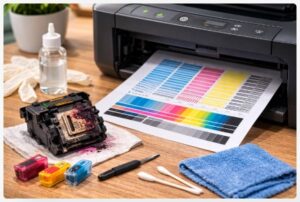
Print Head Cleaning Test Page: The Ultimate Guide to Diagnosing Clogged Nozzles
You know that sinking feeling? You’re rushing to print something important—maybe a contract, a school project due in an hour, or photos for a client—and instead of crisp text, you get this mess of missing lines and streaks. The colors look like a bad watercolor painting. I’ve been there more times than I can count—both in my workshop and with customers calling me frantic.
Just last week, a real estate agent barged into my Austin shop at 8 AM with 20 flyers that looked like zebras—half the black ink just… gone. She was ready to toss her printer in the dumpster. I stopped her, ran a simple printer test page, and within 60 seconds we knew exactly what was wrong. No tools, no teardown, no expensive repair. Just a clogged nozzle and a quick fix.
Here’s the thing nobody tells you: your printer actually has a built-in diagnostic tool that costs nothing and takes less than a minute to run. It’s called a print head cleaning test page, and it’s the first thing I reach for when anyone brings me a printer with print quality issues.
Whether you’re dealing with printer missing lines test page check situations or your inkjet print head cleaning test page looks like abstract art, this guide’s got you covered. I’ll show you how to print a print head cleaning test page using your printer’s own utility and give you a universal backup method that works on any machine.
Think of me as your personal printer technician walking you through it. No jargon, no fluff—just real solutions from someone who’s spent over a decade elbow-deep in these machines. Let’s fix that printer.
✅ Quick Summary
A print head cleaning test page is a diagnostic pattern that shows you exactly what’s wrong with your printer. Print it, look for gaps or missing colors, and you’ll know instantly if you need to run a cleaning cycle or replace a cartridge. Most printers can print one from their maintenance menu in under 60 seconds. If yours can’t, I’ve included a free downloadable test page you can use on any machine.
This one simple step has saved my clients thousands in unnecessary repairs. And if you’re looking for even more diagnostic tools, check out our complete library of printer test pages—everything from basic nozzle checks to advanced color calibration.
What is a Print Head Cleaning Test Page?
So what exactly are we talking about here? A printer diagnostic page for print head cleaning is basically your printer’s way of telling you how it feels. Think of it like a medical chart, but for your machine.
It’s a pattern—usually colored blocks and fine lines—that your printer squirts out onto paper. But those blocks and lines? They’re coming directly from each tiny nozzle in your print head. Every single hole that shoots ink gets a chance to show off.
What does a print head cleaning test page show? Everything. If a nozzle’s clogged, that part of the pattern will have a gap. If ink is flowing perfectly, the blocks will be solid and smooth. If you’re getting streaks? The pattern will show you exactly which color is misbehaving.
I had a photographer come in last month convinced his magenta cartridge was dead. We ran the test page, and sure enough—the magenta block looked like someone took a comb to it. But here’s the thing: the cartridge was full. It was just a stubborn air bubble. A nozzle cleaning test page for printer situations like this saves people from tossing perfectly good ink.
This is where folks get confused: There’s a big difference between the test page and the cleaning function itself:
- A nozzle check (or test page) is diagnostic. It’s like checking your blood pressure—it tells you what’s wrong.
- Print head cleaning is corrective. It’s the medicine you take after the diagnosis.
This is where folks get confused: There’s a big difference between the test page and the cleaning function itself. Even printer manufacturers emphasize this distinction—HP’s official diagnostic guide clearly separates the diagnostic report from the cleaning process. They use the same test-first, clean-second approach I’m showing you here.
You always, always run the test page before cleaning to figure out the problem. Then you run it after cleaning to make sure the fix actually worked. I can’t tell you how many people waste ink running cleaning cycles without ever checking if they’re helping.
The print head cleaning vs nozzle check test page confusion is totally normal. Even some printer manuals aren’t great at explaining it. If you want to dive deeper into just the nozzle check part, I’ve got a dedicated nozzle test page that focuses specifically on diagnosing individual nozzle performance.
In my workshop, we keep sample test pages pinned on the wall—good ones, bad ones, ugly ones. It helps clients see what they’re looking for. A healthy page shows solid color blocks (black, cyan, magenta, yellow) with no gaps, and the fine line grid should be crisp and unbroken. Anything less means your printer’s telling you it needs help.
How to Print a Test Page (Built-in & Universal Methods)
Alright, let’s get down to business. You’re probably staring at your printer right now wondering how to print a print head cleaning test page without accidentally making things worse. Good news—it’s way easier than you think. I’m gonna walk you through both the built-in method (works on 90% of printers) and a universal backup for stubborn printers.
I’ve shown these steps to hundreds of clients over the years—from grandmas to graphic designers—and everyone gets it. Let’s do this.
Method 1: Using Your Printer’s Built-In Utility (Windows & Mac)
This is the fastest route. Your printer came with software that can run a printer nozzle check test page with just a few clicks. Here’s how to find it:
For Windows Users:
- Click Start and type “Control Panel,” then open it up.
- Head to “Devices and Printers” (might be called “Printers & Scanners” on newer Windows).
- Find your printer, right-click it, and select “Printing preferences.”
- Look for a tab labeled “Maintenance,” “Utility,” or “Tools.”
- You’re looking for buttons that say “Nozzle Check,” “Print Test Page,” or “Check Print Quality.”
Pro tip from years in the workshop: Epson hides it under “Nozzle Check,” Canon calls it “Cleaning” but has a test page option nearby, HP buries it in “Printer Maintenance,” and Brother usually has a “Print Quality” option. They’re all different, but they’re all there.
For Mac Users:
- Click the Apple logo and open “System Preferences” (or “System Settings” on newer Macs).
- Click “Printers & Scanners.”
- Select your printer from the list, then click “Options & Supplies.”
- Hit the “Utility” tab, then click “Open Printer Utility.”
- A new window will pop up with your printer’s brand-specific tools. Look for “Test Page” or “Nozzle Check.”
Macs make this slightly more roundabout, but it works every time.
From the Printer Itself (No Computer Needed):
This is my favorite method when clients show up with printers and no laptop. Most modern printers with a screen can do this solo:
- Hit the “Setup” or “Menu” button on your printer.
- Navigate to “Tools” or “Maintenance.”
- Look for “Print Quality” or “Nozzle Check.”
- Select ‘Print Test Page’ and you’re done.
Just last week, a small business owner came in with a dead computer but a working printer. We ran the test page right from the machine’s screen, diagnosed a clogged yellow nozzle, and had her back printing flyers in 20 minutes. No computer needed.
Method 2: The Universal Test Page (When Built-In Fails)
Sometimes the built-in utility just won’t cooperate. Maybe the software’s outdated, maybe your printer’s off-brand, or maybe you’re using a printer that’s older than my career. That’s where the print head cleaning test page pdf comes in clutch.
I’ve got a collection of test pages I’ve collected over the years—some from manufacturers, some I designed myself when I couldn’t find what I needed. Here’s the strategy:
Why Go Universal:
The built-in test page is great, but it’s not always available. I’ve had printers where the utility software crashed, clients who lost the installation disc, and plenty of situations where the default test page just wasn’t detailed enough to spot subtle problems. A good PDF solves all that.
The Download Options:
- 4-Color Test Page: This is your go-to for most standard inkjets. Solid blocks of Cyan, Magenta, Yellow, and Black, plus fine line patterns. It’s the universal translator for printer diagnostics.
- 5-Color/Photo Test Page: If you’ve got a photo printer with extra colors (like Light Cyan or Photo Black), you need a more detailed pattern. These pages test every single nozzle type your printer might have.
Why PDF Beats Everything:
When you print a PDF, what you see is what you get. No weird software interference, no color management surprises. The file tells the printer exactly what to do, and the printer does it. I’ve seen too many people print test pages from web browsers only to have the browser “helpfully” adjust colors and ruin the diagnosis.
How to Print It Right:
- Download the PDF and save it somewhere you can find (I keep mine in a “Printer Stuff” folder).
- Open it in Adobe Reader or your default PDF viewer.
- Hit File > Print.
- Here’s the critical part: Before clicking print, check your settings. Make sure “Print in Grayscale” is OFF. Turn off “Economy Mode” or “Draft Mode.” You want full color, full quality. Otherwise, you’re just guessing.
A universal printer print head test pattern saved a nonprofit I work with last year. Their ancient printer’s utility software wouldn’t run on Windows 10, but the machine itself printed perfectly. We used a standard test page PDF, diagnosed a clog, cleaned it up, and kept that printer running for another year. Sometimes the simple solutions are the best ones.
Sometimes the built-in utility just won’t cooperate. Maybe the software’s outdated, maybe your printer’s off-brand. Before assuming the worst, it’s worth checking if you need to update your printer driver. I’ve lost count of how many times a simple driver update magically brought back test page options that had ‘disappeared’.
Once you’ve got that test page in hand, we can figure out what it’s telling you. That’s up next.
How to Read a Print Head Cleaning Test Page Like a Pro
Okay, you’ve got your test page in hand. Now what? This is where most people get stuck—they’re holding a piece of paper with colored blocks and lines, but it might as well be in a foreign language. Trust me, I’ve seen that confused look hundreds of times.
Learning how to read a print head cleaning test page is like learning to read a map. Once you know what the symbols mean, you can find your way to the fix.
I keep a stack of failed test pages in my workshop—kind of like a rogue’s gallery of printer problems. When clients come in, I pull out examples and say, “See this? This is exactly what your printer’s doing.” It clicks every time. So let me be your guide through this.
The Perfect Print: What a Healthy Page Looks Like
First, you need to know what “good” looks like. A healthy test page is boring—and that’s exactly what you want.
All the color blocks—Cyan, Magenta, Yellow, and Black—should be solid from edge to edge. No streaks, no light spots, no fading. Just pure, consistent color like you dipped the page in ink.
The fine line grid? It should be sharp and unbroken. Every line crisp, every intersection perfect. If you hold it up close, you shouldn’t see any gaps or skips.
I tell my clients: ‘If your test page looks boring, your printer’s happy’—boring is beautiful here.
Diagnostic Chart: Matching the Defect to the Problem
Here’s my cheat sheet—the same one I use in my shop when customers bring in their printer missing lines test page check results. Match your page to these descriptions, and you’ll know exactly what you’re dealing with.
| If Your Test Page Looks Like This… | The Diagnosis Is… | The Solution Is… |
|---|---|---|
| Missing lines or gaps in the color blocks | Clogged Nozzles: Ink isn’t firing from specific holes. | Run the “Print Head Cleaning” cycle 1-2 times from your printer menu. Then—this is crucial—wait 15 minutes. Let the cleaning solution soak in. Then print another test page. |
| Complete absence of one color block | Empty Cartridge or Severe Clog: Either you’re out of ink, or there’s an air bubble trapped in the line. | First, check your ink levels. If they’re low, replace the cartridge. If they’re full, run a “Power Cleaning” or “Deep Cleaning” if your printer has that option. This forces ink through harder. |
| Horizontal white lines (banding) across all blocks | Encoder Strip Issue or Misalignment: That clear plastic strip behind your print head is dirty, or the head itself is out of alignment. | Gently clean the encoder strip with a lint-free cloth and a tiny bit of glass cleaner. Then run “Align Printhead” from your printer’s maintenance menu. |
| Colors are wrong (blue looks purple, red looks orange) | Cross-contamination or Wrong Paper: Colors might be mixing in the print head, or your paper setting doesn’t match what you’re using. | Run 1-2 cleaning cycles to flush out any mixed ink. Also check that you’ve selected the right paper type in your print settings. Glossy photo paper needs different treatment than plain copy paper. |
| Streaks or smudges that look like someone wiped the page | Wiper Blade Failure: The little rubber blade that cleans your print head is dirty or worn out. | You’ll need to manually clean the wiper blade inside your printer. It’s usually a small rubber strip near where the print head parks. Consult your manual—every printer’s a little different. |
Horizontal white lines across all blocks usually point to an encoder strip issue or misalignment. After cleaning that encoder strip, the next step is running ‘Align Printhead’ from your printer menu. If you want a more detailed pattern to verify your alignment is perfect, grab my dedicated print head alignment page—it’s designed to catch even subtle misalignments that standard test pages might miss.
Just last month, a guy came in with a printer banding test page after head cleaning that looked terrible. He’d run four cleaning cycles and the banding was worse. Turned out his encoder strip was coated with ink residue from years of use. Five minutes with a microfiber cloth and his next test page was perfect. Sometimes the fix is simpler than you think.
From the Workshop: The “Ghost” Clog
I once had a client—let’s call him Mark—who walked into my shop looking like he hadn’t slept in days. He ran a small real estate office and his printer had been acting up for a week. He’d run ten—I’m not exaggerating—ten cleaning cycles trying to fix missing lines on his test page. Ten! His ink levels were critically low, and he was ready to throw the whole printer in the trash.
When I looked at his test page, something didn’t add up. The missing lines were there, sure. But they were faint. Like… barely there. Almost like the ink was trying to print but couldn’t quite pull it off.
I asked him what kind of ink he was using. He pulled out a box of generic cartridges he’d bought online—half the price of name brand. And that was the problem.
The ink was too thin. It didn’t have the right viscosity to flow through the print head nozzles properly. It was like trying to paint with watery milk instead of real paint. The printer wasn’t broken; it was just being fed the wrong fuel.
We flushed his system with quality ink, ran two cleaning cycles to get the thin stuff out, and printed another test page. Solid as a rock. Mark nearly cried—partly from relief, partly from realizing he’d wasted a fortune on ink he didn’t need.
The test page doesn’t lie, but you have to know how to read the details. Those faint lines? They were telling me ‘clogged,’ but the real story was ‘cheap ink.’ If you’re dealing with tricky color issues, sometimes you need a more sensitive test. I recommend using a dedicated full color test pattern that includes gradients and color transitions—it reveals subtle problems that basic block tests might hide.
Once you’ve matched your test page to one of these problems, you’re ready to actually fix it. And that’s exactly what we’re tackling next.
The Cleaning Protocol: From Test Page to Fix
So you’ve got your test page, you’ve identified the problem—now what? This is where the real work begins. But here’s the thing: most people jump straight to cleaning without a plan, and that’s how you end up wasting ink and getting nowhere.
I’ve got a simple protocol I use in my shop, and it works every time. Think of it like CPR for your printer—follow the steps in order, don’t skip ahead, and know when to stop.
First things first: when should you run a print head cleaning test page? Only after you’ve seen a problem. If your prints look fine, leave it alone. I’ve had clients run test pages “just because” and then panic when they see minor imperfections that were always there. Run it when you see streaks, missing colors, or banding. That’s it.
Now, let’s fix that printer clogged nozzle test page fix step by step.
Step 1: The Initial Cleaning Cycle
Go back to that printer utility we used earlier. This time, instead of “Nozzle Check,” you’re looking for “Print Head Cleaning” or just “Cleaning.” Click it.
The printer will whir and click for about a minute or two—that’s normal. It’s forcing ink through those clogged nozzles under pressure, trying to blast out whatever’s blocking them.
Here’s the golden rule, and I cannot stress this enough: WAIT.
Do not print another test page immediately. I don’t care if you’re in a hurry. Walk away. Get coffee. Scroll through your phone. Let the printer sit for 15-20 minutes minimum.
Why? Because the cleaning solution in the ink needs time to soak into that dried clog and soften it up. If you print right away, you’re just wasting ink and expecting magic. The soak time is what actually does the work.
I learned this the hard way as a rookie tech. I’d run a cleaning cycle, print immediately, see no improvement, and run another. Six cycles later, I’d used half an ink cartridge and accomplished nothing. Now I set a timer. Patience pays.
One cleaning cycle uses a surprising amount of ink—we’re talking maybe 5-10% of a cartridge’s total capacity depending on your printer. HP’s own support docs warn against unnecessary cleaning for this exact reason. So make every cycle count by waiting.
One cleaning cycle uses a surprising amount of ink—we’re talking maybe 5-10% of a cartridge’s total capacity depending on your printer. HP’s own support docs warn against unnecessary cleaning for this exact reason. And if you’re wondering why printers need to consume this much ink, Canon’s explanation of ink consumption reveals that cleaning isn’t just blasting ink—it’s a carefully designed process to maintain printhead health by removing air bubbles and dried residue.
Step 2: Re-Test and Analyze
Timer’s up. Now print another test page.
If the lines are back and the colors are solid? Congratulations! You’re done. Your printer’s healthy again. Go print that important document.
If the lines are partially back—maybe they’re better but still not perfect—run one more cleaning cycle. Some clogs are stubborn and need a second round. Just remember to wait again. I know it’s annoying, but it matters.
If there’s zero improvement after the first cycle, don’t just blindly run another. Look closely at your test page. Is the problem exactly the same? Worse? Slightly different? This tells you something.
I had a client last year whose test page showed missing black lines. First cleaning did nothing. Second cleaning made it worse—more lines missing. That told me we weren’t dealing with a simple clog. Turned out his black cartridge was almost empty and the printer was sucking air. Different problem, different fix.
Step 3: The “Strong” Cleaning & When to Stop
If 2-3 standard cleanings haven’t fixed it, it’s time for the big guns. Look in your printer utility for “Deep Cleaning,” “Power Cleaning,” or “Strong Cleaning.” Not all printers have this, but if yours does, this is the next step.
Deep cleaning forces ink through at higher pressure and for longer. It uses more ink—sometimes a lot more—but it can blast through clogs that standard cleaning can’t touch.
But here’s where you need to know when to quit.
If you’ve run 5-7 cleaning cycles total (standard and deep combined) and your test page still shows missing blocks or lines, stop. You’re not helping. You’re just burning through ink and potentially damaging your print head.
I’ve seen printers come into my shop where people ran 20, 30 cleaning cycles over a weekend. The print head was overheated, the ink was almost gone, and the problem still wasn’t fixed. That’s all wasted ink and frustration for nothing.
At this point, the clog is likely physical—dried ink that’s turned into something resembling plastic. Or the print head itself might be failing. Either way, more cleaning won’t solve it.
This is where you pivot to manual cleaning (which I’ll cover soon) or start thinking about replacement. It’s not failure—it’s just knowing when a different approach is needed.
This quick printer head cleaning test page guide works for 80% of cases. The other 20% need hands-on work. And that’s exactly what we’re talking about next—what to do when cleaning just isn’t enough.
Beyond the Test Page: What to Do When Cleaning Fails
Alright, you’ve run the cleaning cycles. You’ve waited (hopefully). You’ve tested again. And that test page still looks like a zebra with missing stripes. I feel your pain. I’ve been there more times than I can count, staring at a printer that just won’t cooperate.
Here’s the truth: sometimes the automated stuff isn’t enough. But that doesn’t mean your printer’s doomed. It just means we need to get our hands a little dirty.
Before we go there, let me say this: if you’ve been running cleaning cycles like crazy, go grab my print head cleaning test page pdf from earlier and print one more fresh copy. Make sure you’re not misreading the problem. I can’t tell you how many times I’ve had clients swear their printer was broken, only to realize they were looking at a smudge on the page instead of a real nozzle issue.
If you’re sure it’s a real clog, let’s talk about the heavy-duty stuff.
Manual Cleaning (The Advanced Move)
This is where we cross from software fixes into hardware territory. Opening up your printer and touching things voids warranties if you’re not careful. So only do this if your printer’s out of warranty or you’re comfortable with the risk.
I recommend this maybe 20% of the time in my shop. The other 80%? The automated cleaning eventually works. But for that stubborn 20%, here’s the path:
Test Page Bad → Cleaning Fails → Check Ink Levels → If Full → Consider Manual Cleaning
That’s the decision tree I use every single day. If ink levels are low, replace cartridges first. If they’re full and cleaning failed, manual cleaning might be your answer.
- Power down your printer and unplug it (safety first, folks).
- Open it up and locate the print head. On some printers, it’s part of the cartridge assembly. On others, it’s a separate unit the cartridges click into.
- Dampen a lint-free cloth with distilled water—not tap water, which has minerals that can cause more problems.
- Gently wipe the bottom of the print head where the nozzles are. One direction only, no back-and-forth scrubbing.
- Let it dry completely before powering up.
I keep a simple printer nozzle test page for maintenance taped to my shop wall—just a basic pattern I run after any manual cleaning to verify the fix worked. You’d be amazed how often a gentle wipe solves problems that 10 cleaning cycles couldn’t touch.
For detailed step-by-step with pictures, iFixit has excellent guides for specific printer models. They’re my go-to recommendation when clients want to DIY at home.
The “Soak” Method for Stubborn Clogs
Sometimes wiping isn’t enough. I’m talking about clogs that have been baking in there for months—printers that sat unused since last Christmas, office machines that survived a summer heat wave with the power off. Those clogs are like concrete.
This is where the soak method comes in. I discovered this accidentally about eight years ago when a client left their printer with me over a holiday weekend. I’d tried everything, got frustrated, and just left the print head resting on a damp paper towel while I went home. Came back Tuesday and it printed perfectly.
Here’s how to do it on purpose:
For printers where the print head parks in one spot (most inkjets), you can sometimes access that parking area. Remove the ink cartridges if possible—check your manual. Take a paper towel, fold it a few times, and saturate it with print head cleaning solution or distilled water. Not dripping wet, just damp.
Place that towel in the parking area where the print head sits when not in use. Then manually move the print head over the towel so the nozzles are touching the damp surface. Let it sit overnight—8 to 12 hours.
The moisture wicks up into the nozzles and slowly rehydrates that dried ink. It’s like soaking a crusty pan instead of scrubbing it raw. By morning, that clog has often softened enough that one cleaning cycle finishes the job.
I did this for a small law firm last year—their printer hadn’t worked in six months. They were about to buy a new one for $400. The soak method cost them nothing but time, and that printer’s still running today. A printer maintenance test page for clogged ink confirmed the fix, and they’ve been using that same machine ever since.
When to Replace vs. Repair
Here’s the hard conversation. Sometimes you’ve done everything right—test pages, cleaning cycles, manual wiping, overnight soaks—and that printer still won’t cooperate. At what point do you throw in the towel?
I use a simple rule in my shop, and I’m totally honest with clients about it:
If a new print head costs more than half the price of a new printer, buy a new printer.
Before you completely give up and buy a new printer, there’s one more thing worth trying: a factory reset. I’ve seen printers with corrupted firmware act like they have hardware issues when the real problem is software. A full reset wipes everything clean and forces the printer to relearn its baseline. It’s saved me from trashing perfectly good machines more than once.
Let me break that down with real numbers from 2024:
| Printer Type | New Print Head Cost | New Printer Cost | Verdict |
|---|---|---|---|
| Budget inkjet ($50-100) | $40-60 | $60-80 | Replace printer |
| Mid-range all-in-one ($150-250) | $80-120 | $180-200 | Usually replace |
| Professional photo printer ($400-800) | $150-250 | $500-900 | Repair if head under $200 |
| Wide-format/large office ($1000+) | $200-400 | $1200-2000 | Usually repair |
I had a photographer come in last month with a high-end Canon that was printing banded test pages. New print head: $180. New printer: $650. Easy decision—we ordered the part and had her back shooting in two days.
But for a $80 home printer with a $50 print head? I told her straight up: “Buying the part and installing it yourself might save you $30, but if anything goes wrong, you’re starting from scratch anyway. Just get a new one.”
Also worth mentioning: newer printers are getting smarter about clogs. Models with built-in maintenance tanks (like some Epson EcoTanks) automatically cycle ink to prevent clogs in the first place. If you’re replacing a printer that constantly clogs, consider upgrading to one of these. It’s worth the extra upfront cost.
The bottom line? Don’t throw money at a lost cause, but don’t give up too soon either. The test page tells the story—you just have to know when to keep reading and when to close the book.
FAQ
Still have questions? After a decade in this biz, I’ve heard just about every printer mystery you can imagine. Here are the ones folks ask me most often—with straight answers.
What is a print head cleaning test page?
It’s a diagnostic pattern your printer prints to show if all nozzles are working correctly. It usually has colored blocks and fine lines. If you see gaps or missing colors, you’ve got a clog. Think of it as your printer’s way of telling you what’s wrong.
How do I print a print head cleaning test page?
Go to your printer’s maintenance menu on your computer or the printer screen. Look for “Nozzle Check,” “Print Test Page,” or “Check Print Quality.” On Windows, it’s in Printing Preferences. On Mac, check Printers & Scanners > Utility. Takes about 30 seconds.
Why is my test page missing lines after cleaning?
The cleaning cycle loosened the clog but didn’t fully dissolve it. Let your printer sit for 30 minutes to let the cleaning solution soak in, then try one more cycle. If it’s still missing lines, you might need a deep cleaning or manual soak.
How often should I run a print head cleaning test page?
Only run it when you see print quality issues like streaks, faded colors, or missing text. Running it unnecessarily just wastes ink. It’s a diagnostic tool, not a weekly maintenance task. I tell clients: “If your prints look fine, leave it alone.”
What’s the difference between nozzle check and print head cleaning?
nozzle check (test page) is diagnostic—it shows you what’s wrong. Print head cleaning is corrective—it tries to fix the problem. Always run the test first to confirm there’s an issue, then clean, then test again to verify it worked.
Can I create my own printer test page?
Yes. Open Microsoft Paint or Word, create solid color blocks (red, blue, green, black), and print them. Add a grid of fine lines for detailed checking. But professionally designed PDF test pages are more reliable since your software won’t alter them.
My test page shows black ink fine but colors missing. What’s wrong?
Your black cartridge works, so the problem is isolated to your color cartridges or color nozzles. First check ink levels for cyan, magenta, and yellow. If they’re full, run a “Color” cleaning cycle if your printer has that option. That usually fixes it.
Why does my test page have horizontal stripes after cleaning?
Horizontal banding usually isn’t a clog—it’s often a mechanical issue. Your encoder strip (the clear plastic behind the print head) might be dirty, or the print head needs realigning. Run “Align Printhead” first, then gently clean the encoder strip if needed.
How many cleaning cycles should I run?
Maximum three. Run one cleaning, wait 15-20 minutes, test. If still bad, try one more. If you have a deep cleaning option, that’s your third and final shot. After 5-7 total cycles with no improvement, stop—you’re wasting ink and might damage the print head.
When should I replace my printer instead of fixing it?
If a new print head costs more than half the price of a new printer, buy a new printer. For a $80 printer with a $50 print head? Replace it. For a $600 printer with a $150 head? Repair it. Check your model online for current part prices before deciding.
Conclusion
If you’re still with me, you’re serious about fixing your printer—and that’s the right attitude. Let me leave you with a simple checklist—the same one I use in my workshop every single day when a printer comes across my bench.
Your print head cleaning test page action plan:
- Print the test page. Use your printer’s built-in utility or grab my universal PDF. Get that diagnostic in your hands first.
- Identify the defect using the chart. Match what you see to the problems in Section IV. Missing lines? Faint colors? Banding? Each tells a different story.
- Run cleaning cycles—max 3 times. Start with standard cleaning, wait 15-20 minutes, test again. If needed, try one more. If still not fixed and you have a deep cleaning option, that’s your third and final shot.
- Wait and re-test between each. I cannot stress this enough.
- If all else fails, consider manual cleaning or replacement. Try the soak method overnight. Check repair costs vs. new printer prices. Know when to call it.
Here’s the thing I’ve learned after more than a decade fixing printers: the print head cleaning test page is genuinely your best friend in this process. It turns a frustrating, vague problem—”my prints look terrible”—into a specific, solvable task. “Oh, the magenta block has gaps. Got it.”
No guessing. No wasting ink on random cleaning cycles. Just a clear path forward.
I still remember the first time a test page saved me from a costly mistake. Early in my career, I was ready to replace a print head on a client’s expensive photo printer. Ran one last test page before ordering the part, looked closer than I ever had, and realized the problem wasn’t the head—it was a setting in their software. Saved them $300 and taught me a lesson I’ve never forgotten: the test page knows more than you do. Listen to it.
So bookmark this quick printer head cleaning test page guide for your next printer emergency. Because there’s always a next time. Printers are amazing when they work and absolutely maddening when they don’t. But with this guide and a little patience, you’re now equipped to handle most problems yourself.
And hey, if you get stuck? Drop by the comments or shoot me a message. I’ve been doing this long enough that I’ve probably seen your exact problem before. Sometimes all it takes is a fresh pair of eyes on that test page.
Now go print something beautiful. You’ve earned it.

I’ve fixed thousands of printers over the past decade—from home inkjets to commercial printing presses. Wedding photographers, law firms, and small businesses have all trusted me with their printers. Every guide comes from real workshop experience, not theory.