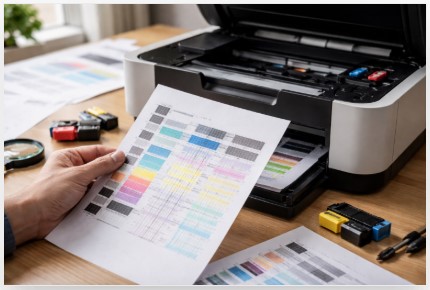
Color Test Page – Complete Checklist for Printer Calibration
Ever printed a photo and found green faces? I see this all the time.
Last month, a client brought me a $1,200 photo printer they were about to throw out. They’d replaced ink cartridges three times—$240 wasted—because colors kept coming out wrong.
Here’s what I’ve learned after ten years fixing printers: most problems aren’t hardware failures. They’re calibration issues fixable in under fifteen minutes with a single color test page.
This checklist covers everything from printing your first test page to diagnosing exactly what’s wrong. By the end, you’ll save money on ink, avoid unnecessary repairs, and finally get prints that match your screen.
Quick Summary: A color test page is your printer’s diagnostic tool. Learning how to use it for printer calibration helps you identify clogs, color issues, and alignment problems before wasting ink or calling for repairs. Most fixes take less than 15 minutes.
What Is a Color Test Page and Why Does It Matter?
What is a color test page isn’t a random pattern to waste ink. It’s a diagnostic report—like your car’s check engine light, but way more specific.
What Exactly Is a Printer Test Page?
A printer test page reveals three things: your printer’s overall health, color accuracy, and alignment.
Those blocks of color, gradient bars, and text samples expose specific problems. A missing color bar means a clogged nozzle. Blurry text means alignment issues. A gray bar that looks pink means color calibration is off.
ISO 24712 defines five test pages manufacturers use to measure ink consumption. When you print one, you’re using the same tool the pros use.
Why Your Printer Needs Calibration
Your monitor and printer speak different color languages. Monitors use RGB (red, green, blue)—light-based color. Printers use CMYK (cyan, magenta, yellow, black)—ink-based color. Getting them to agree takes calibration.
Humidity changes how ink spreads. Different paper absorbs ink differently. Even ink age affects output.
I’ve seen brand-new printers spit out magenta-tinted grayscale because factory calibration was off. A color calibration test page catches this immediately.
The Cost of Ignoring Calibration
Ignoring calibration costs real money. A small business client was throwing away $60 of custom labels every month because brand colors printed wrong. One color accuracy test page revealed the issue. One calibration session fixed it permanently.
When you don’t calibrate, you end up:
- Printing twenty photos before realizing colors are wrong
- Wasting expensive paper on reprints
- Spending hours frustrated with random fixes
According to Consumer Reports , the average household spends over $100 annually on ink alone, and printer reliability varies significantly by brand and model. Running a test page regularly can catch problems before they turn into expensive repairs or wasted supplies.
Most clients who ignore calibration waste $200–$300 a year on ink and paper they didn’t need. A color test page costs nothing but a minute of your time, and printing a test page before big jobs can save you from embarrassing print failures.
How to Print a Color Test Page (4 Methods)
Method 1: Using Windows Settings
Press Windows key + I to open Settings. Click Bluetooth & devices, then Printers & scanners. Select your printer, click Printer properties, then click Print Test Page on the General tab.
The printer spits out the standard Windows test page with color bars and text samples.
Method 2: Using Control Panel
Press Windows + R, type control printers, hit Enter. Right-click your printer icon and choose Printer properties. Click Print Test Page on the General tab.
If an error pops up, that tells me something specific about your connection or driver status.
Method 3: Printing Directly from the Printer
Look for Menu or Setup on your printer’s control panel. Navigate to Maintenance, Tools, or Reports. Select Print Test Page or Printer Report, then hit OK or Start.
This takes the computer completely out of the equation. If the test page prints fine but documents won’t, the problem is in your computer settings.
Method 4: Online Color Test Pages
Printertest.org has over 40 browser-based tests for display and printer diagnostics. Design Burners offers grayscale and black level testing. I also keep a collection of color print test pages saved on my shop computer for tricky color problems.
Use these when you suspect monitor issues. If your color test page for printer looks perfect but photos still look wrong on screen, the mismatch is on the monitor side.
A client once swore their printer was broken. I printed a test page directly from the printer—it came out perfect. Their document settings had been set to “grayscale” for six months.
If your color test page not working after trying these, we’ll cover troubleshooting next.
How to Read a Color Test Page: Visual Diagnosis Guide
How to read a color test page is the most valuable skill I teach. Once you know what to look for, you stop guessing and start fixing.
The Anatomy of a Standard Test Page
Color bars (cyan, magenta, yellow, black) should be solid and consistent—no streaks, no missing sections.
Grayscale gradient should transition smoothly from black to white. If you see pink, blue, or green in the gray, your color accuracy test page just told you your color balance is off.
Text samples should be sharp—no blurring, ghosting, or double vision.
Alignment patterns (crosshairs or circles) should line up perfectly. If not, your printer’s registration is misaligned. For a deeper dive, check out our guide on the Alignment Print Test Page .
Common Problems and What They Mean
| Problem Pattern | What It Indicates | Solution Priority |
|---|---|---|
| Missing entire color | Empty cartridge or clogged print head | High – check ink levels |
| Thin vertical lines | Clogged nozzles (inkjet) or dirty corona wire (laser) | Medium – run cleaning cycle |
| Horizontal streaks | Drum or toner issues (laser) or clogged nozzles (inkjet) | Medium – inspect drum unit |
| Ghosting/double print | Fuser or alignment issues | High – check registration |
| Gray background | Over-toning or corona wire issue (laser) | Low to Medium |
| Blurry outlines | Color registration misalignment | Medium – run calibration |
Note for laser printer owners: Some problems like nozzle checks and ink-based cleaning cycles don’t apply to you. Skip those and focus on drum cleaning, toner redistribution, and fuser checks.
The Grayscale Test
Look at the gray bars first. Neutral grays should have no color tint. If they look warm (reddish) or cool (bluish), your color balance is off.
Check under good lighting at normal viewing distance. A color test page with grayscale reveals color casts that affect every print you make.
What a Perfect Test Page Looks Like
- Solid, unbroken color bars
- Smooth grayscale gradient with no tint
- Sharp, crisp text at all sizes
- Perfectly aligned crosshairs
- No stray dots, streaks, or smudges
A graphic designer hauled her $3,000 printer into my shop convinced it was defective. The test page showed perfect colors but registration was off by a hair. Thirty seconds of auto-calibration fixed prints that had been “off” for months.
Troubleshooting: Fix Common Color Test Page Issues
I’ve seen every problem on this list hundreds of times. Most have simple fixes you can do right now.
Problem: No Color Printing (Only Black/Grayscale)
First, check document settings. Look for “Print in Grayscale” or “Black and White” in your print dialog. I’ve seen people accidentally leave this checked for months.
If that’s not it, run a nozzle check from your printer’s maintenance menu. If it’s missing specific colors—blue but no red or yellow—you’ve got a cartridge or print head issue.
Workshop trick: remove each cartridge and put it back in. Sometimes the contacts just need a fresh connection.
Problem: Vertical Lines or Streaks
Black or colored vertical lines usually mean a dirty corona wire or drum issue (laser) or a clogged print head (inkjet). White vertical lines mean clogged nozzles or debris.
Run your printer’s cleaning cycle once or twice. For laser printers, check the drum and corona wire instead. Reprint the test page. If lines persist after three cycles, the print head may need replacement.
According to Epson’s official support documentation , you should run a nozzle check first, then a cleaning cycle, and never run more than three cleaning cycles in a row to avoid wasting ink and potentially damaging the print head.
Problem: Horizontal Lines or Bands
With inkjets, this is usually clogged nozzles—run cleaning cycles. With lasers, it’s often the toner cartridge or drum. The pattern repeats every 3-4 inches.
Remove the toner cartridge and gently rock it side to side. A gentle tilt redistributes toner inside. I’ve revived plenty of “empty” cartridges this way.
Problem: Ghosting or Double Printing
Text and images casting shadows typically means your fuser unit is struggling or registration is off. Check your printer’s registration calibration setting.
I had a client call in a panic. Their printer was “haunted.” One fuser reset fixed it in thirty seconds.
Problem: Blurry or Fuzzy Print
When why is my color test page blurry comes up, start with paper settings. Printing photo paper on the “plain paper” setting makes ink sit on top instead of absorbing properly.
Also check for stuck label residue on rollers. Clean with isopropyl alcohol and a lint-free cloth. Takes two minutes.
Problem: Repeating Dots or Marks
Grab a ruler. Marks 3-4 inches apart mean a stuck label or debris on a roller. Marks 10-12 inches apart mean your drum or transfer belt is wearing out.
Inspect rollers for anything stuck. A tiny piece of label can cause marks for hundreds of pages.
When to Call a Professional
Call someone like me when:
- Three cleaning cycles don’t improve anything
- Error codes keep coming back after power cycling
- You see physical damage to the print head or fuser
- DIY replacement parts cost more than half your printer’s value
A law office had feed problems across three floors. The staff thought printers were dying. It was one batch of mislabeled paper. One box of the correct paper saved them $4,000 in service calls.
Sometimes the problem isn’t what you think. That’s why color test page not working issues can drive you crazy—the page itself is telling the story.
Advanced Calibration: Beyond the Basic Test Page
You’ve mastered the basics. Now let’s go further. For designers and photographers who need colors that match the screen, the standard test page is just the beginning.
The Difference Between Printer Test Pages and Calibration Tools
Printer test pages diagnose hardware problems—clogged nozzles, misaligned heads, empty cartridges. They answer “is something broken?”
Calibration tools adjust your printer’s color output to match standards. They help your printer understand what “red” really means.
For professional results, you need both.
Using Online Calibration Tools
AllColorScreen.com has 40+ free browser utilities for display and printer testing—dead pixel detection, color accuracy, everything.
For the best color test page for OLED, the Black Screen Tool is my go-to. Fullscreen tests detect burn-in and check for uniformity.
Color.review checks contrast ratios for accessibility, following WCAG standards.
Grayscale and Black Level Calibration
Use a test pattern with 10% increment gray bars—from pure black to pure white. Under good lighting, every bar should look purely neutral. No warmth. No coolness. Just gray.
If you see red in shadows or blue in highlights, adjust RGB levels until everything balances. This affects every color print you make.
Manufacturer-Specific Calibration
Brother printers: Maintenance 71 test pattern shows thin horizontal striations. That’s normal. I’ve had clients almost return printers because of this.
HP printers: HP Toolbox gives granular control over color settings. For step-by-step guidance, check out the HP Printer Test Page guide.
Canon printers: Canon Print Studio Pro is designed for photo matching. For serious color test page for photo editing, this bridges screen-to-paper gaps better than anything else.
Epson printers: Epson Status Monitor —comes with Epson drivers. It checks for updates and lets you know when something’s available.
The Monitor-Print Matching Workflow
First, calibrate your monitor using color test page for graphic design patterns. Get your screen accurate before touching the printer.
Print a test page with default settings. Compare under good lighting. Too dark? Too warm? Too cool?
Adjust, print, compare. Repeat until you hit about 95% match. Save those settings as a custom profile.
A professional photographer spent $500 on premium paper trying to match her screen. After proper calibration of both monitor and printer, she got perfect matches on standard paper. That $500 went back in her pocket.
Color test page for photo editing isn’t just about fixing problems. It’s about making your tools work together. When your monitor and printer speak the same color language, magic happens.
Conclusion
Key Takeaways
- A color test page is your printer’s health report. Learn to read it, and your printer can’t hide problems.
- Most “broken” printers just need calibration, not replacement. Fifteen minutes saves hundreds of dollars.
- Three ways to print: Windows Settings, Control Panel, or directly from the printer.
- Visual diagnosis stops you from buying cartridges you don’t need.
- Pro-level calibration gives designers and photographers true monitor-to-print matching.
Final Thought
That $50 ink cartridge you were about to buy? Print a printer test page first. A test page would’ve caught a clogged nozzle in thirty seconds.
Bookmark this guide. You’ll need it next time something looks weird coming out of your printer.
I’ve put together a free printable collection of the best free color test page online options—the same ones I use in my workshop. Grab them from the link below.
If you’re staring at a test page and something looks off, drop a photo in the comments. I check them personally and I’ll help you figure it out.
Now go print that test page.
FAQ
How do I print a color test page in Windows 11?
Open Settings > Bluetooth & devices > Printers & scanners. Select your printer, click Printer properties, then click Print Test Page. Or press Windows + R, type control printers, right-click your printer, and select Printer properties.
What does a printer test page tell you?
It reveals nozzle clogs (missing colors), alignment issues (blurry text), color accuracy (grayscale tint), and hardware problems like repeating dots or streaks.
Can I print a test page without ink?
No. Printers require ink or toner to complete a test page. If it prints blank, check ink levels first—empty cartridges are the most common culprit.
Why is my color test page missing red and yellow?
You likely have a clogged print head or empty magenta and yellow cartridges. Remove and reinstall cartridges first. Then run the cleaning cycle 1-2 times from the maintenance menu.
How often should I print a color test page?
Monthly for home use. Weekly for professional use. Print immediately when you notice color shifts, streaks, or blurry output.
Does printing a test page waste ink?
No. Test pages use minimal ink compared to printing multiple incorrect photos. One test page can save 5-10 wasted prints if it catches a problem early.
What is the best free online color test page?
AllColorScreen.com offers 40+ free browser-based tools for monitor and printer testing. Design Burners provides professional grayscale and black level tests.
How do I fix a blurry color test page?
Check paper type settings first. Then run alignment calibration from the maintenance menu. Finally, inspect rollers for stuck label residue.
Disclaimer: This article is based on personal expertise and industry knowledge gained over more than a decade. Always consult your printer’s manual or seek help from a certified technician for model-specific issues.

I’ve fixed thousands of printers over the past decade—from home inkjets to commercial printing presses. Wedding photographers, law firms, and small businesses have all trusted me with their printers. Every guide comes from real workshop experience, not theory.
Very educational.