Color Print Test Page: How to Fix Print Quality Fast
You know that feeling when you print something important—like a batch of flyers for a client or your kid’s school project—and it comes out looking like a muddy mess?
Yeah. I’ve been there. Thousands of times.
Just last month, a local real estate agent stormed into my shop waving a stack of listings. “Tobby, my colors are all wrong. These look like puke green, not forest green. I’ve got an open house in three hours.”
I grabbed his file, took one look, and asked the obvious question: “When’s the last time you ran a color print test page?”
Blank stare.
Five minutes later, we printed one. The problem was obvious immediately—his magenta was completely clogged. One cleaning cycle later, his flyers looked perfect. He made it to his open house with time to spare.
Here’s the thing I’ve learned after a decade of fixing printers: the test print page is always the first tool I grab. Always. It’s like a doctor taking your temperature. You don’t start guessing before you check the basics.
In this guide, I’m going to walk you through everything I know about printer diagnostics using that simple sheet of paper. You’ll learn how to print a color test page on any printer, how to read the results like a pro, and exactly what to do when something’s wrong.
Because here’s the truth—most print problems are easy to fix. You just need to know what you’re looking at.
And by the time we’re done, you will.
So grab a coffee. Let’s figure out what your printer’s trying to tell you.
What is a Printer Test Page & Why Do You Need One?
So what exactly is a printer test page?
Here’s the simplest way to think about it: it’s not just a random image your printer spits out. It’s a diagnostic report. A snapshot of your printer’s health, printed in ink.
I tell my customers all the time—your printer is trying to talk to you. The color printer test page is its language.
Back in the dot-matrix days (yes, I’m old enough to remember them), test pages were just grids of characters. You’d run one to make sure all the pins were firing. Simple stuff.
Today? They’re sophisticated. Modern test pages check everything—color accuracy, head alignment, nozzle function, you name it. Some are built into your printer’s memory. Others you can download as PDFs. But they all serve the same purpose: showing you what’s working and what’s not.
So what is a test page, really? It’s a controlled pattern designed to reveal specific problems.
When I run one in my shop, I’m looking for three main things:
- Are all colors present and correct?
- Are there gaps or lines in solid areas?
- Is text sharp or blurry?
That’s it. Simple observations that tell me exactly where to start.
The Three Things Your Test Page Checks
Printer nozzle check is probably the most common test. Your print head has hundreds of tiny nozzles—think of them like miniature shower heads. Each one sprays ink. When one clogs, you get white lines or missing colors. The nozzle check pattern reveals this instantly.
Printer calibration is different. That’s checking if colors line up properly. Ever printed something and noticed the text looks slightly double? That’s misalignment. A calibration test shows you how far off things are.
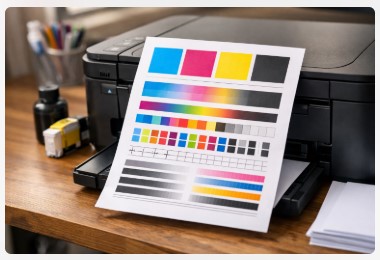
And then there’s CMYK testing. CMYK stands for cyan, magenta, yellow, and black—your printer’s four ink colors. A good test page will show you solid blocks of each color. If one looks faded or streaky? You know exactly which cartridge is causing trouble.
I’ve got a client—runs a small marketing firm—who calls me every time their colors look “off.” First question I always ask: “Did you run a test page?” Nine times out of ten, they haven’t. And nine times out of ten, that test page shows me the problem in about thirty seconds.
Last time, it was yellow completely missing. Popped in a new cartridge, ran another test, and bam—perfect. Saved them a service call and two days of waiting.
That’s the power of a simple sheet of paper.
How to Print a Color Test Page: 4 Simple Methods
Alright, let’s get down to business. How do I print a color test page?
I’m gonna show you four ways. Pick the one that fits your setup.
But first—quick story. Last year, a guy drove an hour to my shop because his printer “stopped working.” Said he tried everything. I asked if he’d run a test page. He looked at me like I had three heads. Two minutes later, we printed one. Printer was fine. His USB cable was half-unplugged. He drove an hour for that.
Moral of the story? Always start with a test page. It saves time. And gas money.
Method 1: Printing from Windows 11/10
This is the method most of my home users need. It’s baked right into Windows.
On Windows 11:
- Hit the Start button and type “printers”
- Click “Printers & scanners”
- Find your printer in the list and click on it
- Hit “Print test page”
That’s it. Your printer should wake up and spit one out.
On Windows 10:
- Go to Settings > Devices > Printers & scanners
- Click your printer
- Hit “Manage” then “Print test page”
Takes about fifteen seconds. I time it.
One thing to watch for—if nothing happens, Windows might be trying to talk to the wrong printer. Double-check you clicked the right one. I’ve had clients print test pages to printers in different buildings. It happens.
Method 2: Printing from macOS
Mac users? I got you.
How to print a test page on macOS is actually dead simple:
- Open System Settings (or System Preferences on older Macs)
- Click Printers & Scanners
- Select your printer from the list
- Click “Options & Supplies”
- Hit “Print Test Page”
Done.
Apple makes this pretty foolproof. But here’s the catch—if your Mac can’t see the printer at all, you’ve got a connection issue, not a printer issue. Check WiFi or that USB cable before you panic.
Method 3: Using the Printer’s Built-in Self-Test
This is my favorite method. Why? It bypasses your computer completely.
Every major printer brand builds a self-test right into the machine. You don’t need drivers. You don’t need software. You don’t even need a computer.
The exact button combo varies by brand, but here’s the general idea:
- HP: Hold the Power button and the Cancel button together for a few seconds
- Canon: Press and hold the Resume button until the power light flashes
- Epson: Hold the Stop button for about five seconds
- Brother: Press the Menu button, navigate to “Print Reports,” then “Print Quality”
When in doubt? Check your manual. Or do what I do—Google “[your printer model] self-test page” and watch a 30-second video.
Why do I love this method? Because if the built-in test prints perfectly but your document from Word looks terrible, you’ve ruled out the printer. The problem is your computer, your software, or your connection. That narrows things down fast.
If you’re on an Epson, don’t miss our Epson Printer Test Page – Quick Fix Guide. It covers common issues step by step.
Method 4: Printing a Downloadable PDF Test Page
Sometimes you want more than the basic built-in test. Sometimes you need a proper diagnostic.
That’s when I send people to download a print test page PDF. There are tons out there—some from printer manufacturers, some from tech sites, some from weirdos like me who make their own.
The good ones include:
- CMYK solid color blocks
- Gradient ramps (smooth fades from light to dark)
- Fine detail patterns
- Alignment grids
I keep a folder of them on my shop computer. When a client comes in with a tricky color problem, I’ll run two or three different test pages. Each one tells me something different.
Quick tip: save a few to your desktop right now. Then you’ve always got them, even if your internet goes down. Future you will thank present you.
The Diagnostic Toolkit: 5 Specialized Test Pages
Here’s something most guides won’t tell you.
Not all test pages are the same.
I learned this the hard way about eight years ago. A client brought in a high-end photo printer. Colors were way off. I ran the standard built-in test—looked fine. Spent two hours chasing software issues, reinstalling drivers, the whole nightmare.
Turns out the built-in test wasn’t detailed enough to catch the problem. I needed a specific CMYK test print page to see what was really happening.
Now I keep a whole toolkit of different test pages. Each one catches something different.
Let me walk you through my five favorites.
The Nozzle Check Pattern
This is your first line of defense. The printer nozzle check pattern looks like a grid of tiny lines or boxes in each color.
I use this when a client says “my prints have white lines running through them.”
Here’s what you’re looking for:
- Gaps in the lines? Clogged nozzle.
- A color completely missing? That cartridge might be dead.
- Everything looks solid and complete? Your nozzles are fine. Move on.
The CMYK Solid Block Test
This one’s simple but powerful. Big blocks of cyan, magenta, yellow, and black.
The print quality test page often includes these. They reveal issues the nozzle check might miss.
Last month, a graphic designer came in frustrated. Her prints looked “muddy.” The nozzle check looked perfect. But when I ran solid color blocks? Her cyan block had faint horizontal banding across it.
That’s a color banding issue. Usually means the print head is slightly misaligned or there’s a subtle feed mechanism problem. Ran an alignment routine, and bam—problem solved.
What to watch for:
- Even color across the whole block? Good.
- Streaks or lines? Banding issue.
- Color looks different than it should? Might be wrong paper type or settings.
The Gradient/Ramp Test
This is my secret weapon for photo printers.
A gradient test shows smooth transitions from light to dark in each color. Think of it like a sunset fading from deep blue to pale sky.
When this test looks bad, you get “posterization”—where smooth fades turn into visible bands of color. Like a bad Instagram filter from 2012.
I had a photographer client ready to throw his $1,200 printer out a window because his landscape prints looked “blocky.” One gradient test showed the problem instantly. His print driver was set to “draft” mode. Changed it to “best,” and his fades were smooth again.
The fix cost nothing. The frustration cost him three sleepless nights.
The Alignment Grid
Ever printed something and the text looks slightly double? Like a cheap 3D movie?
That’s misalignment. And the alignment grid catches it every time.
This test prints a series of lines or patterns. You look at them and pick which one looks sharpest. Then you tell the printer “use that setting.”
Sounds technical. It’s not. Your printer software usually walks you through it.
I use this test when:
- Text looks blurry
- Colors have “ghost” edges
- Fine lines print thicker than they should
The Comprehensive PDF Test Page
This is the Swiss Army knife. One page that does a bit of everything.
A good comprehensive printer calibration sheet includes:
- Nozzle check patterns
- Color blocks
- Gradient ramps
- Fine detail sections
- Skin tone samples (hardest colors to get right)
- Grayscale ramp
I keep one saved on my shop computer and on a USB drive. When a new client walks in with a mystery problem, this is what I run first.
Why? Because it gives me everything in one shot. I can scan the whole page in about ten seconds and know exactly where to start digging.
You can find these online for free. Epson has good ones. Canon too. Or use the one I link to in the download section at the end of this guide.
How to Read Your Test Page: A Technician’s Guide
Okay, you’ve got your test page in hand.
Now what?
I see folks stare at these things like they’re ancient hieroglyphics. They know something’s wrong, but they can’t figure out what.
Here’s the secret—your test page is telling you exactly what’s broken. You just need to know how to listen.
I learned this lesson the hard way about five years ago. A customer brought in a printer with what looked like color printer problems. Faded blues, weird streaks. I spent an hour cleaning print heads, swapping cartridges, the whole deal. Nothing worked.
Turns out I wasn’t reading the test page right. The problem wasn’t the printer at all—it was their cheap off-brand paper soaking up ink weird. Switched to better paper, problem gone. I felt like an idiot.
Now I teach everyone the same thing: read the page first. Touch the printer second.
Decoding the Nozzle Check: Gaps and Missing Colors
Grab your nozzle check pattern. This is usually the first thing on most test pages.
Here’s what you’re looking for.
Perfect pattern: Every line is solid. Every color block is complete. No gaps. No streaks. If this is what you see, your print head is fine. Stop messing with it.
Gaps in the lines: See those white stripes running through the pattern? That’s a clog. One or more nozzles aren’t firing. Think of it like a lawn sprinkler with a couple heads blocked—you get bare spots.
Completely missing color: If a whole block is blank or barely there, that nozzle set is completely clogged. Or your cartridge is empty. Or dead. Check ink levels first, then run cleaning cycles.
Streaks or smears: This one’s tricky. Could be a clog. Could also be dirty rollers or too much ink on the page. Look at the direction of the streaks. Horizontal? Usually a carriage issue. Vertical? Often a paper feed problem.
I had a customer last week convinced his printer was dying. Nozzle check showed one tiny gap in yellow. One cleaning cycle later, perfect. He was ready to buy a new printer over a 30-second fix.
Analyzing Color Blocks for Banding Issues
Now look at the solid color blocks. Usually you’ll see big squares of cyan, magenta, yellow, and black.
Smooth, even color? You’re good. Move on.
See those faint horizontal lines across the block? That’s banding. And it’s one of the most annoying fix printer streaks problems out there.
Banding happens for a few reasons:
- Slight misalignment (easy fix—run alignment)
- Print head height too high (check your printer settings)
- Paper type mismatch (are you using photo paper on plain paper setting?)
- Low ink (printer can’t lay down enough color)
Here’s a trick I use: run the block test on plain paper first. Then run it on the paper you actually use. If banding shows up on one but not the other? It’s a paper problem, not a printer problem.
Uneven edges or “fuzzy” blocks? Your alignment might be slightly off. We’ll cover that next.
Colors look washed out or faded? Check your print settings first. If you’re in “draft” mode, your printer’s holding back ink on purpose. Switch to “normal” or “best” and try again.
Reading the Alignment Pattern for Blurry Text
This one’s easy to spot. If your text looks double or fuzzy, check the alignment pattern.
Most alignment tests print several sets of lines with numbers under them. You pick the set that looks sharpest and enter that number in your printer software.
What sharp looks like: Clean, single lines. No shadows. No double images.
What blurry looks like: Lines with ghost edges. Text that looks like it’s moving. Think 3D without the glasses.
Here’s something wild—I had a client once who’d been living with printer printing blurry text for six months. Thought that’s just how printers were. Ran an alignment, took two minutes, and his text was razor sharp. He was thrilled and furious at the same time.
Pro tip: Run alignment after you change cartridges. Every time. I don’t care if the printer says you don’t need to. Do it anyway. Saves headaches later.
Still blurry after alignment? Check if your cartridges are seated properly. A loosely clicked-in cartridge can wiggle during printing. That wiggle? Shows up as blur on the page.
Faded prints alongside blurry text? Could be a clog. Could also be your print head is physically damaged. If cleaning and alignment don’t fix it, you might need professional help. Or a new printer, honestly.
5 Common Print Problems & How to Fix Them
Alright, you’ve run your test page. You’ve spotted the issue.
Now let’s fix it.
I’m going to walk you through the five problems I see most often in my shop. These are the ones that walk in the door daily—sometimes hourly.
And I’ll give you real numbers. How long each fix takes. What it might cost. No fluff.
Problem: White Lines or Gaps
This is the #1 complaint I get. You print something, and there are white lines running through it like a bad photo filter.
What’s happening: Your print head nozzles are clogged. Simple as that.
Run Print Head Cleaning Cycle (1-2 cycles)
First thing to try. Go into your printer software, find the maintenance tab, and hit “Clean Print Head.” Or “Nozzle Check.” Depends on your brand.
Time: About 2-3 minutes per cycle
Cost: Free, but uses a tiny bit of ink
Here’s the thing—one cycle is usually enough. If not, wait 10 minutes for the ink to soak, then try a second. I tell my clients never to run more than two in a row. You’ll just waste ink and potentially damage things.
Deep Cleaning (use sparingly)
Still seeing gaps? Time for deep cleaning.
This is like the nuclear option. It pushes more ink through at higher pressure to blast out stubborn clogs.
Time: 5-8 minutes
Cost: Still free money-wise, but it’ll empty your cartridges faster
I only recommend deep cleaning if regular cleaning didn’t work. And never do it more than once without letting the printer rest. You can burn out a print head if you’re not careful.
Manual Cleaning (advanced users)
This is where I earn my keep.
If software cleaning fails, you can sometimes clean the print head by hand. But warning—this voids warranties and can break things if you’re clumsy.
You’ll need:
- Distilled water (not tap water)
- Lint-free cloths
- Latex gloves
- Patience
Remove the print head if your printer allows it. Soak the nozzles in distilled water for 10-15 minutes. Wipe gently. Let dry completely. Reinstall.
Time: 20-30 minutes
Cost: Maybe $5 if you need to buy supplies
I’ve saved hundreds of printers this way. But I’ve also killed a few. Be careful.
Problem: Colors Wrong or Faded
This one drives creative folks crazy. You design something perfect, print it, and it looks like a totally different thing.
Check Ink Levels and Replace Cartridges
Start simple. Open your printer software and check ink levels.
I can’t tell you how many times a client swore their cartridges were full. Then I check and they’re basically empty. Printer software lies sometimes. Or they’re using third-party carts that don’t report levels right.
Time: 30 seconds to check, 2 minutes to replace
Cost: New cartridges vary—$15 to $60 depending on your printer
Run Color Calibration
Most printers have a calibration routine. It adjusts how colors are laid down.
On Epson, it’s usually under “Maintenance” or “Utility.” On Canon, look for “Print Head Alignment.” On HP, it’s often called “Calibrate Color.”
Time: 3-5 minutes
Cost: Free
Check Print Settings (Draft vs. Best)
This one’s embarrassingly common.
If your printer’s set to “Draft” or “Economy” mode, it’s using less ink on purpose. Colors will look washed out. Switch to “Normal” or “Best” and try again.
Time: 10 seconds
Cost: Zero
I had a real estate agent last month printing gorgeous property flyers that looked dull. She’d accidentally set her printer to “Fast Draft” six months ago and never changed it back. Six months of faded prints for no reason.
Problem: Horizontal Banding
Those faint lines running across your page? That’s banding. And it’s annoying.
Check for Debris on Platen or Rollers
This is the fix most people miss.
Open your printer. Look at the platen—that’s the flat part the paper rolls over. Sometimes ink residue builds up. Sometimes paper dust. Sometimes a tiny piece of torn paper gets stuck.
Any of that can grab the paper as it moves, causing those horizontal lines.
Clean it with a lint-free cloth slightly damp with distilled water. Be gentle.
Time: 5 minutes
Cost: Free
While you’re in there, check the rollers too. Wipe them clean. If they’re shiny with paper dust, paper can slip. Slipping paper = banding.
Problem: Blurry or Double Text
Text looking like you need glasses? Let’s fix it.
Run Alignment Utility
This is always step one. Find “Print Head Alignment” in your software and run it.
The printer will print a pattern. You’ll pick the sharpest one. That’s it.
Time: 3-4 minutes
Cost: Free
Ensure Cartridges are Seated Correctly
Still blurry? Open that front cover.
Press down on each cartridge. Make sure they’re clicked in all the way. A loose cartridge can vibrate during printing. Vibration = blur.
I had a client drive two hours to my shop with blurry prints. I opened the cover, pushed one cartridge down until it clicked, and sent him home. He wasn’t thrilled about the drive, but hey—free fix.
Problem: No Print at All
This is the panic moment. You hit print and… nothing.
Check for Paper Jam
First thing. Even if you don’t see paper, open everything. Tiny scraps hide.
Time: 1-2 minutes
Cost: Free
Verify Printer is Online
Sounds dumb, but you’d be surprised.
Check your printer screen. Does it say “Offline”? Check your computer. Does it show the printer as “Paused” or “Offline”? Click “Resume” or “Use Printer Online.”
Time: 30 seconds
Cost: Free
Check USB/WiFi Connection
If it’s USB, unplug it and plug it back in. Try a different port.
If it’s WiFi, check if your printer’s connected to the right network. Sometimes routers update and printers get kicked off. Reconnect if needed.
Time: 2-3 minutes
Cost: Free, but maybe some cuss words
Alright, those are the big five. Run through these and you’ll solve 90% of print problems yourself. But what if none of this works? Don’t worry—I’ve got backup plans coming up.
Bonus: Free Downloadable Test Page PDF Bundle
You know what I love?
When someone hands me a tool that actually makes my job easier.
So here’s me doing that for you.
I’ve put together a bundle of five test pages. These are the exact ones I keep on a USB drive in my shop. The ones I grab when a client walks in with a mystery problem.
And yes—they’re completely free.
What’s in the Bundle
The Nozzle Check PDF
Perfect for those white line issues. Shows every nozzle in glorious detail. Run this first, always.
The CMYK Solid Block Test
Big, beautiful blocks of cyan, magenta, yellow, and black. When I suspect color printer test page pdf issues, this is what I use. Banding shows up instantly.
The Gradient Ramp
Smooth fades in every color. If your photos look posterized or blocky, this page catches it.
The Alignment Grid
Sharpness test on steroids. Use this when text looks blurry or colors have ghost edges.
The Comprehensive All-in-One
Everything above squeezed onto one page. Nozzle checks, color blocks, gradients, fine detail patterns, skin tones, grayscale. This is my go-to for new clients. Gives me a complete health snapshot in under a minute.
Why These Pages?
Because I made them the hard way.
Years ago, I’d hunt around for good test pages online. Some were fine. Most were trash. Bad resolution. Wrong color profiles. Useless patterns.
So I started building my own. Took patterns from manufacturer service manuals, tweaked them, tested them on dozens of printers. Kept what worked. Dumped what didn’t.
The pages in this bundle? They’ve been tested on:
- HP LaserJets and OfficeJets
- Canon PIXMAs and imagePROGRAFs
- Epson WorkForces and SureColors
- Brother all-in-ones
- Random no-name brands that walked through my door
They work.
A Quick Story
Last Christmas, a print shop owner called me in a panic. Big client. Rush job. Their proofs looked terrible.
I drove over with my USB drive. Popped it in. Printed the comprehensive test page.
Took ten seconds to see the problem—their cyan was completely misaligned. Ran an alignment, printed another test, perfect. Saved their $8,000 job and a very angry client.
That USB drive? Still in my pocket. Still has those same PDFs.
How to Get Them
Click the link below. Download the ZIP file. Extract the five PDFs.
Save them somewhere smart. Your desktop. A folder called “Printer Stuff.” A USB drive you keep in your drawer.
Then next time your printer acts up? You’ve got ammo.
[DOWNLOAD THE FREE TEST PAGE BUNDLE →]
So you’ve got the tools. You know how to use them. But what about the questions I hear every single day in my shop? Let’s hit those next.
Conclusion
Look, I’ll keep this short. You’ve got better things to do than read my rambling all day.
Here’s what I want you to remember:
A simple sheet of paper can save you hundreds of dollars and hours of frustration.
That color page printer test you just learned about? It’s not complicated tech wizardry. It’s just a tool. Like a thermometer for your printer. You check printer health first, then you fix what’s actually broken.
I’ve watched people throw away perfectly good printers because they didn’t know how to run a basic test. I’ve seen small businesses waste thousands on service calls for problems they could’ve fixed in five minutes.
Don’t be that person.
Next time your prints look weird, don’t panic. Don’t smash anything. Don’t order a new printer on Amazon at 2 AM.
Just print a test page.
Look at it. Really look. What’s it telling you?
- Gaps? Clean those nozzles.
- Wrong colors? Check your settings.
- Banding? Look for debris.
- Blurry? Run alignment.
Nine times out of ten, that’s all it takes.
One Last Thing
I put this guide together because I genuinely hate seeing people struggle with printers. They’re frustrating enough when they actually break. No need to suffer when they’re just being cranky.
If this helped you, do me a favor:
Download that test page bundle. Keep it somewhere safe. And next time a friend mentions printer problems, send them here. The more people who know this stuff, the fewer printers end up in landfills.
And hey—if you’ve got a weird problem I didn’t cover? Drop it in the comments. I read every single one. Some of my best fixes came from readers asking “what about this?”
Alright. Go fix that printer.
You’ve got this.
Frequently Asked Questions
I hear these questions daily in my shop. Some from beginners, some from folks who’ve owned printers for years. Here are the ones that come up most—along with answers that’ll actually help.
Why is my color test page missing one color?
I see this at least twice a week in my shop. Usually it’s a clogged print head nozzle. Run a nozzle check first—that’ll confirm it. Then do 1-2 cleaning cycles from your printer software. Wait about 10 minutes between cycles. If it’s still missing after that? Cartridge might be empty or the print head could be severely clogged. A client last month had missing magenta for three months before coming in. One deep clean fixed it. Three months of frustration for a 15-minute fix.
How often should I print a test page?
For home users? Honestly, only when something looks wrong. But my business clients? Different story. I tell them every two weeks, like clockwork. A marketing firm I work with prints one every Monday morning. Catches small issues before they become big ones. Saves them about $200 a year in emergency service calls. Prevention is cheaper than repair—always has been.
Where can I find a test page for my HP printer?
Two solid options here. First, go through your HP software on your computer—I covered the exact steps back in Section III. Second, grab our diagnostic PDF bundle below. The built-in hp printer test page is fine for basic checks. But our PDFs? They’ll show you stuff HP’s version misses. Like banding in gradients. Or slight color shifts. I use them on every HP that comes through my door.
What’s the difference between a nozzle check and a test page?
Great question. A nozzle check vs test page comparison is like asking about a blood test vs a full physical. The nozzle check is specific—it only shows if ink flows through each tiny nozzle. A full test page checks everything: color accuracy, alignment, gradients, detail reproduction. I run nozzle checks first when I suspect clogs. I run full test pages when I’m diagnosing weird problems. Both have their place.
My test page prints perfectly but my photos look bad. Why?
This one drives people crazy. And here’s the thing—it means your hardware is fine. Really. The issue is software or settings. You’re probably printing photos on plain paper in Draft mode. Or your image’s color profile doesn’t match your printer. I had a photographer ask “why are my photos printing bad” last month. Her test page looked perfect. Turned out she was editing in Adobe RGB but printing in sRGB. Quick setting change, problem solved. Check your paper type setting first. Then check color profiles.
Can I create my own test page?
Sure, you can. Open Paint, make some color blocks, print it. That’ll tell you something. But for real diagnostics? You need specific patterns. Precise gradients. Carefully spaced grids. That’s why I built our bundle—it reveals problems homemade pages miss. Like subtle banding. Or slight misalignments. Things you can’t see until you know what to look for. And if you’re trying to fix printer colors accurately, you need those precision patterns.
How do I fix colors that don’t match my screen?
This is the #1 question from designers. Your screen uses RGB. Your printer uses CMYK. They’re different languages. First, make sure you’re using the right paper profile in your printer driver. Second, calibrate your monitor if you haven’t in a while. Third, run our CMYK solid block test. Compare those printed blocks to what you see on screen. That gap? That’s what you’re fighting.
Why does my test page have lines through it?
Lines mean clogs or debris. Vertical lines? Usually clogged nozzles—run cleaning cycles. Horizontal lines? Often debris on rollers or platen. Check for paper scraps or built-up ink residue. I found a tiny staple in a client’s printer last year. No idea how it got there. Removed it, lines disappeared. Sometimes it’s that simple.
Got more questions? Drop them in the comments. I answer every single one—usually within a day or two. And if you haven’t grabbed the test page bundle yet, what are you waiting for?

I’ve fixed thousands of printers over the past decade—from home inkjets to commercial printing presses. Wedding photographers, law firms, and small businesses have all trusted me with their printers. Every guide comes from real workshop experience, not theory.