What Does Collate Mean When Printing? Complete Beginner’s Guide
You’re standing at the printer five minutes before a big meeting. Five copies of a 10-page report needed, fast. You hit print, grab the stack, and… page 1, page 1, page 1, page 2, page 2, page 2. Your heart just sinks.
I’ve watched this exact scene play out hundreds of times in my workshop. A single checkbox could’ve saved the day, but most folks don’t know what it does. That little box says “collate,” and understanding it can save you 15 to 30 minutes of grunt work every single time you print multiple copies.
So let’s fix that. I’m going to walk you through exactly what does collate mean when printing, show you collated vs uncollated examples side by side, and point you to that setting in your print dialog box. By the time we’re done, you’ll never dread multi-copy print jobs again. And hey, I might even throw in a story about the time a misprinted catalog turned into a collector’s item.
✅ Quick Summary
What does collate mean when printing? Collate means printing complete sets of a multi-page document in order. Print 3 copies of a 5-page report with collate on, you get: Set 1 (pages 1-5), Set 2 (pages 1-5), Set 3 (pages 1-5). With collate off, you get all page 1s, then all page 2s — leaving you to hand-assemble everything. The collate meaning in printer settings is simply organized sets versus stacks of identical pages. Run a printer test page sometime to see your default setting in action.
What Does Collate Mean When Printing? (The Simple Definition)
What does collate mean in plain English? It’s just a fancy word for gathering things in the right order. Think of it like making packets of baseball cards — you want each packet to have card #1, #2, and #3, not a stack of fifty #1s.
According to the University of Wisconsin’s printing glossary, collate simply means gathering pages in their proper order. That’s exactly what your printer does when you check that box.
Here’s how it works with your printer. Say you need 3 copies of a 3-page document.
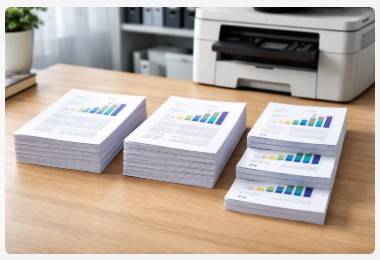
- With collate ON: Your printer gives you Page 1, 2, 3 — then another Page 1, 2, 3 — then a final Page 1, 2, 3. Three perfect, ready-to-staple packets. The collate printing setting just saved you from playing office assistant.
- With collate OFF: You get Page 1, 1, 1 — then Page 2, 2, 2 — then Page 3, 3, 3. Now you’re staring at three stacks of paper that need to be assembled by hand. Fun? Not even a little.
So what is collate really? It’s the difference between walking away from the printer and standing there shuffling papers like a casino dealer.
Let me tell you about a client from a few years back. Nice guy, ran a real estate firm downtown. He printed 50 copies of a 20-page proposal with collate off. Spent his entire lunch break sorting papers on the conference room floor. I walked by, saw the mess, and asked one question: “Did you check the collate box?” The look on his face said it all. A single click would’ve saved him 45 minutes and a whole lot of frustration.
Microsoft’s official documentation explains collate as a setting that determines whether your document prints in complete sets or stacks of identical pages. Pretty straightforward, right?
The collate meaning really is that simple. Organized sets versus organized chaos.
Collated vs. Uncollated Printing: A Head-to-Head Comparison
You’ve got the basic definition down. Now let’s put them side by side. Because seeing the difference? That’s where it really clicks. Here’s how these two stack up against each other.
Collated Printing Explained
What is collated printing? It’s when your printer acts like an efficient assistant, assembling complete document sets before spitting them out. Every copy comes out in perfect order — page 1 through whatever — ready to go.
I use collated printing constantly for reports, presentations, training manuals, and booklets. Basically anything that needs to look professional right off the printer. The beauty is you can grab a stack and start stapling immediately. No sorting, no cussing, no apologizing for handing someone page 3 before page 1.
Uncollated (Non-Collated) Printing Explained
Uncollated printing meaning is simpler than it sounds. Your printer prints every single copy of page 1 first. Then every copy of page 2. Then page 3. You end up with neat little stacks of identical pages.
This actually works great for certain jobs. Flyers, posters, single-page handouts — anything where you need stacks of the same page. I’ve got clients who run NCR (carbonless) forms this way. They need 50 copies of page 1, then 50 of page 2. Works perfectly.
The downside? You’re on sorting duty if you actually need complete sets. And trust me, that gets old fast.
Quick Comparison Table
| Feature | Collated Printing | Uncollated Printing |
|---|---|---|
| Page Order | Each copy is a complete set (1,2,3; 1,2,3) | Pages are in stacks (1,1,1; 2,2,2) |
| Best For | Multi-page documents (reports, booklets) | Single pages, flyers, forms |
| After Printing | Ready to use or bind | Requires manual sorting |
| Professional Look | High, ideal for clients | Low, needs assembly |
So when you’re weighing collate vs group printing (some printers call it “group” instead of uncollated), think about your end goal. Need polished, client-ready packets? Go collated. Need stacks of flyers to stuff in mailboxes? Uncollated’s your friend.
What is collate in printing really comes down to one question: Do you want to sort now or later?
When to Use Collate (And When to Turn It Off)
Now that you know what collate does, let’s talk about when it actually matters. Because honestly? Sometimes you want it, and sometimes it’s completely useless. Here’s the breakdown.
You Should Definitely Use Collate For…
Let me walk you through the jobs where collated printing isn’t just helpful — it’s basically required.
Office Reports & Proposals: When I print proposals for client pitches, I always collate. Every single time. It shows you pay attention to detail, that you respect their time. Nobody wants to sit across a conference table assembling handouts while the client watches. I learned that lesson early in my career.
Classroom Handouts & Tests: Teachers deal with enough chaos. Printing uncollated tests means standing at a table for twenty minutes assembling packets while students get restless. Collate saves the day — every kid gets a complete packet, period.
Training Manuals & Booklets: Instructional content needs to flow. Page 3 means nothing if you haven’t read page 2. When I’m printing multiple copies collated for new employee training, it keeps everything in the right sequence. No confused looks, no “wait, this page goes where?”
Legal & Business Documents: Missing a page in a contract isn’t just embarrassing — it’s a liability. I’ve got law firm clients who won’t print anything without collate enabled. Prevents misfiling, prevents mistakes, prevents headaches.
You Can Skip Collate When…
Now here’s where you can breathe easy and turn that setting off.
Single-Page Documents: Printing flyers for a bake sale? Posters for a concert? Collate does absolutely nothing for you. One page is one page. Save the setting for when it matters.
Stacks for Manual Assembly: Sometimes you genuinely need stacks of the same page. Maybe you’re inserting page 1 into 50 different binders, then page 2 later. Uncollated gives you exactly that — neat piles ready for handwork.
Labels or Single Copies: Printing one copy of anything? Collate settings don’t even apply. The printer just gives you your document in order regardless.
The trick with when to use collated printing is simple: Ask yourself what happens after the paper comes out. If you need complete packets ready to go, collate. If you’re okay sorting or working with single pages, skip it.
For professional document printing, collate isn’t optional — it’s the standard. Same goes for collate for reports and presentations. And if you’re doing collate in photocopying at a copy shop, definitely leave it on unless you specifically need stacks.
Makes sense, right? Next up, let’s actually find that setting on your computer.
How to Turn On Collate in Printer Settings (Step-by-Step)
Alright, enough theory. Let’s get your hands on that setting. I’ll show you exactly where to click on Windows and Mac so you never miss it again.
Finding the Collate Option
Alright, let’s get practical. The collate setting lives in the same place every time — that print dialog box that pops up when you hit Ctrl+P on Windows or Cmd+P on Mac. Simple enough, right?
But here’s the thing. Different programs sometimes hide it in slightly different spots. Microsoft Word shows it one way, Adobe Reader another, your web browser something else. Don’t let that throw you. Once you know what you’re looking for, you’ll spot it in seconds.
Step-by-Step for Windows Users
Step 1: Open your document and press Ctrl + P. The print dialog appears.
Step 2: Look for a section labeled “Copies.” This is almost always where the collate option hangs out.
Step 3: Find the collate option in printer settings. It’s usually a checkbox or a little toggle button. Sometimes you’ll see two small icons — stacked pages showing the difference between collated and uncollated. Click the one that shows pages in order.
Step 4: Check that box. Turn it ON. You should see it highlight or show a checkmark.
Step 5: Type in how many copies you need. Then hit Print and walk away.
I tell my clients this all the time: Make it a habit. Every time you print multiple copies, glance at that collate box. After a week, you won’t even think about it.
Step-by-Step for Mac Users
Step 1: Press Cmd + P. Print dialog opens up.
Step 2: Here’s the trick — if you see a bare-bones menu, click “Show Details.” Mac hides the full options by default. Gotta expand it.
Step 3: Look near the “Copies” field for the collate printing settings. It might say “Collated” with a checkbox, or show those little stacked page icons.
Step 4: Check that box. Make sure it’s selected before you print.
Step 5: Confirm your copy count and send it.
Troubleshooting Tip
I get asked about this weekly. “Tobby, why’s my collate option grayed out?”
Here’s the deal. If that box is ghosted and unclickable, you’re probably not printing to a real printer. Check what device is selected at the top of the print dialog box. If it says “Save as PDF” or “Microsoft Print to PDF” or some image format, that’s your problem. Those aren’t physical printers — they’re digital converters. They don’t need collate because they’re not spitting out paper.
Select your actual printer from the dropdown. Bet that collate box lights right up.
Another thing I’ve seen — outdated printer driver settings can mess with this too. If collate should be available but isn’t, head to your manufacturer’s website and grab the latest driver. Takes five minutes and fixes a ton of weird issues.
Once you’ve got collate figured out, how to collate pages becomes automatic. You’ll never accidentally print 50 uncollated copies again. Trust me, your future self will thank you.
Why Your Printer Is Not Collating Properly (And How to Fix It)
So you’ve found the collate box, checked it, and… nothing. Or pages come out jumbled. Been there. Let’s walk through why this happens and how to get things back on track.
Common Collation Problems and Solutions
Problem: Pages are printing in the wrong order
You selected collate, but your printer spits out page 2, then 1, then 3. What gives?
I see this most often with big, graphics-heavy files. The printer’s memory gets overwhelmed and starts dumping pages as soon as it processes them, not in the order you expect. Think of it like a short-order cook swamped during lunch rush — things come out when they’re ready, not necessarily in sequence.
Fix: Try printing in smaller batches. Instead of 50 copies, do 10 at a time. Let the printer breathe between jobs. You can also lower the print quality to draft mode temporarily. Smaller file size means less memory strain. I had an architect client last month with 100-page blueprint sets doing exactly this. Switched to batches of 5, problem vanished.
Problem: The collate option is missing or greyed out
This one drives people crazy. You know collate exists, but your computer acts like it doesn’t.
Fix: First, check your copy count. Collate only matters when you’re printing multiple document copies. If you’ve got “1” in the copies field, collate will often gray out automatically. Bump it to 2 or more and watch that box light up.
If that’s not it, your printer driver is probably outdated. Head to the manufacturer’s website — HP, Epson, Canon, whoever — and grab the latest driver. I promise, updating drivers fixes more weird printer nonsense than almost anything else.
Problem: The printer is incredibly slow with collate on
You hit print, then wait. And wait. And wait some more.
Fix: Here’s the truth — collate is slower by design. Your printer has to process the entire document layout for every single set. With collate off, it processes page 1 once and prints all copies in one go. With collate on, it processes pages 1 through 20, prints set one, then processes pages 1 through 20 again for set two. More work equals more time.
The batch printing trick helps here too. Ten sets of five copies prints faster than fifty sets of one. Your printer’s memory thanks you.
Problem: The print spooler keeps crashing
You send a job, the printer does nothing, and your computer throws an error. Fun times.
Fix: A corrupted print job can jam up the whole system. The print queue (or print spooler) gets stuck on a bad file and refuses to move forward.
Here’s what I tell my walk-in clients. Open your computer’s devices and printers. Find your printer, right-click, and select “See what’s printing.” In that window, click “Printer” at the top and choose “Cancel All Documents.” Wait 30 seconds, restart the print spooler service if you’re comfortable with that, or just restart your computer. Fresh start, fresh print job.
Problem: Page sequence gets scrambled with duplex on
Sometimes collate with duplex printing creates chaos. Pages print on both sides, but the order makes no sense.
Fix: Check your print settings carefully. Some printers handle duplex and collate automatically. Others need you to tell them both separately. Make sure you’re not double-selecting anything. And always print one test copy first. Saves paper, saves frustration.
Look, printers are finicky machines. I’ve been working on them for over a decade and still get surprised occasionally. The difference between manual collating vs automatic comes down to patience — yours versus the machine’s. When automatic fails, manual always works. It’s just slower.
Speaking of backups, let’s talk about what happens when none of these fixes do the trick. Because sometimes you need a Plan B.
Collate and Duplex Printing: Working Together
Here’s where things get really slick. Collate with duplex printing is like peanut butter and jelly — they’re great separately, but together they’re magic.
Duplex printing just means printing on both sides of the paper. Double-sided, front and back, however you want to say it. When you combine that with collate, your printer becomes a booklet-making machine.
Let me walk you through an example. Say you’ve got a 4-page document. Nothing crazy, just four pages front and back. You need two copies, double-sided, collated.
Here’s what happens when you hit print:
- Set 1: Sheet one has page 1 and 2 back-to-back. Sheet two has page 3 and 4 back-to-back.
- Set 2: Another sheet one with page 1 and 2. Another sheet two with page 3 and 4.
You walk over to the printer and grab two perfect, ready-to-fold booklets. No sorting, no flipping pages manually, no standing there like “wait, which side goes up?”
This is huge for anyone putting together training materials, event programs, or small catalogs. I’ve got a client who runs a yoga retreat center. Every month she prints 50 copies of a 12-page newsletter, duplex, collated. She grabs the stack, staples the corners, and they’re done. Twenty years ago that would’ve been an all-afternoon project.
The beauty of duplex printing with collate is how it handles page order automatically. The printer knows that page 2 needs to be on the back of page 1, not floating around somewhere random. It keeps everything aligned.
For collated printing for booklets, this combo is non-negotiable. You can’t hand-assemble 100 booklets efficiently. The machine does it in minutes while you do literally anything else.
Quick tip though — always run a test copy first. Different printers handle duplex slightly differently. Some flip on the short edge, some on the long edge. Print one double-sided set, make sure the pages face the right way, then let ‘er rip. Saves you from reprinting 50 copies because page 3 was upside down.
I learned that lesson the hard way back in 2016. Let’s just say there was a lot of wasted paper and a very patient client.
Conclusion
Look, we’ve covered a lot of ground here. But if you walk away with one thing, let it be this: collating is your best friend for multi-page documents. Full stop.
The benefits of collated printing go way beyond just saving time. You reduce errors, you look professional, and you avoid that awkward scramble before a meeting. I’ve watched too many smart people get flustered over paper. It doesn’t have to be you.
Think back to that moment we started with — standing at the printer, five minutes until go-time, holding a pile of out-of-order pages. One checkbox changes everything. One click is the difference between a smooth presentation and a paper-sorting party on the conference room floor.
So next time you hit print on a report, a proposal, or a training packet, take that extra second. Look for the collate option. Check it. Then walk away knowing your document is coming out exactly how you want it.
And hey, what does collate mean in printing now? It means you’ve got this under control.
Bookmark this guide for the next time a print job goes sideways. Or better yet, check out our guide on common printer error codes — because let’s be real, printers love throwing those at the worst possible moments. I’ve fixed enough of them to know.
Thanks for hanging out with me. Now go print something awesome.
Frequently Asked Questions
I get asked about collate constantly in my workshop. These are the real questions customers bring me — the ones that actually matter when you’re standing at the printer scratching your head.
Does collate matter if I’m only printing one page?
No. Collation only affects the order of multi-page documents when you are printing multiple copies. For a single page or a single copy, turning collate on or off makes no difference .
What’s the difference between collated and stapled?
Collating arranges the pages in the correct order. Stapling binds them together. Many office printers can do both, but they are separate steps .
Is collate on by default?
It depends on the printer and the software. Many home printers default to uncollated, while commercial printers often default to collated for accuracy . It’s always a good idea to check the box before hitting print.
Does collating use more ink or paper?
No. Collating changes the order in which pages are printed, but it does not change the amount of ink used or the total number of sheets of paper required for the job .
Can I collate pages from a PDF?
Yes. The collate option is found in the print dialog box of any standard PDF reader (like Adobe Acrobat or Preview) just as it is in Microsoft Word .
Why would I ever want uncollated printing?
Uncollated printing is useful when you need to distribute individual pages separately. For example, if you are running a workshop and need to hand out Page 1 to everyone first, then Page 2 later, uncollated printing gives you a stack of 50 Page 1s and a stack of 50 Page 2s .

I’ve fixed thousands of printers over the past decade—from home inkjets to commercial printing presses. Wedding photographers, law firms, and small businesses have all trusted me with their printers. Every guide comes from real workshop experience, not theory.