CMYK Print Test Page: Complete Guide to Testing and Fixing Printer Color Accuracy
Last month, a graphic designer rushed into my workshop holding a stack of wedding invitations. The elegant ivory paper was perfect. The typography was gorgeous. But the soft blush pink she’d designed? It printed as muddy peach. Three hundred invitations—ruined. All because she skipped a five-minute CMYK print test page.
If you’ve ever printed a photo that looked washed out, a logo with wrong colors, or a document with mysterious stripes, you’re not alone. After 12 years fixing printers, I’ve seen this hundreds of times. The good news? A simple cmyk printer test page catches 90% of color problems before they waste your ink, paper, and sanity.
Here’s what this guide covers:
- Exactly what a printer test page cmyk reveals about your printer
- Step-by-step printing instructions (with the settings most people get wrong)
- How to read those confusing color blocks like a pro
- Simple fixes for the most common problems
- When to stop troubleshooting and call for help
A cmyk color print test page takes five minutes. It saves hours of frustration. Let me show you how it works.
✅ Quick Summary
A CMYK print test page is a diagnostic tool that reveals what’s wrong with your printer’s color output. You print a page with solid color blocks, gradients, and alignment patterns. Then you look for clues: faded areas mean low ink, streaks mean clogged nozzles, misaligned grids mean print head calibration is needed. A printer color calibration test page helps you diagnose and fix most color problems in under ten minutes without wasting supplies.
A cmyk print test page is your best friend for fixing color problems. But it’s just one tool in the box. If you’re dealing with other issues—like blurry text, misaligned grids, or you just want to run a full health check on your printer—you’ll find a complete library of every diagnostic page I use in my shop right here on the main printer test page . It covers everything from grayscale to DPI to alignment, all free and ready to use.
What Is a CMYK Print Test Page?
Ever had your printer spit out something that looked nothing like what’s on your screen? Yeah, me too. More times than I can count.
Let me walk you through exactly what a CMYK print test page is and why it’s the first thing I grab when a client brings in a misbehaving printer.
The Simple Definition
A CMYK test page is basically your printer’s way of telling you what’s wrong. Instead of guessing why colors look faded or why those weird stripes keep appearing, you print a special page designed to reveal exactly what’s working and what’s broken.
Think of it like a blood test at the doctor’s office. You could describe your symptoms all day, but the blood work tells the real story. Same deal here. Your printer might be making awful noises or spitting out muddy colors, but a what is a cmyk test page situation becomes crystal clear once you see the results.
Understanding the CMYK Color Model
Here’s where things get interesting. And don’t worry—I’ll keep it simple.
CMYK stands for:
- C = Cyan (that blue-green color)
- M = Magenta (kind of a purple-red)
- Y = Yellow
- K = Key (which is just a fancy word for black)
Now here’s the part that confuses everyone. Your computer screen uses RGB—Red, Green, Blue. It’s light-based. Think of it like shining colored flashlights on a wall. Mix them together and you get white.
Printers work opposite. They use ink on paper. Mix all the colors together and you get… muddy brown. That’s why what you see on screen rarely matches what comes out of your printer. A cmyk color print test page helps bridge that gap.
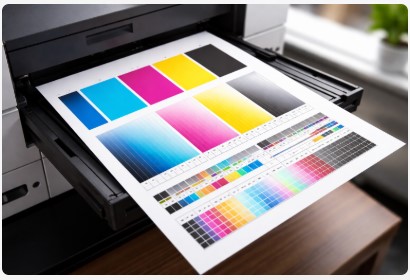
What’s Actually on a Test Page?
I’ve looked at thousands of these things. Here’s what you’ll see and why it matters:
| Component | What It Does |
|---|---|
| Solid color blocks | Pure cyan, magenta, yellow, black—they check ink density and nozzle health |
| Gradient ramps | Smooth transitions from light to dark that reveal banding or clogs |
| Alignment grids | Crosshairs showing if colors line up correctly (critical for sharp text) |
| Color mixing patches | Combinations testing how well colors blend together |
| Skin tone references | These matter more than you’d think—especially for portraits and weddings |
A cmyk solid blocks test page is usually where I start looking. Those solid blocks tell me instantly if a color is weak, missing, or streaky.
Industry Standard Test Pages
Professionals use tools like the Kodak Color Separation Guide or Ugra/Fogra Media Wedge. Fancy stuff. But here’s the truth—you don’t need any of that.
A simple cmyk printer test page pdf from a reputable website works perfectly for 99% of printers out there. I’ve used them in my shop for years. They catch the same problems as the expensive stuff.
Just last week, a photographer brought in his high-end Canon. He was ready to ship it off for expensive repairs because skin tones looked green. I ran a quick test page, looked at the solid magenta block, and saw it was barely there. Eighty percent empty. That’s it. A $40 cartridge replacement, not a $400 repair.
He’d been fighting the wrong problem for three weeks. A five-minute color calibration test would’ve saved him all that stress.
That’s the thing about these test pages. They take the guesswork out of troubleshooting. You’re not wondering anymore. You’re looking at proof. And once you know what’s wrong, fixing it is usually pretty straightforward.
Up next, I’ll show you exactly how to print one of these things correctly—because yeah, there’s definitely a wrong way to do it.
How to Print a CMYK Test Page
Alright, let’s get down to business. You’re ready to print a test page and figure out what’s going on with your printer. Smart move.
But here’s the thing—you can absolutely do this wrong. I’ve seen it happen more times than I can count. Someone grabs a screenshot from Google Images, prints it, and spends three days chasing problems that don’t actually exist.
Let me show you the right way.
⚠️ Critical Warning You Must Read
Never print a test page from a web browser screenshot or compressed JPG.
I cannot stress this enough. Those images are already altered. The colors are compressed. The resolution is garbage. Printing one of those is like using a blurry photo to test your eyeglasses prescription. It tells you nothing useful.
You’ll end up cleaning print heads that aren’t clogged. Replacing cartridges that are perfectly fine. Wasting hours on problems that only existed in that crummy screenshot.
The steps I’ve given you work for most printers. But if you’re using an Epson, the button combinations and menus can be slightly different. I’ve got a complete guide on the Epson printer test page that walks you through every model—from EcoTanks to WorkForce Pros.
Use a proper file. Always.
Step 1: Download a Proper Test Page PDF
This part’s easy. You’ve got options:
Free reliable source: Head over to colortest.page. They offer high-quality CMYK test PDFs that I’ve used in my own shop for years. Totally free, totally solid.
Manufacturer tools: HP, Epson, and Canon all have built-in test functions. Check your printer’s menu under “Maintenance” or “Tools.” Sometimes the best option is already sitting right there.
Professional wedges: If you’re doing serious color-critical work, look into the Ugra/Fogra Media Wedge. It’s industry standard stuff. But honestly? Most of you won’t need it.
Here’s what I’d grab if I were you:
- [Download Free CMYK Test Page PDF] – The everyday workhorse
- [Download High-Resolution Test Page for Professional Use] – When you need every detail
- [Download 6-Color Test Page] – For printers with light cyan and light magenta
A cmyk printer test page download takes about ten seconds. It’ll save you hours down the road.
Step 2: Critical Printer Settings
This is where 90% of people mess up. I’m not joking.
You’ve got the right file. Great. But if your printer settings are wrong, the test page will lie to you.
| Setting | Correct Choice | Why It Matters |
|---|---|---|
| Color Management | “Off” or “Printer Manages Colors” | You want raw output. No “smart” corrections hiding problems. |
| Paper Type | Match your actual paper | Glossy, matte, plain—they absorb ink differently. |
| Print Quality | Highest/Best | Testing should reveal problems, not hide them behind draft mode. |
| Scale | 100% (Actual Size) | Scaling distorts test patterns. Don’t let your printer “fit to page.” |
I had a client last year who couldn’t figure out why his blacks looked weak. We ran through three cleaning cycles. Replaced the black cartridge. Nothing worked.
Turns out his printer was set to “Economy Mode” and had been for months. The test page printed weak because the printer was deliberately using less ink. One settings change fixed everything.
Step 3: Paper Selection Matters More Than You Think
Here’s a truth bomb for you.
The exact same printer on different paper can look like two completely different machines.
A pattern I’ve noticed with my small business clients: They’ll test on premium photo paper because that’s what they have lying around. Prints look gorgeous. Then they run their actual job on cheap office paper and wonder why everything looks faded.
The test page lied. Not on purpose—but because the paper was different.
Quick reference guide:
- Glossy paper: Brightest colors, highest contrast. Great for photos, terrible for diagnosing subtle problems.
- Matte paper: Softer colors, more accurate for portraits and everyday use. This is my go-to for testing.
- Recycled paper: Less bright, can shift colors slightly. Test on this if this is what you’ll actually use.
The biggest “aha!” moment I had with this was about five years ago. A graphic designer swore her Epson was dying. Test pages looked terrible. She was about to drop two grand on a new printer.
I asked what paper she was testing on. Premium glossy. I asked what paper she used for client work. Cheap matte from a big box store.
We ran the test on her actual client paper. The printer was perfectly fine. She’d been chasing a ghost.
Step 4: Print and Inspect
You’ve got the right file. Settings are correct. Paper matches what you’ll actually use.
Now print it.
Use the highest quality setting your printer offers. And here’s a pro tip—let it dry for two or three minutes before you evaluate.
Colors sometimes shift slightly as ink dries. What looks perfect fresh out of the printer might reveal problems once it settles. I’ve learned this the hard way more times than I’d like to admit.
Just last week, I printed a test page for a client and everything looked perfect immediately. Came back five minutes later and saw faint banding in the cyan gradient that I’d completely missed. That extra wait time caught a problem we would’ve otherwise overlooked.
So yeah. Print it. Walk away. Get coffee. Then come back and look.
Once you’ve got your test page printed and dried, the real detective work begins. Next up—I’ll show you exactly how to read those color blocks and patterns like someone who’s been doing this for twelve years.
How to Read Your Test Page
Okay, you’ve got your test page printed and dried. Now what?
This is where most people get overwhelmed. They stare at all those colored blocks and patterns and have no idea what they’re looking at. Totally normal. I felt the same way my first year in this business.
But here’s the thing—once you know what to look for, reading a test page is easier than you’d think. Let me walk you through it.
Solid Color Blocks Analysis
Those big blocks of cyan, magenta, yellow, and black? They’re your best friends. They tell you instantly if each color is flowing properly.
Here’s my cheat sheet—the one I keep taped to the workbench:
| What You See | What It Means | What To Do |
|---|---|---|
| Bold, solid colors | Perfect ink flow. Your printer’s happy. | Nothing. Pour yourself a coffee. |
| Faded or washed-out block | Low ink or a partial clog in that color. | Check ink levels first. Then run a cleaning cycle. |
| Streaks through solid color | Print head is partially clogged. | Run a cleaning cycle. Maybe two. |
| Missing color entirely | Empty cartridge or a severe clog. | Replace the cartridge or run a deep clean. |
| Wrong color (magenta looking orange) | Wrong ink type or color profile disaster. | Stop printing immediately. Check your ink cartridges. |
A pattern I’ve noticed over the years—people almost always blame the black cartridge first. They see weak text and assume black is the problem. But nine times out of ten, weak black actually means the other colors are over-saturating because cyan or magenta is misfiring. The black block on a test page tells the real story.
Gradient and Banding Check
Look at the smooth color transitions on your test page. Those gradients reveal problems that solid blocks can’t.
Here’s what to look for:
- Smooth, continuous fade: Your printer’s healthy. Those colors are flowing nicely.
- White lines or gaps: Clogged nozzles in that specific color. The gaps show where ink isn’t landing.
- Sharp steps instead of smooth fade: Your printer’s struggling with color depth. Usually a driver issue.
- Horizontal stripes across the gradient: Your print head needs alignment. Those stripes mean the timing’s off.
Let me share a breakthrough moment from the shop.
A packaging company once hauled in a massive $50,000 press. Spent three days arguing it couldn’t print their brand red. They’d adjusted everything. Replaced parts. Nothing worked.
I ran a cmyk gradient test patterns page and noticed something subtle. Their cyan was slightly weak across all prints. Not enough to see in photos, but enough to shift their perfect red toward orange.
We replaced the cyan unit. Their red appeared instantly. Perfect. Vibrant. Exactly what they’d been chasing for months.
The red wasn’t the problem. Cyan was. A test page caught what months of frustration missed.
Alignment Grid Evaluation
Those crosshatch patterns and fine lines? They’re checking if your print head is laying down colors in the right spots.
- Perfect: All lines are sharp and meet exactly where they should.
- Blurry or doubled: Your print head needs alignment. Run that utility in your printer software.
- Color fringes: You’ve got registration problems—colors aren’t lining up properly.
- Ghosting: This one’s trickier. Usually means mechanical wear or loose parts.
I once had a client in downtown Austin who couldn’t figure out why his business cards looked fuzzy. Sharp on screen, blurry in person. His alignment grid showed obvious doubling. Fifteen minutes running the auto-alignment routine and his prints were crystal clear again. He’d been fighting that problem for six months.
Color Mixing Patches
These are the small patches where colors combine—flesh tones, grays, blues, greens. They tell you how your printer handles real-world images.
Pay special attention to:
- Flesh tones: If skin looks green or purple, something’s off with magenta or yellow.
- Neutral grays: Gray without color cast means your color balance is perfect.
- Sky blue and grass green: These “memory colors” are easy for our eyes to judge. If they look wrong, trust your gut.
A cmyk color accuracy test lives or dies by these mixing patches. Solid blocks tell you about hardware. Mixing patches tell you about real-world performance.
Once you’ve identified what’s wrong, the real fun begins. Next up—I’ll show you exactly how to fix the most common problems. And yeah, most of them are simpler than you’d think.
If you’re seeing banding in your gradients, don’t just assume it’s the printer. Sometimes the test page itself can hide issues if it’s low resolution. For a deeper dive into diagnosing color problems, I recommend using a dedicated color print test page with more detailed gradient patterns.
Common Problems and Solutions
Alright, you’ve run your test page and spotted the problem. Now what?
This is the part I actually enjoy. Taking something that looks broken and making it work again. Over the years, I’ve seen just about every printer problem you can imagine. And here’s the good news—most of them are surprisingly easy to fix.
Let me walk you through the five most common issues and exactly how to solve them.
Problem #1: Faded or Weak Colors
What You See: Those solid color blocks look pale. Black text isn’t crisp. Everything seems… tired.
The 5-Minute Fix:
- Check ink levels first. I know this sounds obvious, but you’d be amazed how many people skip it. Look at your printer’s display or software.
- Run the built-in nozzle check. This prints a small pattern showing if all nozzles are firing.
- Clean the print heads. Find this in your printer software under “Maintenance” or “Tools.” It takes about two minutes.
- Print one cleaning cycle, then test again. Don’t go overboard. One cycle, then check.
- If still faded, run deep cleaning. Warning—this uses more ink. But it works when standard cleaning doesn’t.
From the Workshop:
A local elementary school called me in a panic. Their printer was producing faded handouts for months. The IT guy kept ordering new cartridges—must’ve replaced them four times. Nothing helped.
I walked over, pulled up the printer settings, and saw it immediately. “Draft Mode.” Permanently enabled.
One click changed it to “Normal.” The next print was perfect. Saved that school hundreds of dollars in unnecessary cartridges. The IT guy? He was mortified. But hey, we’ve all been there.
Problem #2: Lines or Streaks
What You See: White lines running through solid colors. Like someone dragged a fingernail through wet ink.
The 3-Step Solution:
- First: Run a standard nozzle cleaning. One or two cycles max. Test after each.
- Second: If streaks remain, run deep cleaning. It uses more ink but reaches deeper clogs.
- Third: Still streaky? Remove the cartridge and gently wipe the electrical contacts with a lint-free cloth. Those copper dots get dirty and confuse the printer.
The Overnight Trick:
Here’s something I discovered years ago. Sometimes dried ink just needs time to soften.
Leave your printer on overnight. Not in standby—actually on. The gentle warmth can loosen dried ink better than any cleaning cycle. I’ve saved dozens of cartridges this way. Print a test page in the morning and watch those streaks disappear.
Problem #3: Wrong Colors Completely
What You See: Reds look orange. Blues look purple. Your logo looks nothing like itself.
The Truth Nobody Tells You:
This is almost never hardware failure. Your printer’s probably fine. The problem is somewhere in your workflow.
Common culprits:
- RGB vs CMYK confusion: Your screen uses RGB. Your printer uses CMYK. If you send RGB files to a CMYK printer, colors will shift. Always convert to CMYK before printing.
- Wrong paper profile: Using the “glossy paper” setting with matte paper guarantees wrong colors. Match the profile to what’s actually loaded.
- Monitor not calibrated: This one hurts. Your screen might be lying to you. What looks perfect on your display might be totally off. Calibrate your monitor every few months.
- Double color management: Your software is trying to manage colors. Your printer is also trying to manage colors. They fight. The result? Ugly prints. Pick one and disable the other.
Just last week, a photographer showed me prints where skin tones looked green. She’d tried everything. New cartridges. Cleanings. Alignment. Nothing.
I looked at her file settings. She was working in RGB and letting Photoshop handle color, while also letting the printer handle color. Double management. We turned off Photoshop’s color management, kept the printer’s, and her next test print was perfect.
Problem #4: Color Banding
What You See: Smooth gradients show distinct stripes. Like a sunset with visible lines instead of a smooth fade.
Fixes in Order:
- Check driver settings. Make sure you’re not in draft or economy mode. Highest quality only.
- Verify your ink. I hate to say it, but third-party ink often bands more than manufacturer ink. If you’re using cheap cartridges, this might be why.
- Clean print heads thoroughly. Banding often means partial clogs in multiple nozzles.
- Replace old cartridges. Even if they have ink left, old cartridges can cause banding. Ink degrades over time.
- Check for firmware updates. Sometimes manufacturers release fixes for banding issues.
How to check cmyk color accuracy when banding appears? Look at each gradient separately. If banding only appears in cyan, focus your cleaning there. If it’s everywhere, start with driver settings.
Problem #5: Misaligned Colors
What You See: Images look blurry. Text has colored shadows. Fine lines look doubled.
Solution:
Run print head alignment from your printer software. Most printers have this under “Maintenance” or “Tools.”
It takes about two minutes. The printer prints a pattern, you pick the best one, and it adjusts itself. Fixes about 80% of blur issues instantly.
A quick story:
A small business owner brought in his printer because “everything looks double.” His business cards were unusable. He was ready to buy a new machine.
I ran the alignment routine. Two minutes later, his test page was sharp. He stared at it like I’d performed magic. Nope—just basic maintenance that most people don’t know exists.
Most troubleshooting cmyk print issues comes down to this: identify the problem, apply the right fix, test again. Nine times out of ten, you’re done in under fifteen minutes.
But what if you’ve tried all this and nothing worked? I’ll cover that next. Sometimes you need to know when to stop DIY and call for backup.
Advanced Tips and Best Practices
You’ve got the basics down. You know how to print a test page, read the results, and fix common problems. Now let’s talk about the stuff most people never learn—the insider knowledge that separates frustrated printer owners from people who rarely have issues.
I’ve picked up these tips over twelve years in the business. Some came from mentors. Some came from expensive mistakes. All of them will save you time and money.
How Often Should You Test?
This is the question I get more than almost any other. And the answer depends on how much you print.
| Your Printing Habit | Test Frequency | Why Bother? |
|---|---|---|
| Daily printing | Once a week | Problems creep up slowly. Weekly testing catches them early. |
| Weekly printing | Before important jobs | You don’t print enough to notice gradual changes. Test before work that matters. |
| Occasional printing | Every time you turn the printer on | Printers hate sitting idle. Test first, print second. |
| Professional/commercial | Daily + before each client job | Your reputation depends on it. Protect your business. |
The First Print Rule:
In my shop, we have a simple rule. The first thing that prints every morning is a test page. Not a client job. Not a quick document. A test page.
Why? Because printers are moody after sitting overnight. Ink settles. Temperatures change. Partial clogs form. A test page catches all of that before it ruins real work.
I learned this lesson the hard way about eight years ago. Printed a rush job first thing in the morning without testing. Five hundred flyers with visible banding. Had to reprint everything and cover rush shipping. Cost me nearly a grand. Now? Test page first, always.
The Paper-Performance Connection
Hard truth time.
Cheap paper destroys print quality faster than any hardware problem you’ll ever face.
I’ve seen $2,000 professional printers produce worse output than $200 home printers—because of paper. The expensive machine was loaded with bargain bin office paper. The cheap printer had quality stock. The cheap printer won, easily.
Here’s what happens: Cheap paper lacks the coatings that control ink absorption. Ink spreads unpredictably. Colors bleed. Details blur. And then people blame the printer.
My testing protocol:
Always test on the exact paper you’ll use for final prints.
If you print client work on Hammermill Premium, test on Hammermill Premium. If you use glossy photo paper for family pictures, test on that same glossy stock.
Testing on premium paper then switching to budget stock tells you nothing. The test page will look great. Your actual prints will look terrible. And you’ll spend hours chasing the wrong problem.
Environmental Factors Most People Ignore
Here’s something nobody thinks about until it bites them.
Temperature:
Cold ink flows poorly. It’s thicker, moves slower, and doesn’t lay down evenly. The result? Faded prints that look like low ink when the cartridges are actually full.
If your printer lives in a cold garage, basement, or near a drafty window in winter, this is probably affecting you.
Humidity:
High humidity makes paper swell. Even a tiny amount of swelling shifts how ink lands. Colors misalign. Details soften. Prints that looked perfect in dry weather suddenly look wrong in summer.
Dust:
This is the #1 cause of streaks that nobody checks.
Dust settles on paper, gets pulled into the printer, and blocks nozzles. Dust on cartridge contacts causes communication errors. Dust on encoder strips makes printers think they’re in the wrong position.
The Garage Printer Story:
A small business owner brought her printer in last winter. She was replacing cyan cartridges monthly because test prints looked faded. New cartridge, fine for a week, then faded again. Repeat every month.
I asked where she kept the printer. “My garage,” she said. “It’s out of the way there.”
I asked how cold the garage got. “Oh, maybe forty degrees this time of year.”
That was the problem. The ink was too cold to flow properly. We moved the printer inside, into her heated office. Zero new parts needed. The next test print was perfect. She’d spent hundreds on cartridges chasing a problem that had nothing to do with ink levels.
When Manufacturer Ink Matters Most
Okay, let’s talk about the elephant in the room.
Third-party ink is cheap. Really cheap. And for some uses, it’s totally fine.
Here’s how I break it down for my clients:
- For internal drafts, school projects, everyday printing: Third-party ink saves money. Use it.
- For client work, professional photography, important events: Use manufacturer cartridges.
Why? Because third-party ink manufacturers don’t have access to printer engineers. They reverse-engineer formulations. Sometimes they get close. Sometimes they don’t.
The result can be color shifts, increased banding, or even clogged print heads. I’ve seen printers damaged by consistently bad third-party ink.
One client in particular learned this the hard way. A photographer switched to cheap ink to save money. Within six months, his prints showed persistent banding in skin tones. We ran every cleaning cycle imaginable. Nothing helped. The damage was done—his print head was partially clogged beyond repair. A $300 repair to save maybe $60 on ink.
High Resolution Test Pages Matter
When you’re doing advanced cmyk printer tests, use a high resolution cmyk test page. The cheap, low-res ones hide problems. They blur details that matter.
I keep a folder of test pages at different resolutions. For quick checks, standard is fine. For serious troubleshooting, I use the high-res versions. They show subtle banding and misalignment that standard pages miss.
Print quality diagnostic work isn’t just about fixing what’s broken. It’s about understanding everything that affects your prints—paper, environment, ink quality, testing frequency.
Once you start thinking about all these factors, you’ll have fewer problems. And when problems do show up, you’ll know exactly where to look.
Next up, I’ll cover something nobody likes to think about—what to do when nothing works and you need professional help.
When to Call a Professional
I’ve spent this whole guide showing you how to fix things yourself. That’s my jam—I love helping people solve their own problems.
But here’s the thing. Sometimes you can’t. Sometimes the printer wins.
And that’s totally okay. Knowing when to throw in the towel and call someone like me is actually a skill. It saves you money, time, and a whole lot of frustration.
Let me walk you through the signs that it’s time to bring in backup.
When DIY Fixes Fail
You’ve followed every step. You’ve cleaned print heads. You’ve replaced cartridges. You’ve checked settings until your eyes crossed.
And you’re still getting:
- The same problem after three or more cleaning cycles. If cleaning isn’t working by now, it’s probably not going to.
- Grinding or unusual noises. Printers should hum, not grind. Grinding means something mechanical is struggling—or breaking.
- Identical issues with brand new cartridges. If the problem persists across multiple cartridges, the cartridges aren’t the problem.
- Sudden catastrophic failure. One minute it printed fine. The next minute it prints garbage. Something major probably let go.
Just last month, a client brought in a printer that had been “acting up” for weeks. She’d run cleaning cycles daily. Changed cartridges twice. Spent hours online reading forums.
The problem? A tiny gear had cracked and was slipping. No amount of cleaning would fix that. Twenty minutes in my shop and a $15 part later, she was back in business. She’d wasted weeks on something she couldn’t possibly have fixed herself.
The Cost Reality Check
Here’s where I see people make the biggest mistake.
They spend and spend on troubleshooting supplies, trying to avoid a service fee. New cartridges. Cleaning kits. Special paper. Diagnostic tools.
And pretty soon, they’ve spent $200 trying to fix a problem that would’ve cost $50 to have me look at.
I had a client last year who replaced every single cartridge in his wide-format printer. Four of them, at about $80 each. Still had banding. Brought it in, frustrated and defeated.
I looked at it for ten minutes. The encoder strip—a clear plastic strip that tells the printer where it is—was covered in dust and ink mist. Cleaned it with a lint-free cloth and a tiny bit of alcohol. Problem solved. Cost him nothing but the service call.
He’d spent $320 on cartridges to avoid a $65 service visit.
Here’s my rule of thumb: If you’ve spent more on troubleshooting supplies than a professional repair would cost, stop. Bring it in. You’re not saving money anymore—you’re throwing good money after bad.
What Professionals Do Differently
You might wonder what a repair shop actually does that you can’t do at home. Fair question.
Diagnostic software: We have tools that talk directly to your printer’s brain. They run tests you can’t access, read error codes your display won’t show, and pinpoint problems in seconds.
Mechanical cleaning: That ultrasonic cleaner I mentioned? It vibrates print heads at frequencies that shake loose clogs no software can touch. You can’t buy one of these for home use—they’re expensive and require training.
Parts replacement: Wipers, caps, pumps, gears—these wear out. You can’t buy them at Office Depot. We have suppliers that sell genuine replacement parts.
Experience: This is the big one. I’ve seen your exact problem before. Probably this week. I know what to look for and where to start. What might take you hours of guessing takes me minutes of knowing.
The Honest Truth
Sometimes printers just break.
Not because you did anything wrong. Not because you bought cheap ink or used the wrong paper. Just… break. Parts wear out. Electronics fail. Things stop working.
And that’s okay.
Professional service exists for a reason. We’re not here to judge you or upsell you on things you don’t need. At least, the good ones aren’t. We’re here to fix what broke and send you on your way.
A quick story:
A few years ago, a woman brought in a printer her late husband had used for his photography business. It meant a lot to her—sentimental value. She’d tried everything to get it working again. Spent hours online. Bought new cartridges. Nothing.
I looked at it. The main board had failed. Not fixable at home, barely fixable in a shop. But I found a replacement board, swapped it in, and got it running again.
She cried when she saw that first test print. Not because she needed the printer, but because it was part of her husband’s legacy working again.
That’s why I do this. Sometimes it’s just about getting something working. Sometimes it’s about more.
If you’re deep in troubleshooting cmyk print issues and hitting a wall, it’s okay to reach out. A fresh set of eyes—especially trained ones—can save you time, money, and frustration.
Conclusion
We’ve covered a lot of ground here. From what a cmyk print test page actually is, to printing one correctly, to reading those color blocks like a pro, to fixing the most common problems.
Let me wrap this up with a simple action plan you can actually use.
Your CMYK Testing Action Plan
Here’s what I want you to remember:
- A cmyk print test page is your printer’s health check. Use it. Don’t guess when you can know.
- Print it correctly. Disable color correction. Use 100% scale. Match your paper. These details matter more than you’d think.
- Read systematically. Start with solid blocks, move to gradients, check alignment last. Each tells you something different.
- Fix problems step by step. Don’t panic and buy cartridges the second you see a faded block. Check, clean, test, repeat.
- Test regularly. Weekly for daily printers. Before every important job for occasional use. Make it a habit.
The Bottom Line
After twelve years fixing printers, I can tell you this with complete confidence.
Eighty percent of color problems are caught by a simple test page. Not expensive diagnostics. Not replacement parts. Not hours of frustration.
Five minutes of testing saves hours of headaches and hundreds of dollars in wasted materials.
I’ve watched it happen hundreds of times. A client walks in with a printer they’re ready to throw away. We run a test page, spot the problem, fix it in ten minutes. They walk out with a working printer and a smile.
That’s why print a cmyk test sheet before every important job. Because it works.
Your Next Step
Right now, before you forget, go download a free cmyk printer test page download. Keep it in a folder on your desktop. Print one copy and stick it on your bulletin board.
Then, before your next important print job, run that test page first. Compare it to your saved copy. If something looks off, you’ll catch it before it ruins your real work.
Got a weird printer problem that’s driving you crazy? Drop it in the comments. I read every single one. I’ve probably seen your exact issue before and can point you in the right direction.
Or if you just want to start troubleshooting right now, [download the free test page here] and get to it.
Either way, don’t let printer problems stress you out. You’ve got this.
Remember: printers aren’t trying to ruin your day. They’re just trying to tell you something’s wrong. A test page is how you listen.
Frequently Asked Questions
Over the years, I’ve heard just about every question you can imagine about printer problems and test pages. Here are the ones that come up most often—answered in plain English, no technical mumbo jumbo.
What is a CMYK print test page used for?
A cmyk print test page diagnoses printer problems before they ruin your actual prints. It shows you exactly which colors are printing correctly, whether any nozzles are clogged, and if your colors align properly. Think of it as a health check that catches issues early. I run one every morning in my shop before any client work starts. It’s caught countless problems before they became expensive disasters.
How do I print a CMYK test page on my printer?
First, download a high-quality PDF test page—never use a screenshot or compressed JPG from Google. Then open your printer settings and disable color correction (you want raw output, not “smart” fixes). Set quality to highest, choose the paper type you’ll actually use, and print at 100% scale. Most printer manufacturers also have built-in test pages hiding in their maintenance menus. A printer color calibration test page is only useful if you print it correctly.
Why are my CMYK colors printing incorrectly?
In my experience, it’s almost always one of three things: low ink in a single cartridge, wrong paper settings, or RGB files trying to print on a CMYK printer. Print a test page first—it’ll tell you exactly which color is failing. Then check ink levels, make sure your document is in CMYK mode, and verify your paper settings match what’s actually loaded. Nine times out of ten, it’s one of these.
How often should I run a printer color test?
For daily printing, test weekly. For occasional use, test before every important job. Professionals test daily before client work—that “first print of the day” rule catches overnight issues before they become expensive. If you notice colors shifting between jobs, test immediately. A cmyk vs rgb print test page comparison can also help you spot whether your file setup is causing problems.
What do the color blocks on a test page mean?
Solid blocks check ink density—faded means low ink or clogs. Gradients reveal banding—smooth is good, stripes indicate problems. Alignment grids show if colors line up—blurry means misalignment. Missing blocks point to empty cartridges or severe clogs. Each section tells you something different about your printer’s health. Once you know what to look for, reading a test page takes about thirty seconds.
Can I download a free CMYK test page PDF?
Absolutely. Websites like colortest.page offer free, high-quality test pages designed specifically for CMYK printers. I use them in my own shop. Just make sure you download the actual PDF, not preview images, and print at full quality. Most printer manufacturers also offer free cmyk test page pdf downloads in their support sections. Keep one saved on your desktop for easy access.
What’s the difference between CMYK and RGB?
RGB stands for Red, Green, Blue—it’s for screens and uses light to create colors. CMYK stands for Cyan, Magenta, Yellow, Black—it’s for printing and uses ink on paper. This fundamental difference is why screen colors almost never match printed colors without proper testing. A color calibration test page helps bridge that gap by showing you what your specific printer does with those CMYK values.
How do I fix printer color banding?
Start with a print head cleaning. If that doesn’t help, check whether you’re using manufacturer ink—third-party ink often bands more. Make sure you’re on highest quality settings and that your paper matches your profile. If banding appears in only one color, that points to a specific clogged nozzle. Clean that channel specifically if your printer software allows it. A printer alignment and cmyk test page will show you exactly where the banding is happening.
What causes white lines in my prints?
White lines almost always mean clogged printer nozzles. Run the printer’s built-in nozzle check and cleaning cycle. If lines stick around after two or three cleanings, try deep cleaning or just leave the printer on overnight—sometimes dried ink softens on its own. I’ve saved dozens of cartridges with that overnight trick.
Do I really need to test before every important print?
Yes. I can’t tell you how many times I’ve watched clients lose money because they skipped a simple test. Five hundred dollars in wasted materials. Missed deadlines. Unhappy customers. A five-minute test with a color separation check catches all of that. The cost of testing is nothing compared to the cost of reprinting. Make it a habit.
Got a question I didn’t answer?
Drop it in the comments. I read every single one, and I’ve probably seen your exact issue before. If enough people ask the same thing, I’ll add it to this list.

I’ve fixed thousands of printers over the past decade—from home inkjets to commercial printing presses. Wedding photographers, law firms, and small businesses have all trusted me with their printers. Every guide comes from real workshop experience, not theory.
Thanks for sharing this!
You’re welcome! Glad you liked it.
Great post!
Thank you bro!
Your “Like” button never seems to download. Thanks for all the useful information!
Hi Dawn! Thanks so much — your appreciation means a lot to me.
Oh, and about the Like button… that’s strange that it’s not showing up. I’ll take a look from the backend. In the meantime, thanks for still reading and for giving me useful feedback. You’re awesome!