Test Page Colors – What They Mean: The Complete Printer Diagnosis Guide
You just printed something important, and the colors look like a bad acid trip.
I’ve diagnosed thousands of printers over the last decade printer test page. That’s ten years of fixing this exact frustration.
Most print quality issues can be diagnosed just by looking at printer test page colors. No expensive tools. No service call.
So what is a printer test page? It’s a diagnostic sheet that shows you exactly how each color is firing. The test page colors – what they mean tells you everything: clogged nozzles, empty cartridges, misaligned heads.
Background & Context: What Printer Test Pages Actually Reveal
So what is a printer test page exactly? Think of it like a blood test for your printer. It shows you what’s working, what’s dying, and what needs immediate attention.
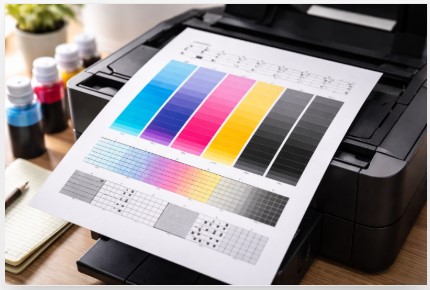
What does a printer color test page show? Four critical things: color intensity graphs, rainbow bars, radial gradients, and alignment wheels. Each element tests a different part of your printer’s brain.
Let me explain those weird halftone bands you’ll see. They come in density levels: 16/256 (barely there), 24/256 (medium), and 32/256 (dark). According to ISO 13660, the international standard for print quality measurement, these density gradients are the primary method for detecting nozzle failures. If the light band looks fine but the dark band is streaky? That tells me your printhead is partially clogged.
Built-in test pages vary wildly by brand. HP does one thing. Canon does another. That’s why I always recommend a standardized printer calibration test page colors PDF. Same patterns every time. Easier to compare.
What’s Actually on That Page? (And Why It Matters)
- Color intensities graph – Shows if each color prints smoothly from light to dark
- Rainbow bars – Tests color transitions and reveals banding issues
- Radial gradients – Spots problems in circular patterns (common with dirty rollers)
- Alignment wheels – Checks if colors line up or leave ghosting shadows
The printer test page colors meaning becomes obvious once you know what healthy looks like. Smooth gradients. Sharp edges. No missing chunks.
When You Should Print a Test Page
Here’s my real-world schedule based on thousands of service calls:
- New printer setup – Get a baseline before anything goes wrong
- After ink cartridge replacement – Confirm the new cartridge works
- Printer unused for 2+ weeks – Ink dries out. Test before you need it.
- Before warranty expires – Document existing problems
- When colors look “off” – Trust your eyes. Something’s wrong.
Learn more about why test pages are important for long-term printer health.
How to Print a Color Test Page (Windows & Mac)
How to print a color test page depends on your device. Don’t overthink it. I’ll show you every method I use in my workshop.
Windows 10 & 11 Method (30 Seconds)
Here’s the exact path I’ve taught hundreds of clients:
- Click Start → Control Panel → Devices and Printers
- Right-click your printer icon
- Select “Printer Properties” (not just “Properties” – easy mistake)
- Click “Print Test Page” on the General tab
macOS Method
- Apple icon → System Preferences → Printers & Scanners
- Select your printer
- Options & Supplies → Utility tab
- Click “Print Test Page”
Print test page color windows 10 and Mac both work the same way once you find the menu.
No Computer? No Problem
How to print a test page without computer is easier than you think. Most printers have this built into their control panel:
- Most printers: Settings/Setup → Maintenance → Print Test Page
- HP: Setup → Tools → Print Quality Page
- Epson: Maintenance → Nozzle Check
- Canon: Setup → Device Settings → Print Test Page
For Canon-specific steps, check out this Canon printer test page guide.
Downloadable PDF Test Pages (Better Than Built-In)
Here’s a secret most techs won’t tell you. Built-in test pages vary wildly by brand. That’s why I always recommend a printer color test page pdf that’s standardized. Same patterns every time. Easier to compare month to month.
How to run a color test on my printer using a PDF? Simple. Download the file. Open it. Hit print. No menus. No hunting.
Grab my free printable test page PDF below. I include both color (CMYK plus gradients) and grayscale versions.
Decoding Test Page Colors: The Visual Diagnosis Guide
What does a printer color test page show? Everything wrong with your printer. You just need to know what you’re looking at.
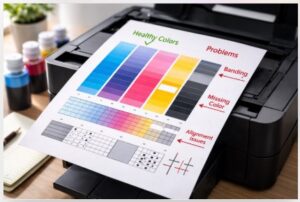
How to read a printer test page is simple once you know the patterns. Match your page to the problems below. Use this color test page checklist to track changes over time.
The Healthy Test Page (Your Baseline)
A good test page has smooth color gradients. No banding. No streaks. Sharp edges where colors meet. All four colors present: Cyan, Magenta, Yellow, Black. Save this page. Compare future tests to it.
Problem Pattern #1: Missing Entire Colors
Printer test page colors not matching your screen? One color might be totally gone.
Quick fix: Check ink levels first. Then run printhead cleaning 2-3 times. Still missing? Replace that cartridge. You can also check ink levels with a test page before replacing.
Problem Pattern #2: Banding or Stripes
Horizontal or vertical stripes across bands?
- One color only = That specific printhead is clogged. Run cleaning cycles. See how to fix printhead clogs permanently.
- All colors = Paper feed or roller issue. Clean the rollers.
Cost alert: Each bad print wastes $0.50-$2.00. Fix it now.
Problem Pattern #3: Misaligned Colors (Ghosting)
Colors don’t line up. Shadows next to text. Like a bad 3D movie.
Run your printer’s alignment utility. HP, Epson, and Canon all have one in the maintenance menu. If alignment fails repeatedly, see this test page not aligned fix.
A graphic designer almost trashed an $800 printer over alignment issues. One alignment cycle. Ninety seconds. Fixed.
Problem Pattern #4: Faded or Washed-Out Colors
Colors look pale. Weak. Nothing like your screen.
Check ink levels physically (don’t trust the software). Verify your paper type setting matches what’s loaded. Run a nozzle check.
Problem Pattern #5: Streaks or Spots (Repeating Pattern)
Same mark every 1.3, 1.7, 2.0, or 2.5 inches. That’s a physical roller problem. The distance tells you which part failed. Most require replacement. Check your warranty first.
Problem Pattern #6: Color Cast (Too Blue/Red/Green)
Whole page has an unnatural tint. One color is over-saturating.
Run color calibration. Use manufacturer-approved paper. Reset to factory settings.
Brand-Specific Test Page Interpretation
Not all test pages look the same. Let me decode each one.
HP Printers
Printer test page colors hp call it “Image Quality Print” or “Print Quality Page.” Don’t look for “test page” in the menu. You won’t find it.
HP photo printers include six colors instead of four. Their diagnostic page packs 4-5 test patterns on one sheet. For detailed HP troubleshooting, visit this HP printer test page guide.
How to align printer colors test page on HP? Settings → Tools → Align Printer.
Canon Printers
Printer test page colors canon uses a Nozzle Check pattern. It’s a grid, not full rainbow bars. Looks minimal but tells you everything.
Canon owners panic because the test page looks “too simple.” It’s not broken. That’s just Canon’s style. Trust the grid.
Epson Printers
Printer color test page epson features a stair-step nozzle check design. Very distinctive. You’ll know it immediately.
Epson offers a “power cleaning” option. Use it sparingly. It drinks ink like crazy. Once a month max. According to Epson’s official support, running regular nozzle checks prevents permanent printhead damage.
Brother Printers
Brother keeps it simple. Test page available via control panel or driver. Their color calibration goes by “Color Registration,” not alignment.
Advanced Diagnosis: When One Test Page Isn’t Enough
Sometimes one test page doesn’t tell the full story.
Why is my printer printing the wrong colors even after a clean test page? The problem might be your driver or software, not the hardware.
The Three-Test Diagnostic Method
How to fix printer color issues starts with isolating the real culprit. Run these three tests:
- Built-in printer test page – Tests hardware only. No computer involved.
- Downloaded PDF test page – Tests driver and software communication.
- Print from different apps – Word vs. Photoshop vs. browser.
Compare results. If test 1 works but test 2 fails? Your driver is corrupt. Learn how to update your printer driver to fix software-related issues.
A client’s photos looked terrible but test pages were perfect. Driver issue. Reinstalled. Fixed in five minutes.
Comparing Test Page to Photo Prints
How to check printer color quality across different file types:
- Test page perfect, photos bad = Color management issue
- Test page has problems = Hardware issue
- Only certain apps have issues = Driver or application color settings
When to Run Advanced Calibration
Printer test page for cmyk colors looks fine but something feels off? Run advanced calibration after replacing printhead, switching paper types permanently, or monthly for production printers.
Prevention: Keep Your Colors Right Longer
How often to print color test page is the #1 question I get.
The 3-3-3 Rule
- Print a test page every 3 weeks (inkjet printers)
- Run cleaning cycle every 3 months (laser printers)
- Replace cartridges at 30% remaining when test page shows issues
Don’t run cartridges to empty. That’s when printheads dry out and die.
Cost-Saving Maintenance Habits
- Print something weekly. Prevents clogs.
- Cover your printer when not in use. Dust kills printheads.
- Keep a spare black cartridge.
How to fix faded colors on printer test page before they get worse? Run a cleaning cycle the moment you see fading.
A church office printer sat unused for three months. Returned to $180 in clogged printhead replacements. A $2 test page once a month would have prevented everything. Print a test page before big jobs to avoid costly mistakes. For all printer types, try this universal test page for all printers.
When to Call a Professional vs. Replace the Printer
Call a pro if: repeating spots pattern under warranty, printhead cleaning fails after 5 cycles, or alignment fails repeatedly.
Replace if: repair cost > 70% of new printer, printer is 5+ years old with multiple issues, or parts no longer made.
Conclusion
Test page colors – what they mean is no longer a mystery. The printer test page colors meaning breaks down to six simple patterns. Missing colors. Banding. Ghosting. Fading. Spots. Color casts.
How to fix printer color issues comes down to one truth: most problems are just clogs or alignment. In my experience, most cases stop here.
Summary Checklist:
- [ ] Printed your test page
- [ ] Matched the problem pattern
- [ ] Applied the quick fix
- [ ] Ran a second test page to verify
Browse my printer diagnostic page library for more resources.
Still stuck? Send a photo of your test page to support@printertest.org. I’ll diagnose it personally within 24 hours.
Ninety percent of print problems are diagnostic problems. Now you speak printer.
FAQ
Why are my printer colors coming out wrong?
Clogged printhead, low ink, or misalignment. Print a test page. Missing color = empty cartridge. Banding = clog. Ghosting = alignment. One cleaning cycle fixes 80% of cases. For a step-by-step troubleshooting guide, check the full resource.
How do I know if my printer needs alignment?
Look for colored shadows next to text or colors bleeding outside lines. HP printers show five crosses. If they don’t line up, run alignment. Takes 2 minutes. Fixes 95%.
What do the colored bands on a test page mean?
They test color intensity from light to dark. Smooth gradients = good. Stripes or missing sections = clogged nozzles in that color.
How often should I print a color test page?
Every 2-3 weeks for inkjets. Follow the 3-3-3 rule: test every 3 weeks, clean every 3 months, replace cartridges at 30% remaining.
Can I print a test page without a computer?
Yes. Go to Settings → Maintenance → Print Test Page. HP: Setup → Tools → Print Quality Page. Epson: Maintenance → Nozzle Check.
Why does my test page look fine but my photos are bad?
Color management issue, not hardware. Your printer works fine. Check paper type setting and download correct ICC profile for your paper.
How do I fix faded colors on my test page?
Check cartridges physically. Verify paper type setting matches your paper. Run a nozzle check. Partial clogs reduce ink flow.
What’s the difference between a test page and a nozzle check?
Nozzle check = tiny grid, minimal ink. Full test page = gradients, rainbow bars, alignment wheels. Use both for complete diagnosis.
Why is my printer printing green instead of blue?
Missing magenta. Blue = Cyan + Magenta. Check test page for missing magenta band. Replace cartridge or run 2-3 cleaning cycles.
How do I interpret the alignment pattern?
Look for crosses or plus signs. Perfect alignment = all lines connect without gaps. Pick the number where lines connect smoothest. Run a second test page.
This article is based on personal expertise and industry knowledge gained over more than a decade. Always consult your printer’s manual or seek help from a certified technician for model-specific issues.

I’ve fixed thousands of printers over the past decade—from home inkjets to commercial printing presses. Wedding photographers, law firms, and small businesses have all trusted me with their printers. Every guide comes from real workshop experience, not theory.
Amazing stuff!
Não abre mais o botão de curtir aqui.