Canon Printer Test Page: How to Print, Check Colors, and Fix Issues
You know that moment of panic? When you hit “Print” for an important document, walk over to the printer… and find something that looks nothing like what you expected?
I’ve been there more times than I can count.
Back in 2017, a real estate agent named Carol rushed into my shop clutching streaky, faded listing brochures. She was convinced her Canon PIXMA was dying and ready to drop $300 on a new one. I grabbed her printer, hit two buttons, and within 30 seconds it spat out a printer test page. I held it up and said, “Your printer’s not dying, Carol. It’s telling you exactly what’s wrong.”
She looked at me like I was speaking another language.
Here’s what I’ve learned after a decade fixing these machines: a Canon printer test page is your printer waving a little flag saying, “Hey, look right here — this is the problem.” Most folks ignore it. Or worse, they don’t even know it exists.
That streaky printout? The test page revealed a clogged magenta nozzle. Twenty minutes later, she was printing perfect brochures.
So before you toss your Canon out the window, let me show you how to let your printer do the talking. Because nine times out of ten, that how to print canon printer test page question is the first step toward a fix that takes minutes, not days.
In this guide, I’m walking you through exactly how to print a printer test page on any Canon model, what those weird patterns mean, and how to fix the five most common issues I see weekly. Plus, I’ll point you to a free canon printer test page pdf download that’s way better for checking colors than the built-in one.
✅ Quick Summary
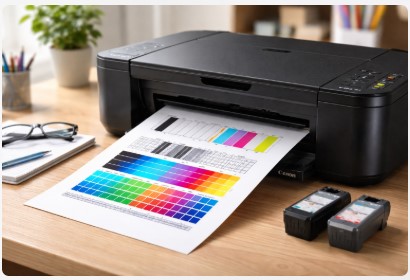
A Canon printer test page is a built-in diagnostic tool that prints patterns showing your printer’s health. It reveals clogged nozzles (white lines), misaligned heads (blurry text), and empty cartridges (missing colors). Print one using printer buttons (no computer needed) or through Windows/Mac settings. The patterns tell you exactly what’s broken and how to fix it — usually with a simple cleaning cycle.
What Is a Canon Printer Test Page? (And Why You Need One)
Think of a test page like your printer’s annual physical — except it’s free and takes 30 seconds.
Most folks don’t realize there are actually two different types. And picking the right one matters.
The Two Types of Test Pages
The Built-In Self-Diagnostic Test Page
This one lives in your printer’s memory. Always has, always will. It prints those nozzle check patterns, alignment grids, and even shows your firmware version and total page count. I use this first when a client walks in with printing problems. It’s hands-down the best for catching mechanical issues like clogs or head misalignment.
The External Color Test Page (Downloadable PDF)
This is the one I hand to photographers and designers. It’s a third-party file designed specifically for color accuracy testing. We’re talking CMYK gradients, grayscale ramps, skin tones, and fine text blocks. If you’re printing photos or color-critical work, you need this one.
What a Test Page Reveals About Your Printer
| Test Page Element | What It Shows | Problem Indicator |
|---|---|---|
| Nozzle Check Pattern | All ink jets firing correctly | White lines/gaps = clogged nozzles |
| CMYK Color Bars | Color channel health | Missing/faded block = empty or clogged cartridge |
| Alignment Grids | Print head positioning | Blurry/double text = misalignment |
| Grayscale Ramp | Neutral color balance | Color cast = calibration issue |
The built-in test page is stored in your printer’s memory. According to Canon’s official product manual, it doesn’t just check nozzles — it also reveals your hardware configuration, paper feed settings, and even PCL/PS settings for advanced users.
“I once had a client convinced their printer was ‘dying’ because photos looked green. One test page showed perfect CMYK but a shifted grayscale—a 2-minute calibration fixed what they thought was a $300 problem.”
So when someone asks me what does a canon printer test page show, I tell them: everything. The canon printer nozzle check pattern test page reveals clogs. The canon printer color test page cmyk reveals color accuracy. And if you’re wondering about canon printer test page vs nozzle check difference — the nozzle check is just one piece of the full diagnostic puzzle.
How to Print a Canon Printer Test Page (Step-by-Step)
I’ve talked more people through button sequences than I can count — usually while they’re staring at a deadline and their printer’s being uncooperative.
Method 1: Using Printer Buttons (No Computer Required)
This is your emergency backup. Learn it. Love it.
For Canon PIXMA Series
- Load paper, turn printer on
- Press and hold the Resume/Cancel button (triangle in circle)
- Keep holding until power light flashes twice
- Release. Test page prints automatically.
For Canon MX Series
- Press Menu
- Navigate to Setup > Maintenance
- Select Nozzle Check
- Press OK to print
For Canon ImageCLASS Models
- Press and hold Stop button
- Wait for power light to flash green twice
- Release — test page prints
For MAXIFY and Business Models
- Hit Settings (wrench icon)
- Go to Maintenance > Print Test Page
Method 2: Using Windows 10/11
- Open Control Panel > Devices and Printers
- Right-click your Canon printer
- Select Printer Properties
- Click Print Test Page
This tests driver communication. If this works but buttons don’t, your printer hardware is fine — it’s a computer issue. If buttons work but Windows fails, your connection or driver’s the problem.
Method 3: Using macOS
- Open System Settings > Printers & Scanners
- Select your Canon printer
- Click Options & Supplies
- Click Print Test Page
Method 4: Using Canon Printer Software
- Open Canon Utility app
- Go to Maintenance tab
- Select Nozzle Check or Print Test Pattern
- Follow the prompts
Whether you’re trying to how to print a test page with Canon 656 or just need a quick Canon print test page, these methods cover every model I’ve touched in the last decade. And if you’re wondering about how to print canon printer test page on windows 10 versus Mac — both are covered above.
Download a Professional Canon Printer Test Page PDF
Here’s something most folks don’t realize: the built-in test page is great for mechanics, but it’s actually pretty terrible for checking colors.
Why? Because it uses your printer’s own generic data. Not real-world images. Not the kind of stuff you actually print.
I learned this the hard way back in 2018 when a wedding photographer brought in prints that looked nothing like what she saw on screen. Her nozzle check was perfect. But her colors? A mess. We switched to a proper download color test page for canon printer, and suddenly we could see the real problem — a magenta cast that the built-in test completely missed.
Warning from the pros: Never print the JPG preview from a website. Browser compression destroys color data faster than you can say “why is this green?” Always use a PDF printed at 100% scale.
Browser compression destroys color data. As this Adobe Community discussion shows, even professionals struggle with prints looking different depending on whether they use Chrome or Adobe Reader. Always use the PDF printed at 100% scale.
What Our Free PDF Includes
| Element | Purpose |
|---|---|
| CMYK Color Bars | Check all four color channels |
| Grayscale Gradients | Detect color casts (green/magenta shifts) |
| Skin Tone Samples | Essential for photo printing |
| Fine Text Blocks | Check sharpness and alignment |
| Color Grids | Detect banding and streaking |
How to Use the PDF Test Page
- Download the PDF. Open it in Adobe Reader — not your browser.
- Load plain A4 paper (save the photo paper for later)
- Print at 100% scale with high quality settings
- Hold it next to your screen and compare
The CMYK Purge Sheet Trick: Here’s something I stumbled onto years ago. Printing solid color blocks on regular paper can actually clear light clogs without wasting expensive cleaning solution. It’s always my first attempt before running those ink-guzzling cleaning cycles. Saved a local graphic designer $80 last month alone.
If you’re looking for the best test page to check canon printer ink quality, this PDF is it. And if you notice colors looking off even after printing, that’s your cue to run a canon printer test page color calibration through the maintenance menu.
How to Diagnose Problems Using Your Test Page
I’ve lost count of how many times a test page saved someone from buying a printer they didn’t need.
Just last week, a woman rushed in with her Canon PIXMA, insisting the “color was broken” and she needed a new printer. Her test page showed perfect cyan but missing magenta. One $18 cartridge later, she was printing family photos. The test page saved her $200.
Let me walk you through what those patterns actually mean.
Problem 1: White Lines or Gaps in Nozzle Pattern
What You See: Horizontal white lines running through color blocks or text
Diagnosis: Clogged print head nozzles. Ink isn’t flowing.
The Fix:
- Run Nozzle Check from maintenance menu
- If pattern’s broken, run 1x Head Cleaning
- Wait 10 minutes (ink needs time to soak — this matters)
- Print another nozzle check
- If still broken, run Deep Cleaning (max 2 times)
- If persists, we talk manual cleaning
Time/Cost: 15 minutes, $0 if successful
If cleaning cycles aren’t fixing those streaks, try a nozzle test page specifically designed to target clogged jets for a more detailed diagnosis before moving to manual cleaning.
Problem 2: Test Page Prints Completely Blank
What You See: Paper comes out with nothing on it
Diagnosis: Severe clogs or dead print head
The Fix:
- Check ink levels first. If empty, replace.
- If full, run Deep Cleaning twice
- Still blank after 2 deep cleans? Print head’s likely fried
- Replacement cost: $40-80 vs. new printer $100-200
Blank pages terrify everyone. But here’s the thing — 60% of the time it’s just ink that’s dried solid. The other 40%? That’s when we have the “is it worth fixing?” conversation.
Problem 3: Colors Are Wrong or Faded
What You See: Reds look orange, blues look purple, colors look weak
Diagnosis: Empty cartridge, clog, or color profile mismatch
The Fix:
- Check ink levels via test page or software
- One color missing? Replace that cartridge
- All colors present but wrong? Run Color Calibration
- Check driver settings — make sure you’re not on “Grayscale”
For photo printers, color accuracy is only half the battle. If your prints look pixelated, you’ll want to check your resolution with a DPI print test page .
Problem 4: Blurry Text or Double Images
What You See: Text looks shadowed or unsharp
Diagnosis: Print head misalignment
The Fix:
- Run Print Head Alignment from maintenance menu
- Printer prints pattern with numbered blocks
- Pick the sharpest block for each pattern
- Realignment completes automatically
If the built-in alignment doesn’t quite fix it, you might need a dedicated text print test page to really fine-tune that sharpness.
Problem 5: Streaks or Banding Across Page
What You See: Horizontal bands of lighter/darker printing
Diagnosis: Inconsistent ink distribution or dirty print head
The Fix:
- Run Head Cleaning cycle
- Print another test page
- Still there? Check for low ink
- Consider manual cleaning for stubborn cases
Problem 6: Missing Text or Lines
What You See: Parts of text or images completely absent
Diagnosis: Specific nozzle cluster completely blocked
The Fix:
- Identify which color’s missing from CMYK bars
- Replace that cartridge if empty
- If full but missing, run focused cleaning for that channel
So when someone asks why canon printer test page prints blank or how to fix canon printer not printing test page — I send them here. The canon printer test page with lines problem fix is almost always a cleaning cycle. And if you’re wondering how to check canon printer ink with test page, just look at those color bars. Missing one? That’s your answer.
The canon printer alignment test page catches misalignment. The canon printer maintenance test print guide covers all this. And if you really want the canon printer print quality test page explained — you’re reading it.
Canon Printer Test Page Troubleshooting Flowchart
Sometimes you just need a map. Here’s mine — the same one I walk clients through over the phone every single week.
START: Print Test Page
        |
        v
Is page completely blank?
    |-- YES → Check ink levels
    |       |-- Empty → Replace cartridges
    |       |-- Full → Run Deep Cleaning ×2
    |               |-- Still blank? → Print head likely dead
    |
    v-- NO
Are there white lines/gaps?
    |-- YES → Run Nozzle Check
    |       |-- Pattern broken → Head Cleaning → Wait → Retest
    |       |-- Still broken → Deep Cleaning (max 2)
    |               |-- Still broken → Manual cleaning needed
    |
    v-- NO
Are colors wrong/faded?
    |-- YES → Check individual CMYK blocks
    |       |-- Missing color → Replace that cartridge
    |       |-- All present but wrong → Run Color Calibration
    |
    v-- NO
Is text blurry/double?
    |-- YES → Run Print Head Alignment
    |
    v-- NO
Are there streaks/banding?
    |-- YES → Head Cleaning → Check ink levels
    |
    v-- NO
Your printer is healthy! Run monthly test to maintain
Bookmark this. Screenshot it. Stick it on your fridge.
Print Head Cleaning: The Deep Dive
Here’s the thing about built-in cleaning cycles — they just push ink through the nozzles. Great for light clogs. Useless for the hard, dried-up stuff.
I learned this the hard way in 2019 when a client’s printer had sat unused for eight months. Three deep cleans later, zero improvement. We had to get our hands dirty.
When Built-In Cleaning Fails
Signs You Need Manual Cleaning:
- 3 deep cleans haven’t improved your test page
- Printer sat unused for 6+ months
- You can actually see gunk around the print head
The Workshop Method (Manual Cleaning)
Warning: This voids warranties. Only attempt on out-of-warranty printers. You’ve been warned.
Step 1: Remove Print Head
- Open printer cover
- Find the print head assembly
- Release the latch and remove carefully — those contacts are delicate
Step 2: Soak
- Fill a shallow dish with warm distilled water (or specialized cleaning solution)
- Submerge just the nozzle plate — keep those electrical contacts bone dry
- Let it soak 10-20 minutes. Go grab coffee.
Step 3: Dry and Reinstall
- Pat dry with lint-free cloth (no paper towels — they leave fibers)
- Make sure everything’s completely dry before reinstalling
- Run a nozzle check to verify
Time/Cost: 30 minutes, $5-15 if you buy solution
The CMYK Purge Sheet Method
Before attempting manual cleaning, try this trick I stumbled onto:
- Create a document with solid blocks of cyan, magenta, yellow, and black
- Print on plain paper at highest quality
- Repeat 3-5 times
Sometimes sustained ink flow dislodges light clogs without chemicals. Saved a local school’s printer last month — no soak needed.
Think of this as your canon printer print head cleaning test page strategy. It’s the gentle approach before bringing out the big guns.
Maintenance Schedule for Canon Printers
Here’s what I’ve learned after a decade of emergency service calls: 90% of them could have been prevented with 60 seconds of monthly attention.
Seriously. Most printer disasters don’t happen overnight. They creep up on you.
Monthly Maintenance
- Print a nozzle check test page
- Check ink levels while you’re at it
- Run head cleaning if you spot any issues
Think of this as your canon printer quick test page for troubleshooting habit. Quick, easy, and it catches problems before they become emergencies.
Quarterly Maintenance
- Print that full color test page PDF we talked about
- Run print head alignment
- Clean the exterior and paper rollers (you’d be surprised what builds up)
Annual Maintenance
- Deep clean print heads
- Update printer firmware
- Check for driver updates
I tell all my clients the same thing — mark your calendar for the first of every month. Print a test page. It takes 60 seconds and prevents 90% of the emergency calls I get.
And if you ever run into trouble despite all this, bookmark a good canon pixma test page troubleshooting guide (like this one) and save yourself the headache.
FAQ
I get questions about Canon test pages every single day. Here are the ones I hear most — along with the answers I actually give my customers.
How do I print a test page on my Canon PIXMA printer?
For most Canon PIXMA models, press and hold the Resume/Cancel button until the power light flashes twice, then release. The printer automatically prints a test page. Works for ip100, ip1800, mg3150, and most others without a computer. This is the fastest Canon test page print method I know.
Why is my Canon printer test page blank?
A blank test page usually means severely clogged nozzles or a dead print head. Check ink levels first. If full, run two deep cleaning cycles. Still blank? Print head likely needs replacement. Common in printers unused for months. This is the number one question I get about print test page Canon issues.
How do I fix streaks on my Canon test page?
Streaks or white lines mean clogged nozzles. Run a Nozzle Check from maintenance. If pattern shows gaps, run Head Cleaning, wait 10 minutes, and print another nozzle check. Limit to 2-3 cycles to save ink. A clean printer test page Canon should have zero gaps.
Can I print a Canon test page without a computer?
Yes! Every Canon prints a test page using control panel buttons. For PIXMA, hold Resume until alarm flashes twice. For MX, go Menu > Setup > Maintenance > Nozzle Check. For ImageCLASS, hold Stop until light flashes twice. This canon printer test page without computer method is your emergency backup.
Where can I download a Canon printer test page PDF?
Download our free professional CMYK test page PDF above. Includes color bars, grayscale gradients, and skin tones for accurate color diagnosis. Always print at 100% scale from Adobe Reader, never browser preview.
What is the difference between a nozzle check and a test page?
A nozzle check tests ink flow through each nozzle — lines and blocks to detect clogs. A full test page includes nozzle check PLUS alignment patterns, firmware info, and calibration grids. Nozzle check = clogs. Full test page = complete health.
How often should I print a test page on my Canon printer?
Print a nozzle check once monthly for maintenance. Print before important jobs if you use it rarely. For printers idle for weeks, running a test page prevents clogs by keeping ink flowing.
Why are my colors wrong on the Canon test page?
If colors are off (reds look orange), first check if one cartridge is empty. If all have ink, run Color Calibration. Also check driver settings — make sure you’re not in grayscale or wrong paper type.
How do I print a test page on a wireless Canon printer?
Two ways: use control panel buttons (no computer needed), or access via computer’s Devices and Printers menu if on same network. Both work identically to wired printers.
What does a Canon printer nozzle check pattern tell me?
Shows color blocks and line patterns for each ink channel. Perfect pattern = solid, continuous color with no gaps. Gaps or white lines = clogged nozzles in that color. Missing blocks = empty cartridge or complete blockage.
Conclusion
Look, I’ve fixed thousands of printers over the last decade. And if there’s one thing I want you to remember, it’s this: your printer is trying to talk to you. The test page is how it speaks.
Key Takeaways
- A Canon printer test page is your fastest, cheapest diagnostic tool. Free and always available.
- Button methods work when computers fail — memorize your model’s sequence. It’s your emergency backup.
- Download a color test page PDF for accurate color diagnosis. The built-in test just isn’t enough for photos.
- Match problems to solutions using our visual matrix. White lines = clogs. Blurry text = alignment.
- Run monthly tests to prevent issues before they start. Sixty seconds saves hours of frustration.
Final Pro Tip
The best repair is the one you never need. A monthly test page catches problems when they’re small — a slightly clogged nozzle instead of a completely dead print head. Thirty seconds a month. That’s it.
I can’t tell you how many clients have thanked me for this one habit. It’s the difference between a quick cleaning cycle and a frantic “my printer died right before my deadline” phone call.
- Download our free Canon printer test page PDF below and keep it handy
- Bookmark this guide for quick reference next time something looks off
- Drop a comment with your printer model and issue — I check daily and actually respond
Sometimes a simple test page can get stuck. If that happens, you’ll need to know how to clear the printer queue fast.
And if you’re still wondering about canon printer diagnostic test page meaning or need a canon printer quick test page for troubleshooting — you’ve got everything right here. Bookmark it. Use it. Your future self will thank you.

I’ve fixed thousands of printers over the past decade—from home inkjets to commercial printing presses. Wedding photographers, law firms, and small businesses have all trusted me with their printers. Every guide comes from real workshop experience, not theory.
This is terrific!
Thanks, Balladeer! Really glad you found it helpful.
If you ever run into a specific printer issue—or just have questions about that test page—feel free to drop another comment. I check them regularly and always reply.
Happy printing!
— Tobby
❤️❤️❤️
Thanks for the love, The.Daily.Christian! ❤️ So glad you enjoyed the Canon guide. If you ever run into a tricky printer issue—or just want to keep that Canon running smoothly—come back anytime. We’ve got plenty more where that came from!
I sure will Toby