Nozzle Print Test Page: Step-by-Step Guide to Perfect Prints
I almost threw away a brand new printer last week. Well, not mine—a client’s. She stormed into my shop with this expensive Epson, face red, ready to chuck it in the trash. “It’s dead,” she said. “Won’t print right. I’m buying a new one.”
I stopped her. “Let me guess—streaks? Missing colors?”
She nodded, surprised.
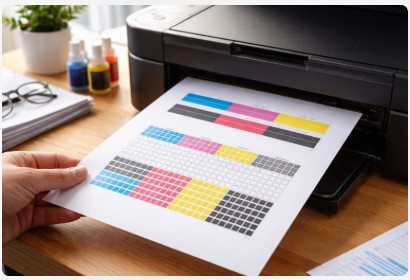
Thirty seconds later, I ran a nozzle print test page. The pattern printed with huge gaps in the black and yellow blocks. Classic clogged nozzles. Nothing broken. Nothing dead. Just dried ink.
We ran a cleaning cycle, waited ten minutes, and printed another test. Perfect. She stared at the page like I’d performed magic. “That’s it?” she asked. “That’s it,” I said.
Here’s the thing I’ve learned after a decade of fixing printers: that little sheet of paper is your machine’s check engine light. It’s the fastest, cheapest diagnostic tool you own. And most people don’t even know it exists.
So what exactly is a nozzle check page? Simple. It’s a pattern your printer prints to test if every tiny nozzle in the print head is firing ink correctly. Think of it like a soldier roll call—each nozzle stands up and says “present.” When some don’t show up? You see gaps. Streaks. Missing colors.
In this guide, I’m going to walk you through exactly how to run a nozzle test on your printer, how to read those results like a pro technician, and fix the most common issues without spending a dime on repairs. No service call needed. No new printer required. Just you, your machine, and twenty minutes.
Let’s dig in.
What Is a Nozzle Print Test Page and Why Should You Care?
Let me paint you a picture. You’re at the doctor. The nurse hands you a little plastic cup and points to the bathroom. Embarrassing? Sure. But that simple test tells the doctor more about what’s happening inside you than any conversation ever could.
Your printer has the same thing. It’s called a nozzle test page printer owners either love or ignore—and the ones who ignore it are the ones who show up at my shop ready to drop $300 on a new machine.
So what actually is this thing?
A printer nozzle check pattern is exactly what it sounds like. Your printer fires ink through every single microscopic nozzle in the print head to create a specific design. Sometimes it’s grids. Sometimes colored blocks. Sometimes little lines or letters. The pattern varies by brand, but the goal’s the same: force every nozzle to prove it’s working.
I’ve run thousands of these tests over the years. And I still get a little thrill when I see that perfect sheet come out.
Here’s what a perfect nozzle check looks like:
All lines are crisp, continuous, and unbroken. Every color block prints solid and uniform—no light streaks, no dark patches, no weird fading. It looks like someone spent hours aligning everything perfectly, even though the printer did it automatically in about twenty seconds.
When I train new techs, I tell them: “Memorize this. This is your baseline. Everything else is a problem waiting to be fixed.”
Now here’s where people get tripped up.
I can’t tell you how many times a client’s called me saying, “My printer’s printing crooked!” and when I ask if they’ve run a nozzle check, they say, “I ran an alignment page instead.”
There’s a big difference between a nozzle test vs alignment page, and mixing them up wastes hours.
A nozzle test checks for flow. Is ink actually coming out of every nozzle? Think of it like checking if your garden hose has water before you worry about the spray pattern.
An alignment page checks for positioning. If the ink is flowing, is it landing exactly where it should? That’s your crooked text, your blurry edges, your double images.
Here’s the golden rule I live by: you can’t align what isn’t printing. Run the nozzle test first. Every single time.
One more thing—brands do this differently.
A nozzle test page Canon printer spits out usually looks different from an Epson or HP. Canon often uses letters or numbers in each color block. Epson loves those tight grid patterns. HP mixes it up depending on the model.
Does that matter for you? Not really. The principle’s identical. But knowing this little detail helps when you’re reading forums or watching YouTube videos and someone’s showing a pattern that looks nothing like yours. Don’t panic. Your printer’s just speaking its own dialect.
So why should you care about any of this?
Because that cheap little sheet of paper just saved you a service call. It told you exactly what’s wrong before you spent hours guessing. It’s the difference between throwing money at a problem and fixing it in ten minutes.
Stick with me—next I’ll show you exactly how to run this test on your specific printer, whether you’re on Windows, Mac, or standing there with no computer in sight.
How to Print a Nozzle Test Page: 3 Simple Methods
Alright, let’s get down to business. You’re here because something’s wrong with your prints, and you want answers. I get it. Nothing’s more frustrating than watching a perfect document come out of your printer looking like abstract art.
The good news? Running a test takes about sixty seconds. Let me show you how to run a nozzle test on printer three different ways—pick the one that fits your setup.
Method 1: From Your Windows PC (The Most Common Way)
This is my go-to when I’m walking someone through a fix over the phone. Here’s exactly what you do:
- Click your Start button and type “Control Panel.” Open it up.
- Look for “Devices and Printers” or “View devices and printers” — depends on your Windows version.
- Find your printer in the list. Right-click it.
- Click “Printer Properties” (not just “Properties” — important distinction).
- Look at the bottom of that window. Click “Print Test Page.”
- Walk over to your printer and wait about 20 seconds.
That’s it. You’ve just run a printer test page for clogged nozzles.
I do this for clients remotely all the time. It’s the quickest way to get a snapshot of the printer’s health without me driving across town. One time, I walked a lawyer through this while he was sitting in his car in the parking lot, desperate to print something for a client. The test showed a massive clog, we ran a cleaning cycle, and he was printing within fifteen minutes. Felt like a superhero.
Method 2: From Your Mac
Mac users, I haven’t forgotten you. Your printers clog up just as nicely as anyone else’s.
- Click the Apple logo in the top left. Open “System Settings.”
- Scroll down and click “Printers & Scanners.”
- Find your printer in the list. Click on it.
- Look for “Options & Supplies” — usually a button near the bottom.
- In the new window, click the “Utility” tab.
- Click “Print Test Page.”
Some newer Macs hide this a little differently. If you don’t see it there, go back to the main Printers & Scanners screen, hold the Control key, click your printer, and select “Reset Printing System.” Don’t worry—that sounds scary but it just clears out any weird gremlins in the connection. Then try again.
Method 3: Directly From the Printer (No Computer Needed)
Here’s a secret most people don’t know: your printer doesn’t need a computer to diagnose itself. The test is built right in.
For printers with a touch screen:
- Tap “Setup” or “Menu” (look for the wrench icon—that’s universal for tools).
- Find “Maintenance” or “Tools.”
- Look for “Nozzle Check” or “Print Nozzle Pattern.”
- Tap it and watch it go.
For printers with buttons only (no screen):
Every brand does this a little differently. Here are the cheat codes I’ve memorized over the years:
- HP printers: Hold the Power button. While holding it, press the Resume button (the one with the paper icon) 4-5 times. Release Power. Watch it print.
- Canon printers: Hold the Resume button until the power light flashes twice, then release. The test page should print automatically.
- Epson printers: Hold the drop button (the one with the ink droplet icon) for three seconds.
- Brother printers: Press Menu, then navigate to Maintenance, then Print Test Pattern.
These button combos feel like cheat codes, right? I learned most of them the hard way—staring at service manuals at 2 AM trying to fix a client’s printer before their morning deadline.
The “Download” Option (When Nothing Else Works)
Every once in a while, I run into a printer where the internal test won’t print. Maybe the printer’s too old. Maybe the firmware’s glitched. Maybe you’re using a weird work setup that blocks direct printing.
That’s when people search for a printer head test page download.
Here’s what to do:
- Open your browser and search for “nozzle test pattern PDF” or “printer diagnostic page download”
- Look for sites that offer high-quality test patterns (I recommend searching images for “printer test page” and saving one)
- Download the file and open it on your computer
- Print it like any normal document
I keep a folder of these on my workshop computer—different patterns for different situations. Some show color gradients. Some test fine lines and sharpness. Some are designed specifically to check if all colors are firing evenly.
My favorite trick? Download a pattern, open it in any image editor, and print it. If the print looks perfect but your regular documents don’t, you know the problem isn’t your printer—it’s your document settings.
How to Read Nozzle Test Results Like a Technician
You’ve got the test page in your hand. Now what?
This is where most people screw up. They stare at those colored blocks and squiggly lines like it’s ancient hieroglyphics. Then they guess. And guessing with printers? That’s how you waste ink, time, and patience.
I’ve read tens of thousands of these things over my career. Let me decode them for you.
Remember, a nozzle test vs alignment page confusion is super common. The nozzle test checks for flow (are the nozzles firing?), but if your print is coming out blurry or doubled, that’s a positioning issue. For that, you’ll want to run a dedicated alignment print test page to get things sharp again.
Scenario A: The Perfect Print (No Action Needed)
What it looks like:
Every line is crisp and continuous. Each color block prints solid—no streaks, no gaps, no weird light spots. The pattern looks exactly like it should, like someone spent hours aligning it perfectly.
What it means:
Your printer’s healthy. Congratulations. Seriously, frame this thing. (Okay, don’t actually frame it, but take a mental picture.)
What to do:
Absolutely nothing. If it ain’t broke, don’t fix it. I’ve had clients run cleaning cycles on perfectly good printers because they thought “maintenance” meant doing something. Don’t be that person. You’ll just waste ink.
One time a small business owner called me in a panic because her printer was “acting up.” I had her run a nozzle test. Perfect. Turned out she’d accidentally changed the paper type setting in her document. Thirty seconds of clicking fixed it. The test saved her a $150 service call.
Scenario B: White Lines or Gaps in the Pattern
What it looks like:
You see clear white lines running through the colored blocks. Gaps where ink should be. Broken stripes instead of solid ones.
What it means:
Classic clogged nozzles. Ink isn’t flowing through some of those tiny holes in your print head. They’re blocked with dried ink or dust.
Why it happens:
Printers are like relationships—neglect them and things dry up. If you don’t print for a week or two, the ink sitting in those microscopic nozzles starts to harden. Then bam. Gaps.
What to do:
- Don’t panic. This is fixable 90% of the time.
- Run one cleaning cycle from your printer’s maintenance menu.
- Wait 10-15 minutes. Let that cleaning solution soak in.
- Print another nozzle test.
- If it’s better but not perfect, repeat once more.
I had a graphic designer in Austin nearly throw his $800 printer out the window because of gaps in his black ink. One cleaning cycle, fifteen minutes, and a second test later—perfect. He bought me lunch.
Scenario C: Faded, Streaky, or Missing Colors
What it looks like:
One color prints really light. Or maybe it prints with streaks. Sometimes a whole color block is completely missing.
What it means:
Two possibilities here:
Possibility 1: Low ink. Your cartridge is running on empty. The printer can’t spray what isn’t there.
Possibility 2: Severe clog. If the ink level’s fine but the color’s still messed up, that specific color channel in your print head is seriously blocked.
What to do:
- Check your ink levels first. Every printer has a utility for this. Do this before anything else—I can’t tell you how many people run cleaning cycles on empty cartridges.
- If ink levels are fine, run a cleaning cycle on that specific color if your printer allows it.
- Still no luck? Try a deep cleaning cycle (uses more ink, but works harder).
- If nothing changes after two deep cleanings, you might need a new cartridge or professional help.
I once spent an hour troubleshooting faded magenta for a photographer. Checked everything. Finally looked at his ink levels. Empty. He felt like an idiot. I felt like a hero. Check your ink first.
Scenario D: Misaligned or “Ghosted” Patterns
What it looks like:
The pattern prints, but everything looks double. Blurry. Like a ghost image sitting right next to the real one. Text might look shadowed.
What it means:
This isn’t a clog issue. Your print head is spraying ink, but it’s spraying it in the wrong place. Think of it like someone with shaky hands trying to draw a straight line.
Why it happens:
Print heads shift slightly over time. Bumping the printer, moving it, even just normal vibration can throw off alignment.
What to do:
- Find the “Print Head Alignment” option in your printer’s maintenance menu.
- Run it. The printer will print an alignment page with multiple patterns.
- Follow the on-screen instructions to pick the best-looking pattern for each set.
- Done.
This is completely different from a nozzle check. Remember: nozzle test checks flow, alignment checks position. You can’t align what isn’t printing, so always run the nozzle test first, then align if needed.
Scenario E: The Page is Blank
What it looks like:
Your printer went through the motions. Made all the right sounds. Paper moved through like normal. You walk over excited to see your test results and… nothing. Blank page. Maybe a faint smudge if you hold it to the light.
What it means:
This is the big one. The printer thinks it printed, but zero ink came out. Something’s seriously wrong.
The possibilities:
- Dead print head: The part that actually sprays ink has failed completely. This happens with age or extreme neglect.
- Massive air lock: Air bubbles trapped in the ink lines block flow completely.
- Electrical failure: The printer’s not telling the print head to fire.
What to do:
- Check that you actually have ink installed. (Yes, people forget.)
- Run a deep cleaning cycle. Sometimes this forces ink through if it’s just air locked.
- If that doesn’t work after two tries, you’re looking at repair or replacement.
Here’s the hard truth: if your nozzle test comes out blank and cleaning doesn’t help, a new printer often costs less than fixing it. I tell clients this straight up. No sense throwing $200 at a $150 printer.
I had a real estate agent bring me a printer that printed blanks for a week before she gave up. Turns out she’d installed the cartridges but never peeled off the protective tape. Thirty seconds with my pocket knife and it printed perfectly. Embarrassing for her, but she tipped me $20.
From Diagnosis to Cure: How to Fix a Failed Nozzle Test
Alright, you’ve run your test. You’ve spotted the problem—gaps, streaks, missing colors. Now what?
This is where the real money’s saved. I’ve fixed thousands of printers that people were ready to toss. Most of them just needed the right fix applied at the right time.
Let’s walk through your options, from easiest to most aggressive.
The First Line of Defense: The Automatic Cleaning Cycle
The Story:
I had a client once—nice guy, ran a small real estate office—who called me in a panic. His printer was “destroyed,” he said. When I got there, he’d run fifteen cleaning cycles in a row. Fifteen! His ink cartridges were almost empty. His print head was probably screaming for mercy. And the problem? A tiny clog that one cycle would’ve fixed if he’d just waited.
Don’t be that person.
The Rule:
- Run one cleaning cycle from your printer’s maintenance menu.
- Wait 10-15 minutes. Go get coffee. Scroll your phone. Let that cleaning fluid soak into the dried ink.
- Print another nozzle test.
- If it’s better but not perfect, wait another 15 minutes and run a second cycle.
- Test again.
That’s it. Two cycles max before you change tactics.
I can’t stress this enough: never do more than 3-4 cleaning cycles in 24 hours. Each cycle blasts ink through those nozzles at high pressure. Too much, and you’ll either empty your cartridges or flood something you shouldn’t.
This simple approach fixes about 70% of the clogged printers that come into my shop. Seventy percent! And it costs nothing but time and a little ink.
When to Use the “Deep Cleaning” or “Power Cleaning”
So you tried two standard cleanings. Waited patiently. Tested again. Still seeing those annoying gaps?
Time to bring out the big guns.
What it is:
Deep cleaning (sometimes called power cleaning) is exactly what it sounds like—a more aggressive version of the standard cycle. It uses more ink, pushes harder, and lasts longer. Think of it like pressure washing instead of hosing something down.
When to use it:
- After 2-3 standard cleanings failed
- When you’ve got severe gaps across multiple colors
- If your printer sat unused for months
How to find it:
On most printers, it’s hiding in the same maintenance menu as the regular cleaning, just labeled “Deep Cleaning” or “Power Cleaning.”
But here’s the catch with some Epsons:
I learned this the hard way. Some Epson printers hide the deep cleaning option in a secret menu. You have to hold down certain buttons while powering on, or access it through a separate utility on your computer. Why? Your guess is as good as mine. Maybe they’re trying to protect us from ourselves.
If you can’t find it, Google your printer model + “deep cleaning hidden menu.” The answer’s out there.
The rule for deep cleaning:
Run it once. Test. If it didn’t work, run it one more time max. Two deep cleans in 24 hours is the absolute limit. After that, you’re just wasting ink.
The Manual Method: Soaking the Print Head
Alright, software didn’t work. You’ve run your cleanings. The test page still looks like a checkerboard.
This is what we do in the shop for printers worth saving.
Disclaimer time: This method requires opening your printer and touching stuff. If you’re not comfortable with that, stop here and call a tech. No shame in that.
What you’ll need:
- Lint-free cloths (coffee filters work in a pinch—I’ve used them)
- Distilled water (tap water leaves minerals behind)
- Optional: specialized print head cleaning solution (about $10-15 online)
- Patience
The steps:
- Turn off the printer and unplug it. Safety first.
- Open the cover and locate the print head. It’s the thing the ink cartridges click into.
- Remove the ink cartridges. Set them aside somewhere safe, nozzles up so they don’t leak.
- Look at the bottom of the print head. You’ll see a metal plate with tiny holes. That’s the nozzle plate.
- Dampen your cloth with distilled water or cleaning solution. Not dripping wet—just damp.
- Gently press the cloth against the nozzle plate. Hold it there for 10-20 seconds. Let it soak.
- Wipe gently. Don’t scrub. Don’t poke. Just a light wipe.
- Let it dry for 10-15 minutes.
- Reinstall cartridges, power up, run one standard cleaning, and test.
I had a photographer bring me a printer that sat unused for eight months. Eight months! The ink was basically concrete. Software cleaning did nothing. Manual soak? Brought it back to life. She cried. Seriously.
Pro tip from the workshop: If you’ve got stubborn clogs, put a few drops of cleaning solution on a paper towel, set the print head down on it (nozzles touching the wet towel), and let it sit overnight. Gravity and soaking do the work. Works like magic.
The “Cold Pull” for Thermal Printers
This one’s specifically for Canon and HP printers that use thermal print heads. Different technology, different fix.
What it is:
Thermal printers use heat to shoot ink. Sometimes that heat bakes ink onto the nozzles. A cold pull uses moisture and suction to draw out the gunk.
How to do it:
- Remove the ink cartridge.
- Dampen a paper towel with distilled water or cleaning solution.
- Press it firmly against the print head (where the cartridge connects).
- Hold for 30 seconds. The moisture softens dried ink.
- Remove the towel. You might see ink transferred onto it—that’s good.
- Reinstall the cartridge.
- Run a cleaning cycle and test.
I discovered this by accident years ago when I ran out of proper cleaning supplies at 9 PM. Desperation breeds innovation. Now it’s part of my standard toolkit.
When this works best:
- Light to moderate clogs
- Printers used infrequently
- When you’re out of other options before trying manual disassembly
Here’s the thing about all these fixes: they work most of the time, but not always. Sometimes a print head just dies. Sometimes the clog’s so bad that no amount of soaking will save it.
I once spent an hour on a printer that kept failing its nozzle test. Turns out, the issue wasn’t the ink—it was a zombie print job stuck in the system, confusing everything. If you run a cleaning cycle and nothing happens, first make sure there isn’t a stuck print job jamming up the works
Advanced Troubleshooting: Why Your Nozzle Test Still Shows Gaps
You’ve done everything right.
Ran the cleaning cycles. Tried deep cleaning. Maybe even attempted a manual soak. And still—still!—that test page comes out looking like a picket fence with missing slats.
I’ve been there. It’s frustrating. But here’s what I’ve learned after a decade of chasing stubborn printer problems: when basic fixes fail, something deeper’s going on.
Let’s dive into the advanced stuff. The kind of troubleshooting most articles don’t cover because they’ve never actually opened up a printer and gotten their hands dirty.
The Air Lock Problem
What it looks like:
You run a nozzle test. Gaps everywhere. You clean. Test again. Gaps might move around or change slightly, but they don’t disappear. Sometimes they get worse.
What’s really happening:
Air bubbles. Trapped in the ink lines above your print head.
This happens more than you’d think, especially with:
- Refilled cartridges (air gets introduced during refilling)
- New printers (air in the system from the factory)
- Printers that ran completely dry (air sucked into the lines)
Here’s the thing most people don’t realize: cleaning cycles don’t remove air. They just push ink around. If there’s an air bubble trapped in the line, cleaning just moves that bubble back and forth. It never actually fixes the problem.
How to fix it:
This gets a little technical, so pay attention.
Method 1: The Passive Fix
- Turn off your printer.
- Leave it alone for 6-12 hours. Overnight’s perfect.
- Sometimes gravity slowly moves air bubbles out of the system.
- Test in the morning.
Sounds too simple, right? But I’ve seen it work more times than I can count. Air rises. Give it time.
Method 2: The Active Fix (for the brave)
This one requires a syringe (no needle) and some careful work:
- Remove the ink cartridges.
- Locate the tubes or dampers leading to the print head.
- Gently use a syringe to pull a vacuum on the outlet side.
- This draws ink through the system and pulls air bubbles out.
Warning: This is real technician-level stuff. If you’re not comfortable, find a YouTube video specific to your printer model. Or call someone like me. One wrong move and you can damage the print head.
I had a client last year with a wide-format printer that sat unused for six months. Massive air locks in all four colors. Two hours with syringes and cleaning solution, and it printed like new. He offered me a bonus. I took it.
Physical Damage vs. Clogs
This is the question I get most from frustrated DIYers: “I’ve cleaned it a hundred times! Why won’t it fix?”
Because sometimes it’s not a clog.
The telltale sign:
Print a nozzle test. Look at the gaps carefully.
- If it’s a clog: The gaps might shift between tests. One day the black’s missing in one spot, next day it’s a different spot. Cleaning might improve it slightly before it gets worse again.
- If it’s physical damage: The gaps are perfectly consistent. Every single test, same lines missing. Same pattern. Like someone took a black marker and X-ed out specific nozzles forever.
What physical damage means:
On thermal printers (Canon, HP), print heads have tiny heating elements that fire the ink. These elements can burn out—like a light bulb burning out. Once they’re gone, they’re gone forever.
On piezo printers (Epson), the crystal that flexes to push ink can crack or stop responding.
How to confirm:
- Run a cleaning cycle.
- Print a test.
- Wait an hour.
- Print another test.
- Compare them side by side.
Same gaps in the exact same places? That’s damage, not a clog.
What to do about it:
Honest answer? If it’s physical damage to the print head on a consumer printer, replacement usually costs more than a new printer.
But here’s a trick I use in the shop: if only one color is damaged and you rarely use that color, you can sometimes work around it. I had a client who only printed black documents. His magenta nozzles were dead. Didn’t matter. We just set the printer to grayscale mode and he ran that thing for two more years.
Wipers and Capping Stations
Alright, this is the really inside-baseball stuff. The kind of thing you only learn by spending thousands of hours elbow-deep in printers.
The parts nobody talks about:
Under the hood, your printer has two critical components for keeping nozzles clean:
- The wiper blade: A small rubber blade that wipes across the print head during maintenance, scraping off excess ink and debris.
- The capping station: A rubber seal where the print head parks when not in use. It creates a airtight seal to keep nozzles moist.
When these fail:
I’ve lost count of how many “clogged” printers I’ve fixed by simply cleaning these parts.
- Dirty wiper: If the wiper blade is caked with dried ink, it’s not cleaning—it’s smearing. Every time it wipes, it spreads gunk across your print head.
- Broken cap: If the cap doesn’t seal properly, air gets in. Your nozzles dry out overnight. You print a test in the morning and find gaps that weren’t there yesterday.
How to check:
- Open your printer and watch the maintenance cycle (most printers do this when you first power on).
- Look for the wiper blade—usually a small rubber piece that moves across the print head area.
- Check if it’s crusty with old ink.
- Look at the parking spot where the print head rests. Is there a rubber seal? Is it clean? Does it look like it would create a good seal?
How to fix:
- Clean the wiper: Use a lint-free cloth dampened with distilled water or cleaning solution. Gently wipe the blade. Don’t bend it—they’re delicate.
- Clean the cap: Same deal. Gently clean the rubber seal. Sometimes ink pools there and hardens, breaking the seal.
I had a school call me once with twenty printers all “clogged.” Twenty! Went through two cycles of cleaning on one before I realized the caps were all crusted with old ink. Cleaned every cap with a q-tip and distilled water. Twenty printers started working again. Saved that school thousands of dollars.
When to call it:
If the wiper’s torn or the cap’s physically damaged, you’re looking at replacement parts. Sometimes you can buy these separately. Sometimes you need a whole new maintenance station. That’s usually when I sit down with the client and do the math: repair cost vs. new printer cost.
Look, I get it. By this point, you might be feeling overwhelmed. That’s okay. Printer troubleshooting has layers—like an onion. Or like the layers of dried ink inside a neglected print head.
Prevention: How to Never See a Clogged Nozzle Again
You know what’s better than fixing a clogged printer?
Never getting one in the first place.
I’ve spent years unclogging printers for people who could’ve avoided the whole mess with five minutes of prevention. It’s like flossing—nobody wants to do it, but everyone regrets not doing it when they’re in the dentist’s chair.
Let me share the habits I’ve taught hundreds of clients. Follow these, and you might never need another troubleshooting guide.
The “Sunday Print” Rule
Here’s the simplest habit you can start today.
If you don’t use your printer daily, pick one day a week to wake it up.
Sunday works great for most people. Before the football game starts. While coffee’s brewing. Whatever fits.
On that day:
- Print a small, colorful document. Doesn’t matter what—a family photo, a newsletter, a meme you found funny.
- Or just print a nozzle test. That’s enough.
- Let the printer go through its full cycle.
That’s it. Thirty seconds of printing saves you hours of troubleshooting later.
Why this works:
Ink doesn’t dry instantly. But give it a week or two of sitting idle, and those microscopic nozzles start to clog. The solvents in the ink evaporate. Pigments get left behind. Gunk builds up.
A weekly print job keeps ink flowing through the system. Fresh ink pushes out any starting clogs before they become problems.
The story:
I had a retiree client—sweet lady who printed maybe twice a year. Christmas letters and the occasional recipe. Every single time she printed, something was wrong. Clogs. Streaks. Missing colors. She’d call me, I’d talk her through cleaning cycles, and eventually it’d work. Then sit for another six months.
Finally I said: “Pick a Sunday. Print one color photo. Just one. Every week.”
She thought I was crazy. But she did it.
Six months later, she called me—not for help, but to say thanks. Her printer worked perfectly every time she needed it. First try, every single time. She’d even started printing more stuff just because it was fun to have a working printer.
The Sunday Print Rule works. I’ve seen it happen hundreds of times.
This habit isn’t just about the nozzle check. While you’re at it, why not run a full printer test page ? It’s a great way to keep an eye on your printer’s overall health—from color accuracy to grayscale balance—and catch issues before they become emergencies.
Always Power Off Correctly
This one drives me nuts because it’s so simple, yet almost nobody does it.
The mistake:
You finish printing. You reach down and flip the power switch on the surge protector. Or you just yank the plug. Done, right?
Wrong.
What happens when you do it right:
When you press the power button on the printer itself—the real one, not the wall switch—your printer goes through a shutdown sequence.
In those last few seconds:
- The print head moves to its “home” position.
- It parks itself over the capping station—a rubber seal designed to keep nozzles moist.
- Sometimes it even spits a tiny bit of ink to maintain humidity inside the cap.
What happens when you do it wrong:
You cut power mid-sequence. The print head freezes wherever it was. No parking. No sealing. Air hits those nozzles all night, all week, all month. Ink dries. Clogs form.
The rule:
Always use the power button on the printer. Wait for the lights to stop blinking. Wait for it to go quiet. Then, if you want, flip the surge protector.
That extra ten seconds saves you days of frustration.
The story:
A small law firm called me once—three printers, all acting up. Same problem every few weeks. I watched their office manager “turn off” the printers at night. She’d reach under the desk and kill the power strip. Every single night.
I showed her the difference. Showed her the capping station, explained what it does. She felt terrible. But she changed her habit.
That was three years ago. They’ve had one clog since then. One.
Environment Matters
This is the stuff nobody thinks about until it’s too late.
Dust is the enemy:
Printers breathe. They pull air in to cool components, to move paper, to function. That air carries dust.
Dust settles on everything—including your print head nozzles. Mix dust with a little moisture or ink residue, and you’ve got paste. Paste turns into clogs.
The fix:
- Keep your printer covered when not in use. A simple cloth cover works. Even a towel in a pinch.
- If your printer’s in a dusty area (workshop, garage, construction office), cover it religiously.
- Dust inside your printer occasionally. Canned air works great. Just don’t blow dust deeper into the mechanism.
Temperature matters too:
Ink is chemistry. And chemistry doesn’t like extremes.
- Too hot: Ink evaporates faster. Solvents disappear. Pigments concentrate. Clogs form.
- Too cold: Ink thickens. Flows slower. Can’t get through those tiny nozzles.
The sweet spot:
Room temperature. 60-75°F (15-24°C). The same range humans like.
Don’t store your printer in the garage where it freezes at night. Don’t put it next to a space heater or in direct sunlight.
Humidity matters (yes, really):
Too dry? Ink dries out faster.
Too humid? Paper warps, ink doesn’t dry right.
Aim for 40-60% relative humidity. If you’re in a really dry climate, a small humidifier near your printer helps more than you’d think.
The story:
I once got a call from a print shop in Arizona. Their nozzles clogged constantly. I mean constantly. They were running cleaning cycles daily, burning through ink like crazy.
Turns out they kept their printers right next to the HVAC vent. Dry air blasting them 24/7. We moved the printers, added a small humidifier to the room, and their clog rate dropped by 80%.
Eighty percent. Just from air quality.
Look, I know this all sounds like a lot. Weekly prints. Proper shutdown. Dust covers. Humidity monitors.
But here’s the thing: you don’t have to do all of it perfectly. Even just one of these habits cuts your clog risk in half. Two of them? You’ll probably never need another cleaning cycle.
Pick one that’s easy for you. Start there. Your future self—and your printer—will thank you.
Conclusion: Your Printer’s Best Friend
We’ve covered a lot of ground together. From that first moment of panic when your print comes out looking like abstract art, all the way through advanced troubleshooting that most techs won’t even share.
Let me leave you with the simple three-step process that’s saved my clients thousands of dollars over the years:
Step 1: Print the test. Takes sixty seconds. Costs almost nothing. Tells you everything.
Step 2: Read the pattern. Gaps mean clogs. Fades mean low ink. Ghosts mean misalignment. Once you know what you’re looking at, you know what to do.
Step 3: Apply the fix. Cleaning cycle for minor clogs. Deep cleaning for stubborn ones. Manual methods for the tough cases. Prevention so it never happens again.
That’s it. That’s the whole system.
I’ve fixed hundreds of printers—literally hundreds—and I can tell you with absolute confidence that 90% of problems are caught early with a simple nozzle check. Most people just don’t know the test exists. Now you do.
Think of that little test page as the cheapest insurance policy your printer will ever have. One sheet of paper. A few cents of ink. And it saves you from service calls, new printer purchases, and the unique frustration of watching a deadline disappear under streaks and gaps.
Ran your test and still seeing issues?
Hey, it happens. Sometimes printers are stubborn. Sometimes the problem runs deeper than a simple guide can cover.
If you’ve tried the fixes here and your printer’s still acting up, I’ve got you covered:
👉 Check out our guide on the Best Printer Cleaning Kits —these are the actual tools I keep in my workshop. The ones I’ve tested on hundreds of machines.
Or drop your question in the comments below. Tell me what your test page looks like. Tell me what you’ve tried. I read every comment, usually while wiping ink off my fingers with a shop rag.
Let’s get that printer back to perfect. You’ve got this.
Frequently Asked Questions
Over the years, I’ve answered the same questions hundreds of times. Clients call, email, or walk into my shop with the exact same concerns. Here are the ones I hear most often—answered straight, no fluff.
What is a nozzle check page?
It’s a diagnostic pattern your printer prints to test if every tiny nozzle in the print head is firing ink correctly. Think of it like a roll call for your printer’s ink jets. The page shows colored blocks, grids, or lines. By looking at it, you can spot clogs, streaks, missing colors, or alignment issues in about thirty seconds. I run one on every printer that comes into my shop before I do anything else.
How do I interpret nozzle test results?
Look at the pattern closely. Continuous lines and solid color blocks mean everything’s healthy—your printer’s good to go. Gaps or white lines through the pattern tell you nozzles are clogged. Faded colors usually mean low ink, though they can also signal a partial clog. Blurry or doubled patterns point to misalignment, not clogs. Compare your result to the “perfect” example in your printer manual or online. Once you’ve seen a few, you’ll spot problems instantly.
Why does my print test page show faded colors?
Two possibilities here. First and most common: low ink. Check your cartridge levels before you do anything else—I can’t tell you how many people run cleaning cycles on empty tanks. Second possibility: partially clogged nozzles in that specific color channel. If ink levels are fine but the color’s still faded, try running one or two cleaning cycles. If that doesn’t help, you might need a deeper fix or a new cartridge.
What is the difference between a nozzle test and an alignment page?
This confusion trips up so many people. A nozzle test checks for ink flow—are the nozzles actually firing? It’s about clogs and streaks. An alignment page checks for print head position—is the ink landing exactly where it should? That’s for crooked text or blurry edges. Here’s the golden rule: run the nozzle test first. You can’t align what isn’t printing. If ink isn’t flowing, alignment won’t fix anything.
How often should I perform nozzle tests?
Depends how much you print. If you use your printer daily or weekly, once a month is plenty. If your printer sits idle for weeks at a time, run a test before any important print job—or better yet, once a week as prevention. I tell my clients to pick a day (Sunday works great) and make it a habit. Thirty seconds of testing saves hours of troubleshooting later.
Why do gaps appear on my nozzle test after cleaning?
This drives people crazy, and I get it. You cleaned to fix gaps, now there are more? Here’s what’s probably happening: you might have introduced an air bubble into the ink line during cleaning. Or the cleaning cycle was so aggressive it emptied a cartridge without you realizing. Sometimes the gaps just shift location as clogs partially clear and reform elsewhere. If gaps are new and persistent after cleaning, you could be dealing with physical print head damage. Compare multiple tests over a few hours. If the same gaps appear in the exact same spots every time, that’s damage, not a clog.
Got a question I didn’t answer here? Drop it in the comments, and I’ll get back to you. I read every single one—usually while eating lunch at my workshop desk, covered in ink.

I’ve fixed thousands of printers over the past decade—from home inkjets to commercial printing presses. Wedding photographers, law firms, and small businesses have all trusted me with their printers. Every guide comes from real workshop experience, not theory.
This is great!
Balladeer — thanks for stopping by! Appreciate the kind words.
You know, nozzle clogs are probably the #1 thing I see in my shop. People let their printer sit for two weeks, then wonder why the test page looks like a connect-the-dots puzzle. Drives me nuts because it’s such an easy fix once you know what you’re doing.
Are you dealing with a specific clog issue right now? Or just browsing for when trouble hits?
Either way, that nozzle test page PDF is the same one I keep taped to my workbench. Handy little thing.