Grayscale Print Test Page: The Technician’s Guide to Perfect Gray Output
Ever had your printer betray you right before a big deadline? I have. And let me tell you, nothing tests your patience like washed-out grayscale five minutes before a client presentation.
Back in 2022, a marketing agency owner rushed into our Austin workshop with 200 presentation handouts. The photos looked faded. The charts looked muddy. He needed an urgent grayscale print quality check before deadline, and panic was written all over his face.
We ran a grayscale print test page and spotted the issue in under three minutes. Uneven density. Slight banding. The driver settings were wrong. We fixed it in 15 minutes and saved him from reprinting 200 sheets, which would’ve cost around $180 in paper and toner.
That’s the power of a simple grayscale gradient test.
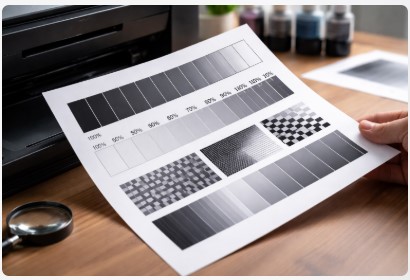
So what exactly does a grayscale print test page do? It’s a diagnostic sheet with smooth gray gradients and density blocks that reveal hidden print issues. Think of it as a quick grayscale print quality test at home, but done the right way.
And the best part? You don’t need fancy tools or expensive software to run it.
In this guide, I’ll walk you through:
- How to download and print a grayscale print test page
- How to read the results correctly
- Why your grayscale might look washed out or too dark
- How to fix uneven or streaky grayscale fast
I’ve spent over ten years fixing stubborn printers for small businesses and home users. I’ve seen rushed deadlines, bad driver updates, and toner cartridges that quit at the worst moment.
And if your grayscale output looks off, trust me — there’s always a reason.
Let’s break it down and get your prints looking sharp again.
What Is a Grayscale Print Test Page?
A grayscale print test page is a diagnostic sheet that checks how accurately your printer produces shades of gray. It’s the fastest way to see if your black output is smooth, balanced, and consistent.
If you’ve ever wondered what is a grayscale print test page, think of it like a stress test for your printer’s black ink or toner. Instead of printing colors, it focuses only on gray tones from light silver to deep black. That’s where most hidden problems show up.
And here’s the big difference. A regular color printer test page checks cyan, magenta, yellow, and black. A grayscale page isolates tonal transitions. It shows whether your printer can smoothly move from 0% black to 100% black without gaps, streaks, or weird jumps.
I’ve seen plenty of people print a color test page and assume everything’s fine. Then they print a black-and-white brochure, and boom — it looks washed out. That’s because grayscale performance and color performance aren’t always the same.
Let’s break down what’s actually on the page.
Definition & Core Purpose
At its core, a printer grayscale gradient test chart measures tonal accuracy. It reveals whether your printer produces clean transitions between light and dark areas.
The core purpose is simple. It helps you detect density problems, banding, streaking, and calibration issues before they ruin real prints.
This reminds me of the time when a small architecture firm brought in blueprints that looked faint. The lines were there, but the lighter gray shading was almost invisible. We ran a grayscale test page to check toner density. The 10–30% gradient range was barely printing. Their toner was at 18% capacity. Replacing it fixed the issue in under 10 minutes.
That one sheet saved them from reprinting 60 oversized drawings. That would’ve cost over $300.
So yes, a simple grayscale test page can prevent expensive mistakes.
Key Elements Inside a Grayscale Test Page
Now let’s talk about what you’ll actually see on a grayscale test page to check toner density.
First, you’ll see gradient bars running from 0% to 100% black. These should look smooth. No stripes. No jumps. Just a clean transition.
Next are toner density blocks. These are solid squares at fixed percentages, like 20%, 40%, 60%, and 100%. They help you compare how evenly your printer lays down toner.
Then you’ll find fine text sharpness zones. Tiny text printed in gray reveals alignment and resolution problems. If that text looks fuzzy, something’s off.
And finally, there are banding detection areas. These are wide gray sections where horizontal lines tend to appear if the drum or printhead has issues.
Just last week, a frustrated customer showed me a grayscale brochure proof. It had faint horizontal stripes across every image. We printed a grayscale printer test page, and the banding was obvious in the mid-tone area. The drum unit was worn. A $95 replacement solved what they thought was a software problem.
Funny how often hardware gets blamed last.
Now that you know what a grayscale print test page actually does, the next step is learning how to print one properly. And trust me, settings matter more than most people realize.
If you also want to evaluate full color balance instead of just tonal range, you can run a detailed CMYK print test page as part of your diagnostic process.
Let’s start with the grayscale test first.
How to Download and Print a Grayscale Print Test Page
A grayscale print test page only works if you download the right file and print it correctly. I’ve seen perfect test files ruined by one wrong checkbox in the driver settings.
Let’s make this simple and stress-free.
Download High Resolution Grayscale Print Test Page (Free PDF)
If you want accurate results, you need a clean file. Not a low-resolution screenshot. Not a blurry image pulled from Google.
Look for a grayscale print test page PDF download that includes:
- Smooth 0–100% gradient bars
- Toner density blocks
- Fine detail text
- Banding detection zones
I always recommend using a printable grayscale calibration sheet A4 format. It’s universal and works on most home and office printers.
Both inkjet and laser printers can use the same file. The difference is how they lay down ink or toner, not the design of the test page.
Last month, a small real estate office downloaded a compressed JPEG instead of a proper PDF. The gradient looked stepped, not smooth. They thought their printer was broken. It wasn’t. The file was the problem.
We replaced it with a high-resolution PDF. The issue vanished instantly.
So yes, file quality matters.
Download High Resolution Grayscale Test Page (Free PDF)
Make it obvious. Make it easy. No clutter.
Now let’s talk about printing it correctly, because this is where most people slip up.
How to Print a Grayscale Test Page on Any Printer
Printing sounds simple. It usually isn’t.
If you’re wondering how to print a grayscale test page on any printer, the secret is driver settings. That’s where grayscale output can get distorted.
Let’s go system by system.
Windows Grayscale Print Settings
On Windows, here’s what I do:
- Open the PDF.
- Click Print.
- Go to Printer Properties.
- Open the Advanced tab.
- Select Grayscale or Black & White Mode.
Then check toner density. Some drivers let you adjust it manually.
Now here’s a real story. This reminds me of the time when a graphic designer in downtown Chicago complained about washed-out proofs. The printer was fine. The toner was full. The problem? The Windows driver was set to “Eco Mode.”
Eco Mode reduces toner density by up to 30%. Great for drafts. Terrible for grayscale testing.
We disabled it. Ran the grayscale print test page again. Perfect gradient. Problem solved in under five minutes.
Always check Eco Mode first. It’s sneaky.
If you’re unsure how to adjust grayscale print settings in Windows, start by turning off any toner-saving features.
Mac Grayscale Test Page Settings
On macOS, the process is a little different.
- Open the PDF.
- Click Print.
- In the print dialog, look for Color Options.
- Choose Black & White or Grayscale.
Some Mac drivers hide advanced density controls under “Quality” settings. If your grayscale looks too dark, check there.
Just last week, a photographer showed me prints that looked muddy. The Mac driver was forcing composite black using color cartridges. That changes tonal balance.
Switching to true grayscale mode fixed the issue instantly.
Mac users often miss that dropdown. It’s small. But important.
Inkjet vs Laser Printer Settings Differences
Now let’s talk about grayscale test page for inkjet printers versus laser printers.
Inkjet printers spray liquid ink. They’re sensitive to paper type and drying time. Always match the paper setting in the driver to the paper you’re using.
Laser printers use toner and heat. Density settings matter more than paper type.
A pattern I’ve noticed with small business clients is this: inkjet users struggle with streaks from clogged nozzles. Laser users struggle with uneven density from aging drum units.
Different machines. Different problems.
So before you panic, make sure:
- The correct grayscale mode is selected
- Eco or toner-save mode is off
- Paper type matches your actual paper
- Density settings aren’t reduced
Once you’ve printed your grayscale print test page correctly, the real detective work begins.
Let’s talk about how to read those results without second-guessing yourself.
How to Read and Interpret Your Grayscale Print Test Page
After printing your calibration sheet, the next step is knowing how to interpret the results. This section helps you move from “Something looks wrong” to “Here’s exactly what needs fixing.”
What Smooth Gradients Should Look Like
A properly functioning printer should produce:
- A seamless transition from white to deep black
- No visible steps between gray shades
- Even tone distribution across the entire page
- Clean detail blocks without distortion
If your gradient looks continuous and balanced, your printer calibration and grayscale settings are working correctly.
However, if the gradient appears uneven, jumpy, or inconsistent, continue to the sections below for diagnosis.
Signs of Banding or Toner Inconsistency
Banding is one of the most common grayscale issues. It typically appears as:
- Repeating horizontal lines
- Noticeable gray stripes
- Sudden jumps between tones
If you’re searching for a grayscale banding test page troubleshooting guide, this is the key diagnostic indicator.
Common Causes:
- Low toner or ink
- Clogged print head (inkjet)
- Worn drum unit (laser)
- Incorrect print density settings
- Draft mode enabled
Quick Troubleshooting Steps:
- Check ink or toner levels.
- Disable draft or economy mode.
- Run a print head cleaning cycle (inkjet).
- Inspect or replace the drum unit (laser).
Banding that repeats at consistent intervals often points to a mechanical component rather than a software setting.
Washed-Out vs Too-Dark Output
Two very common questions users ask are:
- Why does my grayscale print look washed out?
- Why is my grayscale print too dark?
Here’s how to interpret each case.
If the Print Looks Washed Out:
- Toner or ink may be running low
- Draft mode might be enabled
- Incorrect paper type selected
- Grayscale mode not properly activated
- Toner density set too low
Washed-out prints usually lack deep blacks and appear faded overall.
If the Print Looks Too Dark:
- Toner density set too high
- Contrast boosted in printer settings
- Double color management conflict
- Incorrect ICC profile
Too-dark output typically shows crushed shadow detail, where dark areas merge together without visible gradient separation.
Adjusting grayscale density or contrast in your printer properties panel often resolves both extremes.
Streaks and Lines on Grayscale Prints
Streaks are different from banding and usually appear as:
- Vertical white lines (common in inkjet printers)
- Repeating marks at fixed spacing (laser drum issue)
- Random smudges or gray trails
If you’re wondering how to fix streaks on grayscale prints, start with the printer’s maintenance tools.
Fix Checklist:
- Run print head cleaning (inkjet)
- Perform print head alignment
- Clean or inspect the drum unit (laser)
- Replace low or defective consumables
If the streak repeats at identical spacing down the page, it is likely tied to a roller or drum component.
Diagnostic Tip
Always evaluate your test page under good lighting. Poor lighting conditions can exaggerate minor inconsistencies that are not actual printer defects.
For best results:
- Print at normal quality (not draft).
- Use standard A4 paper.
- Disable unnecessary color enhancements.
By carefully analyzing gradient smoothness, density balance, and line consistency, you can quickly determine whether the issue is related to settings, consumables, or hardware.
Common Grayscale Printing Problems & Fixes
This section focuses on practical fixes users can apply immediately. The goal is simple: identify the problem, apply the right adjustment, and avoid unnecessary service costs.
Fix Uneven Grayscale Printing on Laser Printer
If you need to fix uneven grayscale printing on a laser printer, start with the components that directly control toner distribution.
Uneven output often appears as:
- Patchy gray areas
- Light/dark inconsistencies
- Repeating shaded bands
Step 1: Clean the Drum Unit
Remove the toner cartridge and inspect the drum (if accessible).
- Look for visible toner buildup or scratches.
- Gently clean according to manufacturer guidelines.
A worn or dirty drum is one of the most common causes of grayscale inconsistency.
Step 2: Replace Low or Defective Toner
Low toner doesn’t always trigger a warning immediately.
If gradients appear faded in certain zones, replacement may restore uniform density instantly.
Step 3: Check Density Settings
Open printer properties → Advanced → Density or Print Quality.
Reduce or increase toner density gradually and reprint the test page.
Experience Note (Real-World Case):
In one service case, a client requested onsite repair for severe grayscale banding. The issue appeared hardware-related, but after a 10-minute drum inspection and reseating, print quality returned to normal.
That simple fix avoided an estimated $150 service call and unnecessary full component replacement.
Grayscale Test Page for Inkjet Printers – Fix Faded Areas
When using a grayscale test page for inkjet printers, faded areas usually indicate ink delivery issues rather than settings errors.
Common symptoms:
- Missing gradient sections
- Horizontal white lines
- Weak shadow detail
Step 1: Run a Nozzle Check
Most inkjet printers include this in Maintenance settings.
The pattern will reveal clogged nozzles.
Step 2: Perform Print Head Cleaning
Run one cleaning cycle and print another grayscale test page.
Avoid excessive cleaning cycles, as they consume ink quickly.
Step 3: Use the Correct Paper Profile
Incorrect paper settings can cause ink under-application.
Select the paper type that matches your actual media (Plain, Matte, Photo).
If faded output improves after cleaning, the issue was maintenance-related rather than mechanical.
Best Paper Settings for Grayscale Printing
Choosing the best paper settings for grayscale printing significantly impacts tone accuracy and depth.
Plain Paper
- Ideal for everyday diagnostic testing
- Lower ink absorption
- May produce lighter blacks
Matte Paper
- Better for smooth gradients
- More consistent grayscale reproduction
- Reduced glare during evaluation
Photo Paper
- Deeper blacks
- Higher contrast
- Requires correct profile selection to avoid over-saturation
DPI Considerations
Higher DPI does not always mean better grayscale quality.
- 300 DPI → Standard diagnostic testing
- 600 DPI → Sharper gradient transitions
- 1200 DPI → Best for detailed grayscale photography
For troubleshooting purposes, 300–600 DPI is typically sufficient. Printing at extremely high DPI during diagnostics can mask certain banding patterns.
Quick Cost-Saving Tip
Before scheduling professional service:
- Print a grayscale test page.
- Check consumables.
- Adjust density settings.
- Perform maintenance routines.
Many grayscale issues can be resolved in under 10 minutes, preventing costly service visits and unnecessary part replacements.
Grayscale vs Black and White Printing – What’s the Real Difference?
Many users assume grayscale and black & white are identical. In practice, printer drivers handle them differently. Understanding the grayscale vs black and white printing difference helps you choose the right mode for diagnostics, cost control, and output accuracy.
Grayscale vs Black Only Mode
Grayscale Mode
- Uses a mix of color inks/toners (CMY + Black) to create smooth gray transitions
- Produces more accurate gradients
- Better for images, photos, and calibration test pages
Black Only Mode (Black & White)
- Uses only the black cartridge or black toner
- No color mixing
- More economical for text documents
When you compare grayscale vs color test page results, grayscale mode typically delivers smoother gradients because the driver blends multiple channels to reproduce mid-tones. Black-only mode may show more abrupt tonal transitions.
Driver Behavior Notes
Manufacturers such as HP, Canon, and Epson implement these modes differently:
- Some HP drivers label grayscale as “Print in Grayscale” with optional “Black Ink Only.”
- Canon often separates “Grayscale Printing” and “Black & White” depending on driver version.
- Epson inkjets may blend CMY inks in grayscale mode for smoother photo output.
This means two printers set to “black & white” may not produce identical results.
Toner Usage Differences
One major difference lies in consumable usage.
Grayscale Mode:
- May use small amounts of cyan, magenta, and yellow
- Produces richer mid-tones
- Slightly higher consumable usage
Black Only Mode:
- Uses only black toner or ink
- More cost-efficient for text-heavy documents
- Less accurate for photo gradients
On laser printers, grayscale mode can distribute toner differently across the drum, which sometimes improves gradient consistency but may increase overall toner usage.
When to Use Each Mode
Choose the mode based on your goal:
| Use Case | Recommended Mode |
|---|---|
| Printing text documents | Black Only |
| Printing grayscale photos | Grayscale |
| Running a calibration test page | Grayscale |
| Saving toner on drafts | Black Only |
| Diagnosing banding issues | Grayscale |
If you are troubleshooting print quality, always use grayscale mode first. It reveals gradient inconsistencies more clearly than black-only mode.
Practical Recommendation
If your test page shows poor transitions in black-only mode but appears smoother in grayscale mode, the issue may be density or toner distribution rather than hardware failure.
Understanding this distinction prevents misdiagnosis and unnecessary component replacement.
Advanced Calibration for Accurate Grayscale Output
If basic troubleshooting didn’t fully resolve your gradient inconsistencies, it’s time for advanced calibration. This section focuses on precision adjustments that improve tonal accuracy, especially for photography and professional workflows.
How to Calibrate Printer for Accurate Grayscale Output
If you’re searching for how to calibrate printer for accurate grayscale output, the answer goes beyond simply enabling grayscale mode. True calibration involves hardware alignment, density control, and color management discipline.
1. Use Built-in Calibration Tools
Most modern printers include internal calibration utilities.
Manufacturers such as HP, Canon, and Epson provide:
- Print head alignment tools (inkjet)
- Drum calibration cycles (laser)
- Automatic density optimization
Access these through:
- Printer control panel → Maintenance
- Printer driver → Tools / Utility tab
Run calibration before adjusting manual settings. Automated routines often correct minor inconsistencies immediately.
2. Manual Density Adjustment
If gradients still appear too light or too dark:
- Open Printer Properties
- Locate Toner Density / Print Density / Brightness
- Adjust in small increments (5–10%)
- Reprint the grayscale test page
Avoid large adjustments. Overcorrecting can crush shadow detail or wash out mid-tones.
For laser printers, density changes directly affect toner distribution on the drum. For inkjets, brightness and contrast adjustments alter ink mixing behavior.
3. Firmware Considerations
Outdated firmware can affect grayscale rendering and color management.
Manufacturers occasionally release updates that improve:
- Toner distribution algorithms
- Ink mixing precision
- ICC handling stability
Before assuming hardware failure, confirm the printer firmware is current.
Breakthrough Story: Real-World Calibration Success
In one photo studio setup, grayscale portraits consistently printed with slightly muddy mid-tones. The issue wasn’t the paper or ink — it was a combination of outdated firmware and overly aggressive density settings.
After:
- Updating firmware
- Resetting density to factory default
- Running full calibration
The studio reduced reprints by over 40% and improved workflow speed significantly.
What looked like a hardware problem turned out to be calibration drift — a fix that took under 20 minutes.
Grayscale Test Page for Photo Printing Accuracy
If your focus is photography, a grayscale test page for photo printing accuracy becomes essential.
Photo printing demands:
- Smooth mid-tone transitions
- Deep but detailed blacks
- Accurate highlight retention
ICC Profiles and Grayscale Control
ICC profiles determine how your printer translates digital tones to paper.
For grayscale photography:
- Use the correct paper-specific ICC profile
- Disable double color management (avoid printer + software managing simultaneously)
- Match the paper type exactly in driver settings
Incorrect ICC selection often causes:
- Crushed shadows
- Color tinting in grayscale images
- Inconsistent gradient smoothness
Photo Paper Grayscale Handling
Different media react differently:
- Matte paper → Softer tonal transitions
- Glossy/photo paper → Deeper blacks, higher contrast
- Fine art paper → Requires precise ICC matching
Always print a dedicated grayscale test page before final photo production. This prevents costly paper waste and ensures tonal accuracy before committing to full-size prints.
Expert Tip
For professional photo workflows:
- Calibrate monitor first
- Calibrate printer second
- Lock density settings
- Use consistent paper batches
Grayscale accuracy is not just about the printer — it’s about maintaining a controlled output environment.
When Should You Run a Grayscale Print Test?
Search Intent: Preventative / Maintenance
Understanding when should you run a grayscale print test is essential for maintaining consistent print quality and avoiding unexpected failures. A grayscale test page is not only a troubleshooting tool — it’s a preventive maintenance checkpoint.
After Toner Replacement
Run a grayscale test immediately after replacing:
- Toner cartridges (laser printers)
- Ink cartridges (inkjet printers)
- Drum units
New consumables can sometimes cause temporary density imbalance or uneven toner distribution. Printing a test page confirms proper installation and stable grayscale output before continuing normal use.
Before Important Deadlines
If you are preparing:
- Client presentations
- Legal documents
- Academic submissions
- Portfolio prints
Always print a grayscale test first.
This ensures your blacks are deep, gradients are smooth, and no streaking or banding appears during large print runs.
During Printer Maintenance Check
A grayscale print test page for printer maintenance check should be part of routine servicing.
Include it in:
- Monthly office printer audits
- Post-cleaning verification
- Preventative maintenance schedules
Grayscale gradients reveal subtle density inconsistencies that regular text documents cannot expose.
When Noticing Tonal Shifts
Run a test page if you observe:
- Blacks appearing lighter than usual
- Mid-tones looking muddy
- Gradual fading across pages
- Inconsistent density between print jobs
These early signs often indicate:
- Density setting drift
- Partial nozzle clogging (inkjet)
- Toner distribution imbalance (laser)
Detecting the issue early can prevent hardware wear and unnecessary service expenses.
Conclusion
A Grayscale Print Test Page is more than just a diagnostic sheet — it’s a simple yet powerful tool for maintaining consistent, professional-quality output.
By using a grayscale test regularly, you can:
- Detect banding before it worsens
- Identify density imbalance early
- Prevent streaking and faded output
- Reduce wasted paper and toner
- Avoid unnecessary service costs
Whether you’re running a home office printer or managing a professional workflow, performing a quick grayscale print quality test at home takes only a few minutes — but can save hours of frustration later.
A properly printed printer grayscale gradient test chart gives you immediate visual feedback on tonal balance, smooth transitions, and hardware stability. Instead of guessing, you’re making decisions based on measurable output.
Preventative maintenance is always cheaper and easier than reactive repairs. Running a grayscale test:
- After replacing toner
- Before important deadlines
- During monthly maintenance
- When noticing tonal shifts
keeps your printer performing at its best.
Next Steps
- Download the grayscale test PDF and print it now.
- Explore the CMYK test page guide for full color calibration.
- Run a complete printer maintenance check to ensure long-term stability.
A few minutes of testing today can prevent costly printing problems tomorrow.
Frequently Asked Questions
What is a grayscale print test page used for?
A grayscale print test page is used to evaluate printer performance by checking smooth gradient transitions from white to black. It helps detect banding, streaks, density imbalance, washed-out output, and overly dark shadow areas. It is commonly used for diagnostics and preventative printer maintenance.
Why does my grayscale print look washed out?
A grayscale print may look washed out due to low toner or ink levels, draft mode being enabled, low density settings, or incorrect paper type selection. Increasing toner density slightly, disabling draft mode, and checking consumables usually resolves the issue. Outdated software can also affect grayscale density, so it’s worth learning how to update your printer driver properly.
How do I fix grayscale banding on a laser printer?
To fix grayscale banding on a laser printer:
Print a new grayscale test page to confirm the issue.
Remove and reseat the toner cartridge.
Inspect and clean the drum unit.
Replace toner if low.
Reset density settings to default.
If the banding repeats at consistent intervals, the drum unit may need replacement. If banding persists, running an alignment print test page can help correct positioning issues that affect tonal consistency.
Is grayscale the same as black and white printing?
No. Grayscale printing blends multiple color channels to produce smoother gray transitions, while black-and-white (black-only) mode uses only black toner or ink. Grayscale provides better gradient accuracy, while black-only mode is more economical for text printing. You can compare results by printing a dedicated color test page to see how your printer handles mixed ink layers.

I’ve fixed thousands of printers over the past decade—from home inkjets to commercial printing presses. Wedding photographers, law firms, and small businesses have all trusted me with their printers. Every guide comes from real workshop experience, not theory.