Download Test Page Free PDF – Complete Printer Diagnostic Guide (2026)
Last week, a real estate agent walked into my Austin workshop ready to throw his $800 printer out the window. His listing photos looked like watercolor paintings. He’d already spent $160 on new cartridges. The problem got worse.
Fifteen minutes later, he left with perfect prints.
The solution? One free PDF test page.
Your printer isn’t broken. It’s just confused.
Most “my printer is dead” emergencies aren’t hardware failures. Just calibration problems. For a deeper dive, check out why test pages are important.
In this guide, I’ll show you how to download test page free PDF options that work. You’ll learn what is a printer test page used for, why yours might be printer test page not printing correctly, and exactly how to fix it.
Quick Summary
A printer test page diagnoses streaks, misalignment, and color issues. Download test page free PDF to check printer health before buying ink or calling a technician. Most fixes take under 15 minutes.
Background & Context – What Is a Printer Test Page?
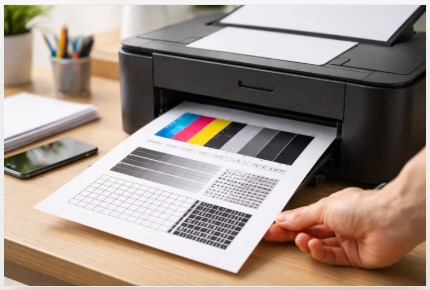
A printer test page is a diagnostic sheet. It shows you color bars, alignment grids, and gradient patterns.
Two main types you’ll run into:
Alignment test pages – These fix blurry or double text. When your letters look like they’re wearing 3D glasses, this is your answer. See alignment test page examples for visual reference.
Calibration test pages – These fix color accuracy. That weird green tint in your photos? Gone.
Xerox developed the first test pages back in the 1970s. The core principles haven’t changed much since then. For reference, industry standards like ISO 13660 define print quality measurement methods used by professional labs.
Quick note on printer types: Inkjet and laser printers use different test pages. Inkjet test pages focus on nozzle patterns and color blending. Laser test pages emphasize grayscale gradients and toner density. The PDF I provide works for both, but keep this in mind if you’re troubleshooting model-specific issues.
Why do printers lose calibration? Low ink. Physical bumps. Software updates. Cartridge changes.
Last month, a client’s printer started ghosting after a Windows 11 update. She thought the machine was dying. Windows just forgot the alignment settings. Happened to many HP clients after that update, according to HP’s support forums.
So what does a printer test page tell you? Streaks mean clogged nozzles. Gaps mean low ink. Wavy lines mean misalignment.
How to Download a Printer Test Page Free PDF (5 Methods)
Method 1 – Direct PDF Download (Fastest)
I keep a copy of my master test page PDF on my phone’s cloud storage. When a client calls with print issues, I email it to them instantly.
Here’s your free printer test page PDF download. It includes CMYK color blocks, 0.1mm precision grids, and nozzle check patterns. Works on most inkjet and laser printers.
Critical tip: Disable “Fit to Page” when printing. Scaling ruins measurements. Learn why scaling affects test page accuracy.
Need something specific? Download black and white test page free for grayscale checks. For full color work, get the download CMYK test page PDF. Visit our universal test page for more options.
Method 2 – Windows Built-in Test Page
No download needed. Windows has one ready to go.
Step-by-step:
- Press
Win + R, typecontrol printers - Right-click your printer → Printer Properties
- Click “Print Test Page” at the bottom
Watch your printer while it prints. Hear grinding? See paper skewing? Stop immediately. That’s a mechanical issue. If you’re stuck, follow our fix test page errors guide.
Method 3 – Mac Test Page
Steps:
- Apple Menu → System Settings → Printers & Scanners
- Select printer → Options & Supplies → Utility tab
- Click “Print Test Page”
Method 4 – Direct from Printer (No Computer Needed)
Had a client whose kids set their printer menus to Japanese. No computer? No problem. Most printers have button combos.
Brand shortcuts I’ve tested:
- HP: Hold Power + Cancel buttons for 5 seconds
- Canon: Power on while holding Stop/Reset until light flashes twice
- Epson: Press Home + Information buttons simultaneously
- Brother: Navigate to Machine Info → Print Settings
For a complete guide, visit how to print test page without computer.
Method 5 – Printer Software Apps
- HP Smart App → Printer Settings → Align Printer
- Canon PRINT Inkjet/SELPHY app → Maintenance → Align Print Head
- Epson Status Monitor → Maintenance → Head Alignment
According to Epson’s official documentation, running a nozzle check before cleaning cycles can save significant ink and prevent unnecessary wear on print heads.
How to Read Your Test Page – Decode Like a Technician
Check out how to analyze printer test page results for visual examples.
The Alignment Grid – What Those Crosshairs Mean
A bakery owner came to me last month. Her label printer kept smearing barcode prices. I looked at Grid A on her test page—clogged black nozzle.
Here’s how I fixed it: I ran one cleaning cycle from the printer menu. Waited 15 minutes. Ran another nozzle check. The gaps were gone. Total time: 20 minutes. Cost: zero dollars. She thought she needed a $400 repair.
What to look for:
Grid A (Vertical Lines) – Solid, unbroken lines = healthy. Gaps or wavy lines = clogged nozzles.
Grid B (Color Alignment) – Colors merge seamlessly = good. Visible borders = misaligned cartridges.
Registration Marks (+ symbols) – Everything aligns = perfect. Offset marks = mechanical misalignment.
So why does my printer test page look streaky? Check Grid A first.
The Color Bars – Reading CMYK Health
Smooth, even color bars = healthy printer.
Streaks perpendicular to print direction = clogged printhead.
Light or missing sections = low ink or blocked nozzles.
Banding (horizontal lines) = printhead too far from paper.
For a detailed reference, visit our color test page checklist.
The Text Block – Ghosting and Blur
Law firm client. Important contracts. Printer started ghosting—text had a shadow.
What actually happened: They replaced toner twice. Called HP support three times. No improvement. I ran one alignment test page. The pattern showed the printhead was off by 0.5mm. Ran alignment from the printer menu. Fixed in 90 seconds.
Cheat sheet:
- Sharp text = good alignment
- Blurry small text = alignment issue
- Double images (ghosting) = paper shifting or printhead timing off
According to Canon’s support documentation, running an alignment test page after every cartridge change can extend printhead life.
Common Test Page Problems – Diagnose & Fix
“My Test Page Won’t Print at All!”
Fix checklist:
- Paper loaded correctly? (Paper feed issues can cause this)
- Ink levels above 15%? (Most printers refuse alignment when critically low)
- Restart Print Spooler:
services.msc→ Print Spooler → Restart
If these don’t work, follow our printer test page not printing fix guide.
“Alignment Keeps Failing!”
Step-by-step:
- Run deep cleaning cycle. Maximum 3 times.
- Inspect printhead contacts. Green fuzz = corrosion. Learn how to clean printhead contacts safely.
- Manual nozzle check: Dampen paper towel with distilled water. Gently swipe printhead.
⚠️ Warning: Running more than 3 cleaning cycles in a row wastes ink and can overheat the printhead. Stop and let the printer rest for 1 hour before trying again.
For Epson owners, see our Epson printer test page guide with model-specific instructions.
When to suspect hardware:
- Alignment fails on the same pattern every time
- Grinding noise during alignment
- “Service Required” error codes
“Printer Still Misaligned After Fixes!”
Last-resort solutions:
- Swap in known-good cartridges (counterfeit cartridges cause alignment issues)
- Factory reset + firmware update
- Printhead replacement (typical lifespan: 30,000-50,000 pages)
For HP users, visit HP test page not working for brand-specific fixes.
Proactive Printer Maintenance – Stop Problems Before They Start
When to Run a Test Page
Trigger checklist:
- After replacing ink cartridges (ALWAYS)
- After moving the printer
- After major OS updates
- Monthly for business printers
- Before important print jobs
For a deeper understanding, read why print a test page before big jobs.
The 3-Strike Rule
Strike 1: Clean printheads (standard cleaning)
Strike 2: Check ink levels. Replace any cartridge under 25%.
Strike 3: Restart printer + computer (printer first, then computer)
Still failing? Run deep cleaning. Learn how to use a test page for troubleshooting effectively.
Conclusion
A free PDF test page diagnoses most common print problems.
You can print from Windows, Mac, or directly from the printer.
Most fixes take under fifteen minutes. No technician needed.
Run test pages proactively after cartridge changes and printer moves.
Can I download a test page without installing drivers? Yes. That’s the beauty of a PDF. Save it anywhere. Print from any device.
Why is my test page printing blank? Check ink levels first. Then run a nozzle check. Blank pages usually mean empty cartridges or a completely clogged printhead.
What does a test page reveal about print quality? Everything. Streaks, misalignment, color issues, ghosting, banding, fading.
Download your free printer test page PDF below. Keep it bookmarked.
FAQ
Why is my printer test page printing blank?
Empty cartridges, clogged printhead, or corrupted driver. Check ink first. Then run two cleaning cycles. Still blank? Reinstall the driver.
How often should I print a test page?
Once a month for home printers. After every cartridge change. Weekly for business printers. See how often to print test page for maintenance.
What’s the difference between a test page and a nozzle check?
Test page checks alignment, color, and text quality. Nozzle check only tests for clogged nozzles. Run nozzle check first for streaks.
My HP test page looks fine but documents print poorly?
Software or document settings. Turn off page scaling. Set quality to “Best” not “Draft.” Check color management.
Can I use any paper for an alignment test page?
No. Use standard 20lb copy paper (80gsm). Glossy or cardstock changes ink absorption and gives false readings.
Why does my test page have lines even after cleaning?
Permanently clogged nozzle or scratched printhead. If three deep cleanings don’t fix it, the nozzle is physically damaged. Learn when to replace vs repair your printer.
How do I fix color fringing on my test page?
Run color calibration from printer software. If that fails, manually adjust color registration sliders. For the best printer test page for color calibration, use one with fine registration marks.
What does a grayscale test page tell you?
It reveals color casts in black and white printing. Gray should be neutral. See tint? Run full color calibration.
⚠️ Disclaimer: This article is based on personal expertise and industry knowledge gained from over a decade of printer repair experience. Results may vary by printer model and condition. Running more than 3 cleaning cycles in a row can damage some printer models. Always consult your printer’s manual or seek help from a certified technician for model-specific issues.

I’ve fixed thousands of printers over the past decade—from home inkjets to commercial printing presses. Wedding photographers, law firms, and small businesses have all trusted me with their printers. Every guide comes from real workshop experience, not theory.
Very nice!