
How to Analyze Printer Test Page Results (Quick Fix Guide)
Last week—March 2026—a client walked into my Austin shop with an HP Officejet that was spitting out pages that looked like abstract art. She’d already bought three new cartridges—wasted $120—because she didn’t know her test page was telling her exactly what was wrong. I felt for her. That frustration? I’ve lived it myself more times than I care to count.
A printer test page isn’t just random ink on paper. It’s a diagnostic goldmine. In 15 years of running my repair shop here in Austin, I’ve watched test pages save people hundreds—sometimes thousands—of dollars. They point to simple fixes that keep you from replacing parts that aren’t actually broken.
So what are we covering today?
I’m going to walk you through exactly how to analyze printer test page results like a seasoned tech. We’ll break down every section—nozzle patterns, color bars, alignment grids—so you actually know what you’re looking at. You’ll learn to spot problems before they wreck important prints. And I’ll give you step-by-step fixes for streaks, fading, missing colors, and misalignment that actually work.
I’ve also included brand-specific patterns for HP, Epson, Canon, and Brother. Because let’s be honest—a Canon test page doesn’t look the same as an Epson one. By the end, you’ll know when to clean, when to replace, and when it’s time to call in a professional.
This is your step by step printer test page troubleshooting guide. No fluff. Just what I’ve learned fixing printers for over a decade.
Quick Summary
A printer test page reveals exactly what’s wrong with your machine—clogged nozzles show up as white streaks, misalignment creates blurry text, and missing colors point to empty cartridges or printhead failure. To analyze your results, compare each section against known good patterns, identify defects, and follow targeted fixes. Most print problems are solved with 2-3 cleaning cycles or simple alignment adjustments. If issues persist, you’re likely looking at hardware replacement or professional service.
What Is a Printer Test Page and Why Should You Care?
A printer test page is basically your machine’s medical report. It’s a diagnostic printout that reveals what’s going on inside—ink flow, nozzle function, alignment accuracy, and whether your printer is even talking to your computer correctly.
I’ve kept a folder for years I call my “mystery test pages.” Customers bring them in, and I lay them out like a detective. One look and I can usually tell you: clogged nozzles, low ink, or a printhead that’s on its last legs.
A guy last week was convinced his printer was dead. Test page showed faint black but solid colors. Fifteen seconds later: “Sir, your black cartridge is empty.” He’d already priced out a new printer. Saved him $200.
So what does a printer test page show exactly? Let’s break down every piece.
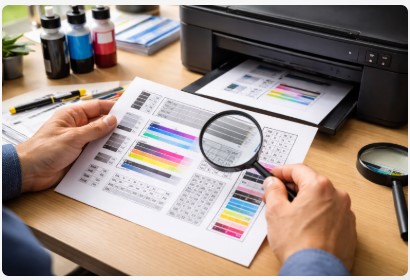
What a Standard Test Page Includes
| Component | What It Shows | Why It Matters |
|---|---|---|
| Color Bars | Cyan, Magenta, Yellow, Black blocks | Missing or faded colors tell you it’s low ink or clogged nozzles |
| Nozzle Pattern | Stepped lines or grid patterns | Gaps mean clogged nozzles, plain and simple |
| Alignment Grid | Overlapping lines or boxes | If lines don’t match up, you’ll get blurry text |
| Grayscale Blocks | Shades from white to black | Patchy grayscale often means toner trouble in laser printers |
| Text Sample | Alphabet and number strings | Fuzzy text means alignment issues |
| Printer Info | Model, serial, firmware, page count | Your troubleshooting cheat sheet |
Look, I get that this can feel overwhelming at first. Printer test page meaning for beginners isn’t always obvious. But you don’t need to be a technician to read these. You just need to know what to look for.
Think of color bars like a gas gauge. Full, solid blocks? You’re good. Streaky or missing? Time to check your ink. The nozzle pattern? That’s like checking each spark plug in your car. One misfire shows up immediately.
And that printer info at the bottom? I can’t tell you how many times I’ve saved clients hours on support calls because they had their firmware version ready. For more on this, check out our guide on printer diagnostic page basics.
How to read a printer diagnostic page isn’t secret technician knowledge. It’s pattern recognition. Once you’ve seen fifty test pages, you spot problems instantly.
How to Print a Test Page (Windows, Mac, and Direct from Printer)
You’d think printing a test page would be simple, right? And it is—once you know where to look. But there are actually three different ways to do it, and each tells you something slightly different.
Quick reality check: Make sure your printer is on, connected, has paper loaded, and isn’t flashing angry error lights. You’d be surprised how many “broken” printers I’ve fixed by simply loading paper.
From Windows 11
This is the fastest route. I use it constantly.
- Press Windows key + I to open Settings
- Go to Bluetooth & Devices > Printers & Scanners
- Click your printer
- Hit “Print test page”
If it prints, your connection and drivers are probably fine.
From Windows 10
- Open Settings > Devices > Printers & Scanners
- Select your printer, then click Manage
- Click “Print test page”
I’ve had customers swear this didn’t work, only to realize they’d selected the wrong printer.
From Mac (macOS)
- Open System Settings > Printers & Scanners
- Select your printer
- Click “Options & Supplies” then the “Utility” tab
- Open Printer Utility and click “Print Test Page”
Pro tip: If you can’t find it, search “Print Test Page” in Spotlight.
Direct from Printer Control Panel (The Pro Method)
This is my favorite because it bypasses your computer entirely. If this prints but your Windows test page doesn’t, you know it’s a driver or connection issue—not hardware.
- HP Printers: Setup > Print Report > Self-Test Report
- Epson Printers: Setup > Maintenance > Nozzle Check
- Brother Printers: Ink droplet icon > Improve Print Quality > Start
- Canon Printers: Setup > Maintenance > Print Nozzle Check Pattern
Last month, a client was ready to throw his HP across the room. Nothing would print from his laptop. I walked him through printing directly from the printer panel—worked perfectly. Thirty seconds later, we reinstalled his drivers, and he was back in business.
What If Nothing Prints?
This is where people panic. Don’t.
If you’re dealing with a printer self test page not printing properly, start with the basics:
- Is there paper?
- Are the cartridges installed?
- Is the printer on and not showing errors?
If the self-test won’t print at all, you’re looking at hardware. But if it prints and your computer test page doesn’t? That’s actually good news—your printer works, your connection doesn’t.
For urgent moments when you need that urgent fix for a blank printer test page, here’s my go-to:
- Power cycle everything—printer and computer
- Check USB cable or WiFi connection
- Reinstall printer drivers
- Try a different USB port or cable
Nine times out of ten, that solves it.
Why This Matters for Analysis
Here’s the connection you might be missing: how to analyze test page results in Windows 10 starts with knowing which test page you’re looking at. A Windows-generated test page includes driver information. A printer self-test shows pure hardware data. Both are useful, but they tell different stories.
I always tell my clients: learn to print both. The self-test tells you if the machine itself is healthy. The Windows test page tells you if they’re talking to each other correctly.
For a complete walkthrough of every method, visit our guide on how to print test page on any printer.
The Complete Guide to Reading Every Test Page Element
You’ve got a test page in your hands. Now what?
This is where most people’s eyes glaze over. They see colors and lines and think, “Looks fine.” But once I show you what to look for, you’ll start spotting problems instantly.
Color Bars — Your Ink Health Dashboard
Those solid blocks of cyan, magenta, yellow, and black? That’s your ink health dashboard.
What to look for:
- Solid, even blocks mean healthy ink flow
- Faded or streaked blocks mean low ink or partial clogs
- Missing blocks entirely mean empty cartridge or severe clog
- Color shifts—blue looking purple—point to color accuracy drift
Last spring, a real estate agent walked in. Nice lady, sold high-end properties in Westlake. She showed me her flyers—gorgeous sunset photos that looked muddy and dull. She’d already ordered new cartridges. Spent $80.
I printed a test page. Perfect cyan. Strong yellow. But magenta? Barely visible.
“That’s your problem. Magenta’s clogged. Your sunsets are missing the reds and pinks.”
One deep cleaning cycle later, she was printing vibrant property photos again. Saved her from tossing a perfectly good Canon. She still brings me cookies at Christmas.
Printer test page color accuracy check isn’t complicated. You’re just looking for consistency. If a color block doesn’t look right, that color won’t print right. For more detailed testing, check out our color print test page guide.
Nozzle Test Patterns — Finding the Clogs
This is where inkjet printers spill their secrets.
Inside your printer are dozens—sometimes hundreds—of microscopic nozzles. Each one fires ink like a tiny water pistol. The nozzle pattern shows you exactly which ones are working.
What you’ll see:
- Continuous straight lines mean all nozzles are firing
- White gaps or missing segments mean clogged nozzles
- Squiggly or misdirected lines mean nozzles firing crooked
How to interpret inkjet test page patterns varies by brand. Here’s what I’ve learned fixing thousands of these:
HP specific: Look at Test Pattern 2—those colored blocks. White lines through specific colors tell you exactly which printhead needs attention. White lines through black and yellow? Change that printhead. Through cyan and magenta? Different one.
Brother specific: Brother printers actually help you out. After printing, the machine asks “Which pattern matches yours?” and shows options 1 through 4. Pick the closest, and it auto-diagnoses the problem.
Epson specific: Epson patterns show all colors in a grid format. According to Epson’s official documentation, banding in text sections usually means head cleaning time. I’ve got a client with an Epson Workforce who runs a cleaning every three months like clockwork. His machine’s been running strong for seven years.
For a deeper dive, visit our nozzle print test page guide.
Alignment Grids — Why Text Looks Blurry
Ever printed something and thought, “Why does this look like I’m seeing double?”
That’s misalignment.
Those overlapping lines or boxes are printed in multiple passes. When everything’s aligned perfectly, the lines match seamless. When it’s off, you get that annoying ghosting effect.
A law office in downtown Austin brought in their printer last year. They’d been printing contracts for months with slightly blurry text. Nothing terrible. But for a law firm? Unprofessional.
They hadn’t even noticed.
I printed an alignment grid and showed them. Two millimeters off. That’s all it took. One alignment utility run—thirty seconds—fixed years of fuzzy documents.
The paralegal laughed. “That’s it?”
Yep. That’s it.
Grayscale and Text Samples
These sections get ignored. Don’t skip them.
Grayscale blocks should show a smooth transition from white to black. No banding. No sudden jumps. No weird color tints.
Patchy grayscale usually means:
- Laser printers: Toner distribution issues. Your drum might be getting old.
- Inkjets: Ink mixing problems. Probably related to nozzle clogs.
Text samples are your reality check. Look at those letters:
- Sharp edges with no feathering? Good.
- Consistent density across all characters? Good.
- Complete characters with no missing serifs? Good.
If text looks fuzzy, broken, or faded, you’ve got issues. A small business owner printed five hundred flyers for a holiday sale. Got them all back because the text was unreadable. Cost him $400 in reprints. All because he hadn’t run a test page first.
Laser printer test page troubleshooting steps are slightly different from inkjets. With lasers, you’re looking for:
- Vertical repeating defects (that’s your drum)
- Gray background (toner scatter)
- White spots (transfer roller issues)
For laser-specific testing, check our laser printer test page guide.
Putting It All Together
How to analyze color banding on test prints isn’t about memorizing every pattern. It’s about spotting what doesn’t belong. Solid where it should be solid. Continuous where it should be continuous. Aligned where it should be aligned.
Once you’ve seen a few dozen test pages, you’ll spot problems instantly.
Common Test Page Problems and Exact Fixes
You’ve spotted a problem. Now what?
This is where the real money’s saved. I’ve watched people throw away perfectly good printers because they didn’t know these fixes exist.
Streaks or Lines Through Colors
What you see: Vertical or horizontal white lines through color blocks.
Likely cause: Clogged printhead nozzles (inkjet) or low toner (laser).
The fix:
- Run printhead cleaning from your printer software (under Maintenance or Tools)
- Print another test page
- Repeat up to three times if needed
- Still streaked? Consider deep cleaning or printhead replacement
A graphic designer brought in his HP last month. Every print had white lines through his logos. He’d already ordered a new printer—$400. I ran two cleaning cycles, and bam, perfect prints. He canceled the order and bought me lunch instead.
HP specific: Pay attention to which color blocks have streaks. White lines through black and yellow? Replace that printhead. Through cyan and magenta? Different one. The printer’s literally telling you what to fix.
What causes streaks on a printer test page? Nine times out of ten, it’s ink drying in those tiny nozzles. Print more often, and this happens way less.
Faded or Dull Colors
What you see: Colors look washed out. Like someone turned down the saturation.
Likely cause: Low ink, old cartridges, or wrong paper type.
The fix:
- Check your ink or toner levels
- Replace cartridges if low (don’t shake them—that’s a myth that damages printheads)
- Try photo paper instead of plain paper—plain paper acts like a sponge
- Run color calibration if available
A photographer spent weeks frustrated her test prints looked nothing like her screen. She was using cheap copier paper. Switched to even basic photo paper, and the difference was night and day.
Why is my test page faded or blurry? Paper choice matters more than most people think. Ink sits on top of photo paper. It sinks into plain paper. That sinking = faded appearance.
For more on color accuracy, visit our printer color calibration test page guide.
Missing Colors
What you see: An entire color block is just… gone.
Likely cause: Empty cartridge or air lock in the ink system.
The fix:
- Replace the empty cartridge
- Run printhead cleaning to purge any air
- For severe cases: Manually prime the printhead (advanced—only if you’re comfortable tinkering)
Printer test page black ink not printing fix is usually the same deal. Either it’s empty, or air’s trapped. I had a client with a big format Epson—$2,000 printer—black ink completely missing. Air had gotten in during cartridge swap. Two cleaning cycles and it was back.
Misaligned or Blurry Text
What you see: Text looks doubled or ghosted.
Likely cause: Printhead misalignment, loose cartridges, or debris.
The fix:
- Run the alignment utility (Printers & Scanners > Printer Properties > Alignment)
- Reseat your cartridges—push them in firmly until they click
- Check the paper path for debris—I once pulled a paperclip out of a printer that had been misaligning for months
Blank Test Page
What you see: Paper feeds through. Comes out blank.
Likely cause: Empty cartridges, severe clogs, or driver corruption.
The fix:
- Check ink levels first
- Run a nozzle check from the printer itself—if that prints, hardware’s probably okay
- Reinstall your printer driver
- Try printing from a different application
Urgent fix for blank printer test page: Try the printer’s self-test first. If that works, reboot your computer and try again.
If you’re still stuck, our guide on printer test page not printing fix covers every scenario.
Printer Prints Test Page But Not Documents
The weird one: Self-test works. Application documents? Nothing.
Likely cause: Software issues. Application settings, corrupted print spooler, or driver conflicts.
The fix:
- Test in a different app—if Notepad prints but Word doesn’t, it’s a Word problem
- Clear the print spooler (Services > Print Spooler > Stop, delete files in C:\Windows\System32\spool\PRINTERS, then restart)
- Reinstall the printer driver
- Check for “Print to file” accidentally enabled
A small business owner couldn’t print invoices. Test page worked fine. Drove her crazy for two days. I unchecked “Print to file” in her PDF software. Two seconds. She bought me coffee for a month.
For spooler issues, see our how to clear printer queue guide.
A Note on Timing
Fix printer test page printing issues right when you spot them. Don’t wait. A small streak today is a complete clog next month.
Brand-Specific Test Page Interpretation
This tripped me up for years when I started. I’d look at an HP test page, then an Epson, and think, “Why don’t these look the same?” Every manufacturer does things differently.
HP Test Pages
I probably see more HPs than any other brand.
Self-Test Report Components:
- Printer Information – Model, serial, firmware, page count (gold for troubleshooting)
- Nozzle Test Pattern – Missing lines = cartridge problems
- Color Bars – Uneven or faint = low ink
- Event Log – Recent errors and page count
HP Advanced Diagnostic (Print Quality Page):
- Test Pattern 2 – Colored blocks. White lines tell you which printhead is failing.
- Test Pattern 3 – Gray blocks with dark lines or gaps? Linefeed calibration issue.
The HP Replacement Guide:
- Streaked black, red, or green = replace Black/Yellow printhead
- Streaked cyan or magenta = replace Cyan/Magenta printhead
How to analyze HP printer test page results? Start with Test Pattern 2. That one pattern tells you 80% of what you need. For more, visit our hp printer test page guide.
Epson Test Pages
Epson uses different technology—piezo inkjet instead of thermal.
Key Features:
- Nozzle check pattern shows all colors in a clean grid format. Gaps = clogs.
- Banding in text sections means head cleaning needed.
- Communication test confirms driver connection.
Epson Specific: If the test page won’t print, open Status Monitor. Look for “Communication Error.” According to Epson support documentation, this often clears with a simple power cycle.
Epson printer test page analysis tip: Pay attention to nozzle pattern edges. If they look fuzzy instead of sharp, your printhead might be failing, not just clogged.
For more, see our epson printer test page guide.
Canon Test Pages
Canon’s test pages feel familiar if you’ve used HP—both thermal inkjet—but layout differs.
What to Watch For:
- Nozzle check pattern shows cyan, magenta, yellow, black in separate sections. Missing parts = clog in that color.
- Alignment patterns use numbered grids. You pick which grid looks best (1-9) to calibrate.
Canon Specific: If your test page shows color but has fine white lines through text, run a deep cleaning. Canon printheads are replaceable on many models. According to Canon’s support site, this is often more cost-effective than replacing the entire printer.
Visit our canon printer test page guide for more.
Brother Test Pages
Brother printers are workhorses. Their test pages include a feature I love.
Interactive Diagnosis:
- Print the test page
- Printer asks: “Are all lines clear?”
- Select which pattern matches yours (1-4)
- Printer recommends cleaning cycles based on your answer
Brother Specific: Brother lasers use toner, so look for:
- Vertical repeating defects (drum wear)
- Gray background (toner scatter)
- White spots (transfer roller issues)
For more, see our brother print test page guide.
Why Brand Matters
Printer test page analysis for HP, Canon, and Epson isn’t one-size-fits-all. An HP tells you about printheads. An Epson tells you about nozzles. A Brother walks you through it step by step.
Knowing your brand saves you from chasing the wrong problem. A client last year with an Epson was convinced his printhead was dead because an HP user online said so. But Epsons rarely need printhead replacement. Turned out to be a simple air lock. Two cleaning cycles and he was back.
Test Pages for Different Printer Technologies
A test page from an inkjet doesn’t look the same as one from a laser. Different technology, different problems.
Inkjet Test Pages
Inkjets spray liquid ink through tiny nozzles.
What’s Different:
- Nozzle patterns are crucial—inkjets clog. It’s not if, it’s when.
- Color bars show mixing accuracy—inkjets blend colors by layering.
- Drying time affects results—grab too fast, you’ll smudge.
Inkjet-Specific Issues:
- Banding – Horizontal lines. Nozzles aren’t firing consistently.
- Missing nozzles – White gaps. Clogs.
- Color shifts – Blues turning purple. Ink mixing off.
- Feathering – Ink bleeding. Paper choice matters.
A woman brought in her Epson last month. Every photo had a weird pink tint. She’d replaced all cartridges—wasted $100. I looked at her test page. The cyan pattern was weak. One deep cleaning cleared the partial clog. She cried. Actually cried.
How to analyze print quality defects on a test page with inkjets? Start with the nozzle pattern. Always.
For more, see our inkjet printer test page guide.
Laser Printer Test Pages
Lasers use toner—powder—and heat to fuse it to the page.
What’s Different:
- Toner distribution patterns show if powder’s spreading evenly.
- Fuser roller marks appear as shiny or rough patches.
- Ghosting – Faint image of previous print. Your drum isn’t clearing properly.
Laser-Specific Issues:
- Vertical repeating defects – Same mark every few inches. That’s your drum.
- Gray background – Toner scattering. Drum wearing out.
- White spots – Transfer roller issues.
A law firm called me in a panic last year. Their laser printer left ghost images on new prints. They were ready to drop $800 on a new machine.
I pulled the drum unit, wiped it down carefully with a lint-free cloth, and reinstalled it. Ghosting gone. The partner laughed. “That’s it? A cleaning cloth?”
Yep.
Compare printer test page vs calibration page with lasers: the test page shows problems. The calibration page fixes them.
For laser-specific testing, check our laser printer test page guide.
Professional/Commercial Test Pages
This is the deep end. Professional print shops use standardized test forms.
The E-Factor Methodology:
Professional shops use tools like ChromaChecker CC-112 to measure:
- Accuracy to GRACoL/industry standards – Is your color matching expectations?
- Within-page variation – Does the top match the bottom?
- Between-job consistency – Will page 100 look like page 1?
- G7 calibration needs – Professional color management.
The Numbers Game:
E-Factor defines “how accurate the printer is.” Lower number = more accurate.
I worked with a packaging company that prints cereal boxes. Their E-Factor drifted over six months. Reds weren’t as red. Customers complained. The test page caught it before they lost the contract. Calibrated their press, and boom—back to spec.
Best way to evaluate printer performance test page at the pro level? You’re not just looking for streaks anymore. You’re measuring. You’re comparing to standards.
Why This Matters for You
How to analyze print quality defects depends entirely on what kind of printer you’re running:
- Home inkjet? Watch those nozzle patterns.
- Office laser? Check for repeating defects.
- Commercial shop? Play the numbers game.
Know your technology. It saves money.
Test Page Maintenance Schedule
I get asked this constantly: “How often should I really run a test page?”
The answer depends on how much you print. But after fifteen years, I’ve got a solid schedule.
When to Print Test Pages
| Scenario | Frequency | Purpose |
|---|---|---|
| New printer install | Once | Verify setup and connectivity |
| New cartridge install | Once | Ensure proper ink flow |
| Quality drop noticed | As needed | Diagnose specific issues |
| Weekly use | Monthly | Catch problems early |
| Infrequent use | Weekly | Prevent ink drying |
| Before important print | Before | Verify quality |
New printer install – Run it once, right after setup. Sounds obvious, but many wait until something’s wrong to discover their printer never worked right.
New cartridge install – Print one immediately. Catch problems while packaging’s still within reach for returns.
Quality drop noticed – As soon as you think “that doesn’t look right,” print a test page. Don’t guess. Don’t print five more documents hoping it’ll fix itself.
Weekly use – If you print every day, run a test page monthly.
Infrequent use – Here’s the big one. If you only print once a month or less, run a test page weekly. Inkjets hate sitting idle. Ink dries. A weekly test page keeps ink flowing and catches clogs small.
Before important print – Wedding invitations. Client presentations. Tax documents. Run a test page first. Five seconds of prevention saves hundreds in reprints.
A wedding photographer learned this the hard way. Printed a bride’s album without checking. Every photo had a faint magenta streak. Had to reprint overnight. Cost her $300 in rush shipping. Now she prints a test page before every job.
When should you run a printer test page? Before you need it. That’s the honest answer.
Do Test Pages Waste Ink?
Short answer: No.
Here’s the math. A test page uses pennies of ink. Maybe a nickel on the high end.
Compare that to printing an entire 20-page document, realizing it’s streaked, and reprinting. Or replacing cartridges because you thought they were empty when it was just a clog.
The cost perspective:
- Test page: $0.05
- Misdiagnosed cartridge replacement: $30-$60
- Failed print job reprint: $10-$500
A client last year threw away three black cartridges—$120—because his black ink wasn’t printing. Never ran a test page. Just kept swapping cartridges. When he finally brought it in, I ran one cleaning cycle. Black came right back.
Printer test page vs cleaning page differences: People mix these up. A test page diagnoses. A cleaning page fixes. Test first, then clean if needed. Cleaning cycles use more ink, so don’t run those blindly.
How to Quickly Diagnose Printer Problems Using a Test Page
Here’s my five-minute diagnostic routine:
Minute 1: Print test page.
Minute 2: Look at color bars. Missing? Empty or clogged. Faded? Low ink.
Minute 3: Check nozzle patterns. Gaps? Clogs. Squiggly lines? Dying printhead.
Minute 4: Scan alignment grids. Offset lines? Run alignment.
Minute 5: Make your call. Clean, align, replace, or call a pro.
Five minutes. You now know exactly what’s wrong.
A small business owner came in last week, ready to buy a new printer. His old one was “jamming constantly.” I ran a test page in under a minute. Alignment grid was way off, causing paper to feed crooked. One alignment run—thirty seconds—fixed his “jams.” He’d been fighting this for months.
How to quickly diagnose printer problems using a test page? You just did.
The Schedule I Give My Clients
- Print weekly if you barely use your printer
- Print monthly if you use it regularly
- Print immediately if something looks wrong
- Print before anything important
Three simple rules that’ll save you money.
Advanced Troubleshooting Flowchart
Sometimes simple fixes don’t work. You’ve run cleaning cycles, checked ink levels, maybe said a few words you’re not proud of. And that test page still looks terrible.
Here’s the exact flowchart I use in my shop.
Step 1: Print a Test Page
Start here. Always.
- If blank: Check ink first. If ink’s there, move to driver issues. Reinstall drivers, check connections.
- If prints but wrong: Great. Keep going.
A guy brought in his Brother printer last month—totally dead, he thought. Blank test page. I checked ink: full. Reinstalled drivers in four minutes. Test page printed perfectly. He’d been shopping for a new printer for two weeks.
Step 2: Identify the Defect Type
Look at that test page. What’s actually wrong?
- Streaks or gaps? Go to Cleaning Path.
- Misaligned or blurry? Go to Alignment Path.
- Faded colors? Check and replace ink first, then clean.
- Missing colors? Check individual cartridges.
How to analyze duplex test page output errors: If double-sided and the back looks wrong, check your duplexer. Paper might feed crooked on the flip. Sometimes wiping dust off duplex rollers fixes it.
Step 3: Cleaning Path
For streaks and gaps.
- Run one cleaning cycle from printer software
- Print another test page. Did it improve?
- Clean again if needed. Maximum three cycles.
- Still streaked? Deep cleaning or printhead replacement.
I had an Epson last year that took four cleaning cycles before the nozzle pattern cleared. Rare, but happens. Customer had let it sit unused for six months. Four cycles and a day of rest between them finally did it.
Step by step printer test page troubleshooting tip: If on cycle three with no improvement, check for a “power cleaning” option. Some Epsons have it. Aggressive but works.
Step 4: Alignment Path
For blurry text, ghosting, misalignment.
- Run the alignment utility (under Maintenance or Tools)
- Check your paper type—plain white only. Photo paper throws it off.
- Verify cartridges are seated properly—push until they click
For more, see our alignment print test page guide.
Step 5: Still Failing? Make the Call
You’ve done everything. Three cleaning cycles. Alignment runs. Fresh cartridges. New drivers. And that test page still looks like modern art.
Now you decide:
- Printer under $200 and less than three years old? Might be time to replace.
- Printer over $500 or less than a year old? Call a professional. $150 fix beats $800 replacement.
- Sentimental value or specialized use? I’ve fixed $100 printers for people who just “loved that little guy.” No judgment.
I have a client with a 15-year-old Canon. Worth maybe $50. But it prints on CD/DVDs perfectly, and newer models don’t. She’s paid me more in repairs than the printer ever cost. And she’s happy. Sometimes the math isn’t just dollars.
The Flowchart in Practice
Client problem: Streaks through all colors
- Print test page – Streaks everywhere.
- Identify defect – Streaks. Go to Cleaning Path.
- Clean once – Streaks lighter but still there.
- Clean twice – 90% better.
- Clean third time – Perfect.
- Done. Twenty minutes, no parts.
Client problem: Blurry text only
- Print test page – Text fuzzy, colors fine.
- Identify defect – Misalignment. Go to Alignment Path.
- Run alignment – Better but not perfect.
- Reseat cartridges – One clicks in further.
- Run alignment again – Perfect.
- Done. Five minutes, cost nothing.
When to Skip the Flowchart
If the test page shows a missing color and you haven’t changed cartridges in a year? Start with replacement. Don’t clean first.
If your printer’s making grinding noises and the test page looks fine? That’s mechanical. Different problem.
Conclusion
After fifteen years, here’s what I’ve learned: printers aren’t trying to ruin your day. They’re trying to tell you what’s wrong. You just have to know how to listen.
The key takeaways:
A test page is your printer’s voice. Streaks and gaps aren’t random chaos—they’re information. Most problems are fixable with basic cleaning or alignment. You don’t need a technician for every little thing.
Those brand-specific patterns? They’re shortcuts. HP’s Test Pattern 2 tells you which printhead is failing. Brother’s interactive diagnosis walks you through it. Epson’s grid shows exactly which nozzles are clogged. Learn these, and you’ll cut troubleshooting time in half.
And here’s the biggest one: test pages save money. Clients walk into my shop ready to drop hundreds on new printers, and I run a $0 cleaning cycle and fix everything. That client from the beginning? The one who wasted $120 on cartridges? She could have saved that money with one test page and five minutes.
I’ve watched people throw away perfectly good printers because they didn’t understand what their test page was screaming. Small businesses hemorrhage money on reprints when the fix was clicking a cartridge back into place. Photographers cry over ruined prints that could have been prevented with a thirty-second check.
Don’t be that person.
Fifteen minutes with this guide—really learning how to analyze printer test page results—will outlast three new printers. When you know what you’re looking at, you stop guessing. You stop replacing parts that aren’t broken. You stop tossing machines with years of life left.
Your next steps:
- Print a test page right now. While this is fresh.
- Compare it to the patterns we covered. Look at color bars. Check nozzle patterns. Scan alignment grids.
- Fix what you find. Streaks? Run cleaning. Blurry text? Run alignment. Missing colors? Check cartridges.
- Share this guide. Know someone fighting with their printer? Send this. You’ll be their hero.
This is your step by step printer test page troubleshooting guide. Bookmark it. The next time your printer acts up, you’ll know exactly what to do.
For ongoing maintenance, visit our printer test page resource center.
FAQ
What is a printer test page?
A printer test page is a diagnostic printout that checks your printer’s performance and print quality. It shows color accuracy, text sharpness, nozzle function, and alignment. I tell clients it’s like taking your printer’s temperature—quick, painless, and incredibly informative.
How do I know if my printer test page is good?
A good test page has solid, even color bars, continuous lines in nozzle patterns (no gaps), sharp text, and properly aligned grids. Color blocks should be consistent without streaking. Grayscale should transition smoothly from white to black.
What causes streaks on a printer test page?
Streaks usually mean clogged printhead nozzles for inkjets or low toner for lasers. The pattern tells you everything—vertical streaks often mean clogs, horizontal streaks can point to other issues. Running printhead cleaning 1-3 times resolves most clogs.
How often should I print a test page?
Print monthly for regular use, weekly if you rarely print. Also print after installing new cartridges, when print quality drops, or after setting up a new printer.
Do test pages waste ink?
No. Test pages use minimal ink—pennies. Far less than printing failed documents while troubleshooting blind. A five-cent test page beats a fifty-dollar cartridge replacement any day.
Why does my test page show missing colors?
Missing color blocks usually mean empty cartridges or severely clogged nozzles. Check ink levels first. If cartridges have ink, run printhead cleaning cycles. If a color’s still missing after three cleanings, that cartridge or printhead might need replacement.
What’s the difference between a test page and an alignment page?
A test page diagnoses overall print quality—nozzles, colors, text. An alignment page specifically calibrates printhead positioning to fix blurry or double-printed text. Many printers combine both in one printout.
How do I fix a faded printer test page?
Faded prints typically mean low ink or clogged nozzles. Replace empty cartridges first—don’t shake them, that’s a myth that damages printheads. If colors remain weak, run cleaning cycles. For inkjets, try photo paper. Plain paper absorbs ink and makes colors look dull.
Why does my HP printer test page have white lines through black?
White lines through black on an HP test page indicate clogged nozzles in the black/yellow printhead. Check Test Pattern 2 on your Print Quality Diagnostic page. According to HP support documentation, if lines persist after three cleanings, the black/yellow printhead likely needs replacement.
Can I print a test page without a computer?
Yes. Most printers have a control panel option. Look for Setup > Print Report on HP, Setup > Maintenance on Epson, or the ink droplet icon > Improve Print Quality on Brother. This bypasses computer connection issues entirely.
What does the nozzle check pattern tell me?
The nozzle check pattern tests every individual nozzle in your printhead. Continuous lines mean all nozzles fire correctly. White gaps show exactly which nozzles are clogged. The pattern’s location helps you track cleaning progress.
Why does my printer print a test page but not documents?
This usually means the printer hardware works, but there’s a software issue. Try printing from different applications—if Notepad prints but Word doesn’t, it’s a Word problem. Clear the print spooler, reinstall the printer driver, or check for “Print to file” accidentally enabled.
How do I know if it’s a clog or a dead printhead?
If cleaning cycles improve the test page even a little, it’s a clog. If three cleanings show zero improvement, you’re likely looking at a dead printhead. The exception is squiggly or misdirected lines instead of clean gaps—that usually means the printhead’s failing, not just clogged.
Can old ink cause test page problems?
Absolutely. Ink expires. Cartridges sitting in a drawer for two years can cause faded prints, color shifts, even clogs. I always check manufacture dates when someone brings in a printer with mysterious problems. Fresh ink fixes a lot.
Why does my test page look fine but my photos print wrong?
This usually means your driver settings are off. The test page bypasses application-specific settings, so it prints correctly. Your photo software might be using the wrong paper type or quality setting. Check your print dialog before blaming the printer.
Got another question? Drop it in the comments. I answer these myself.
Disclaimer: Results may vary by printer model. When in doubt, consult your manual or a certified technician.

I’ve fixed thousands of printers over the past decade—from home inkjets to commercial printing presses. Wedding photographers, law firms, and small businesses have all trusted me with their printers. Every guide comes from real workshop experience, not theory.
Excellent post!
Thank you! Glad you enjoyed it. Hope the guide helps with any printer test page issues!