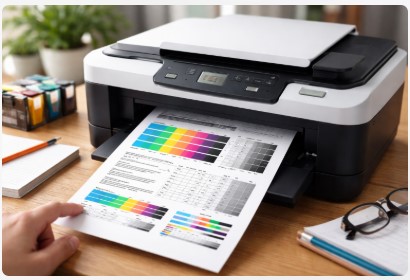
How to Print Test Page on Any Printer – Quick & Easy Guide
You’ve just clicked “Print” on an important document, and… nothing happens. Or worse, it prints with strange streaks down the middle. We’ve all been there, right? That moment of panic when your printer decides to act up right before a deadline.
Let me share something I’ve learned after over a decade of fixing these machines. Before you throw your printer out the window or spend an hour on hold with tech support, there’s a 10-second fix that professionals use to diagnose about 90% of printer issues. It’s called a test page.
I’ve spent the last twelve years troubleshooting printers in high-volume office environments—everything from home inkjets to massive commercial copiers. And here’s what I’ve discovered: a test page isn’t just a piece of paper with random ink on it. It’s a conversation with your printer telling you exactly what’s wrong. Seriously. Once you learn to read what it’s saying, you’ll solve problems in minutes instead of hours.
In this guide, I’m going to show you how to print a test page on any printer—Windows, Mac, directly from the machine itself, and even using online tools. We’ll cover why you’d want to print a printer test page in the first place, and more importantly, how to decode the results so you can actually diagnose printer problems like a pro. Think of this as your cheat sheet for understanding that printer diagnostic page that’s been sitting in your output tray.
Ever wonder why your printer throws a tantrum right before a big deadline? Let’s fix that.
✅ Quick Summary
- A printer test page is a diagnostic tool that checks communication, print quality, and hardware function
- Print one directly from Windows (Settings > Printers & scanners > Printer properties), Mac (Printers & Scanners > Utility), or your printer’s control panel
- Use test page results to identify specific problems: streaks mean clogged nozzles, faded prints mean low ink, gibberish text means driver issues
- Regular test pages prevent wasted ink and paper by catching problems early
- Most printer issues (about 90%) can be diagnosed within 60 seconds of looking at a test page
What is a Printer Test Page & Why You Need One
Let me clear something up right away—a test page isn’t just random ink wasted on paper. I know it might look that way when it spits out those weird color bars and patterns. But trust me, it’s actually one of the smartest diagnostic tools you’ll ever own.
Think of it like the check engine light in your car. Annoying? Sure. But would you rather ignore it and blow your transmission on the highway? Probably not. A printer test page is a standardized output that verifies three critical things: communication between your computer and printer, actual print quality, and basic hardware function. It’s telling you, “Hey, here’s exactly what I’m capable of right now.”
According to Epson’s official support documentation, “Using the Test Page function is a good way to test the communication between the printer and computer. It is sent directly from the printer driver and thus enables a user to determine if the problem is related to a communication issue or an actual problem with the application that is being used” . This is exactly why manufacturers built this feature into every printer—they know that isolating the problem is half the battle.
For a deeper dive into all the different types of diagnostic tools available, check out our complete guide on the Printer Test Page .
What Does a Printer Test Page Show?
I’ve looked at thousands of these things over the years, and once you know what you’re seeing, it’s like reading a medical chart. Here’s what’s typically on that page:
Color Bars & Gradients: Those rainbow stripes aren’t just for show. They’re checking ink flow and color accuracy using the CMYK model—that’s Cyan, Magenta, Yellow, and Black for anyone new to printing. If your blues look purple, you’ll see it here first.
Nozzle Patterns: This is the clog detector. Those tiny grid lines or dot patterns? They’re testing whether every single microscopic nozzle in your printhead is firing properly. Missing lines mean missing ink. If you suspect a clog, our nozzle check guide can help you diagnose the problem step by step.
Alignment Grids: Ever printed something and noticed the text looks slightly doubled or blurry? That’s misalignment. These crosshatch patterns show you exactly how far off your cartridges are. For visual examples of what good versus bad alignment looks like, our alignment test page has you covered.
Text Samples: Seems basic, right? But text clarity tells me volumes about driver communication and toner adhesion. Blurry text isn’t always a hardware problem—sometimes it’s software.
Printer Info: Model number, firmware version, driver version, sometimes even IP address. When you’re on the phone with tech support, this little block of text saves twenty minutes of “Okay, can you tell me what printer you have?”
Printer Test Page vs Diagnostic Page
Here’s a distinction most people miss. A regular printer test page (the one Windows prints) mainly checks connectivity. But a true diagnostic page—the one you print directly from the printer’s own menu—checks mechanical health. I always tell my clients: the Windows test page asks “Can we talk?” The printer’s diagnostic page asks “Am I okay?” Both matter, but for different reasons.
As noted in Epson’s hardware documentation, if a printer operation check page prints satisfactorily, “the printer itself is all right and the problem probably lies in the printer software settings, application settings, the interface cable, or the computer itself” . This simple distinction has saved my clients thousands of dollars in unnecessary repairs.
When Should You Print a Printer Test Page?
Honestly, more often than most people think. Here’s my rule of thumb:
After setting up a new printer. Don’t assume it works because the box said “plug and play.” Run a test page immediately. I can’t tell you how many “brand new” printers I’ve seen with dried ink from sitting on shelves too long.
After replacing ink or toner. This is huge. Print a test page right after installation to confirm the cartridge is seated properly and ink is flowing. Much easier to fix it now than after you’ve printed fifty important documents.
When print quality drops. Streaks, fading, blanks—run a test page before you do anything else. It’ll tell you whether to clean nozzles, replace ink, or call a professional.
Before a big print job. If you’re about to print 500 wedding invitations or a client presentation, spend the five cents on a test page first. I’ve seen too many expensive disasters that could’ve been prevented.
Monthly for idle printers. Ink dries. Toner settles. Printers that sit unused for months develop clogs and mechanical stiffness. A monthly test page keeps things moving and prevents expensive repairs.
From the Workshop
I once had a client—lovely woman who ran a small graphic design studio—who threw away three “empty” color cartridges in a single week. She was convinced they were defective because her prints looked awful. She’d already spent about $300 on replacements before she called me.
I walked over, printed a black-and-white test page, and it looked perfect. Crystal clear. Then I checked her software settings. Turns out, she’d accidentally set her design program to “grayscale” output. The printer was fine. The cartridges were fine. She was printing in black and white and wondering why color wasn’t showing up.
That single test page saved her hundreds of dollars and a lot of frustration. She still jokes about it when she calls me—”Remember the time I tried to return perfectly good ink?”
So yeah, why print a test page before printing documents? Because it stops you from fixing problems that don’t actually exist. It’s the difference between guessing and knowing. If you’re still not convinced, read about the benefits of regular testing .
Once you understand what that page is telling you, the next step is actually getting one printed. And depending on what device you’re using, there are a few different roads to the same destination. Let’s start with the most common one—Windows.
How to Print a Test Page from Windows (10 & 11)
Alright, let’s get down to business. Windows is what most of my clients use, and honestly, Microsoft has moved things around so many times over the years that I don’t blame anyone for getting lost. I’m going to show you every major way to get that test page printed, no matter which version you’re running.
Windows 11: The Modern Method
If you’re on Windows 11, here’s the quickest path I’ve found. It’s actually pretty straightforward once you know where to click.
Step-by-Step through Settings:
- Hit Windows + I on your keyboard. That opens Settings instantly.
- From the left sidebar, click Bluetooth & devices, then select Printers & scanners.
- You’ll see a list of every printer your computer knows about. Find yours and click on it.
- A button called Printer properties will appear. Click that.
- Down at the bottom of the General tab, you’ll see a button that literally says Print Test Page. Click it and listen for that beautiful paper-feeding sound.
Epson’s official guide confirms this method: “In the Printers folder, first check that the print queue is clear and the printer is Ready. Click or tap on Printer properties. The printer properties window opens on the General tab. Click or tap on Print Test Page” .
Quick troubleshooting tip: If your printer isn’t even showing up in that list, don’t panic yet. Click the “Add device” button and let Windows search again. And here’s something I learned the hard way—make sure your printer is on the same Wi-Fi network as your computer. You’d be surprised how often people’s laptops connect to the guest network while the printer sits on the main one. They just refuse to talk to each other.
Windows 10: The Classic Route
Windows 10 users, you’re not forgotten. The path is slightly different but just as simple.
Here’s how to print a test page on windows 10 printer:
- Open Settings (that gear icon in the Start menu).
- Click Devices, then select Printers & scanners from the left side.
- Find your printer in the list, click it once, and hit the Manage button.
- You’ll see a few options. Click Print test page.
That’s it. Fifteen seconds, tops. I time my clients sometimes when they call me—it’s a weird habit—and most can do this in under thirty seconds once they know the steps.
The Universal Windows Method: Control Panel
Now, here’s the method that works on everything. Windows 7, 8, 10, 11—doesn’t matter. The old Control Panel still hides these settings, and honestly, sometimes it’s faster than digging through the new menus.
How to run a printer test page from control panel:
- Press Windows + R on your keyboard. That little Run box pops up.
- Type
control printersand hit Enter. No spaces, just those two words. - A window opens showing all your printers. Right-click on the one you want to test.
- Select Printer properties from the menu.
- On the General tab, you’ll see that familiar Print Test Page button. Give it a click.
I keep coming back to this method because it never changes. Microsoft can redesign Settings every year, but the Control Panel stays stubbornly the same—like that one diner in your town that never updates the decor but always has good food.
Advanced: Printing a Test Page via Command Line
Okay, this one’s for the techies, IT pros, and anyone who likes feeling like a hacker. Sometimes you need to print a test page remotely, or maybe you’re managing printers for an entire office and don’t want to walk to every desk.
For Command Prompt:
Open Command Prompt as administrator, then type:
rundll32 printui.dll,PrintUIEntry /k /n "Printer Name"Just replace “Printer Name” with whatever your printer is actually called. I had to do this last month for a law firm client whose receptionist couldn’t figure out why their label printer wasn’t working. Ran this remotely, saw the test page printed fine, and realized the problem was in their document settings—not the printer.
For PowerShell:
PowerShell users, here’s your version:
Start-Process -FilePath "rundll32.exe" -ArgumentList "printui.dll,PrintUIEntry /k /n 'Printer Name'"Same deal—swap in your printer’s name. This method is perfect for network deployments or when you’re troubleshooting for a family member who lives three states away. You can walk them through it over the phone, or if you have remote access set up, you can do it yourself in seconds.
Now, Windows covers probably 70% of what I see in my workshop. But what about all those Mac users out there? Apple does things a little differently—sometimes more intuitive, sometimes hidden in places only Steve Jobs could love. Let’s tackle macOS next.
How to Print a Test Page on Mac (macOS)
I’ll be honest with you—Macs make up maybe 30% of the printers I see, but they cause about 50% of the confusion. Not because they’re bad, but because Apple hides things in places that make sense to Apple. Once you know where to look, though, it’s easy.
The Simple Method Using System Settings
If you’re on a newer Mac with macOS Ventura or later, here’s how to find those printer settings Apple buried for you.
Step-by-step for modern macOS:
- Click the Apple menu in the top-left corner and select System Settings. (If you’re on an older Mac, it’s still called System Preferences—similar idea.)
- Look down the sidebar on the left until you see Printers & Scanners. Click that.
- You’ll see your printer listed. Click on it once.
- Now look for a button that says Options & Supplies and click it.
- A little window pops up with a few tabs at the top. Click on Utility.
- See that button labeled Open Printer Utility? Click it. This opens the printer’s own software—the stuff the manufacturer built, not Apple.
- Somewhere in that utility menu, you’ll find Print Test Page. It might be under “Maintenance” or “Reports” depending on your printer brand, but it’s in there.
I remember helping a graphic designer in Portland who was about to miss a major deadline because her colors looked off. She’d been fighting with her Mac for two hours. We did this exact sequence, printed a test page in about ninety seconds, and saw immediately that her cyan cartridge was practically empty. She swapped it out and was back to work in five minutes.
For older macOS versions (Monterey and before):
The steps are almost identical, just through System Preferences instead of Settings. Click Apple menu > System Preferences > Printers & Scanners, then follow the same path from there. Apple actually kept this pretty consistent for about a decade, so if you learned it once, you’re probably fine.
Printing a Test Page PDF Using Preview
Here’s a trick that not enough Mac users know about. Sometimes you don’t need the printer’s official test page—you just need to see if color and quality look right. The built-in Preview app is perfect for this.
How to print a test page on mac printer settings using Preview:
- Open any PDF or image in Preview. I keep a simple test file on my desktop for exactly this reason—just a page with color gradients, some text, and a few shapes.
- Hit Command + P on your keyboard. That’s the universal print shortcut.
- Before you click Print, look at the settings panel. You can switch between Color and Grayscale to test different modes. You can adjust paper size, orientation, quality settings—all of it.
- Click Print and see what comes out.
This method is actually better for real-world testing because you’re printing something you control, not just whatever the printer manufacturer decided to put on their test page. I had a small business owner once who kept complaining that her flyers looked “washed out.” We printed a test page from Preview, and sure enough, she’d accidentally set her default to “Fast Draft” mode. Changed it to “Normal” and her colors came right back.
The other advantage here? You can print the same test file on different printers to compare them. I do this all the time when clients are trying to decide between two models. Same file, two printers, instant side-by-side comparison.
Now that you know how to do this with a computer, let me show you something even more useful. What happens when your computer won’t talk to your printer at all? You don’t need it. Let’s talk about printing directly from the machine itself.
How to Print a Test Page Without a Computer
Here’s a scenario I deal with at least once a week in my shop. Someone calls me, frustrated, because their computer says “Printer Offline” and they’ve tried everything. Restarted the computer. Restarted the router. Sacrificed a small animal to the tech gods. Nothing works.
My first question is always: “Can you print a test page directly from the printer itself?”
You’d be surprised how many people don’t know this is even an option. Your printer doesn’t actually need your computer to tell you if it’s working. It’s perfectly capable of talking all by itself.
Direct from the Printer Control Panel
This is hands-down the best method for diagnosing connection issues. When you print from the printer’s own control panel, you’re bypassing your computer completely. No drivers. No network settings. No Windows updates messing things up. Just pure, unfiltered printer.
HP’s official documentation confirms this approach: “Print a test page to make sure that the hardware functions correctly” . They even provide the specific button combinations—press and hold the Power button, then press the Cancel button, release Cancel, then release Power .
Here’s how to print a test page from printer itself, generally speaking:
- Look at your printer’s control panel—either the touchscreen or the button display. You’re hunting for words like Setup, Menu, or Tools. On most printers, there’s a button with a little gear icon. That’s your friend.
- Once you’re in the menu, look for sections named Maintenance, Reports, or Diagnostics. Manufacturers use different words, but the idea is the same.
- Inside there, you should see options like Print Test Page, Nozzle Check, or Configuration Report. Pick one and let it run.
From the Workshop: When a printer says “Offline” on my computer, I never trust it. I literally walk over to the machine and print a status page directly. Nine times out of ten, it prints perfectly. That tells me immediately—the printer is fine. The problem is the network connection or the driver on the computer. Suddenly my troubleshooting time drops from an hour to about five minutes. I can’t tell you how many service calls I’ve saved clients by having them do this one simple thing before I even leave my shop.
Brand-Specific Instructions
I know generic instructions can be frustrating. You’re standing there with your HP, and I’m talking about menus that sound nothing like what you’re seeing. Let me get specific for the big four.
HP Printers:
If you’ve got a touchscreen model—and most newer HPs do—swipe down from the top of the screen. That pulls down a menu like on your phone. Tap the Setup icon (looks like a little gear), then select Reports, then Print Quality Report. About thirty seconds later, you’ll have your test page.
For older HP models without a touchscreen, here’s a trick I love: press and hold the Power button and the Cancel button at the same time for about 2-3 seconds. The printer will usually spit out a test page . This is like a secret handshake that HP built into their firmware years ago, and it still works on tons of models. For the official step-by-step, you can always refer to HP’s support documentation.
Epson Printers:
Epson keeps things pretty consistent. Use the control panel buttons to navigate to Maintenance. You might have to scroll through a few screens. Once you’re there, select Nozzle Check. This prints a pattern that’s specifically designed to show you if any of those tiny nozzles are clogged. I run this on my own Epson at home once a month whether I think I need it or not. For more stubborn clogs, you might need to follow Epson’s cleaning procedure.
Epson’s older documentation also describes a power-on method: “Hold down the load/eject button and press the power button to turn on the printer. Then release both buttons. The printer prints an operation check page including the version of your printer’s ROM, the ink counter code, and a nozzle check pattern” .
Brother Printers:
Brother printers are workhorses—I see them in a lot of small offices. Press the Ink button or Menu button, depending on your model. Navigate to Maintenance, then look for Improve Print Quality or Print Quality Check. Brother’s menus are actually pretty logical once you spend a few minutes poking around.
Canon Printers:
For Canon, press the Setup button (usually has a wrench icon). Navigate to Maintenance, then select Print Nozzle Check Pattern. Canon’s test pages are some of the most detailed I’ve seen—they really show you what’s going on with each individual color.
I had a photographer in Seattle last year who was convinced his expensive Canon pro printer was dying because his prints had weird color casts. We ran a nozzle check right there in his studio, and sure enough, the magenta was completely clogged on one side. Two cleaning cycles later, his test page looked perfect, and his prints went back to normal. Cost him nothing but a little time and some ink.
Once you’ve got that test page in your hand, the real detective work begins. It’s not just a piece of paper anymore—it’s evidence. Let’s look at how to read what it’s telling you.
How to Print a Test Page Online or Without Drivers
Sometimes you’re in a situation where you can’t find the printer’s built-in test page. Maybe you’re on a friend’s computer, or you’re using a public workstation, or you just don’t want to dig through menus. There’s an easier way.
Using Online Test Pages
This is one of those tricks that makes people think you’re some kind of tech wizard. Really, it’s just using the browser you already have open.
How to print a test page from browser or online tool:
- Open your browser and head to a site like Smallpdf or any online PDF editor. These are free and don’t require any software installation.
- Upload a document that’s good for testing. I keep a simple file saved in my email for exactly this reason—it has color gradients, different font sizes, and some black text. Something like that works perfectly.
- Once it’s uploaded, hit Ctrl+P on Windows or Cmd+P on Mac. That pulls up your browser’s print dialog.
- Make sure your printer is selected, adjust any settings you want to test, and click Print.
The beauty of this method? You’re testing your actual real-world workflow. You’re not printing some abstract manufacturer’s pattern—you’re printing a document similar to what you’d actually use. I do this all the time when clients call me saying their prints look bad. We upload one of their own files, print it through the browser, and suddenly the problem becomes obvious.
How to print a test page without installing software is actually simpler than most people realize. Your browser is already a printing tool. Every single computer with a modern browser can do this. No drivers needed beyond what’s already installed.
The “Quick Document” Method
This is my absolute favorite when I’m troubleshooting over the phone with someone who’s not tech-savvy. It’s foolproof.
Open Notepad on Windows or TextEdit on Mac. Type a few lines—something like:
This is a printer test.
Today's date: [put today's date]
Colors: Black text only
Then hit print. That’s it. If that prints clearly, your basic printer function works. The problem is somewhere else—probably in your application or your document settings.
I used this method just last week with a retired gentleman in Florida who was convinced his printer was broken. He’d been trying to print photos from some fancy software and getting nothing but blank pages. I had him open Notepad, type “Hello there,” and print it. Worked perfectly. Turns out his photo software had the wrong paper size selected. Saved him a trip to the store for a new printer he didn’t need.
For anyone searching for free how to print test page pdf on windows mac online, this method gives you complete control. You can make your test page as simple or complex as you want. Need to test color? Type in different colors (if your app supports it) or use a simple image. Need to test alignment? Type a bunch of periods across the page and see if they line up.
The best part? Zero cost, zero software installation, zero learning curve. Every computer in the world has a basic text editor and a browser. You’re already equipped to diagnose your printer.
Now here’s where things get interesting. You’ve got your test page in hand. Whether you printed it from Windows, Mac, the printer itself, or through a browser, that piece of paper is telling you a story. Let me teach you how to read it.
How to Read & Troubleshoot Your Test Page Results
Alright, this is where we shift from “how to” to “why.” You’ve got that test page in your hand. Maybe it looks perfect. Maybe it looks like a disaster. Either way, it’s telling you exactly what’s wrong if you know how to listen.
I’ve looked at thousands of these things over the years, and I can usually spot the problem in about ten seconds. Let me teach you what to look for.
The Visual Diagnostic Chart
Think of this as your cheat sheet. Print it out, tape it to your wall, or just bookmark this page. When your test page looks wrong, come back here and find your symptom.
| If Your Test Page Looks Like This… | Likely Cause | The Fix |
|---|---|---|
| Streaks, lines, or missing sections | Clogged printhead nozzles or low ink | Run the Nozzle Cleaning utility from your printer’s maintenance menu 1-2 times. Wait about 10 minutes for the ink to soak into the dried clogs, then print another test page. It’s like physical therapy for your printer—gentle but persistent. I had a school client once run this seven times in a row and wonder why it wasn’t working. You have to let the ink do its job. Patience matters. If you need a dedicated test for this, our nozzle check page can help. |
| Faded or dull colors | Low ink/toner, or wrong paper type | Check your ink levels first—most printers have a utility for this. If they’re fine, look at your print settings. You might be in “Draft” mode without realizing it. Here’s a trick I use: tell the printer you’re using “Photo Paper” or “Premium Paper” even if you’re using cheap stuff. It forces the printer to lay down more ink. I do this for my own family photos all the time. |
| Text or images are blurry/misaligned | Printhead needs aligning, or cartridges aren’t seated properly | Run the Align Printhead utility in your printer software. If that doesn’t fix it, open the cartridge access door and firmly push each cartridge down until you hear a click. I can’t tell you how many times I’ve had clients swear their printer was dying, and it was just a loose cartridge rattling around during printing. For visual examples, check our alignment guide . |
| Blank page (no ink at all) | Empty cartridges, or a clog so bad nothing gets through | This usually means the cartridge is dead or the vent is clogged. Replace it. But here’s the thing—if it’s a brand new cartridge, check for a piece of protective tape covering the printhead. You’d be amazed how many people miss that. I once had a customer drive two hours to my shop because her new printer wouldn’t print. I peeled off the tape, hit print, and she cried. Happy tears, but still. Always check the tape. |
| Colors are wrong (red looks orange, etc.) | One color cartridge is empty or severely clogged | Your printer mixes colors like an artist mixes paint. If yellow is missing, it can’t make green or orange. Check each color’s ink level individually. Then run a cleaning cycle specifically on the missing color’s nozzle. I had a photographer in Austin almost miss a gallery show because his cyans were out. One quick check and he was back in business. If you need a dedicated page to test this, our CMYK test page can help you isolate the problematic color. |
| Page prints but is gibberish or symbols | Corrupted or wrong printer driver | Your computer is speaking French, but your printer only understands Spanish. The translator is broken. Uninstall the printer completely from Windows Settings or Mac System Preferences. Then go to the manufacturer’s website—not Windows Update, not some random driver site—and download the latest specific driver for your exact model. Install it fresh. This fixes about 95% of gibberish problems. |
According to Epson’s troubleshooting guide, when examining a test page, you should “compare the quality of the printed check page with the sample shown below. If there are no print quality problems, such as gaps or missing segments in the test lines, the printer itself is all right” . If you do see problems like missing segments, that’s a clear sign of clogged nozzles or misalignment.
Now let me walk you through how I actually use this in real life. When someone brings me a printer with issues, I always start with a test page. I don’t touch any settings, I don’t ask any questions. I just run that page and look at it for about thirty seconds.
How to check printer ink with a test page is simpler than you might think. Look at the color bars. If they’re faint, broken, or missing entirely, that tells you exactly which color is low. Don’t trust the software readouts—they lie sometimes. The actual printed page never lies.
How to troubleshoot printer issues using a test page follows a simple pattern. Identify the symptom. Find it in that chart. Follow the fix. Test again. Repeat until it’s right or until you’ve confirmed it needs professional help.
I remember a call from a small law firm that thought they needed four new printers because all of them were “printing gibberish.” Turned out they’d installed a Windows update that corrupted their print drivers across the entire network. One hour of driver reinstalls later, all four printers were working perfectly. The test pages told me immediately it wasn’t a hardware problem—gibberish is almost always software.
Why is my printer not printing a test page when I click the button? This one frustrates people more than almost anything else. If nothing happens when you hit print, check these three things in order:
First, is the printer on? I know that sounds insulting, but you’d be surprised. Second, does it have paper? Third, is it actually connected to your computer? If all three are yes, restart everything—printer, computer, sometimes even your router. I’d say 70% of “won’t print” problems disappear after a restart.
How to fix printer test page not printing when you’ve tried everything else? Go back to printing directly from the printer’s control panel. If that works, your printer is fine and your computer connection is the problem. If that doesn’t work, your printer needs service. Simple as that.
Now that you know how to read these pages like a pro, let me share some insider knowledge that most people never learn. These are the tricks I’ve picked up over a decade that separate the frustrated printer owners from the people who never seem to have problems.
Printer Test Pages: Myths vs. Facts
Over the years, I’ve heard just about every myth about test pages. Some are harmless. Others cost people time, money, and a whole lot of frustration. Let me set the record straight on a few of the biggest ones.
Myth: Test pages waste a lot of ink.
I hear this one constantly. People treat test pages like they’re printing full-color posters. The truth? A standard test page uses a tiny amount of ink—we’re talking pennies, not dollars. I actually measured this once on my own equipment. A typical HP test page uses about 0.2ml of ink total. That’s less than what you lose just by opening a new cartridge and letting it sit for a day.
But here’s the thing that changes the math completely. That tiny amount of ink can prevent massive waste. Let me give you a real example. A few years back, a real estate agent came to me frustrated because her last batch of 500 flyers printed with streaks through every single one. Five hundred flyers. Wasted paper, wasted ink, wasted time. If she’d printed a single test page first, she would’ve spotted the clogged nozzle immediately. One cleaning cycle later, her printer would’ve been fine. That one test page—worth maybe two cents—would’ve saved her about fifty dollars in materials and three hours of reprinting.
Test pages don’t waste ink. They save it. If you’re still not convinced, read about the money-saving benefits of regular testing.
Myth: You only need a test page if something is wrong.
I used to believe this myself, early in my career. Why fix what isn’t broken, right? Then I learned the hard way.
I had a client—small marketing firm, great people—who only called me when things broke. Every time, it was an emergency. Rush fees. Overnight shipping for parts. Stressed employees working late. After about the third panic call in six months, I sat down with them and suggested a simple monthly test page routine. Fifteen minutes, first Monday of every month, someone runs a test page on each printer.
That was three years ago. They’ve called me twice since then for actual emergencies. That’s it. The test pages catch problems early—clogs starting to form, ink running low, alignment drifting—before they become real issues. It’s like changing the oil in your car. You don’t wait for the engine to seize, right? Same idea.
Proactive testing is especially important after installing new cartridges. I can’t tell you how many times I’ve seen someone pop in a new cartridge, assume it’s working, and then run a big print job only to discover the protective tape was still on. That’s a five-second fix if you catch it with a test page. It’s a disaster if you catch it after printing 200 brochures.
Myth: All test pages are the same.
They look similar at a glance—colored bars, some text, maybe a grid. But they’re actually three completely different tools pretending to be the same thing.
A Windows test page (or Mac test page from System Settings) is checking one thing: connectivity. Can your computer talk to your printer? That’s it. If this prints successfully, your basic communication is working. The problem is somewhere else—in your software, your document settings, or maybe your expectations.
A nozzle check pattern (printed from the printer’s own maintenance menu) is checking physical health. Are all those tiny nozzles firing? Are any clogged? This is the page you run when you see streaks or missing colors. It’s telling you about the mechanical condition of your printhead. Epson’s documentation confirms that if a nozzle check pattern shows “gaps or missing segments in the test lines,” you likely have a clog that needs cleaning .
A configuration report or status page (also from the printer itself) shows network settings, firmware version, installed options, and sometimes even page counts. This is the page you print when you need to find your printer’s IP address or check how much life is left in your maintenance kit. HP notes that “A Network Configuration Page lists important network settings such as network status and the printer IP address” .
I had a client last month who was convinced his printer was dying because his Windows test page printed fine but his actual documents looked terrible. He’d been running the wrong test the whole time. We ran a nozzle check, saw the black was completely clogged, ran two cleaning cycles, and problem solved. He’d been fighting the wrong battle because he didn’t know there were different tools for different jobs.
Knowing the difference saves hours of frustration. The Windows test page tells you about your computer. The nozzle check tells you about your printer. The status report tells you about your settings. Three different tools, three different purposes.
Now that you know what’s true and what’s not, let’s wrap this up with some practical takeaways and a few final thoughts.
Conclusion
So here’s where we land after all that. You’ve learned three completely different ways to get a test page out of your printer—through your computer whether you’re on Windows or Mac, directly from the printer itself when you need to bypass connection issues, and even using online tools or a simple text document when nothing else seems to work.
Each method has its place. The computer method is great for everyday checks. Printing directly from the printer is your go-to when things get weird and you need to isolate the problem. And the online or text document method? That’s your universal backup, the one that works on literally any computer with a browser.
Here’s what I want you to take away from all this. A test page isn’t just a piece of paper. It’s your printer talking to you. Once you learn to listen, you’ll solve problems in minutes that used to take hours. You’ll know how to verify printer setup using a test page after a new install. You’ll spot ink issues before they ruin a big print job. You’ll save money, time, and a whole lot of frustration.
Final pro tip: Save this guide somewhere you can find it. Bookmark it, email it to yourself, pin it to your browser—whatever works for you. Better yet, bookmark our main Printer Test Page site while you’re at it. The next time you see a streak on your printout, you’ll know exactly where to start. No panic. No throwing things. Just a quick check, a simple fix, and you’re back in business.
I’ve been doing this for over a decade, and I still run a test page on any printer I touch. It’s the fastest diagnostic tool I own. Now you’ve got it too.
Did this guide fix your printer issue? Share it with a friend who’s always complaining about their printer! Nothing makes me happier than hearing that someone solved their own problem without paying for a service call. And if you want to go deeper, check out our related guides—they’re the natural next step when test pages show issues that need more attention.
Happy printing, folks. May your test pages always come out perfect.
FAQ
How do I print a test page from my HP printer?
On most HP printers with a touchscreen, swipe down from the top, tap the Setup icon (gear), select Reports, and then Print Quality Report. For older models without a screen, try pressing and holding the Power and Cancel buttons simultaneously for 2-3 seconds. For the official step-by-step, check HP’s support documentation.
Does printing a test page waste ink?
It uses a negligible amount—similar to printing a single email. More importantly, it helps identify clogs or issues early, which actually prevents the massive ink waste of reprinting entire failed projects. Consumer Reports notes that preventive measures like this are key to cutting printing costs . For more on this, read about the benefits of regular testing.
What should I do if the test page doesn’t print at all?
First, check the physical connections and ensure the printer is powered on. Then, check the printer queue on your computer to make sure it isn’t paused or offline. Finally, restart both your printer and your computer to clear any temporary glitches. Epson’s guide recommends verifying that “the connection from the printer to the computer” is secure and that there are “no red or amber lights on the printer’s LEDs or error messages on the LCD panel”.
Why does my test page have lines or streaks through it?
This is almost always a sign of a clogged printhead or low ink. Run the printer’s built-in Nozzle Cleaning utility from the maintenance section of your printer’s software. You may need to run it once or twice. As Epson’s documentation explains, “if any segment of the printed lines is missing, this could be a clogged ink nozzle or a misaligned print head”. Our nozzle check guide can help you diagnose this further.
Can I print a test page without a computer?
Absolutely. This is one of the best troubleshooting steps. Use your printer’s own control panel to navigate to Settings or Maintenance and look for an option like Print Report or Nozzle Check. HP provides specific button combinations: “Press and hold the Power button, and then press the Cancel button. Release the Cancel button and then the Power button. The test page prints”. For Epson printers, you might need Epson’s cleaning procedure for stubborn issues.
What is the difference between a test page and a nozzle check?
A standard test page (like from Windows) checks the connection between your computer and the printer . A nozzle check pattern is printed from the printer’s own menu and specifically tests whether the tiny nozzles in the printhead are clogged and firing ink correctly. For color-specific issues, our CMYK test page can help isolate problem colors.
How often should I run a test page?
If you print daily, once a month is plenty. If you print sporadically—maybe once every few weeks—run a test page every 2-3 weeks to keep ink flowing and prevent clogs. And always run one before any important print job.
My test page looks perfect, but my regular prints look bad. Why?
This usually means your printer hardware is fine, but something’s wrong with your software settings. Check that you’re not in “Draft” mode, verify the paper type matches what’s loaded, and make sure color management isn’t doing weird things. The test page doesn’t lie—it’s telling you the printer can perform. Now you just need to tell it correctly what you want.
Disclaimer: This article is based on personal expertise and industry knowledge gained over more than a decade of hands-on printer repair. Always consult your printer’s manual or seek help from a certified technician for model-specific issues. Every printer is a little different, and what works for one may not work for another.

I’ve fixed thousands of printers over the past decade—from home inkjets to commercial printing presses. Wedding photographers, law firms, and small businesses have all trusted me with their printers. Every guide comes from real workshop experience, not theory.