Simple Printer Test Page for Beginners: Step-by-Step Guide
Last week, I stopped a small business owner from throwing a $400 printer into a dumpster.
He was convinced it was dead. Streaks everywhere. Colors looking like a bad Instagram filter. Alignment so off it literally hurt to look at. “This thing’s garbage,” he said, already walking toward the parking lot.
I grabbed a single sheet of paper from his desk. “Humor me for two minutes.”
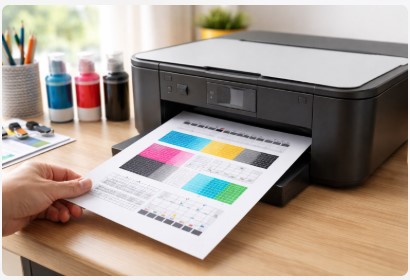
We printed a simple printer test page for beginners. Sixty seconds later, I pointed at the magenta bar—white streaks running right through it like a highway. Clogged nozzle. Ten cents worth of paper towel, one cleaning cycle, and that “dead” printer was purring like a kitten. He stared at it like I’d performed magic.
Here’s the thing: I’m no magician.
I’ve just spent over a decade in this industry. Fixing printers for panicked photographers whose client galleries were due yesterday. Bailed out law firms missing payroll deadlines because their laser jet decided to take a nap. Saved home offices where the kids’ school projects hang in the balance and mom’s about to lose it.
And in those 10+ years, I’ve learned one truth that’s never failed me.
Roughly 70% of printer headaches—streaks, faded colors, misalignment, blank pages—can be diagnosed instantly with a single sheet of paper. Not expensive diagnostic tools. Not hours on hold with tech support listening to elevator music. Just paper and knowing what the hell you’re looking at.
That’s what this guide is about.
I’m walking you through exactly how to check printer quality with a test page like I do in my workshop every single week. How to read those patterns—the streaks, the bands, the weird grainy textures—and know immediately what’s wrong. Then I’ll give you the exact steps to fix the five most common issues I see, from clogged nozzles to alignment drift to those frustrating “why is this blank?” moments.
Consider this your backstage pass. The quick printer diagnostic test page guide I’ve built over a decade of saving clients from expensive repair bills, unnecessary ink purchases, and dumpster-bound printers they thought were dead.
Let’s dig in.
✅ Quick Summary
Fix any printer’s print quality issues in 3 quick steps — 1) Print a test page → 2) Check for streaks or banding → 3) Run cleaning or alignment!
Works on Windows, Mac, and most printers — no tech support needed.
Still stuck? A second cleaning cycle usually does the trick — just wait 10 minutes between runs.
What is a Printer Test Page? (The “X-Ray” for Your Machine)
Let me ask you something.
Ever tried fixing a car engine blindfolded? That’s what troubleshooting a printer looks like without a test page. You’re just poking around, guessing, hoping something works.
A printer test page changes all that.
So what is a printer test page and why use it? Think of it as your printer’s annual physical exam—except it’s free, takes two minutes, and never requires a gown. It’s a specialized diagnostic sheet covered in patterns designed to stress-test every single component inside that plastic box sitting on your desk.
Here’s what makes them tick:
Color test pages use CMYK gradients—that’s Cyan, Magenta, Yellow, and Black for anyone who hasn’t spent way too much time in print shops like I have. These gradients run from zero to one hundred percent, and they tell you exactly how each ink cartridge is performing. If that magenta bar looks streaky, your magenta nozzles are clogged. Plain and simple.
Grayscale test pages are the black-and-white cousins. They focus on toner density and fine-line resolution. Perfect for laser printers, but I use them on inkjets too. They’ll show you if your blacks are truly black or just kinda… sad gray.
A simple printer ink test page for home use does something beautiful: it gives you evidence. Hard proof. Not “I think the ink is low” or “maybe the head is clogged.” Actual, visible data you can point at and say “ah-ha!”
Here’s a story that still makes me shake my head.
I had a client—lovely woman, ran a small law practice out of her house—who swore her printer was perfect. “It prints fine,” she kept telling me. “I don’t know why my assistant called you.”
I asked her to humor me. Print one test page.
She did. And there it was—thirty percent of her magenta nozzles were completely dead. Just white space where rich color should’ve been. She’d been printing legal documents for months with missing details. Highlighted text in contracts? Invisible. Company logo on letterhead? Faded and wrong.
She wasn’t mad. She was relieved someone finally showed her what was broken.
The printer nozzle check vs test page difference is worth understanding too. A nozzle check is specifically for inkjets—it fires each tiny nozzle individually to see who’s working and who’s sleeping on the job. A full test page is broader. It includes alignment patterns, color gradients, text blocks—the whole workout. The nozzle check tells you if something’s wrong. The test page tells you what and where.
Without one, you’re guessing.
With one, you’re diagnosing.
And that’s the difference between throwing a printer in a dumpster and fixing it with a ten-cent paper towel.
Which brings me to actually printing one. Let’s cover your options.
How to Print a Test Page: Step-by-Step
Alright, let’s get down to business. You’re convinced a test page is worth your time. Now you need to actually print one without feeling like you’re solving a Rubik’s cube blindfolded.
Good news: it’s way easier than most people think.
I’m going to show you how to print a printer test page step by step on every major platform. Windows, Mac, and even straight from the printer when your computer decides to play hard to get. Follow along with whatever device you’re using right now.
On Windows 10 & 11
Windows actually makes this pretty straightforward once you know where to look. The settings menus have gotten buried over the years, but I’ve got your back.
Step 1: Hit that Windows key and type “Printers & Scanners” right into the search bar. Don’t dig through Control Panel like it’s 2005—the search is faster and actually works.
Step 2: Find your printer in the list. Click on it, then look for the “Manage” button. It’s right there, hiding in plain sight.
Step 3: Click “Print a Test Page.” That’s it. Your printer should wake up and start humming within a few seconds.
Pro Tip: Wait about thirty seconds. If nothing happens, don’t start smashing buttons yet. Check the print queue—it’s in that same menu. Look for error messages like “printer offline” or “driver unavailable.” That tells you if it’s a hardware problem or a computer communication issue.
That’s literally how to print a test page on windows printer settings in sixty seconds flat. No degree required.
On macOS
Apple likes to keep things clean, which means some options are tucked away. But once you know the path, it’s muscle memory.
The “Utility” Method (this is the one I use):
Click the Apple menu up top. Go to System Settings (or System Preferences if you’re on an older Mac). Find Printers & Scanners. Click your printer, then look for “Options & Supplies.” There’s a tab labeled “Utility”—click it, and you’ll see a button that says “Print Test Page.”
Hit it. Done.
Last year, a graphic designer called me in full panic mode. Her client proofs looked “off”—skin tones were weird, almost greenish. She was about to reinstall everything, trash her color profiles, the whole nine yards. I walked her through this exact utility test over the phone. We printed it, and the cyan gradient was completely banded—broken into ugly stripes instead of a smooth fade. One deep clean cycle from that same utility, and her proofs were perfect before the client called back. She sent me a fruit basket. I’m not kidding.
That’s how to run a printer test page on mac when you need real answers, not guesses.
And if you’re wondering about the fastest way to print a test page from browser—honestly, on Mac, this utility method is still king. Browser tests are great for quick checks, but the built-in utility gives you the full diagnostic picture.
Without a Computer (Direct from the Printer)
Sometimes your computer won’t connect. Maybe the Wi-Fi’s acting up, or you’re dealing with a driver issue. Or maybe you just want to rule out the computer entirely and test the printer hardware alone.
That’s when you go direct.
When to use this: Computer won’t connect, network’s down, or you want a pure hardware check with zero software interference.
Here are the secret button combos I’ve memorized over a decade of this work:
- Epson: Power off the printer. Then hold both the “Resume” button and the “Power” button together until the power light starts flashing. Release, and it should print a test page automatically. If the combo doesn’t work, Epson’s official support site has model-specific guides.
- HP: With the printer on, press and hold the “X” (Cancel) button and the “Power” button for about three to five seconds. Let go when the lights start dancing. For exact instructions, HP Support walks you through every model.
- Canon: Power on. Press and hold the “Resume” button until the power light flashes twice, then release. The printer should do its thing.
- Brother: Hold down the “Power” button and the “Cancel” button at the same time for about five seconds. Some models use the “Go” button instead of Cancel—try both if the first doesn’t work.
Here’s the honest truth: These shortcuts are like secret handshakes. They change slightly between models, even within the same brand. If the combo I gave you doesn’t work, check your manual or Google “[your printer model] print test page without computer.”
But in my experience, these work for about eighty percent of standard home printers sitting on desks right now. They’re my go-to when I’m standing in a client’s office and their computer’s being stubborn.
That’s the beauty of a universal printer test page that works on any printer—once you know how to trigger it, you’re never stuck guessing again.
Test page is printed. Now stare at it. What the heck are you actually looking at? I remember my first test page—looked like abstract art. Then someone showed me what the patterns meant, and suddenly everything clicked.
How to Read Your Test Page: The Diagnosis Guide
You’ve printed your test page. Now it’s sitting there, staring at you, covered in colored bars and weird patterns that probably look like abstract art.
I get it. The first time I saw one, I had no clue what I was looking at either.
But here’s the thing—once someone shows you how to read and analyze a printer test page, it’s like putting on glasses for the first time. Suddenly everything’s clear. Those patterns aren’t random. They’re your printer talking to you, telling you exactly what’s broken.
Let me translate.
Analyzing a Color Test Page
Grab that test page and look at the colored bars. This is where the magic happens.
The Color Intensity Graph
See those long, solid bars running across the page—cyan, magenta, yellow, black? They should look smooth and consistent from left to right, like someone painted them with a perfect roller.
If they’re smooth, your nozzles are happy. Print on.
But if you see white streaks running through that magenta bar? That’s a clog. Plain and simple. Those white lines are areas where ink should be hitting the paper but isn’t. The nozzles are blocked, and the ink can’t get through.
This is why a color printer test page to check ink levels is so much more useful than just looking at those little ink gauges on your screen. Those gauges lie sometimes. The test page never does.
The Rainbow Bar
Look for the smooth spectrum transitioning from red to orange to yellow to green to blue to violet. Run your finger along it. Does it look like a perfect sunset? Or do you see distinct lines, like steps instead of a smooth slide?
Those lines are called banding, and they’re your printer’s way of saying, “Hey, my printhead alignment is drifting.” Think of it like a singer hitting all the right notes but slightly off-key. The notes are there, but they’re not landing where they should.
The Radial Gradient
See that circle where colors blend from the center outward? It should look smooth, like a watercolor painting. If it looks grainy—like the surface of an orange—your ink flow is inconsistent. Tiny nozzles are sputtering instead of spraying smoothly.
The Text Block
Find the smallest font size. Can you read it clearly? Sharp and crisp means your printer’s on point. Blurry or fuzzy means misalignment. Your printer’s laying down ink slightly off-target, like someone with shaky hands trying to sign their name.
That’s printer test page to check color accuracy in a nutshell. The patterns don’t lie.
Analyzing a Black & White Test Page
Color pages get all the attention, but your black and white test page is just as important. Especially if you’ve got a laser printer.
The Grid
Look at those intersecting lines in the crosshatch pattern. They should be perfectly straight—like a city grid from above. If they’re wavy or bending, that’s bad news. It usually means a mechanical issue. Maybe the paper feed rollers are slipping. Maybe something’s stuck in the paper path. Either way, straight lines mean healthy printer. Wavy lines mean something’s physically wrong.
The Intensity Graph (0-256)
You’ll see a series of gray boxes running from pure white to pure black. Now look at the seventy percent gray box and the ninety percent gray box. Can you clearly tell them apart?
If they look identical, your toner density is off. Your printer isn’t laying down enough black to create deep shadows. Everything looks flat and lifeless. This is a classic sign with aging laser printers, and catching it early saves you from embarrassing prints later.
The Alignment Wheels
See those segmented circles that look like wagon wheels? The black ink should fill perfectly inside the lines. If it’s spilling outside, your printhead is physically misaligned. It’s printing the pattern in the wrong spot, which means your text and images will be slightly off too.
Pro Tip: Here’s something I’ve done for years that my regular clients love. Keep a physical folder. Seriously, an actual manila folder. Every month, drop a test print in there. Date it. Over time, you can literally watch your printer age.
When I compare last January’s print to this January’s for a client, I can tell them, “Your drum is dying. You have about three hundred pages left.” They never panic because they saw it coming. No emergency calls at midnight. No rush shipping for parts.
That’s the beauty of a black and white printer test page for beginners—it’s not just a fix tool. It’s a prediction tool. A quick printer health check test page tells you where you’re going, not just where you’ve been.
So you’ve spotted the problem. White streaks in the magenta. Banding in the rainbow. Now what? This is where most people freeze. They know something’s wrong but have no clue how to fix it.
The Troubleshooting Cheat Sheet
Okay, you’ve got your test page. You’ve stared at the patterns. You’ve spotted the problem.
Now what?
This is the part where most people panic. They know something’s wrong, but they have no clue how to fix it. So they either live with crappy prints or call someone like me and pay a hundred bucks for a house call.
Let’s skip that.
Here’s the exact cheat sheet I keep pinned above my workbench. It’s survived a decade of printer emergencies, and it’ll save you way more frustration than it took me to build it.
| If Your Test Page Shows… | Likely Issue | Your Immediate Action |
|---|---|---|
| White streaks or missing lines | Clogged nozzles | Run 1 cleaning cycle. Stop there—3+ cycles waste ink. |
| Faded or “washed out” colors | Low ink or light clog | Check ink levels. If full, run head cleaning. |
| Blurry or “drunken” text | Misaligned printhead | Run Alignment Utility (Settings > Maintenance). |
| Colors bleeding into each other | Misalignment or wrong paper | Run alignment. Don’t use photo paper for nozzle checks. |
| Ghosting (faint duplicate images) | Fuser issue (laser printer) | Fuser may need replacement. |
| Perfect test page, but document won’t print | Communication/Driver issue | Restart spooler or reinstall drivers. If you’re still stuck, our Printer Offline Fix Guide walks through every step. |
Let me walk you through each one, because the “why” matters as much as the “what.”
White streaks or missing lines are the most common thing I see. People assume their printer’s dying. Nope. It’s just clogged nozzles. Ink dried up while the printer sat idle for two weeks. Run one cleaning cycle through your printer software. Just one. I can’t stress this enough—running three or four in a row doesn’t help. It just wastes ink and can actually make things worse by drying out the printhead faster. One cycle, wait five minutes, print another test page. Ninety percent of the time, you’re done.
Faded or washed out colors could mean two things. Either you’re genuinely low on ink, or you’ve got a light clog that’s blocking some nozzles but not all. Check your ink levels first—most printer software shows you a little graphic. If they’re fine, run a head cleaning. That usually shakes loose whatever’s being lazy.
Blurry or drunken text—and yeah, I call it drunken because it looks like the letters had one too many—is almost always alignment. Your printhead is spraying ink slightly off-target. Run the Alignment Utility. It’s hiding in your printer settings under Maintenance or Tools. Takes two minutes and fixes it every time.
Colors bleeding into each other usually means one of two things. Either your alignment is off, or you’re using the wrong paper. I’ve watched people try to run a nozzle check on glossy photo paper, then wonder why the colors look like a watercolor painting left in the rain. Photo paper absorbs ink differently. Use plain copy paper for diagnostics. Always.
Ghosting—where you see faint duplicate images of whatever printed before—that’s a fuser problem. If you’ve got a laser printer, the fuser isn’t hot enough to properly melt the toner into the paper. Some toner sticks to the roller and transfers to the next page. This isn’t a DIY fix for most people. The fuser needs replacement. But at least now you know what to tell the repair shop.
And here’s the one that drives people absolutely crazy: perfect test page, but your document won’t print. The test page comes out gorgeous. Colors are perfect. Alignment is spot on. But that Word doc or PDF? Nothing. Just sits in the queue mocking you.
Here’s the thing—your printer hardware is fine. The problem is communication. Your document is stuck in the digital pipeline. Go to Settings, find your printer, open the print queue, and cancel everything. Restart the Print Spooler service if you’re on Windows. Or just restart your computer. Nine times out of ten, that clears whatever gremlin was blocking the path.
This is exactly how to troubleshoot printer problems with a test page—you let the page tell you what’s wrong, then you fix that specific thing. No guessing. No throwing parts at it hoping something sticks.
And if you’re dealing with why is my printer printing blank test pages, that’s almost always a complete clog or cartridges not making contact. We’ll cover that more in the FAQ, but the short version: run a deep cleaning cycle, then reseat your cartridges. If there’s still nothing, check for protective tape on new cartridges. You’d be amazed how often that’s the culprit.
For everything else, how to fix faded prints using a test page comes down to that chart above. Match your symptom to the fix. It’s that simple.
Once you’ve tried these fixes, let’s talk about what your specific printer brand might be hiding from you. Because trust me—they all have their quirks.
Brand-Specific Secrets
After a decade of this work, I’ve learned something important: printers are like people. They all have personalities. Quirks. Little habits that drive you crazy until you understand why they do what they do.
Epson is that friend who’s brilliant but high-maintenance. HP drifts through life, never quite staying where you put them. Brother just keeps showing up, reliable as sunrise, until one day they quietly start slipping.
Let me share what I’ve learned about each one.
For Epson Owners (The Clog Kings)
Epson uses printheads with microscopic nozzles. We’re talking smaller than a human hair. They’re amazing for photo quality—the detail is incredible—but they clog if you blink too hard.
Here’s what to watch for. If your test page looks like it has chickenpox—tiny white dots scattered everywhere like someone sneezed on the paper—you need a deep cleaning cycle. Not the standard one. The standard cycle won’t reach whatever gunk is hiding in those tiny nozzles.
Go into your printer software, find the maintenance tab, and look for “Power Cleaning” or “Deep Cleaning.” It’ll use more ink, but it actually works. For detailed instructions, Epson’s official support site breaks it down by model. And if you want even more Epson-specific troubleshooting, our Epson Printer Test Page Guide covers model-specific fixes in detail.
And here’s my hard-earned advice: if you don’t print at least once a week, run a nozzle check every Saturday morning. Make it part of your coffee routine. It takes thirty seconds and saves you from the two-hour unclogging session later. I’ve got clients who’ve gone years without a single clog because they do this.
For HP Owners (The Alignment Drifters)
HP printheads are designed to be user-replaceable, which is great. You can swap them yourself without mailing your printer to Omaha. But they physically drift over time. It’s like they get comfortable and start leaning.
If your text edges are blurry or colors feel “doubled”—like you’re seeing double vision—run the alignment test. But here’s the trick nobody tells you: do it at room temperature.
I learned this the hard way. A client in Wisconsin called me during winter. His prints looked terrible, and he’d run alignment three times with no improvement. I drove out there, walked into his freezing garage where he kept the printer, and laughed at myself. The cold had shrunk every metal component just enough to throw everything off.
We moved the printer inside, let it warm up for an hour, ran alignment once, and it was perfect. Cold warps results. Always align at normal room temperature.
For Brother Owners (The Toner Density Watch)
Brother lasers are tanks. They’re the Toyota Camrys of the printer world—boring, reliable, and they’ll run forever if you take care of them.
But their drums fail gradually. Not suddenly like a clogged inkjet. Slowly, over months, your prints get a little worse, and you barely notice because it happens so gradually.
Here’s what to watch for. If your grays are starting to look “gritty”—like someone drew with a charcoal pencil instead of printing—compare this month’s test page to one from three months ago. Put them side by side. If the blacks are less deep, if the shadows look flat, your drum is wearing out.
Order a new one before your prints start looking like faded newspapers. You’ve got maybe three hundred pages left once you notice the grit. Plenty of time to shop around.
Here’s the thing about printer test page for inkjet vs laser comparison—they reveal different problems. Inkjets show you clogs and color accuracy. Lasers show you drum wear and toner density. Knowing which one you’re dealing with changes how you read the patterns.
And if you want the best printer test page for alignment and calibration, honestly? Use the one built into your printer first. It’s designed specifically for that machine. If that doesn’t give you enough detail, then grab one of those online test pages with the really fine grids and gradient ramps. But start with what your printer gives you. It knows itself better than any random PDF does.
Now that you know what your specific brand is hiding, let’s look at some tools that go beyond the built-in stuff.
Online Tools & Free Downloads
Sometimes the test page built into your printer just isn’t enough.
Maybe you need finer detail. Maybe you’re a photographer chasing perfect skin tones. Or maybe you just want a fresh PDF that’s easier to read than whatever your printer spits out by default.
Whatever the reason, I’ve got you covered. Over the years, I’ve collected a handful of go-to resources that live in my bookmarks. Let me share them.
Browser-Based Tools
Here’s something cool that didn’t exist when I started doing this work. Websites like PrinterTestOnline and PrintTestPage.net let you print diagnostic pages directly from your browser. No drivers. No menus. No hunting through settings.
You just open the site, click “Print Test Page,” and your printer does its thing. It’s perfect for quick checks when you’re in a hurry or when you’re helping someone over the phone and need them to run a test without a five-minute navigation lesson. The main Printer Test Page site has a full collection if you need more options.
Why Use Them Over Built-In Tests?
Honestly? The test pages built into Windows are basic. They’ll tell you if your printer works, but not much else. They’re the printer equivalent of “is it plugged in?”
Online tests go deeper. They include professional patterns—skin tone charts that photographers actually use, Pantone color comparisons for designers, and fine-line grids for architects who need precision. If your work demands accurate color, the built-in test isn’t enough.
Free PDF Downloads
This is what I keep on a flash drive in my toolkit. When a client’s internet is down or their browser’s acting up, I pull out my drive and we’re done in seconds.
Here are the ones I use most:
Color Test Page: Full CMYK gradients from zero to one hundred percent, plus a smooth rainbow blend that catches alignment issues immediately. Best for inkjet printers and anyone who prints photos.
Grayscale Test Page: Includes a fine-line grid that reveals mechanical issues and a 256-step grayscale ramp that shows exactly how your printer handles shadows. Essential for laser printers and black-and-white documents.
Warning: This matters more than you think. Always use PDFs, never JPGs. JPG compression adds artifacts—tiny distortions that look like printer problems but aren’t. I’ve watched people run cleaning cycles for hours because a JPG test page made their prints look grainy. The printer was fine. The image file was the problem. PDFs don’t compress that way. They print exactly what they’re supposed to.
If you’re looking for a simple printer test page download, these PDFs are your best friend. Save them to your desktop, drop them in a folder called “Printer Help,” and forget about them until you need them. Future you will be grateful.
For a free printable printer test page for beginners, those two PDFs cover everything a home user needs. Color, grayscale, alignment grids—the works. No complicated setup, no registration, no email signup. Just print and go.
And if you want an easy printer test page pdf for home printers, grab the grayscale one first. It’s simpler to read and catches ninety percent of common problems. Only move to color if you’re printing photos or noticing weird tints in your documents.
Software Solutions
For the power users out there—and I know some of you are reading this—there’s a tool called Print Test Page OK that lives on my workshop computer.
It does things browser pages can’t. Custom gradients where you pick the colors. Logging that tracks printer health over months. High-resolution patterns that push your printer to its limits. I use it when a client’s printer is acting weird but all the standard tests come back clean. Sometimes you need to stress-test a machine to find the weak spot.
It’s overkill for most home users. But if you’re running a small print shop or just geek out about this stuff like I do, it’s worth every penny.
Here’s my honest advice: bookmark one browser tool, download both PDFs, and call it a day. That’s all most people will ever need. The rest is just options for when things get weird.
And in this business, things always get weird eventually.
Now that you’ve got every tool you could possibly need, let’s talk about when to actually use them. Because knowing how to print a test page is one thing. Knowing when to print one? That’s the real superpower.
When to Print a Test Page (Maintenance Schedule)
Knowing how to print a test page is one thing.
Knowing when to print one? That’s the difference between catching problems early and discovering them at 2 AM with a deadline breathing down your neck.
I’ve made both mistakes so you don’t have to. Here’s the schedule I’ve settled on after years of trial and error.
New Printer Day
The day you unbox that printer? Print a test page before you do anything else. Before you install software. Before you connect to Wi-Fi. Before you show your kids how it works.
Why? You need a baseline. A “perfect” print that shows you what your printer can do when everything’s fresh and new. I keep these in a folder dated with the purchase date. Six months later when something goes wrong, I pull out that original test page and compare. It tells me exactly how much the printer has drifted.
You’d be amazed how many people skip this step, then call me saying “it’s never printed right.” Without that baseline, I can’t tell if they’re right or if they just expected too much.
Monthly (for light users)
If you print once a week or less, you’re a light user. Your printer sits idle for days at a time. Ink dries. Nozzles clog. It’s just physics.
Print a test page once a month. Pick a date—the first of the month, your birthday, whatever’s easy—and make it a habit. This single step prevents ninety percent of the clogs I see in home printers. A moving printer is a healthy printer. Keeping ink flowing through those tiny nozzles stops them from turning into concrete.
When people ask me when should you print a printer test page, this is my answer. Monthly if you’re casual. More often if you’re not.
Weekly (for heavy users and offices)
I’ve got commercial clients who print thousands of pages a week. They run a quick nozzle check every Monday morning before the rush starts. Takes two minutes. Saves entire days.
Here’s why: if something’s wrong, you catch it at 8 AM with a full day ahead to fix it. You don’t discover it at 3 PM when the CFO needs fifty copies of a board report in ten minutes. Monday morning checks have saved careers. I’m not exaggerating.
After a Cleaning Cycle
This one’s non-negotiable.
You run a cleaning cycle because your test page looked streaky. Great. Now print another test page immediately after. Verify the fix actually worked.
I can’t tell you how many people run a cleaning cycle, assume it worked, and then wonder why their next print job still looks terrible. The test page is your proof. If it’s still bad, you might need a deeper clean or a different fix. But you won’t know unless you check.
The 2 AM Rule
Here’s the advice I give every client before I leave their office.
Create a folder on your desktop. Name it “Emergency.” Drop a test page PDF in there. The grayscale one I mentioned earlier works perfectly.
When printers break at 2 AM before a deadline—and they always break at 2 AM before a deadline—you won’t have to hunt online in a panic. You won’t have to remember which website had the good test page. You’ll open that folder, hit print, and be diagnosing within thirty seconds.
This sounds paranoid until it happens to you. Then it sounds like genius.
The Bottom Line
A printer test page to detect clogged print head is useless sitting on a website somewhere. It’s only valuable when you actually use it. Regularly. Before problems happen.
Think of it like checking your car’s oil. You don’t wait for the engine to seize. You pop the hood every few weeks and make sure everything’s where it should be.
Same with printers. A test page every month costs one sheet of paper and two minutes. A clogged printhead costs hours of frustration and sometimes a service call.
I know which one I’d choose.
But what about the weird stuff? The problems that don’t fit neatly into any category? I’ve got stories.
The Edge Cases & Mysteries
After a decade in this business, I’ve learned something important.
Printers are weird.
Sometimes they do things that make no sense. Things that defy logic. Things that make you want to throw them out a window—and I’ve seen clients do exactly that.
These are the edge cases. The problems that don’t show up in any manual. The mysteries that only reveal themselves after you’ve seen enough printers to know that sometimes, “it fixed itself” isn’t actually a fix.
Let me walk you through the ones I see most often.
The “It Fixed Itself” Mystery
I get this call at least once a month.
“Tobby, my printer was printing blank pages yesterday. I left it overnight, and now it works. What happened?”
Here’s what happened. Heat expansion.
When your printer runs, components warm up. Metal expands. Plastic flexes. Sometimes, a poor electrical connection—a cable that’s barely touching its contact—gets pushed into place by that expansion. The printer works. You’re happy. You go to bed.
Next morning, everything’s cold again. That connection shrinks back to its original barely-touching state. And you’re back to blank pages.
If your printer “fixes itself” overnight, don’t trust it. Print a test page immediately when it’s working. If it prints fine now but failed yesterday, you have an intermittent electrical issue. It will return. Probably at the worst possible moment.
Start checking cables. Reseat every connection. If it happens again, call a technician before you’re stuck mid-project.
This is one answer to why is my printer printing blank test pages that nobody talks about. It’s not always clogs or empty ink. Sometimes it’s just physics being annoying.
The Slow Starter
Here’s another one that drives people crazy.
The test page prints perfectly. Colors are spot-on. Alignment is crisp. But your printer takes two full minutes to “warm up” before every job. It just sits there, humming, doing nothing, while you stare at it and feel your blood pressure rise.
This isn’t a software issue. It’s hardware. Specifically, it’s usually a failing power supply or a main board that’s starting to go.
Think of it like an old car that takes forever to start on cold mornings. The engine’s fine once it’s running, but getting there gets harder every day.
Your printer isn’t dying yet. But it’s aging. The components are tired. Start budgeting for a replacement now, while you have time to shop around. Don’t wait until it dies completely at 3 PM on a Tuesday with fifty pages due.
The Crooked Paper Mystery
This one baffles people because the test page looks perfect.
Great colors. Sharp text. Beautiful alignment.
But every single sheet comes out slightly crooked. Like the printer can’t figure out which way is up.
Here’s the thing—this is rarely a software issue. It’s mechanical. The paper guides might be loose. A roller might be worn on one side. Something in the paper path is physically out of whack.
Try this trick I learned years ago. Take a piece of thick cardstock—like a greeting card or heavy presentation paper—and run it through the printer a few times. Sometimes it knocks debris off the rollers and fixes the grip. Think of it like cleaning your tires by driving over a rough patch of road.
If that doesn’t work, check the paper guides. Make sure they’re snug against the paper stack. Loose guides let paper wiggle as it feeds, and wiggle equals crooked prints.
The Ghost in the Machine
This one’s creepy the first time you see it.
You print a test page, and faintly, in the background, you can see whatever printed before. Like a ghost. A shadow. A reminder of documents past.
That’s called “ghosting,” and it’s almost always a fuser problem in laser printers.
Here’s what’s happening. The fuser—that hot roller that melts toner into paper—isn’t getting hot enough anymore. Some toner doesn’t fully melt and fuse to the page. Instead, it sticks to the fuser roller. Then, when the next page comes through, that leftover toner transfers to the new page as a faint image.
This isn’t a DIY fix for most people. The fuser needs replacement. But at least now you know what to tell the repair shop. You won’t sound like someone guessing. You’ll sound like someone who knows exactly what’s wrong.
And here’s the good news: you’ve got time. Ghosting starts subtle and gets worse slowly. You can probably print another few hundred pages before it becomes unworkable. Order the part. Schedule the service. Don’t panic.
The Bottom Line
These edge cases don’t show up in the manual because they’re not “normal” problems. They’re the weird stuff that happens after years of use, or when something’s just slightly off.
But knowing they exist? That’s half the battle.
When your printer acts strange, you won’t assume you’re crazy. You’ll remember this section and think, “Ah, maybe it’s the ghost. Maybe it’s the slow starter.” And you’ll know what to do next.
Which brings me to the questions I hear every single day in my shop.
FAQ
Why does my HP printer print a test page but not my document?
Hardware is fine. Document is stuck in the print spooler. Clear the queue (Settings > Printers > your printer > “See what’s printing”). If that fails, restart the Print Spooler service or reinstall drivers.
Why is my printer test page blank?
Printhead is completely clogged, or cartridges aren’t making contact. Run 1-2 deep cleaning cycles. If still blank, remove and reseat cartridges firmly. Check for protective tape on new cartridges.
How do I stop my printer from printing blurry text?
Run the alignment utility. If still blurry, check paper type—using photo paper with plain paper settings causes ink to sit on top and smear.
What’s the difference between a nozzle check and a test page?
Nozzle check: Roll call for each inkjet nozzle. Tells you if something is wrong. Test page: Full physical exam. Tells you what and where—alignment, color accuracy, mechanical consistency.
Can I print a test page from my phone?
Yes. Use Apple AirPrint (iPhone) or brand apps (HP Smart, Canon PRINT, Epson iPrint). Open any document/photo, tap share, select “Print.” Apps also offer full diagnostics.
Conclusion
Let me leave you with this.
That small business owner I mentioned at the beginning—the one ready to throw a $400 printer into a dumpster? He called me last week. Not for a repair. Just to say thanks.
He’d printed another test page. Caught a clogged black nozzle before it became a crisis. Ran one cleaning cycle and kept printing. “I feel like I’m in on the secret now,” he said.
That’s the thing about a simple printer test page for beginners. It’s not complicated. It’s not expensive. It’s just smart.
Here’s what I want you to remember:
A test page turns panic into clarity. It transforms “I think my printer is broken” into “Ah, my magenta is clogged” or “My alignment’s slightly off.” Instead of guessing, you’re diagnosing. Instead of throwing money at the problem, you’re fixing exactly what’s wrong.
The process never changes. Print it. Read it. Fix it. Three steps. That’s it.
Print it from Windows, Mac, or straight off the printer using those button combos I showed you. Read it by looking at the color bars, the rainbow gradient, the grid lines. Fix it by matching what you see to the cheat sheet—one cleaning cycle for streaks, alignment for blurry text, a spooler restart for communication issues.
That’s how to troubleshoot printer problems with a test page in the real world. No guesswork. No praying. Just evidence and action.
Here’s my final thought for you.
Run a test page today. Right now, before you close this tab. It takes two minutes. Costs one sheet of paper. And it might save you from throwing away a perfectly good printer six months from now when something small goes wrong and you don’t know what it is.
I’ve spent over a decade fixing printers. I’ve seen every problem imaginable. And I’m telling you honestly—seventy percent of them never need to happen. They’re caught early, diagnosed fast, and fixed cheap by people who just knew what to look for.
Now you’re one of those people.
Keep that test page PDF in your emergency folder. Bookmark those browser tools. Remember the cheat sheet. And when your printer starts acting up at 2 AM before a deadline, take a breath, print a test page, and listen to what it’s telling you.
Your printer talks. You just have to know how to listen.
Got a printer mystery I didn’t cover? Drop it in the comments. I read every single one, and your question might end up in the next update of this guide.
Disclaimer: This article is based on personal expertise and industry knowledge gained over more than a decade. Always consult your printer’s manual or seek help from a certified technician for model-specific issues.

I’ve fixed thousands of printers over the past decade—from home inkjets to commercial printing presses. Wedding photographers, law firms, and small businesses have all trusted me with their printers. Every guide comes from real workshop experience, not theory.