Why Print a Test Page? 5 Benefits Every Printer User Should Know
You know that feeling. It’s 9:55 AM, your boss just emailed saying the client needs those contracts in ten minutes, and you hit print with sweaty palms. The printer whirs to life, spits out the page, and… disaster. Streaky black ink. Faded blues. Text that looks like it was written in disappearing ink. I’ve watched that panic wash over people’s faces thousands of times in my 15 years as a printer technician. Here’s what most folks don’t realize: every printer built in the last twenty years comes with a built-in diagnostic tool that costs nothing to use. It’s called a test page. And it’s the most underutilized feature in the history of printing.
In this guide, I’m going to walk you through exactly why print a test page matters, what those weird patterns actually mean, and how this one habit can save you serious money on ink and paper. I’ve used these exact steps to diagnose everything from a $50 home printer my neighbor’s kid uses for school projects to a $5,000 commercial unit that prints architectural blueprints. The principles don’t change.
The benefits of printing a printer test page go way beyond just checking if your printer works. It’s about catching problems before they ruin important documents. And understanding why print a test page before printing documents saves you from reprinting entire projects. A simple printer testpage is like taking your car in for an oil change — it’s preventive maintenance that keeps the big breakdowns away.
Stick with me. I’ll show you what to look for, how to fix what you find, and why this five-minute habit is the best insurance policy your printer will ever have.
✅ Quick Summary
A printer test page is a built-in diagnostic tool that reveals exactly what’s wrong with your printer. Print one to check for streaks, color problems, misalignment, or clogged nozzles. It catches issues early, saves ink and paper, and takes less than a minute. Run a test page after installing new cartridges, before important print jobs, or anytime your prints look off. Think of it as your printer’s “check engine light” — but one that actually tells you what’s broken.
What Is a Printer Test Page? (The Diagnostic Dashboard)
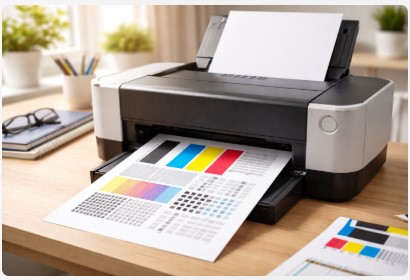
A printer test page is your machine talking to you. It’s not just random ink dumped on paper to see what happens. It’s a carefully designed diagnostic report that tells you the health of every major component inside your printer.
Think of it like this: when you take your car to a mechanic, they plug in a scanner and read error codes. Your printer doesn’t have a screen that says “nozzle #3 is clogged” or “cyan ink isn’t flowing right.” So it prints you a report instead. That’s the test page.
I learned this lesson the hard way about twelve years ago. A small law firm called me in a panic. Their printer was “dying” — their words. They’d already ordered a new machine. I walked in, ran a single test page from the control panel, and saw the problem immediately. A faulty USB cable their office dog had chewed through. Five minutes and a $8 cable later, their “dying” printer worked perfectly. They canceled the $500 order. That’s the power of understanding what does a printer test page tell you.
Here’s what you’re actually looking at when that page comes out:
Color & Grayscale Bars
Those colored blocks running across the page aren’t just for show. They test whether your printer can produce smooth transitions from light to dark in each color. When I see gaps in these bars — like missing chunks of cyan or magenta — I know there’s inconsistent ink flow. It’s usually a clog starting to form.
Alignment Patterns & Grids
Look closely and you’ll see what looks like crosshairs or intersecting lines. These check if your printhead is moving the cartridge smoothly across the page. If those lines are crisp and straight, you’re good. If they’re wavy or blurry? Your printhead’s out of alignment.
Nozzle Test Patterns
This one’s specific to inkjet printers. It prints tiny little lines or dots in a grid pattern. Missing lines in this grid are a dead giveaway of a blocked printhead nozzle. Here’s a simple way to think about it: like a showerhead. One clogged hole and suddenly you’re not getting water where you need it.
Text Blocks
Simple black text at different sizes sounds basic, right? But it tests your printer’s ability to produce crisp, readable characters without ghosting or blurring. If the small text looks fuzzy, you’ve got a problem.
The printer test page vs calibration page difference confuses a lot of people. A test page checks health. A calibration page actually adjusts settings. You run a test page to find problems. You use calibration to fix color accuracy so what you see on screen matches what hits the paper.
And here’s something most beginners don’t know: every printer includes these built-in tests for a reason. Manufacturers know — better than anyone — that printers break down. They built the diagnostic tool right into the machine. Most people just never use it.
Here’s the thing about how a test page helps prevent wasted ink and paper: it’s all about catching problems early. That little page costs pennies. The 20 sheets you’ll waste printing a project on a misaligned printer? That adds up fast. I’ve seen small offices blow through hundreds of dollars in paper and ink because nobody ran a simple test first.
For more detailed diagnostic tools, check out our comprehensive Printer Test Page guide — it’s the pillar article covering everything you need.
Now that you know what you’re looking at, let’s talk about why you should bother in the first place. Next up: the five benefits that’ll make you wonder why you haven’t been doing this all along.
5 Critical Benefits of Printing a Printer Test Page
Look, I get it. You’re busy. Printing a test page feels like an extra step when you just need to get your documents done. But here’s what I’ve learned from fifteen years of fixing these machines: that test page is the difference between a two-minute fix and a two-hour headache.
Benefit 1: Detect Hidden Printer Problems Before They Worsen
A test page catches issues when they’re still cheap to fix.
Last month, a customer brought in a printer with “terrible print quality.” She’d been fighting with it for weeks, wasting reams of paper on documents that looked awful. I ran one test page. There it was — a subtle white streak running through the black bar. One clogged nozzle. Twenty minutes and a cleaning cycle later, the printer was perfect.
Here’s what a test page reveals:
Streaks and lines. Vertical white streaks almost always mean a clogged nozzle or low ink. Horizontal lines? That’s usually a dirty roller or encoder strip — that clear plastic strip inside your printer with tiny tick marks on it. I’d guess eighty percent of the “dying printers” I see just need a simple cleaning.
Color accuracy issues. When those color bars look muddy, bleed into each other, or are missing entirely, you’ve got a cartridge or printhead problem. I once had a photographer convinced his printer was dying because his photos looked dull. We ran a test page, and the cyan bar was completely missing. One new cartridge later, his photos popped again. That’s what problems a printer test page can detect that you’d never spot just by looking at a regular document.
Misalignment. If text looks jagged or colors are slightly offset — like a 3D shadow effect — your printhead is out of alignment. It’s an easy fix, but you won’t know until you look.
The point is simple. It’s better to diagnose a minor clog on a test page than during a 50-page client report. That’s how printing a test page helps diagnose printer problems before they become emergencies. And when you’re dealing with printer test page for diagnosing streaks and faded prints, nothing else comes close.
Benefit 2: The Ultimate Tool for Printer Troubleshooting
When something goes wrong, the test page tells you where to look.
Every major manufacturer — HP, Brother, Epson, Canon — builds their official troubleshooting workflows around the test page. There’s a reason for that. It isolates the problem faster than anything else.
Here’s a trick I use constantly. Print a test page directly from the printer’s control panel — not from your computer. If that test page looks perfect, but your document from the computer looks bad, you know the printer hardware is fine. The problem is somewhere else: the driver, the cable, the software settings, or the network.
This saves people so much money. Remember that lawyer with the chewed USB cable? His printer printed a perfect self-test page from the panel. If he’d known that simple fact, he wouldn’t have spent hours on the phone with tech support. He’d have looked at the cable first.
I call this the “disconnect test.” It’s a quick printer diagnostic using a test page that anyone can do. Two minutes and you know whether to call a technician or just replace a $10 cable. It’s also the best way to how to check printer health with a test page without guessing.
Following a printer troubleshooting using a test page guide like this has saved my clients thousands over the years. The test page doesn’t lie.
Benefit 3: Essential Check After Installing New Cartridges or Toner
New doesn’t mean perfect.
I can’t tell you how many times I’ve seen someone install a brand new ink cartridge, jam it in, and assume everything’s fine. Then they print something important and wonder why it looks terrible.
Here’s the reality. New cartridges sometimes have protective tape still on them. They can shift during shipping. They might have sat on a warehouse shelf for two years before you bought them. I once had a client go through three “defective” cartridges before realizing the tape was still on the fourth one. A test page would have caught it immediately.
That’s why print a test page after installing new ink cartridges matters. It verifies that ink is actually flowing to the printhead correctly. If you see white streaks immediately after installation, you know the cartridge is either faulty or not seated properly. You can fix it right then, before wasting 20 sheets on documents that won’t work.
For laser printers, the same logic applies. Should you print a test page after replacing toner? Absolutely. It ensures toner is fusing properly to the page. Light vertical streaks after a toner change often mean a dirty drum or toner distribution issue. Catch it early, clean it out, and you’re golden.
Here’s something I always tell customers: always run a test page AND an alignment cycle after swapping cartridges. It takes two extra minutes but saves you from that sinking feeling when your first real print job comes out wrong. It’s also the best how to use a test page to check printer color accuracy after any change.
Benefit 4: Preventative Maintenance to Save Ink and Paper
Wasted prints cost money. Test pages cost pennies.
Let’s do some math. A single test page uses a minuscule amount of ink — we’re talking fractions of a cent. Compare that to printing and reprinting a 20-page proposal because your printer was acting up. Which is cheaper? I’ve seen small offices blow through $200 in paper and ink in a single afternoon because nobody ran a simple test first.
Here’s what I tell my clients: how often should you run a printer test page depends on how you use your machine.
If you print every single day? Once a month is plenty. Your printer stays limber, ink keeps flowing, problems get caught early.
If you’re an occasional user — maybe you only print once every few weeks — your risk is different. Inkjet printers especially hate sitting idle. The ink dries, nozzles clog, and suddenly your first print job in a month comes out looking like abstract art. For these users, I recommend a test page every 2-3 weeks. It keeps ink moving through the system and prevents those dried-out clogs.
One of my work-from-home clients started doing this after I suggested it. She prints a test page every other Monday morning with her coffee. Takes 30 seconds. She hasn’t had a printer emergency in two years. That’s how a test page helps prevent wasted ink and paper in real life.
The reasons to print a printer test page for troubleshooting go beyond just fixing current problems. Regular testing prevents future ones. And why test printing improves printer maintenance is simple: consistency catches issues early.
Benefit 5: Ensure Professional Quality for Important Print Jobs
The dress rehearsal nobody thinks about.
You’re about to print a proposal for a potential client. Or a resume for a job interview. Or family photos for grandma’s birthday. These aren’t documents you can afford to mess up. I’ve watched people’s faces fall when they realize the $200 worth of wedding invitations they just printed are all misaligned. Heartbreaking. And completely preventable.
Here’s the best way to test printer before important print jobs: run a test page on plain paper first. Check the alignment. Look at those color bars. Make sure everything’s crisp and clean.
If it looks perfect on plain paper, it’ll look perfect on your expensive photo paper or resume paper. If it doesn’t, you just saved yourself from wasting premium materials on a printer that needs attention.
And when you’re in a time crunch — and we’ve all been there — an urgent printer check using a quick test page is your fastest option. Sixty seconds and you know whether to hit print or hit the brakes. It’s the difference between confidence and crossed fingers.
Knowing when should you print a printer test page is simple: before anything that matters. Client proposals. Wedding invitations. Holiday cards. Job resumes. Any time the stakes are high, take sixty seconds and test first.
I’ve saved so many rush jobs this way. Wedding invitations printed the night before. Business cards needed by morning. A test page caught misalignment every single time before the real damage was done.
Once you start using test pages regularly, you’ll wonder how you ever lived without them. But knowing what they do is only half the battle — next I’ll show you exactly how to print one, step by step, on any printer.
How to Print a Test Page: A Step-by-Step Guide
It’s easier than you think. Let me walk you through it.
The exact steps vary by printer, but the logic is always the same. I’ve shown these methods to hundreds of clients over the years, from grandparents who barely use computers to IT managers running entire office networks. Once you learn it, you’ll never forget it.
Here are the three most common methods:
Method 1: Printing from Windows (10 & 11)
If you’re using a Windows PC, this is the fastest route:
- Hit the Start button and type “printers” — Settings will pop up with “Printers & scanners” right at the top. Windows search has gotten pretty good about this.
- Click on your printer from the list. Make sure you pick the right one if you have multiple printers installed.
- Look for “Manage” and click it. This opens the printer’s control panel.
- You’ll see a button that says “Print test page” — click it. The printer should start within seconds.
That’s it. The page should start printing immediately. If nothing happens, check that your printer is turned on and connected. You’d be surprised how often that’s the issue.
This method works perfectly for how to print a colour printer test page with Windows 10 or Windows 11. The operating system handles all the color management automatically.
Method 2: Printing from macOS
Apple hides this one a little deeper, but it’s in there:
- Open System Settings and click “Printers & Scanners.” On older Macs, it might be in System Preferences instead.
- Find your printer in the list and select it. The settings panel will change to show options for that specific printer.
- Click “Options & Supplies” — this opens a small window with several tabs.
- Go to the “Utility” tab. This is where the printer-specific tools live.
- Click “Open Printer Utility” then look for “Print Test Page.” Some printers call it “Nozzle Check” or “Test Print.”
The utility menu varies slightly by printer brand, but “Print Test Page” is almost always there. If you’re wondering how to print a colour printer test page with macOS, this is the standard method that works across all major brands.
Method 3: From the Printer’s Control Panel (No Computer Needed)
This is my favorite method because it tests the printer completely independently of your computer. If the test page looks good from the panel but your computer prints still look bad, you’ve isolated the problem to the computer side — drivers, cables, or network.
The steps vary by brand, but here’s the general idea:
HP printers: Look for the Setup icon (usually a gear). Navigate to Tools, then look for “Print Quality Report” or “Self-Test Report.” Newer HP models sometimes have it under “Printer Reports” or “Diagnostics.” For more help, visit HP Support for official drivers and tools.
Brother printers: Hit Menu, then Maintenance, then “Improve Print Quality.” You’ll find “Print Test Page” in there. Brother printers are usually very straightforward about this. Check Brother Support for model-specific guides.
Epson printers: This one’s a classic trick. Hold the “Paper” button, press and release the “Power” button, then release the “Paper” button. The printer will whir to life and print a test page automatically. I’ve used this trick hundreds of times — it works on most Epson models going back fifteen years. For detailed troubleshooting, visit Epson Support.
Canon printers: Usually under Settings, then Maintenance, then “Print nozzle check pattern.” Canon groups their diagnostic tools together in one menu. The Canon Support site has additional resources.
The beauty of printing from the panel is that it bypasses your computer entirely. If this test page looks good but your computer prints still look bad, you’ve isolated the problem. It’s really that straightforward.
Here’s something most people don’t think about: why printers include built in test pages goes back to the earliest days of personal printing. Manufacturers knew that printers would eventually have problems, so they built the diagnostic tool right into the machine. It’s been a standard feature since the dot-matrix era. The fact that most people never use it is honestly kind of funny to me. It’s like owning a car with a built-in diagnostic computer and never checking why your check engine light is on.
For brand-specific instructions, check out our detailed guides for HP Printer Test Page, Canon Printer Test Page, and Epson Printer Test Page.
Now that you know how to print one, let’s talk about the important part: actually understanding what you’re looking at. Next up, I’ll show you how to read those patterns and fix the problems they reveal.
How to Read & Fix Test Page Problems (The Troubleshooting Matrix)
Now we’re getting to the good stuff. Here’s what those patterns actually mean and how to fix them.
I’ve stared at thousands of test pages over the years. After a while, you start recognizing problems instantly — like a doctor reading an X-ray. Here’s your cheat sheet for diagnosing your own printer.
| If You See This… | Likely Cause | The Fix |
|---|---|---|
| White Streaks or Lines | Clogged printhead nozzles | Run the Printhead Cleaning cycle 1-2 times through your printer software. Wait 15 minutes between cycles. Print another test page to check. |
| Faded or Missing Colors | Low ink/toner or severe clog | First check ink levels. If full, run 2-3 deep cleaning cycles. If colors are still missing after that, replace the cartridge. |
| Misaligned or Jagged Text | Printhead out of alignment | Run the “Align Cartridge” or “Align Printer” utility in your software. Takes two minutes and usually fixes it completely. |
| Ghosting or Double Images | Wrong paper type setting or fuser issues | Make sure you’ve selected the correct paper type in your print settings. For laser printers, this can indicate a failing fuser unit. |
| Blank Page / Nothing Prints | Empty cartridges or complete blockage | Check ink levels first. If full, your printhead may be completely blocked or the printer may have hardware failure. |
What to Do If Printer Test Page Prints Incorrectly
First thing: don’t panic. And whatever you do, don’t run ten cleaning cycles in a row. I see this mistake constantly. People get frustrated and hammer the cleaning button, thinking more is better. It’s not. It just wastes ink and can actually make clogs worse by spreading dried ink around.
Here’s my proven approach for what to do if printer test page prints incorrectly:
Run one cleaning cycle. Wait fifteen minutes — set a timer if you have to. This gives the cleaning solution time to soak into the clog and break it up. Print another test page.
If that didn’t work, run one more cleaning cycle and wait again. Two cycles fix about 80% of clogs I see in my workshop. The key is patience. Let the chemicals do their job.
If you’re still seeing problems after two cycles, the clog might be severe enough to require a deep clean or a replacement cartridge. Some printers have a “deep cleaning” or “power cleaning” option in the maintenance menu. Use that sparingly — it uses a significant amount of ink. You’ll see the levels drop. I only recommend it as a last resort, and only when your cartridges are full.
Here’s something nobody tells you: sometimes the fix is just waiting. I’ve had printers sit overnight with a clog and work perfectly the next morning. The cleaning solution needs time to work. I once had a client ready to throw out a $400 printer. I told him to run one cleaning cycle, turn it off, and leave it until morning. Next day? Perfect prints.
The test page vs normal print quality check difference matters here. A normal document might hide problems. A test page exposes them. That’s the whole point.
And this is exactly how a printer test page checks ink levels and alignment — by showing you what’s missing or misaligned. Those color bars don’t lie. If cyan is faded, your cyan is low or clogged. If the alignment grids are wavy, your printhead needs adjusting. It’s really that straightforward.
For more detailed diagnostic help, our Printer Diagnostic Page guide covers advanced troubleshooting techniques.
Once you’ve identified the problem and tried these fixes, you’ll usually be back in business. But what if nothing works? Let’s talk about that next.
Conclusion
Look, I’ve been fixing printers for fifteen years. I’ve seen every problem imaginable — from simple paper jams to printers that caught fire (that’s a story for another day). And through all of it, one tool has proven itself over and over again: the humble test page.
It’s the fastest, cheapest, and most effective diagnostic tool you own. A quick printer diagnostic using a test page takes sixty seconds and tells you more about your printer’s health than an hour of frustrated Googling ever will. It catches problems early, saves you money on ink and paper, and ensures your important documents look professional. Every time I run a test page for a client and watch their face light up when they finally understand what’s wrong with their printer, I’m reminded why this matters.
Here’s the thing about why test printing improves printer maintenance — it’s not complicated. It’s just consistent attention. A minute today saves an hour tomorrow. A test page this week prevents a printer emergency next month when you’re rushing to meet a deadline. I’ve seen it play out hundreds of times.
In my years of fixing printers, the test page has never lied. It tells you exactly what’s wrong if you know how to look. Streaks mean clogs. Missing colors mean low ink. Wavy lines mean misalignment. It’s all right there, printed clearly on a single sheet of paper.
Ready to keep your printer in top shape? Download our free “Printer Maintenance Checklist” from our main Printer Test Page site. It’s the same checklist I use in my workshop every single day — the one I’ve given to hundreds of clients who wanted to stop calling me for every little issue. Or browse our related guides on print head cleaning and color calibration.
By the way, if you’ve got a printer horror story of your own, drop it in the comments. I always love hearing from someone who tried one of these fixes and it worked.
Print that test page. You’ll thank yourself later.
Frequently Asked Questions (FAQ)
How do I know if my printer is misaligned using a test page?
Look at the alignment patterns (often grids or crosshairs) on the page. If the lines are blurry, wavy, or if color text has a “shadow,” your printhead is misaligned. Run the “Align Cartridge” utility from your printer software to fix this .
Will printing a test page waste my expensive ink?
No. A standard test page is designed to use the absolute minimum amount of ink required to get a diagnostic reading. It’s far more economical than wasting multiple sheets of photo paper on a faulty printer.
How often should you run a printer test page?
If you print daily, once a month is fine. If you print sporadically (once every few weeks), print a test page every 2 weeks. This keeps the ink flowing and prevents the printhead from clogging due to dried ink .
Why is my test page printing blank?
A blank test page usually means the ink cartridges are empty, or the printhead is so severely clogged that no ink can pass through. First, check your ink levels. If they are full, the printer may require a professional cleaning or replacement.
What is the difference between a test page and a calibration page?
A test page checks the health of the printer (nozzles, color output). A calibration page is used to adjust the printer’s settings so that the colors it prints match the colors on your screen. You run a test page to find a problem; you use a calibration page to fix color accuracy.
Can a test page fix my printer?
No, it can’t fix it, but it tells you exactly what needs to be fixed. It’s the diagnostic report that tells you whether to clean the head, align the cartridge, or call a technician.
Why does my HP printer keep going offline?
While not a test page issue, I see this daily. Usually, it’s a simple network glitch. Try power cycling your router and printer first—this fixes about 70% of offline issues instantly. If that doesn’t work, assigning a static IP to the printer in your router settings is the permanent fix.
Disclaimer: This article is based on personal expertise and industry knowledge gained over more than a decade of hands-on printer repair. Always consult your printer’s manual or seek help from a certified technician for model-specific issues. Every printer is a little different, and what works for one may not work for another.

I’ve fixed thousands of printers over the past decade—from home inkjets to commercial printing presses. Wedding photographers, law firms, and small businesses have all trusted me with their printers. Every guide comes from real workshop experience, not theory.