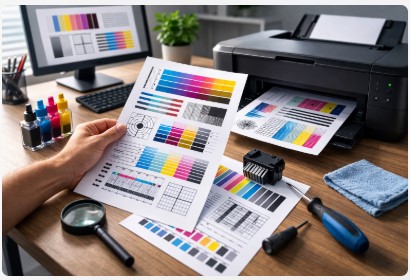

Printer Diagnostic Page: How to Detect and Fix Print Problems
Last week, a woman named Carol walked into my shop with an HP OfficeJet Pro under one arm and a look I see at least twice a week—that mix of frustration and defeat. She plopped the printer on my counter and said, “Tobby, I’m done. This thing’s garbage. I’m buying a new one today.”
I’ve been fixing printers for over 12 years now. I’ve seen that look more times than I can count. Carol’s printer was only two years old. A $400 machine that had started leaving mysterious streaks across every document she printed. She’d already bought new cartridges—spent about $80—and nothing changed.
“Before you drop another $400,” I said, “let me show you something.”
I loaded a plain piece of paper, pressed three buttons, and 30 seconds later we were looking at a printer diagnostic page. That single sheet of paper—with its color bars, alignment grids, and little test patterns—told me exactly what was wrong. A $5 part. Fifteen minutes of my time. Carol walked out with her same printer, working perfectly, and enough left in her wallet to take her grandkids out for pizza.
Here’s the thing about printers that most people never realize: they’re actually pretty good at telling you what’s wrong. That printer test page you’ve probably ignored a hundred times? It’s not just random shapes and colors. It’s your printer’s way of saying, “Hey, look right here—this is the problem.”
And here’s the part that still amazes me after all these years: about 80% of print quality issues are visible on that single page. Streaks, faded colors, misalignment, banding—they all show up somewhere in those patterns. You just need to know what you’re looking at.
In this guide, I’m going to walk you through exactly how to check your printer health with a test page. We’ll cover how to print one on any machine (yes, even that weird off-brand one your office bought), how to read those patterns like a pro, and most importantly—how to fix what you find. Most fixes take under 10 minutes and cost exactly zero dollars.
After 12 years in this business and more than 5,000 diagnostic pages analyzed, I’ve developed a system that works across every major brand. HP, Canon, Epson, Brother—doesn’t matter. The patterns are different, but the language is the same. Once you learn to read a print quality diagnostic page, you’ll never look at a “broken” printer the same way again.
So grab that printer you’ve been ready to throw out the window. Let’s see what it’s actually trying to tell you.
✅ Quick Summary
A printer diagnostic page (also called a test page) is a built-in self-check that reveals exactly what’s wrong with your printer. Print it using your printer’s control panel—usually by holding the Power button and pressing Cancel/Resume 2-4 times. Look for five common problems: vertical streaks (clogged nozzles or drum issues), faded color bars (low ink), horizontal banding (dirty encoder strip), ghosting (misalignment), or random spots (debris or cheap paper). Most fixes take under 5 minutes and cost nothing. If your diagnostic page looks perfect but prints don’t, the problem’s likely in your computer settings, not the printer itself.
How to Print a Diagnostic Page on Any Printer
Alright, let’s get down to business. You’re here because something’s wrong with your prints, and you need that diagnostic page. Good news—printing one is almost always easier than fixing the problem itself.
I’ve printed thousands of these things on every machine you can imagine. Old inkjets from 2005. Brand new laser printers with touchscreens bigger than my first phone. Weird all-in-ones from brands nobody’s heard of. And after all that, I’ve learned one universal truth: every printer has a diagnostic page hidden somewhere. You just need to know the secret handshake.
If you want to explore more detailed options, check out our comprehensive Printer Test Page guide—it’s the pillar article covering everything you need.
The Universal Button Method (Works on 90% of Printers)
Here’s the trick I teach every client who calls me in a panic. It works on most printers, regardless of brand or age.
Step 1: Turn the printer on. Make sure paper’s loaded. Sounds obvious, but you’d be surprised how many people forget this and then call me saying “it’s not working.”
Step 2: Press and hold the Power button. Don’t just tap it—hold it down.
Step 3: While you’re still holding Power, press the Cancel, Resume, or Stop button 2 to 4 times. Which button? Depends on your printer. If it has a button with a triangle inside a circle (that’s Cancel), use that. If it says “Resume” or “Stop,” use that. The exact number of presses varies, but 2-4 usually does it.
Step 4: Release the Power button.
Step 5: Wait about 30 seconds. Your printer should whir to life and spit out a diagnostic page.
I taught this exact sequence to a 70-year-old client named Margaret over the phone last year. She’d been fighting with her Canon for weeks—streaks on every print, new cartridges bought, nothing helped. Three button presses while I walked her through it, and suddenly she’s describing color bars and grids to me over the phone. “I see little boxes! And some lines!” she said, excited like she’d just discovered treasure. In a way, she had. We spotted the clogged nozzle pattern immediately, ran a cleaning cycle, and her printer was back in business. Margaret still sends me Christmas cards printed on that same Canon.
Brand-Specific Quick References
Look, the universal method works most of the time. But sometimes printers are stubborn. Here’s the breakdown by brand so you can go straight to the source.
HP Printers: If you’ve got a touchscreen, tap Setup (the wrench icon), then Reports, then Print Quality Report. No touchscreen? Use the universal button method—Cancel + Power. On some older HPs, you’ll need to press and hold the Power button, then press the Cancel button twice. For more HP-specific help, visit our HP Printer Test Page guide.
Canon Printers: On most Canon inkjets, hit the Maintenance button (wrench icon), then select “Print Nozzle Check Pattern.” The button combo is Stop button + Power. Hold Stop, press Power, release Stop after two beeps. Works like a charm. Check our Canon Printer Test Page for more details.
Epson Printers: Go to Settings, then Maintenance, then Nozzle Check. The button shortcut? Hold the Stop button for 3 seconds, then press Power. Epsons are usually pretty straightforward—they want you to run maintenance. Our Epson Printer Test Page guide has additional tips.
Brother Printers: Hit Menu, then Print Reports, then Print Quality or Test Print. The button combo is Cancel + Power. Hold Cancel, press Power, release Cancel after two beeps. Brothers are workhorses, but their menus can be deep—bookmark this. The Brother Print Test Page guide covers more.
Network Printers (All Brands): Got your printer connected to WiFi? Find its IP address—print a network config page or check your router’s connected devices list. Type that IP into a web browser, look for a “Tools” or “Reports” section, and click “Print Test Page.” This works on literally any printer with a network connection.
Mobile App Method
We’re in 2025. Nobody wants to walk to the printer if they don’t have to. Good news—most brands have apps that let you print diagnostic pages from your phone.
HP Smart: Open the app, tap your printer, look for “Print Quality Tools” or “Printer Maintenance.” You can print diagnostic pages and sometimes even run cleaning cycles remotely.
Canon PRINT: Same deal. Find your printer, go to “Maintenance,” and select “Nozzle Check.” It’ll print right from your phone.
Epson iPrint: Tap “Maintenance,” then “Test Print.” Easy.
Brother iPrint&Scan: Go to “Device Settings,” then “Print Test Page.”
Here’s the cool part—some of these apps are getting smart. HP Smart can actually scan your printed diagnostic page, analyze the patterns, and recommend fixes. It’s not perfect—I’ve seen it miss subtle problems I’d catch immediately—but it’s getting there. For a beginner, it’s like having a tech in your pocket.
I had a small business client last month who used the Epson app to diagnose a clog from 200 miles away. He was on vacation, his office manager was panicking about a big print job, and he just opened the app, ran a nozzle check remotely, saw the missing magenta pattern, and walked the manager through a cleaning cycle over the phone. Job saved. All from a beach somewhere.
Quick Tip Before You Print
Always use plain paper for diagnostic pages. Not photo paper, not cardstock, not that weird textured stuff you bought on sale. Plain copy paper gives you the most accurate read on what your printer’s actually doing. Photo paper can hide problems or create false ones because the ink sits differently.
Also? Print two copies. Keep one as a reference. Write the date on it. When something goes wrong later, you’ll have a “healthy” version to compare against. I’ve got a whole binder of these going back years—saved my butt more times than I can count.
Now that you’ve got your diagnostic page in hand, let’s talk about what a healthy one actually looks like. Because you can’t spot a problem until you know what “normal” is.
What a Healthy Diagnostic Page Looks Like
Most people look at these things and see abstract art. Color bars, grids, little patterns that seem random. But here’s the truth—every single element on that page is there for a reason. And once you know what “perfect” looks like, spotting problems becomes second nature.
I’ve been doing this long enough that I can glance at a diagnostic page from across the room and know what’s wrong. But I didn’t start that way. Nobody does. You learn by comparing. By knowing what healthy looks like first.
The “Golden Page” Concept
Here’s a trick I learned about five years into this business, after one too many clients swore their printer was “fine last week” with no proof.
Print a diagnostic page the day you buy your printer. Or right after it’s been professionally serviced. Write the date on it in marker. Stick it in a folder. Or tape it inside your printer’s manual if you’re old school like me.
That page is your printer’s “healthy baseline.” Its yearbook photo. Its drivers license picture. It’s proof of what your printer is capable of when everything’s working right.
I keep a three-ring binder in my shop stuffed with these golden pages. Every model I’ve worked on in the last decade—HP OfficeJets, Canon Pixmas, Epson WorkForces, Brother lasers—they’re all in there, sorted by brand and date. When a client walks in and says “something’s wrong but I don’t know what,” I don’t guess. I flip to their model, pull out the golden page from when that printer was new, and lay it next to whatever they just printed.
The difference jumps out in 30 seconds. Every time.
Last month, a guy brought in a laser printer with “gray background” on all his prints. He thought the drum was shot—$120 part. I pulled the golden page for his model, held them side by side, and pointed at the subtle toner scatter that wasn’t on the original. Turned out his transfer roller was just dirty. Twenty minutes with a lint-free cloth and he was back in business. The golden page saved him a hundred bucks.
So yeah. Print that baseline. Save it. You’ll thank yourself later.
What to Look For in a Perfect Page
Alright, let’s break down what “healthy” actually looks like. Grab a diagnostic page from a printer you trust—maybe one at work that’s printing fine, or a new one you just set up. Let’s walk through it together.
Color Bars (CMYK)
Those solid blocks of color—cyan, magenta, yellow, and black—should be exactly that: solid. No streaks running through them. No faint patches. No missing chunks.
Run your finger across each bar. Does the color look consistent from left to right? Good. Are there tiny white lines cutting through? That’s trouble. On a healthy printer color test page CMYK, each bar looks like it was painted on with a roller, not sprayed through a clogged nozzle.
I tell my clients: “If your cyan bar looks like a zebra, you’ve got nozzle problems.” Stripes in the color bars are never a good sign. For a deeper dive, our CMYK Print Test Page guide explains each color channel in detail.
Alignment Grids
You’ll see grids—usually crosshatch patterns or sets of parallel lines. These test whether your printer is laying down ink or toner in exactly the right spot.
On a perfect printer alignment test page, every line is straight. No stepping. No ghost images floating nearby. The lines should meet at perfect right angles, like graph paper. Our Alignment Print Test Page has examples you can compare against.
I had a graphic designer once insist his $800 printer was “ruined” because his business cards looked blurry. One look at his alignment grid showed lines that looked like a tiny staircase—each one slightly offset from the one before. We ran auto-alignment, and poof. Problem gone. The grid told the whole story.
Nozzle Patterns
This one’s mostly for inkjet printers, though some lasers have similar tests. You’ll see patterns of tiny dots—sometimes in grids, sometimes in bands.
Every single dot should be present. No gaps. No missing rows. On a healthy printer nozzle check test page, the pattern looks like a brick wall. Solid. Complete. The Nozzle Print Test Page guide shows what different nozzle problems look like.
Missing dots? That’s a clog. The pattern tells you exactly which nozzles aren’t firing. Count the gaps, and you’ll know how serious the clog is. A few missing dots? Run a cleaning cycle. A whole section missing? You might be looking at a dying printhead.
Gradients
These are the smooth transitions from light to dark—usually in each color and in combinations. They should look like a sunset fading into night. Smooth. Continuous. No sudden jumps.
If you see bands—sharp lines where the color changes abruptly—that’s called banding. It means your printer’s struggling with smooth transitions. Could be driver issues. Could be ink starvation. Could be a failing component. But the gradient tells you it’s there.
Technical Data
Down at the bottom, you’ll usually find text. Model numbers. Firmware versions. Page counts. Ink levels. This stuff should be crisp and readable. If the text looks blurry or has little ghost images trailing behind it, your printer’s got alignment or printhead issues that affect everything, not just graphics.
A Quick Story About “Perfect”
Last Christmas, a regular client brought in her brother’s printer—said he’d been complaining about quality for months but wouldn’t bring it in himself. I printed a diagnostic page and honestly? It looked perfect. Color bars solid. Grids straight. Nozzle pattern complete.
I called him. “Your printer’s fine. The diagnostic page is perfect.”
Silence. Then: “But my photos look terrible.”
Turns out he was printing family photos on regular copy paper with the settings on “Draft mode.” His printer was fine—he was just using it wrong. We changed the paper and settings, and suddenly his photos looked great.
The point? A printer calibration test page guide like this one helps you rule out hardware problems. If the diagnostic page looks perfect, your printer’s probably fine. The problem’s somewhere else—your settings, your file, your expectations. And that’s actually good news. Much cheaper to fix.
One More Thing
Different brands format their diagnostic pages differently. An HP page won’t look exactly like a Canon page. An Epson nozzle check is laid out different from a Brother test print. That’s fine. The principles are the same across all of them.
What you’re looking for is consistency. Solid where it should be solid. Complete where it should be complete. Straight where it should be straight.
Once you’ve seen a dozen perfect pages from different printers, you’ll start spotting problems instantly. Your brain builds a library of “normal.” And that’s when you stop guessing and start knowing.
Now let’s talk about what happens when things go wrong. Here are the five most common problems your diagnostic page will reveal—and exactly how to fix each one.
5 Common Print Problems Your Diagnostic Page Reveals
Alright, this is where the magic happens. You’ve got your diagnostic page in one hand, and you know what a healthy one looks like. Now let’s play detective.
I’ve narrowed down decades of repair work into the five problems I see most often. Like, literally 80% of the printers that walk through my door have one of these issues. And the beautiful part? Your diagnostic page points right at them. You just need to know what to look for.
Problem #1 — Vertical Streaks or Lines
What it looks like: Dark or light lines running from the top of the page to the bottom. Like someone took a tiny rake to your print.
If you’ve got an inkjet printer:
Those streaks almost always mean clogged nozzles. Ink dries up in the printhead when the printer sits unused for a while. Or you used third-party ink that’s slightly thicker than the manufacturer’s stuff. Or honestly? Sometimes printers just get cranky.
The fix: Run a cleaning cycle. On most printers, you’ll find this in the maintenance menu. Run it once. Print another diagnostic page. Still streaky? Run it one more time. That’s it.
Here’s the pro tip I tell everyone: If three cleaning cycles don’t fix it, stop. You’re just wasting ink at that point. A $60 cartridge of ink down the drain, literally. Time for a deeper clean—soaking the printhead overnight—or a replacement printhead if it’s really bad. Our Print Head Cleaning Test Page guide has step-by-step instructions.
If you’ve got a laser printer:
Vertical streaks usually mean a damaged drum unit. Here’s how you know: look at the streaks. Measure the distance between them. If they repeat at regular intervals—say, every 94mm—that’s the circumference of your drum. The drum’s spinning, and every time it completes a rotation, the same damaged spot touches the paper.
I had a real estate agent named Derek come in a few months back. His laser printer was ruining flyers with black streaks, right before open houses. He was ready to buy a new machine—$400. I printed a diagnostic page, saw the pattern repeating every 94mm, and said, “It’s your drum.” $45 part, ten minutes to swap, and he was back printing flyers that afternoon. He still brings me cookies at Christmas. For more laser-specific help, check our Laser Printer Test Page guide.
Time and cost: 2 minutes for a cleaning cycle. $0 if it works. $45 for a new drum if it doesn’t.
Problem #2 — Faded or Missing Colors
What it looks like: Those color bars we talked about? They’re weak. Patchy. Or just… gone. Like someone turned down the volume on one color.
Here’s the thing about color problems—they’re rarely random. Each color tells a different story.
Quick diagnosis by color:
- Yellow missing or weak: This is the most common. Yellow ink dries out fastest because we barely use it. How many yellow-heavy documents do you print? Exactly. If yellow’s gone, it’s probably just dried up.
- Cyan weak: Could be low on ink. Could be air bubbles in the ink line, especially on EcoTank-style printers. If it’s an Epson with refillable tanks, check for air.
- Magenta faded: This one worries me more. Magenta that’s consistently weak might mean a failing printhead. Or someone mixed up ink colors during a refill and contaminated the whole system. Yes, people do that. More often than you’d think.
- Black weak: Empty cartridge is the obvious answer. But sometimes it’s the paper setting. If you’re trying to print on photo paper but the printer thinks it’s plain paper, black can look washed out.
The fix: Check your ink levels first. Always. If a cartridge is empty, replace it. If it’s full but the color’s missing, run a cleaning cycle. If that doesn’t work and the cartridge is full, you might have a clog that needs deeper attention.
I can’t tell you how many clients have argued with me about this. “My color’s fine, Tobby. I just printed something yesterday.” Then I print a yellow-only test page—something most people never do—and it’s blank. Every time. The diagnostic page never lies. It shows you exactly what’s coming out of those nozzles, not what your software thinks is in the tank.
Time and cost: 5 minutes to diagnose. $15-60 for a new cartridge if needed.
Problem #3 — Horizontal Banding (Stripes Across the Page)
What it looks like: Light or dark stripes running from left to right. Like a Venetian blind effect across your print.
This one drives people crazy because it’s not obvious what causes it. But I promise, it’s almost always the same thing.
The cause: A dirty encoder strip.
What’s an encoder strip? It’s this clear plastic strip that runs behind the printhead. Looks like a piece of transparent film with tiny lines etched into it. The printhead reads those lines to know exactly where it is on the page. When that strip gets dirty—ink mist, dust, paper fibers—the printhead gets confused. It thinks it’s in the wrong place, so it lays down ink at the wrong time. Boom. Banding.
The fix: Clean the encoder strip. Here’s how:
- Open your printer. Most have a latch that lets you access the inside.
- Find that clear plastic strip running horizontally behind where the cartridges move.
- Take a lint-free cloth—an old t-shirt works, microfiber is better. Dampen it with water or isopropyl alcohol. Never use paper towels; they leave fibers.
- Gently wipe the strip. Don’t pull or stretch it. Just wipe.
- Let it dry completely before closing up and printing.
I got a call from a school once—20 printers, all “broken.” They were ready to send them to recycling, buy new ones. The budget for that? About $8,000. I walked in, looked at diagnostic pages from three random machines. Banding on all of them. Spent an afternoon cleaning encoder strips. Eighteen of the twenty fired right up. Saved that school about $4,000 in unnecessary replacements.
Time and cost: 3 minutes. $0. Maybe a dollar if you buy isopropyl alcohol.
Problem #4 — Ghosting or Double Images
What it looks like: Faint duplicate images right next to the real ones. Like you’re seeing double after a late night.
Ghosting is creepy the first time you see it. But it’s usually fixable.
For inkjet printers:
- Misaligned printhead: The most common cause. The printhead thinks it’s in one place but it’s actually in another, so it fires twice in slightly different spots.
- Dirty encoder strip: Yep, that strip again. If it’s dirty enough, it can cause ghosting instead of banding.
- Carriage speed issues: Less common, but if the belt that moves the printhead is loose or worn, speed varies and ghosting happens.
For laser printers:
- Dirty transfer roller: This roller applies charge to pull toner onto the paper. If it’s dirty, it doesn’t release toner cleanly.
- Worn fuser unit: The fuser melts toner onto the page. If it’s worn, toner doesn’t stick right and can transfer to other parts of the page.
- Damaged drum: Same drum that causes streaks can also cause ghosting, depending on the damage pattern.
The fix: Run auto-alignment first. Most printers have this in the maintenance menu. Takes two minutes. If that doesn’t work, clean the encoder strip (inkjet) or transfer roller (laser). If it’s still ghosting after that, you might be looking at mechanical issues.
I had a client with ghosting so bad his business cards looked like cheap knockoffs of themselves. Auto-alignment didn’t touch it. Cleaning didn’t help. I opened it up and found a loose belt—the thing that moves the printhead back and forth. $20 part, but it required taking half the printer apart. Sometimes you need a pro. And that’s okay.
Time and cost: 5 minutes for alignment. $0 if it works. $20-50 if parts are needed, plus labor if you’re not comfortable digging in.
Problem #5 — Random Spots or Specks
What it looks like: Dots. Specks. Little marks that look like someone flicked a paintbrush at your paper.
For inkjet printers:
Those spots are usually dried ink flakes. Over time, ink dries on the printhead itself, then flakes off onto your paper. Run a cleaning cycle. Print a few pages. The flakes usually clear out.
For laser printers:
Spots can mean toner scatter—tiny particles of toner landing where they shouldn’t. Could be debris on the drum. Could be dirty rollers. Could be that someone shook a toner cartridge aggressively during installation and got toner everywhere. (Don’t do that, by the way. Shaking toner cartridges is a myth. Just slide them in gently.)
The paper connection:
Here’s something most people don’t think about. Cheap paper creates dust. Tiny paper fibers that float around inside your printer. Those fibers attract toner and ink, then transfer to your prints as spots.
A client brought me a Brother laser last year with spots on every page. He’d tried new toner. New drum. Even considered a new printer. I looked at his paper—store brand, cheapest on Amazon, bought in bulk. I handed him a ream of name-brand paper from my shelf. “Try this.” Problem vanished instantly. The diagnostic page was accurate—there were spots. But the cause wasn’t the printer. It was the $15 paper.
Time and cost: 5 minutes. $0 unless you need better paper.
One Last Thing About These Problems
Here’s what I’ve learned after thousands of repairs: most people give up way too soon. They see a problem, assume the printer’s dead, and buy new. But look at this list. Streaks, faded colors, banding, ghosting, spots—every single one of these has a fix. And most of those fixes are free.
The diagnostic page isn’t just telling you something’s wrong. It’s telling you exactly where to look. The streaks point at the nozzles or drum. The missing color points at a cartridge. The banding points at that plastic strip. It’s like your printer left you a map.
Now that you’ve diagnosed the problem, here’s a quick reference table you can print and tape to your wall.
Quick Reference: Problem + Fix in 30 Seconds
Let’s be real—sometimes you don’t have time to read through five detailed sections. Sometimes you just need to know what’s wrong and how to fix it, right now, so you can get back to whatever you were actually trying to print.
I get it. I’ve been there a thousand times.
So here’s the cheat sheet I wish every printer owner had taped to their wall. I’ve condensed 12 years of repairs into one table. Problem on your diagnostic page, most likely cause, fix that actually works, and what it’ll cost you.
| Problem On Page | Most Likely Cause | 60-Second Fix | Cost |
|---|---|---|---|
| Vertical streaks (inkjet) | Clogged nozzles | Run cleaning cycle (1-2x) | $0 |
| Vertical streaks (laser) | Damaged drum | Replace drum cartridge | $40-100 |
| Missing color bar | Empty/low cartridge | Replace cartridge | $15-60 |
| Horizontal banding | Dirty encoder strip | Clean with soft cloth | $0 |
| Ghosting/double images | Misalignment | Run auto-alignment | $0 |
| Random spots | Debris/dust | Clean paper path | $0 |
| Faint all colors | Low ink/toner | Check levels, replace | $15-60 |
| Color looks wrong | Wrong paper setting | Match paper type in settings | $0 |
Print this table. Tape it to your printer. Thank me later.
I’m serious about that. I’ve got a client who runs a real estate office—eight printers, twelve agents, constant chaos. She printed this table, laminated it, and stuck it on the wall next to their main printer. Now when someone says “this thing’s broken again,” they glance at the table, try the fix, and get back to work. Her service calls to me dropped by about 70%.
The beauty of this table? It covers about 90% of what goes wrong with printers. The stuff that’s left—firmware crashes, network issues, hardware failures—usually needs a pro anyway. But for the everyday problems that drive people crazy? This is your map.
One quick note: start with the cheapest, easiest fix. Always. If you see vertical streaks on an inkjet, don’t order a new printhead yet. Run a cleaning cycle. Costs nothing, takes two minutes. If that doesn’t work, then you dig deeper. But you’d be amazed how often the simple fix is the right fix.
Now let’s talk about something just as important: when NOT to trust that diagnostic page. Because yeah, sometimes that page lies.
When NOT to Trust Your Diagnostic Page
Look, I’ve spent this whole guide convincing you that the diagnostic page is your printer’s honest truth-teller. And it is—most of the time.
But here’s the thing about truth. Sometimes it’s complicated. Sometimes that page shows you a problem that isn’t really a problem. Or it looks perfect while your actual prints are garbage.
I’ve been doing this long enough to know when to trust the page and when to dig deeper. Let me save you some frustration.
5 Times the Diagnostic Page Lies
1. Your printer’s cold.
Printers are divas about temperature. Especially inkjets. When it’s cold, ink thickens. It doesn’t flow right. So you print a diagnostic page first thing in the morning and see missing nozzles everywhere. You panic. You run cleaning cycles. You waste ink.
But here’s what’s really happening: your printer just needs to warm up.
I had a client in Denver—lovely guy, home office in his basement—who kept calling me about “clogged nozzles” every winter. He’d send me photos of diagnostic pages with half the pattern missing. I’d walk him through cleaning cycles. Nothing helped. Finally I asked, “What’s the temperature down there?” Turns out his basement office dropped to 55°F at night. He’d stumble down at 7 AM, turn on the printer, and immediately run a test.
The fix? Nothing. Just wait. Let the printer run for five minutes. Let it warm up. Print a second page. Problem “magically” disappeared. Warming the room for an hour before printing solved it completely.
The rule: If your printer’s been sitting in a cold room, give it 5-10 minutes before you trust that diagnostic page.
2. You’re using the wrong paper.
This one trips up so many people. They grab whatever paper is closest—photo paper, cardstock, that fancy textured stuff they bought for invitations—and run a diagnostic page on it.
Photo paper hides problems. It’s designed to make everything look good. Ink spreads differently. Colors saturate differently. You might see banding that doesn’t actually exist, or miss problems that are really there.
The rule: Always use plain copy paper for diagnostic pages. Nothing fancy. Just standard 20-pound multipurpose paper. That’s what your printer expects for testing.
3. Your paper is old or cheap.
Paper has a shelf life. It absorbs moisture from the air. It gets wavy. It collects dust.
I’ve seen diagnostic pages that looked like they’d been through a sandstorm—random spots everywhere, colors bleeding. The client was ready to buy a new printer. I asked when they’d bought the paper. “Oh, 2019? We got a great deal on a case.”
Paper from 2019. Six years old. Stored in a garage. Of course it looked terrible.
Cheap paper is even worse. It sheds fibers like a shedding dog. Those fibers float around inside your printer, land on the drum or printhead, and show up as spots on your next print.
The rule: Fresh paper from a known brand. If your diagnostic page looks bad, try a fresh ream before you do anything else.
4. You’re using third-party ink.
I’m not anti-third-party. I use it myself sometimes. But here’s the honest truth: third-party ink is different.
Different viscosity. Different drying time. Different color formulation. Your printer was calibrated for the manufacturer’s ink. When you use something else, the diagnostic page might show problems that aren’t really problems—or miss problems that are.
I’ve seen third-party ink cause banding that vanished the moment we put OEM cartridges back in. I’ve seen it show color bars that were slightly off—not wrong enough to matter for most documents, but enough to make a photographer panic.
The rule: If your diagnostic page looks funky and you’re using third-party ink, try OEM cartridges before you replace anything else. At least you’ll know if the ink’s the problem.
5. Software issues.
Here’s the weird one. You print a diagnostic page. It looks perfect. Color bars solid. Grids straight. Nozzle pattern complete. Everything’s beautiful.
Then you print a document from your computer, and it’s garbage. Streaks. Faded text. Wrong colors.
The diagnostic page isn’t lying. Your printer is fine. The problem is between your computer and the printer.
The rule: If the diagnostic page looks good but your prints don’t, the printer isn’t the problem. Check your drivers. Check your application settings. Check that you’re not accidentally printing in “Draft” mode. Test from another device—your phone, a different computer, a USB drive plugged directly into the printer. If it prints fine from there, you’ve found your culprit. Our How to Update Printer Driver guide can help with driver issues.
The “It’s Fine” Trap
This might be the most important thing I tell you.
The diagnostic page only tests basic functionality.
Seriously. Those color bars? They’re just solid blocks. The alignment grids? Simple lines. The nozzle patterns? Dots in a grid.
Your printer can pass every single one of those tests and still struggle with complex things. Photos with subtle gradients. Small text at 6 points. Graphics with fine lines. Color-critical work like product shots or branding materials.
I had a photographer in here once, nearly in tears. His $1,200 printer was “ruined.” His prints had color shifts he couldn’t explain. We printed a diagnostic page. Perfect. Every test passed.
He was ready to buy a new printer. I said, “Humor me. Let’s check your color profile.”
Turns out he’d updated his editing software, and it defaulted to a different color space. His files were exporting in Adobe RGB, but his printer was expecting sRGB. The diagnostic page didn’t catch it because solid color blocks don’t show that kind of shift.
We fixed the setting. Problem gone. Zero dollars.
The “It’s Fine” Trap rule: A perfect diagnostic page means your printer’s hardware is probably okay. It does NOT mean everything’s fine with your prints. If your prints look bad but the diagnostic page looks good, stop looking at the printer. Start looking at:
- Your drivers (update them)
- Your software settings (paper type, quality mode, color management)
- Your source files (are they high enough resolution?)
- Your cable or connection (try a different one)
One More Thing About Trust
The diagnostic page is the most honest thing your printer will ever give you. But like any honest witness, it can be misinterpreted.
When I teach new technicians, I tell them: “The diagnostic page tells you what is happening. It doesn’t always tell you why.”
Missing nozzles could mean a clog. Or it could mean your printer’s cold. Or it could mean you’re using paper that’s sucking ink away from the page.
So when you look at that page, ask yourself: “What else could explain this?” Check the obvious stuff first. Temperature. Paper. Ink age. Connection.
Nine times out of ten, the problem isn’t mysterious. It’s just something simple you overlooked.
If you’ve diagnosed the problem, tried the fix, and nothing changed, don’t throw your printer out the window yet. Sometimes you need to understand the difference between a test page and a full diagnostic page—and use the right tool for the job.
Printer Diagnostic Page vs Test Page: What’s the Difference?
You know what confuses people more than it should? The names.
I’ll have a client call and say, “I printed a test page like you said, and it looks fine.” Then they email me a photo, and it’s not a test page at all. It’s a full diagnostic page. Or worse, they’ve printed a network configuration report with no color bars anywhere.
Let’s clear this up once and for all.
Test Page vs Diagnostic Page — The Quick Breakdown
Think of it like the difference between checking your oil and getting a full vehicle inspection.
| Printer Test Page | Printer Diagnostic Page |
|---|---|
| Quick quality check | Comprehensive health report |
| Basic patterns only | Color bars, gradients, alignment grids |
| No technical data | Firmware, page count, error logs |
| 10 seconds to print | 30-60 seconds to print |
| Good for spot checks | Good for troubleshooting |
A test page is usually just a simple document—maybe some text, a basic logo, blocks of color—designed to confirm the printer is… well, printing. You run one after installing new cartridges to make sure they work. Or when you first set up a printer to see if it’s functioning. Our Print a Self Test Page guide covers the basics.
A printer diagnostic page is the deep dive. It’s specifically designed to reveal problems. Those color bars? They show you if each color is flowing correctly. The alignment grids? They tell you if the printhead is firing straight. The gradients? They expose banding that a simple test page would hide.
I’ve got a client who runs a marketing agency. Their designers are picky about color. When they’d complain about print quality, their office manager would print a test page, see basic text and logos looking fine, and tell them “nothing’s wrong.” Meanwhile, their client proofs were coming back with muddy greens and shifted skin tones.
Now they know: test page for “is it working?” Diagnostic page for “what’s wrong with this print?”
When to Use Which
Use a test page when:
- You just installed new cartridges
- You haven’t used the printer in a while and want to wake it up
- Someone asks “is the printer working?” and you need a quick yes/no
- You’re setting up a new printer and want to confirm it prints at all
Use a printer test page for troubleshooting when the problem is obvious—like “it’s not printing at all” or “the text is completely missing.” But for quality issues? You need more.
Use a diagnostic page when:
- You see streaks, banding, or faded areas in your prints
- Colors look wrong (photos too blue, logos too green)
- You’re getting random spots or specks
- You want to check printer health before a big job
- You’re trying to decide if a printer needs repair or replacement
I printed a diagnostic page last week for a client who thought her printer was “making colors muddy.” The test page looked okay—text was readable, the logo was recognizable. But the diagnostic page showed her magenta bar was weak and streaky. Clogged magenta nozzle. Two cleaning cycles later, her photos looked perfect again. The test page would have missed it completely.
Why This Confusion Matters
Here’s the thing: if you’re trying to fix a problem and you’re looking at the wrong page, you’ll chase ghosts.
I had a guy once send me a network configuration page—you know, the one with IP addresses and MAC addresses and all that tech stuff—and ask why his colors looked wrong. There were no colors on the page at all. It was all text. I had to explain that he’d printed the wrong thing.
He was frustrated. “But it says ‘test page’ at the top!”
Yeah, some printers call everything a test page. HP loves to label their network config page as a “test page.” Canon does the same thing. So you can’t always trust the name. You have to look at what’s actually on the paper.
Here’s how to tell the difference at a glance:
- See color bars (CMYK blocks)? That’s a diagnostic page.
- See grids or crosshatch patterns? Diagnostic page.
- See smooth gradients from light to dark? Diagnostic page.
- See only text and maybe a small logo? That’s just a test page.
- See IP addresses and network settings? That’s a config report—useful for networking, useless for print quality.
What Most People Get Wrong
The biggest mistake? Using a test page to diagnose quality problems.
Test pages are designed to look good. Manufacturers want you to see that first print and think “wow, this printer is amazing.” So they use optimized settings, simple patterns, forgiving layouts.
A test page can look perfect while your actual documents look terrible. Because real documents have gradients. Fine lines. Small text. Multiple colors blending together.
The diagnostic page is designed to be hard on your printer. It pushes every system to its limit. If something’s slightly off, the diagnostic page will show it. That’s the whole point.
I tell my clients: “If you want to know if your printer is healthy, print a diagnostic page. If you want to know if it’s working at all, print a test page. Never confuse the two.”
A Quick Story About Getting It Wrong
A few months back, a non-profit called me. They were about to print their annual gala invitations—500 of them, full color, expensive paper. Their test page looked fine. They printed one invitation as a sample. Looked fine.
So they printed all 500.
Every single one had a faint green tint across the bottom third. Not enough to notice on a single page, but obvious when you stacked them. The test page hadn’t caught it because it didn’t have large areas of continuous color near the bottom edge.
The diagnostic page? It would have shown that green tint immediately in the color bars and gradients. But they’d never printed one.
That mistake cost them about $800 in wasted materials and last-minute rush printing. All because they used the wrong tool for the job.
Now you know the difference. You know what page to print for what situation.
Conclusion
We’ve covered a lot of ground. From printing that first page to decoding every weird pattern, from quick fixes to knowing when not to trust what you see. But let’s boil it all down to what really matters.
Here’s what I want you to remember:
One page reveals 80% of print problems. Not a service manual. Not a YouTube video. Not an hour on hold with tech support. One page, printed from your own machine, in about 30 seconds.
Five minutes of actually looking at that page saves hours of frustration. I’ve watched people spend weeks fighting with printers, buying parts they don’t need, getting increasingly angry at a machine that’s been trying to tell them the answer the whole time.
Most fixes cost absolutely nothing and take under five minutes. Cleaning an encoder strip? Free. Running a cleaning cycle? Free. Changing a paper setting? Free. The diagnostic page doesn’t just show you the problem—it points you to the solution.
And here’s the truth I’ve learned after 12 years and thousands of repairs: your printer isn’t trying to hide anything. That diagnostic page is its way of saying, “Look right here. This is what’s wrong. Fix this, and we’re good.”
A Story That Still Gets Me
A few years back, a lawyer named Richard walked into my shop. He didn’t walk, actually. He stormed. He set a printer on my counter so hard I thought the plastic might crack.
“This thing has cost me a fortune,” he said. “New cartridges—$80. New paper—another $30. New cables because someone online said that might help. I’ve wasted $150 and it still prints garbage.”
I asked the question I always ask: “Can I see a diagnostic page?”
He looked at me blankly. “A what?”
He’d never printed one. Never even knew it existed. He’d spent $150 on guesses while the printer sat there with the answer built in.
I loaded paper, pressed the buttons, and 30 seconds later we were looking at his diagnostic page. One look at the magenta bar told me everything. A single missing nozzle. Not a row of them. Not a cluster. Just one tiny spot where magenta wasn’t firing.
One cleaning cycle. Two minutes. Problem gone.
Richard stood there staring at the perfect diagnostic page we printed afterward. He wasn’t happy—not yet. He was processing the fact that he’d wasted all that money on things he didn’t need.
Then he laughed. A real laugh. “So the printer was telling me the whole time?”
“Yep.”
He printed that diagnostic page before he left. Taped it to his office wall. And when he bought his next printer a year later (upgrading, not replacing), he printed a diagnostic page the day he set it up. Wrote the date on it. Kept it in the manual.
You should too.
What I Want You to Do Right Now
Not tomorrow. Not when your printer acts up again. Right now.
Step 1: Go to your printer. Load plain paper. Print a diagnostic page. Use the universal method or the brand-specific instructions above. It’ll take 60 seconds.
Step 2: Look at that page. Compare it to what you learned here. Check the color bars. Look at the grids. Examine the nozzle patterns. Is anything missing? Anything streaky? Anything that doesn’t look right?
Step 3: If you spot a problem, fix it. Run a cleaning cycle. Check your ink levels. Clean that encoder strip. Most fixes are free and fast. You’ve got this.
Step 4: For a comprehensive resource, bookmark our main Printer Test Page site. It has all nine essential test pages plus detailed guides for every brand and issue.
Before You Go
I meant what I said in the introduction. After 12 years and more than 5,000 diagnostic pages, I’ve developed a system that works. But systems get better with feedback.
So here’s my invitation to you: What did your diagnostic page show?
Drop a photo in the comments. Tell me what problem you found. Tell me what fix worked. Tell me if something here didn’t make sense. I read every single comment, and I answer as many as I can.
Maybe your diagnostic page shows something I haven’t covered. Maybe you’ve got a problem that’s stumping you. Post it. Between me and the other readers who’ve been through this, we’ll figure it out together.
Because that’s the thing about printers—they’re frustrating, they’re finicky, and they break at the worst possible moments. But they’re also fixable. Most of the time, with the right printer troubleshooting test page guide, you don’t need a technician. You just need to know what you’re looking at.
Now you do.
Go print that page. I’ll be here if you need me.
Frequently Asked Questions
What is a printer diagnostic page?
It’s a built-in self-test page that shows your printer’s health through color bars, alignment grids, and nozzle patterns. It reveals problems like streaks, faded colors, and clogs that regular prints hide.
How do I print a diagnostic page?
Universal method: Hold Power button, press Cancel/Resume 2-4 times, release Power. Page prints in 30 seconds. Or check your printer’s menu under Maintenance or Reports. Visit our Print a Self Test Page guide for more methods.
Why does my diagnostic page have streaks?
Vertical streaks usually mean clogged nozzles (inkjet) or a damaged drum (laser). Run a cleaning cycle for inkjets. For laser, check if streaks repeat—that’s your drum.
How often should I print a diagnostic page?
Home users: every 3 months. Offices: monthly. Before big print jobs: always. It catches small problems before they become expensive disasters.
My diagnostic page looks fine but prints are bad. Why?
Check your settings. Paper type mismatch, wrong color profile, or low-resolution images cause bad prints even when the printer’s healthy. Test from another device to confirm. Our How to Update Printer Driver guide can help with software issues.
Can third-party ink cause diagnostic page problems?
Yes. Cheaper inks have different thickness and drying time. Your diagnostic page might show banding, color shifts, or clogs that are the ink’s fault, not the printer’s.
What does a missing color bar mean?
That color isn’t printing. Either the cartridge is empty, the nozzle is clogged, or (for laser) the toner isn’t flowing. Check levels first, then run a cleaning cycle. Our CMYK Print Test Page helps diagnose color-specific issues.
My software says ink is full but diagnostic page shows low ink. Who’s right?
The diagnostic page. Software estimates based on page counts. The printed page shows what’s actually coming out. If a color bar is blank, that color isn’t printing.
How do I fix horizontal banding on my diagnostic page?
Clean the encoder strip—that clear plastic strip behind the printhead. Wipe gently with a lint-free cloth dampened with water or alcohol. Takes 3 minutes, costs nothing.
When should I replace my printer instead of fixing it?
Use the 50% rule. If repair costs exceed half the price of a new printer, replace it. Also consider age—printers over 5 years old with multiple failing parts are usually done. Our Printer Buying Guide can help if you’re in the market for a new one.
🔗 External Resources
For official manufacturer support and additional information, check these trusted sources (they open in a new tab):
- HP Support – Print Quality Issues – Official HP troubleshooting for print quality problems, driver updates, and diagnostic tools.
- Epson Support – Nozzle Check and Cleaning – Epson’s official guides for running nozzle checks and cleaning cycles on their printers.
The information in this guide is based on my personal experience as a printer technician over the past 12 years. While I’ve done my best to ensure accuracy, printer models vary and results may differ. Always check your printer’s manual for model-specific instructions. I’m not responsible for any damage or voided warranties resulting from DIY repairs—when in doubt, call a certified technician. This article may contain affiliate links or references to products I genuinely recommend.

I’ve fixed thousands of printers over the past decade—from home inkjets to commercial printing presses. Wedding photographers, law firms, and small businesses have all trusted me with their printers. Every guide comes from real workshop experience, not theory.
I learned a lot!
Thanks a lot, man! Glad you found it helpful.