Print a Self Test Page to Diagnose Printer Problems & Ink Issues
You know that feeling. It’s late, you’re rushing, and your printer starts acting up. Colors are streaky. Lines are missing. Maybe the page comes out blank. Before you panic or start shopping for a new printer, there’s a better way.
I’ve spent over a decade running a repair shop in Austin, and the first thing I always reach for is the self-test page. It’s a diagnostic tool built right into your machine. It’s free. It takes about thirty seconds. And it tells you more about what’s actually wrong than any software on your computer ever could.
Here’s the deal: When you print a self test page directly from the printer, you bypass your computer completely. You’re talking to the printer’s own brain. If that page looks perfect, your hardware works—the problem’s in your laptop or connection. If it looks bad, you’ve isolated the issue to the printer itself.
This one simple step saves my clients hundreds of dollars every week. Last month alone, I had three people walk in convinced their printers were dead. Two of them just needed a printer diagnostic test page to prove otherwise.
In this guide, I’ll show you exactly how to run a printer troubleshooting test page on any brand. You’ll learn how to print test page printer style from Windows, plus the button methods that work when your computer won’t cooperate. That little printer test page sitting in your tray? It’s about to become your new best friend.
Let’s get started.
What is a Printer Self Test Page? (And Why You Need It)
Let me clear up something confusing. printer self test page isn’t just another print job. It’s actually a report generated directly by your printer’s internal firmware, completely bypassing your computer and drivers.
Think of it like this: your printer has its own little brain. When you hit print from Word, you’re asking that brain to follow instructions from your laptop. But when you run a self-test, you’re asking the printer to show you what it can do all by itself.
That’s the superpower. If the self-test page prints perfectly, your printer hardware is fine. The problem’s almost certainly a driver issue, a network glitch, or something stuck in your computer’s print queue. If it prints poorly—streaky, faded, or blank—you’ve isolated the problem to the printer itself. Ink, toner, printhead, mechanical parts. Now you know exactly where to look.
More Than Just a Test: The Diagnostic Power Within
So what is a printer self test page used for in plain English? Diagnosis. Pure and simple.
I use it to answer one question instantly: “Is the printer broken, or is the computer just being difficult?” That question saves my clients time and money every single day.
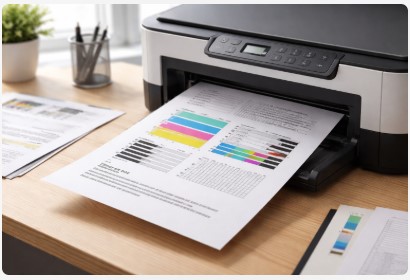
The printer self diagnostic page meaning and function goes deeper than most people realize. Those color blocks? They test ink flow. Those grid patterns? They check nozzle function. That text at the bottom? It’s your printer configuration page showing firmware versions, page counts, and network settings.
Self Test Page vs. Status Report vs. Configuration Page
Here’s where terms get messy. A printer status report usually focuses on settings and ink levels. A printer configuration page dives into technical details like IP addresses and installed options.
Most modern printers combine everything into one page. You’ll get the diagnostic patterns and the status info together. That’s why I just call it all a self-test page.
The real distinction you need to know? Printer self test page vs printer test page difference comes down to where it starts. A “test page” from Windows uses your drivers. A self-test page comes straight from the printer. Huge difference when you’re troubleshooting.
That text at the bottom? It’s your printer configuration page showing firmware versions, page counts, and network settings. For even more diagnostic tools, I’ve put together a complete collection of free test patterns that works on every printer brand.
For more detailed breakdowns of specific printer models and their diagnostic features, check out printertest.online—it’s a solid resource I send clients to when they need model-specific guidance.
Bottom line? That page in your output tray isn’t just paper. It’s your printer telling you exactly what’s wrong. You just need to know how to listen.
How to Print a Self Test Page on Any Printer
Alright, let’s get down to business. You’re here because something’s not printing right, and you want answers. I’ve done this thousands of times, so I’m going to walk you through exactly how to make it happen on whatever machine you’ve got.
The Universal Method: Printing Without a Computer
This is my favorite trick. It works on most printers, regardless of brand, and it’s the purest diagnostic you can run. When you’re printing self test page without computer, you eliminate all the variables. No drivers. No cables. No network drama. Just the printer doing its own thing.
Here’s the basic principle:
- Load plain paper in the tray
- Turn the printer on
- Find the right button combination
For most printers, you’re looking for the Power button plus some other button—usually labeled Resume, Cancel, Go, or Stop. Press and hold them together for about five seconds until the paper starts feeding.
Last month, a client brought in his HP OfficeJet convinced it was ‘bricked’. I pressed the ‘Go’ button five times in a row. Out came a perfect self-test page. He looked at me like I’d performed magic. I told him, ‘Nope, your printer’s fine. It’s your laptop driver.’ Saved him a $200 service call and a new printer he didn’t need.
That’s the beauty of learning how to print self test page from printer control panel. You’re talking directly to the machine.
How to Print Self Test Page on HP Printers
HP’s my most common visitor at the shop, so let me break this down.
For HP LaserJet models without a screen:
- Press and hold the “Go” button (sometimes labeled “Resume”)
- Hold for about 5-10 seconds until all three lights flash
- Release, and the page should start printing
For HP InkJet/DeskJet/OfficeJet with screens:
- Touch the Setup or Settings icon
- Look for Reports or Printer Status Report
- Select Print Quality Report or Self-Test Page
Release, and the page should start printing. If you want to explore every diagnostic option for your HP machine, check out this detailed HP test page guide with additional patterns and troubleshooting.
For HP LaserJet models without a screen, press and hold the ‘Go’ button for about 5-10 seconds until all three lights flash, then release. If you need model-specific instructions or want to explore printing through the Embedded Web Server, check out the official HP guide to printing self-test pages.
How to Print Self Test Page on Canon Printers
Canon keeps it straightforward.
With a touchscreen:
- Hit the Menu button
- Scroll to Device Settings
- Find Print statistics or Test print
- Select Nozzle check pattern
Without a screen:
- Press and hold the Resume/Cancel button
- Hold until the power light flashes a specific number of times
- Release, and the diagnostic page begins
Release, and the diagnostic page begins. For more Canon-specific patterns and common fixes, I recommend this Canon-specific test page guide I created for my workshop clients.
How to Print Self Test Page on Epson Printers
Epson’s method is my favorite because it’s consistent across most models.
- Press and hold the “Drop” button (looks like a water droplet)
- While holding, press the Power button once
- Keep holding the Drop button for about 5-10 seconds
- Release both
- The printer will print a nozzle check pattern
The printer will print a nozzle check pattern. If you need more detailed diagnostics, here’s a complete Epson test page resource with patterns designed specifically for EcoTank and WorkForce models.
How to Print Self Test Page on Brother Printers
Brother machines are workhorses, but their method confuses people.
- Press the “Go” button (sometimes “Job Cancel”) four times quickly
- Wait about 10 seconds
- The printer will print a user settings page with diagnostic info
If you have a newer Brother with a screen:
- Press Settings
- Navigate to Print Reports
- Select Printer Settings or Test Print
The printer will print a user settings page with diagnostic info. For Brother-specific patterns and the ‘Toner Save’ mode checks I mentioned, here’s my Brother print test page guide.
Printing a Diagnostic Page from Your Computer
Sometimes you can’t reach the printer, or you want to test the driver connection. Here’s how to print a diagnostic page from printer settings on Windows:
- Hit Start and type “Printers”
- Click Printers & Scanners
- Find your printer, click it, then hit Manage
- Choose Print a test page
On Mac:
- Open System Settings
- Click Printers & Scanners
- Select your printer, click Options & Supplies
- Hit Print Test Page
Fair warning though—this method uses your drivers. If the page prints fine, great. If it prints badly, you still don’t know if it’s the printer or the driver. That’s why I always start with the button method first. When you print printer test page without computer involvement, you get the real story.
Now go ahead and run one of these methods. I’ll wait right here. Once you’ve got that page in your hand, we’ll figure out what it’s telling you.
How to Interpret Your Printer Self Test Page Results
Okay, you’ve got that page in your hand. Now what? This is where most people get stuck. They see blocks of color and grids of lines and have no idea what any of it means.
I’ve spent thousands of hours staring at these pages. After a while, patterns emerge. Certain problems look a certain way. Let me teach you what to look for.
Decoding the Print Quality Patterns
Look at those colored squares first. Usually cyan, magenta, yellow, and black. Sometimes separate, sometimes overlapping. This is your printer ink test pattern, and it’s telling you exactly how your ink system is performing.
Solid, even color blocks mean your ink system is flowing right. No clogs. No empty cartridges. Everything’s happy. Your printer self test page alignment and color check passed with flying colors.
Streaked or missing color blocks mean trouble. If that yellow square looks like a zebra with white stripes, your yellow ink isn’t flowing properly. Could be low ink. Could be clogged nozzles. Could be a failing printhead.
Faded or light output usually means low ink. But to know exactly which cartridge is struggling, use a CMYK test pattern for individual cartridge diagnosis. It shows you cyan, magenta, yellow, and black separately so there’s no guessing.
Misaligned or blurry text and graphics suggest your printheads are out of alignment. They need calibration. Most printers have an auto-align feature in the maintenance menu. Run it.
Look at those colored squares first. This is your printer ink test pattern, and it’s telling you exactly how your ink system is performing. For more detailed information on what these patterns mean for HP printers—including how to access the Extended Self-Test with advanced nozzle checks—see HP’s official guide to print quality diagnostics.
A photographer came in last month with prints that had a weird magenta tint to everything. She’d calibrated her monitor, updated Photoshop, the whole nine yards. One look at her self-test page told me the cyan block was almost invisible. Cyan was printing at maybe 20% strength. New cyan cartridge, problem solved. Cost her $25 instead of the $400 she was ready to spend on a new printer.
What the Status Information Tells You
Now look at all that text at the bottom or back of the page. Don’t skip this part. It’s like reading your printer’s medical chart.
Ink and toner levels: Most pages include a rough gauge or percentage. This is how to check printer ink with self test page the easy way. If a color block looks weak and the ink level shows 5%, you’ve found your culprit. Case closed.
Firmware version: Write this down before checking for updates online. Saves time when you’re on the manufacturer’s support site.
Page count and total impressions: This number tells you how much life your printer has lived. I’ve seen cheap inkjets with 50,000 pages on them. At that point, repairs often cost more than replacement. Sometimes the smart move is knowing when to let go.
Serial number: Handy if you ever need to call support. Have it ready.
Quick Reference Guide
| What You See | What It Usually Means | Next Step |
|---|---|---|
| Perfect colors, sharp text | Printer hardware is fine | Check computer drivers |
| Streaky colors, solid blocks | Clogged nozzles or low ink | Run cleaning cycle |
| Missing colors completely | Empty cartridge or dead printhead | Replace cartridge first |
| Faded colors throughout | Low ink or toner | Check levels, replace if low |
| Blurry or double text | Misaligned printhead | Run alignment utility |
| Blank page | No ink, severe clog, or hardware failure | Check cartridges first |
Using a Smartphone for Visual Diagnosis
Here’s a pro tip I use every day. Take a clear photo of your test page with your phone. Good lighting, steady hand, close enough to see detail.
Why? Three reasons.
First, if you need to call tech support, you can send them the photo. They’ll know exactly what you’re dealing with instead of playing twenty questions.
Second, you can compare before and after. Run a cleaning cycle, print another page, line up the photos. See that improvement? That’s progress you can actually measure.
Third, sometimes I ask clients to text me a photo before they drive across town. Half the time, I can tell them what’s wrong without them leaving their house. Saved a graphic designer a 45-minute trip just last week.
How to interpret printer self test page results gets easier with practice. The more you look at these pages, the faster you’ll spot patterns. But even if this is your first time, you now know enough to figure out what’s going on.
That page in your hand? It just told you a story. Now you know how to read it.
Troubleshooting: What to Do When Your Self Test Page Has Problem
Alright, your test page revealed something’s wrong. Don’t panic. I’ve fixed thousands of these, and most have simple solutions. Let’s walk through the most common problems and exactly how to tackle them.
“My Self Test Page is Streaky or Has Missing Colors”
This is the number one issue I see. You look at those color blocks and they look like a faded concert t-shirt. Streaks everywhere. Colors missing entirely.
First step: Check your ink levels. If a cartridge is below 10-15%, replace it. Sometimes we overthink things. Low ink is usually just low ink.
If levels are fine: You’ve got clogs. Run the built-in printhead cleaning cycle from your printer’s maintenance menu. Wait about 5-10 minutes. Print another test page. Repeat if needed, but never more than 3 times in a row. Warning: this uses ink, so don’t go crazy with it.
A local realtor was about to throw away a perfectly good Canon because she thought it was broken. The self-test page showed missing black completely. After just two cleaning cycles, the test page came out perfect. We saved her $150, and she was back to printing contracts in 15 minutes. She still sends me referrals.
If cleaning doesn’t work: You might need a deep clean. Some printers have a “power cleaning” option. Use it sparingly—it guzzles ink.
Run the built-in printhead cleaning cycle from your printer’s maintenance menu. If streaks remain after two cycles, print a dedicated nozzle test pattern to see exactly which tiny nozzles are still clogged before running another cleaning.
“My Self Test Page is Blank”
This one scares people. Paper comes out, but there’s nothing on it. Did your printer forget how to print?
For inkjet printers: Check if you removed all the protective tape from new cartridges. You’d be surprised how often this happens. I’ve had clients bring in printers they’ve used for weeks, only to discover they never peeled the tape. If the tape’s off and it’s still blank, the printhead is likely severely clogged or the cartridges are completely empty.
For laser printers: Remove the toner cartridge and gently rock it side to side. This redistributes the powder. If that doesn’t work, check if the toner is empty or the imaging drum is failing. Sometimes why printer self test page prints blank is simply an empty toner that someone forgot to check.
“My Printer Keeps Printing Self Test Pages Automatically”
This drives people absolutely crazy. Your printer suddenly decides it wants to print test pages all day long, whether you ask it to or not.
Why this happens: Usually it’s a stuck button on the control panel, a corrupt print job stuck in the queue, or a driver issue. Sometimes something as simple as a paper clip or dust is pressing against a button.
Quick fix: Turn the printer off, unplug it for 60 seconds, and restart. Clear the print queue on your computer. If it persists, check the control panel for any physically stuck buttons. Run your finger along each button to make sure none are depressed.
Last year, a law firm called me in a panic. Their printer started spitting out test pages at 3 AM every night. Woke everyone up. The partner was ready to fire someone. I walked them through unplugging it and clearing the queue. Turned out a junior associate had sent a huge print job that got stuck. When the printer timed out, it kept trying to recover by printing test pages. Thirty seconds on the phone fixed it.
Knowing how to stop automatic self test page printing saves you from looking crazy when your office printer won’t shut up.
“My Self Test Page Prints, But My Documents Won’t”
This is actually good news. The test page printed perfectly, right? That means your printer hardware works. Period. The problem is somewhere between your computer and the printer.
Why this happens: Corrupted drivers, network issues, wrong printer selected, paused print queue, or connectivity problems.
Here’s what to do:
First, check that you’re sending to the right printer. Sounds basic, but I’ve seen people with multiple printers installed accidentally send to the offline one.
Second, clear your print queue. Sometimes a stuck job blocks everything behind it. If you’ve never done this before or can’t find the option, here’s a full guide to clearing your print queue that walks through Windows and Mac step by step.
Third, check your connections. USB cable snug? Network printer showing online?
Fourth, reinstall the printer driver. Download the latest from the manufacturer’s website, not Windows Update.
The golden rule: When you’re dealing with printer printing test page but not documents fix, remember that test page proves the hardware works. Don’t let anyone convince you to buy a new printer. The issue is software, and software can be fixed.
A graphic designer brought in her Epson convinced it was dying. Documents wouldn’t print from Adobe Illustrator. But the self-test page? Perfect. I reinstalled the driver in about eight minutes. Problem solved. Charged her half my usual diagnostic fee because it was such an easy fix. She’s been a regular ever since.
If you’ve tried all this and still have issues, don’t worry. We’ve got more options coming up.
Preventative Maintenance: When Should You Print a Self Test Page?
Most people only think about their printer when it breaks. That’s like only thinking about your car when the check engine light comes on. A little preventative care goes a long way.
I’ve seen printers last years longer than expected simply because their owners ran regular checks. Let me show you when to pull that test page before trouble finds you.
The “New Cartridge” Check
Here’s a habit I want you to start today. Every single time you install a new ink or toner cartridge, print a self-test page immediately.
Why? Three reasons.
First, it verifies the cartridge is genuine. Knockoff cartridges often print poorly right out of the box. Better to know now than when you’re rushing to print something important.
Second, it confirms the cartridge is seated correctly. I can’t count how many times someone’s called me saying their new cartridge doesn’t work. I ask, “Did you push until it clicked?” Silence. Then a click. Then it works.
Third, if there’s an issue, you can address it with the vendor immediately. Wait a week, and they’ll question whether you damaged it. Catch it same day, and replacements are usually free.
This simple printer maintenance test page habit has saved my clients hundreds of dollars over the years. It takes thirty seconds and tells you everything about your new hardware.
Last month, a small business owner bought a four-pack of toner online. Great deal, right? He installed the first one, didn’t test it, and printed fifty client proposals. Every single one had streaks. When he finally ran a self-test page, the black was barely visible. Called the seller, they said too late for returns. Cost him $120 to buy replacement toner locally. If he’d tested first, he’d have known immediately and returned the whole batch.
The Monthly Health Check
For printers you use every day, you’re probably fine. Regular use keeps ink flowing and parts moving.
But if your printer sits idle for weeks at a time? Different story. Ink dries. Nozzles clog. Toner settles. Moving parts get stiff.
I recommend printing a self-test page once a month for infrequently used printers. Mark it on your calendar. First Tuesday of the month. Whatever works.
This serves two purposes. First, it keeps ink moving through those tiny nozzles, preventing clogs before they start. Second, it gives you a baseline. You’ll know what “normal” looks like for your machine. When something changes, you’ll spot it immediately.
This is genuinely the best way to diagnose printer problems with self test page—catch them before they become problems at all.
How to verify printer hardware using self test page regularly means you’ll never be surprised by a sudden failure. You’ll see the warning signs weeks in advance. Fading colors tell you ink is running low. Slight streaks tell you nozzles are starting to clog. Catch it early, and the fix is simple.
When should you print a printer self test page? Here’s my rule of thumb:
- After every new cartridge installation
- Once a month for idle printers
- Before any important print job (wedding invitations, business proposals, client presentations)
- The moment something looks slightly off
That last one matters. Trust your gut. If a print looks a little funny, run a test page immediately. Don’t wait until you’ve wasted twenty sheets of expensive paper.
I had a client who printed maybe twice a month. Every time she needed something urgent, her printer would act up. Streaks, faded text, the works. I told her to run a test page on the first of every month, whether she needed to print or not. Six months later, she called me laughing. First time in years she needed an emergency print and it worked perfectly. That one test page a month saved her endless frustration.
A little prevention beats a lot of repair every single time.
Frequently Asked Questions
Here are the questions I hear most often—along with answers that actually help.
Why does my printer keep printing a test page by itself?
Usually a stuck button or corrupted print job. Power cycle the printer (unplug for 60 seconds) and clear your computer’s print queue. That fixes it 90% of the time.
How do I print a test page without a computer?
Load paper, then press the right button combo. On HP, hold Power + Resume. On Canon, hold Resume. On Epson, hold Drop + Power. On Brother, press Go four times. The page prints directly from the printer.
What does a printer self-test page tell you?
It tells you if your hardware works. Color blocks show ink flow. Patterns check nozzles. Text shows ink levels and page count. No computer involved—just pure printer diagnosis.
How do I fix faded colors on a printer self test page?
Check ink levels first. If fine, run the cleaning cycle 1-3 times from the maintenance menu. Print a test page between each. For lasers, gently rock the toner cartridge.
Can a self-test page tell me if my printhead is bad?
Yes. If cleaning cycles don’t fix missing colors or gaps after 2-3 tries, the printhead is likely failing. At that point, replacement often costs more than a new printer.
My self-test page prints but my documents won’t. What’s wrong?
Your printer hardware is fine. The issue is software-related. Reinstall drivers, check connections, clear the print queue, and make sure the correct printer is set as default.
Why is my self-test page blank?
For inkjets, check protective tape on new cartridges. For lasers, rock the toner gently. If still blank, cartridges may be empty or printhead severely clogged.
How often should I print a self-test page?
After every new cartridge install. Once a month for printers you don’t use often. Before important print jobs. Anytime print quality looks slightly off.
My self-test page has streaks but ink levels are full. Now what?
Clogged nozzles. Run the cleaning cycle 1-3 times. Wait 5-10 minutes between cycles. If streaks remain after 3 tries, you may need a deep clean or professional service.
Do I need a computer to interpret the self-test page?
No. The patterns and colors tell the story visually. Compare color blocks—solid means good, streaked means trouble. Missing colors point to empty cartridges or clogs.
Conclusion
Look, I’ve been doing this for over a decade. I’ve seen every printer problem you can imagine, from simple clogs to catastrophic failures. And you know what I’ve learned? The humble self-test page is still the most powerful diagnostic tool you own.
Think about what we covered. You now know how to print that page on any machine. More importantly, you know how to read it. Those color blocks aren’t just pretty patterns—they’re your printer talking to you. Telling you exactly what’s wrong.
Here’s what this means for you: No more guessing. No more throwing money at problems hoping they’ll go away. When your printer acts up, you’ll run a printer troubleshooting test page and know immediately whether it’s a simple clog, an empty cartridge, or a driver issue on your computer.
That knowledge saves money. I’ve watched clients walk into my shop ready to drop $300 on a new printer, only to have a printer diagnostic test page reveal the old one was perfectly fine. Twenty minutes and a cleaning cycle later, they’re back in business.
My challenge to you: Bookmark this guide. Seriously. The next time your printer starts acting up at 10 PM before a big deadline, you’ll thank yourself. Come back here, run through the steps, and fix it yourself.
And if you’re still stuck after running these tests? Drop your question in the comments. I read every single one. I help readers diagnose their print issues every day, and I’m happy to help you too.
Printers are frustrating. I get it. But now you’ve got the tools to fight back. Go forth and print beautifully.

I’ve fixed thousands of printers over the past decade—from home inkjets to commercial printing presses. Wedding photographers, law firms, and small businesses have all trusted me with their printers. Every guide comes from real workshop experience, not theory.
This was very informative!
Thanks, Balladeer! Glad you found it helpful. Nothing beats a simple self-test page when your printer starts acting up—saves time, money, and a whole lot of frustration. If you ever run into a specific issue, feel free to drop another comment. Always happy to help!