Black and White Print Test Page: The Ultimate Guide to Perfect Printer Diagnostics
You hit ‘print’ on an important document—and what comes out is faded, streaky, or just… wrong. The black ink looks gray. There are weird lines running through the text. Or worse, it’s completely blank.
I’ve seen that defeated look hundreds of times. People holding a ruined print job, ready to toss their printer and drop $200 on a new one.
Before you blame the machine or buy an expensive new cartridge, there’s a simple tool that tells you exactly what’s broken: the black and white print test page. It’s like a doctor running blood work. You wouldn’t ask for heart medication without knowing what’s actually wrong, right?
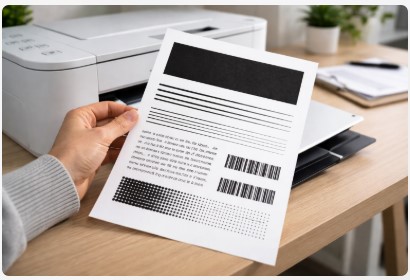
A printer test page isn’t just some random document. It’s a standardized diagnostic tool designed with specific patterns—smooth gradients, thin lines, blocks of solid black, text in different sizes—that stress-test every part of your machine. It reveals problems you can’t see just by looking at the printer.
In this guide, I’m giving you a free black and white printer test page PDF you can download right now. More importantly, I’ll teach you how to test printer black ink quality like a real technician. You’ll learn to read those patterns, figure out what’s failing, and walk through step-by-step fixes for every common issue.
After spending over a decade with my hands inside hundreds of printers—from tiny home office units to massive corporate workhorses—I’ve learned that the test page never lies. It’s the first thing I check when a client walks in, drops a box on my counter, and says, “My printer is broken.”
Nine times out of ten, the test page tells me exactly what they need. No guesswork. No unnecessary part swapping. Just a clear diagnosis and a fix that actually works.
Let me show you how it’s done.
Quick Summary
A black and white print test page is a diagnostic tool that reveals printer problems like clogged printheads, misalignment, or low ink. You can download a free black and white printer test page PDF, print it, and compare the results to known patterns. This helps you test printer black ink quality, identify streaking or fading, and apply targeted fixes without guessing or replacing parts unnecessarily. It’s the fastest way to troubleshoot printer issues at home.
What is a Black and White Printer Test Page? (And Why You Need One)
So what is a black and white printer test page, exactly?
It’s a single-page file designed to check every function your printer can perform. Think of it as the printer version of a physical exam. Your doctor checks your heart, your lungs, your reflexes—the test page does the same thing for your machine.
I keep a stack of these printed out in my workshop. When a client brings in a printer acting up, I don’t ask them what’s wrong. I run a printer black and white diagnostic page and let the results tell me the story.
The Grayscale Intensity Graph
A long bar fading from white to deep black. I check for smoothness—it should transition like a sunset, with no hard lines or bands. If I see distinct bands or sudden jumps from light to dark, that tells me there’s ink flow issues. The printer isn’t laying down a consistent amount of ink or toner.
Last month, a photographer came in with a monochrome printer test page PDF he’d printed at home. His grayscale bar looked like a zebra—stripes of light and dark. He thought his printer was dying. Turned out, he’d been using generic ink that was way too thin. Switched to OEM cartridges, ran two cleaning cycles, and his prints looked like new.
Turned out, he’d been using generic ink that was way too thin. Switched to OEM cartridges (Original Equipment Manufacturer), ran two cleaning cycles, and his prints looked like new.
Fine Line Grids and Patterns
You’ll see tiny lines crisscrossing each other, sometimes so thin you need a magnifying glass to see them clearly.
These test printhead alignment. When your printhead is perfectly calibrated, those lines are crisp and straight. When it’s off—even by a fraction of a millimeter—those lines look jagged, stepped, or blurry.
Why this matters: A misaligned printhead makes text look wavy. It’s especially noticeable in small fonts or detailed graphics. If you’ve ever printed something and thought “this looks slightly… off” but couldn’t put your finger on why, alignment is usually the culprit.
Text Blocks in Different Sizes
You’ll see paragraphs printed in everything from massive headlines to tiny 4-point font that’s almost unreadable to the naked eye.
This tests text sharpness. Blurry or “fuzzy” text—especially in the smaller sizes—points to either low ink or a dirty printhead. Sometimes it’s both.
A lawyer I work with kept complaining his contracts looked “unprofessional.” The text had a weird fuzziness around the edges. One test page later, we saw the small fonts were completely illegible. A simple printhead cleaning fixed it. Cost him nothing but 15 minutes.
Solid Black Blocks
These are exactly what they sound like—large rectangles of pure black ink.
I use these to check for consistency. A perfect solid black block should look… well, solid. No streaks, no fading, no weird shiny spots (we call that “bronzing” in the industry). If I see lighter areas or lines running through the black, I know there’s a problem with ink density or a partially clogged nozzle.
Why You Actually Need This
Here’s the thing that saves my clients the most money: a test page isolates hardware problems from software problems.
Let me explain.
If you print a printer black and white diagnostic page and it comes out perfect—crisp text, smooth gradients, solid blacks—but your Word document or PDF looks like garbage, guess what? Your printer is fine. The problem is your file, your settings, or your driver.
I cannot tell you how many people have almost bought new printers because a corrupted PDF was printing nonsense. They blame the machine. The machine was innocent the whole time.
But if that test page prints with streaks, banding, or jagged lines? Now we know it’s a hardware issue. We can fix it without guessing.
Last thing: if you’re looking for a reliable place to grab one, printertest.online has some solid options. But honestly, the one I’m providing in this guide is the same template I’ve used in my shop for years. It’s battle-tested.
Now that you know what’s on these pages and why each part matters, let me show you how to actually get one and print it correctly. Because believe it or not, there’s a right way and a wrong way to run this test.
Download: Free Black and White Print Test Page PDF
Stop searching through random forums and sketchy websites. I’ve seen people print test pages that were literally just screenshots of text messages.
Use this professional-grade test page instead. It’s the same black and white print test page PDF I’ve used in my shop for the last six years to diagnose thousands of printers. It’s not fancy. It’s functional.
File Specifications
- Format: High-resolution PDF (vector-based, so it stays crisp no matter what)
- Paper Size: Works for both US Letter and A4—the printer automatically scales it
- Print Intent: Optimized for both Monochrome (pure black ink only) and Grayscale (shades of gray using all cartridges)
- File Size: Tiny—like 200KB—so it downloads instantly even on spotty WiFi
Why this matters: I designed this printable black ink test pattern page specifically to reveal problems. The gradients are calibrated to show banding. The lines are thin enough to catch misalignment. The text blocks range from billboard-size down to “you need good eyes to read this” small. Every element serves a purpose.
How to Use the File (The Right Way)
Follow these steps exactly:
Step 1: Click the download button below and save the PDF to your desktop or documents folder. Don’t try to print it directly from the browser—browsers do weird things to PDFs sometimes.
Step 2: Open the file with Adobe Reader or your computer’s default PDF viewer. If you’re on a Mac, Preview works fine. On Windows, the built-in Microsoft Print to PDF viewer is okay, but I prefer Adobe for reliability.
Step 3: Go to File > Print. Here’s where most people screw up.
Step 4: Check your printer settings. This is critical.
You want “Normal” or “Best” quality selected. Do not use “Draft” mode. I cannot stress this enough. Draft mode saves ink by printing lighter and faster, but it hides problems. If you test in Draft mode and the page looks bad, you won’t know if it’s a real issue or just the printer doing what you told it to do.
Also check that you’re printing on the correct paper size and orientation. The page is designed for portrait mode.
Step 5: Use plain white paper—at least 80gsm (grams per square meter) or higher. Don’t use photo paper for this test. Don’t use colored paper. Don’t use that wrinkled paper you pulled out of the recycling bin.
Plain, fresh, white paper gives you the most accurate diagnostic. Photo paper can hide problems because it absorbs ink differently. Cheap flimsy paper can curl and cause feeding issues that aren’t the printer’s fault.
Step 6: Hit Print and wait.
A small business owner came in last year with a black and white printer test sheet download he’d grabbed from some forum. He printed it on the back of an old flyer—cheap recycled paper that was already printed on one side. The test looked terrible. He was ready to buy a new printer.
I handed him fresh paper from my cabinet, ran the exact same file, and his printer printed perfectly. The problem wasn’t the printer. It was the paper. He saved $300 because I asked him what paper he used.
One More Thing
If you’re printing this black and white printer test page download and it comes out looking perfect—crisp text, smooth gradient, solid blacks—but your regular documents still look bad, don’t panic. That tells us the hardware is fine. The issue is somewhere else: your document settings, your driver, or the file itself.
We’ll cover those fixes in a bit.
For now, grab the file. Print it. And hold onto that printout because in the next section, I’m going to show you exactly how to read it like a technician.
Every line, every block, every gradient tells a story. You just need to know what to look for.
How to Print a Test Page: System-Specific Guides
Here’s something most people don’t realize: your computer already has a built-in test page hiding in the settings.
These system-level test pages aren’t as detailed as the one I just gave you. They won’t show you gradient smoothness or fine line alignment. But they’re perfect for one thing: checking if your computer and printer are actually talking to each other.
Printing a Test Page on Windows 10 and 11
It takes about twenty seconds once you know where to click.
Step 1: Click the Start button and type “Control Panel” into the search bar. Open it when it pops up.
Step 2: Look for “Hardware and Sound” and click “View devices and printers” underneath it. This shows you every printer and scanner connected to your computer.
Step 3: Find your printer in the list. It’ll have a little green checkmark if it’s set as default. Right-click that icon and select “Printer Properties” from the menu. Not “Printing Preferences”—make sure it’s Properties.
Step 4: On the General tab, you’ll see a button that says “Print Test Page.” Click it.
What happens: Within a few seconds, your printer should wake up and spit out a page. It’ll have Windows logos, some basic diagnostic info, and usually a short paragraph of text. This page confirms your computer and printer are connected properly.
For step-by-step instructions that work on any printer, check out this guide from Brother’s support site—the steps are exactly the same for HP, Canon, Epson, and others.
I had a guy drive forty-five minutes to my shop last winter carrying his printer. He swore it was broken because “nothing prints anymore.” We plugged it in, I clicked through these steps in about thirty seconds, and the Windows test page printed perfectly. He looked at me like I was a magician.
Turns out, he was trying to print a PDF that had corrupted during download. The file was the problem, not the printer. Saved him a $200 service call and a three-hour round trip just by proving his hardware was fine. He bought me lunch that day.
Printing a Test Page on macOS
Apple keeps things simpler, but the path isn’t totally obvious.
Step 1: Click the Apple icon in the top-left corner of your screen. Go to “System Settings” if you’re on newer macOS, or “System Preferences” if you’re on an older version.
Step 2: Look for “Printers & Scanners” in the sidebar or main window and click it.
Step 3: Select your printer from the list on the left. You’ll see its status, ink levels, and other info on the right.
Step 4: Click “Options & Supplies,” then navigate to the “Utility” tab. This is where the hidden stuff lives.
Step 5: Click the “Print Test Page” button.
What happens: The Mac sends a test page directly to your printer. It’s usually simpler than the Windows version—sometimes just a basic page with Apple branding—but it serves the same purpose: verifying communication.
When to Use These Built-In Tests
The printer black and white alignment test page from your operating system won’t tell you if your gradients are smooth or if your tiny text is sharp. It’s not designed for that.
But here’s when these built-in tests shine:
- New printer setup: Just unboxed a printer and want to make sure it connects?
- After driver updates: Did Windows push an update and now your printer won’t work?
- Connectivity issues: Printer shows online but nothing happens when you hit print?
- Multiple computers: One computer prints fine, another doesn’t?
Run the system test page first. It rules out the simplest problems before you waste time on complex fixes.
The Printer’s Own Test Page
One more thing worth mentioning: most printers can print a test page completely on their own, without any computer connected at all.
Look on your printer’s control panel for buttons labeled “Setup,” “Tools,” or “Maintenance.” There’s often an option for “Print Quality Report” or “Nozzle Check.” The printer nozzle check black and white page is usually the most detailed diagnostic your specific machine can produce because it’s designed by the manufacturer specifically for that model.
I use these constantly in the shop. HP calls it a “Diagnostic Print.” Epson calls it a “Nozzle Check.” Brother labels it “Print Quality Check.” Different names, same purpose—showing you exactly how each nozzle is firing.
For detailed instructions specific to your brand, check out our guides for Brother printers, Epson, Canon, or HP.
The Canon how to print a black and white test page process usually involves holding the Resume button until the power light flashes twice, then releasing. Every brand has its own dance.
If you’re ever stuck, just Google “[your printer model] print test page” and you’ll find the exact button sequence.
Now that you know how to get a test page from anywhere—downloaded file, Windows, Mac, or the printer itself—let’s talk about the fun part. In the next section, I’ll show you how to actually read these things like a technician.
Because a test page is useless if you don’t know what you’re looking at.
Diagnosing Your Printer: Reading the Test Page Results
Alright, you’ve got your test page in hand. Now what?
This is where most people get stuck. They stare at the page, see something wrong, but have no idea what it means. Let me translate.
I’ve been reading these pages for over a decade. Let me translate them for you.
Decoding the Grayscale Gradient
The Symptom: Look at the long bar that goes from white to black. Instead of a smooth, seamless fade, you see distinct bands—like stripes or sudden jumps where light gray turns into medium gray turns into dark gray. No smooth transition.
The Diagnosis: This is an ink flow problem. Your printer isn’t laying down a consistent amount of ink or toner. Something’s blocking the flow, usually a partially clogged printhead or dying cartridge.
The Fix: Run the cleaning cycle 1-2 times max (they waste ink). Wait 30 minutes, then print another test page.
If the bands are still there after two cleaning cycles, you might need a deeper clean. Some printers have a “deep cleaning” or “power cleaning” option in the maintenance menu. Use that as a last resort—it eats through ink like crazy.
A school administrator called me last year frustrated because their report cards looked “striped.” The grayscale gradient on their test page looked like a zebra. Two cleaning cycles later, smooth as butter. Saved the school from buying a new printer they didn’t need.
Inspecting the Fine Line Grid
The Symptom: Those tiny lines crossing each other—they should be razor-sharp. Instead, they look jagged, stepped, or blurry. Like someone drew them with a slightly shaky hand.
The Diagnosis: Your printhead is misaligned. It’s physically off-track by a fraction of a millimeter. Doesn’t sound like much, but in printing, fractions matter.
The Fix: Run the “Align Printhead” utility. You’ll find this in your printer software on your computer—usually under Maintenance or Tools. The printer will print a page with multiple patterns, then ask you to pick which one looks best. Some newer printers do this automatically.
This recalibrates the physical movement of the printhead. Takes about two minutes and fixes jagged lines almost every time.
Why this matters: Misalignment makes everything look slightly amateur. Text gets wavy. Graphics look soft. Your prints scream “home office” when you want them to look professional.
Analyzing the Text Blocks
The Symptom: The small fonts on your test page are unreadable. The letters have fuzzy edges—like a轻微 blur around each character. Or maybe the text looks fine but has little gaps, like parts of letters are missing.
The Diagnosis: This could be a few things. Low ink is the most common. Wrong paper type or print settings is next. If you printed in “Draft” mode, fuzzy text is totally normal—draft mode sacrifices quality for speed and ink savings.
The Fix: First, check your ink levels. If they’re low, replace the cartridge. Second, make damn sure you’re printing in “Normal” or “Best” mode, not “Draft.” I can’t tell you how many people panic over fuzzy text when they accidentally left it on draft from last week’s quick print job.
If your ink is fine and you’re in the right mode but text is still fuzzy, run a cleaning cycle. If that doesn’t help after two tries, your printhead might be failing. That’s a more serious fix—sometimes worth it on expensive printers, sometimes cheaper to replace the whole machine.
Checking Solid Black Areas
The Symptom: You’re asking yourself “why is my printer not printing pure black?” The solid black block on your test page has white streaks running through it. Or it looks faded to dark gray. Or—and this is the weird one—it has a strange color tint, like pale blue or brownish.
The Diagnosis: This is a classic clogged nozzle for black ink. But on color printers, it can mean something else: the printer is trying to “create” black by mixing colors instead of using your actual black ink. We call that Composite Black versus Pure Black.
When a color printer runs low on black ink, it sometimes tries to fake it using cyan, magenta, and yellow. The result is that weird tint—usually brown or purple—and it never looks right.
The Fix: Start with multiple deep cleaning cycles. If you’re still seeing issues after two cycles, a dedicated nozzle test page can help you identify exactly which nozzles are blocked before you run another expensive cleaning cycle.
A graphic designer brought me a test page where the solid black area looked brownish. He was about to toss his “broken” printer—said it was ruining his client work. I popped out the black cartridge, took one look, and laughed.
The vent on top—this little sticker that seals the cartridge during shipping—was completely intact. He never peeled it off. Six months he’d been printing with a sealed cartridge, wondering why the black looked terrible.
Removed the tape, ran one cleaning cycle, and it printed perfectly. He was embarrassed. I told him not to be—I’ve seen way dumber mistakes. At least his was fixable in two minutes.
How to check black ink with a test page: Look at that solid black block first. If it’s perfect but you’re still having issues, move to the gradient. If the gradient is smooth but text is fuzzy, check alignment. The test page tells you exactly where to look—you just have to listen.
Now that you know what each problem looks like and how to fix it, let’s talk about something that confuses almost everyone: the difference between grayscale and monochrome printing. Because mixing those up causes half the “my black looks gray” complaints I get.
Grayscale vs. Monochrome: The Critical Difference
This seems simple but causes endless confusion.
People use “grayscale” and “monochrome” like they’re the same thing. They’re not. And if you mix them up, you’ll spend hours chasing problems that don’t actually exist.
What Monochrome Actually Means
Monochrome printing uses only the black toner or ink cartridge. That’s it. One cartridge. Black ink on white paper. No shades of gray—just pure black and pure white.
Like an old newspaper: black text, white background. Nothing in between.
This is what you want for text documents. Contracts, school papers, shipping labels, internal memos—monochrome is faster, uses less ink, and keeps text razor-sharp because there’s no color mixing involved.
What Grayscale Actually Means
Grayscale printing is completely different under the hood.
When you select grayscale, your printer uses all the cartridges—cyan, magenta, yellow, and black—to mix different shades of gray. It’s creating black and white images the same way your TV creates shades: by combining colors.
This produces smooth photographs with subtle shadows and highlights. A black and white photo printed in grayscale looks rich and dimensional. Printed in monochrome, that same photo would look flat and posterized—just pure black and pure white with no smooth transitions.
When you select grayscale, your printer uses all the cartridges—cyan, magenta, yellow, and black—to mix different shades of gray. For a deeper understanding of how color mixing works, Adobe’s color management guide explains the science behind it.
The catch: Grayscale uses color ink even though the result is black and white. If you’re low on cyan but have a full black cartridge, grayscale printing will still fail because it needs that cyan to create certain gray tones.
Why This Confusion Breaks Your Test Page
Here’s where it gets practical.
Let’s say you print my black and white print test page in “Grayscale” mode. Your black cartridge is full. But your color nozzles are partially clogged—maybe the printer hasn’t been used in a while.
That test page comes out looking streaky, banded, or discolored. The grayscale gradient has weird lines. The solid areas look uneven.
You panic. You think your black ink is failing. You’re about to order a new black cartridge or call a repair guy.
But the problem isn’t your black ink. It’s your clogged color nozzles messing up the grayscale mix. Your black cartridge is perfectly fine.
I see this at least once a month in my shop.
How to Run a True Black Ink Test
For diagnosing black ink specifically, you want monochrome mode. Pure black, no color mixing.
Look for these options in your print settings:
- “Monochrome”
- “Black & White”
- “Black Ink Only”
- “Print in Grayscale” (confusingly named—sometimes this means monochrome, sometimes it doesn’t)
When in doubt, check your printer manual or run a small test. Print the same page both ways and compare.
The Real-World Impact
A photographer came in furious last year. Her Epson was “ruining” her black and white portfolio prints. She’d spent $200 on new cartridges, run cleaning cycles for days, and was ready to throw the printer in the trash.
I asked her to print my test page. She selected “Grayscale” because she was printing photos. The page looked terrible—streaks everywhere.
I changed one setting. Switched to “Black Ink Only” and ran it again.
Perfect. Flawless. Not a single streak.
The problem? Her color cartridges were low and slightly clogged. But she was only printing black and white photos. She didn’t need color at all. Once we forced the printer to use only black ink, it worked like new.
She’d been fighting the wrong battle for two weeks.
The Difference Between Grayscale and Black and White Print Test Page Results
If you want to really understand your printer, run both tests:
- Print my test page in monochrome mode. This tells you about your black cartridge and black nozzles specifically.
- Print the same page in grayscale mode. This tests your entire system—all cartridges working together.
Compare them side by side.
If monochrome looks perfect but grayscale looks bad, your black ink is fine. Your color cartridges need attention—cleaning, replacement, or just more frequent use.
If both look bad, you’ve got a black ink problem.
If grayscale looks perfect but monochrome looks bad? That’s rare, but it happens with some printer drivers that handle black ink differently in each mode.
The Bottom Line
Monochrome vs grayscale printer test page comparison isn’t just technical jargon. It’s practical knowledge that saves you money and frustration.
For text documents: Monochrome.
For photos: Grayscale. If you print mostly black and white photos, our dedicated grayscale print test page offers more detailed gradients to fine-tune your photo quality.
For diagnosing black ink: Monochrome every time.
Now that you understand the difference, let’s talk about something equally important: when you should actually run these tests. Because timing matters more than most people realize.
When Should You Print a Black Ink Test Page? (A Preventative Schedule)
Most people wait until something’s broken—like waiting for the check engine light before checking oil.
That’s like waiting for your check engine light to flash before you check your oil.
I’ve learned the hard way that timing matters. Run tests at the right moments and you’ll catch problems before they ruin important prints. Here’s when I recommend pulling out that black and white printer quality test pattern.
After a New Cartridge Installation
You just dropped forty bucks on a new ink cartridge. You pop it in, hit print, and… assume everything’s fine.
Don’t assume. Verify.
Run a black ink test page immediately after installing any new cartridge. I don’t care if it’s OEM, generic, or refilled. Test it.
Why: I’ve seen brand new cartridges fail in weird ways. The chip doesn’t communicate right. The ink doesn’t flow because the protective tape wasn’t fully removed. There’s an air bubble blocking the nozzle. Sometimes the cartridge is just defective right out of the box.
If you test immediately, you know the cartridge works. If you wait until you need it for something important, you discover the problem at the worst possible moment.
Client story: A real estate agent bought a two-pack of black cartridges online. Installed the first one, printed a few pages, everything seemed fine. Three months later, she goes to print an offer package—time sensitive, client waiting—and the black is streaky. She swaps to the second new cartridge, same problem.
Turns out the whole batch was bad. But she didn’t know because she never tested after installation. Lost a listing over bad ink. Now she tests every single cartridge the day it arrives.
After a Period of Inactivity
Printers are mechanical. They have moving parts, tiny nozzles, ink that sits there drying out.
If your printer hasn’t been used in a month—maybe you were on vacation, maybe you just don’t print much—the ink in those nozzles can thicken or completely dry and clog.
Before you assume everything’s fine, run a test page.
The rule: If it’s been longer than three or four weeks since your last print job, run a black and white printer quality test pattern before you need something important.
This is especially true for inkjet printers. Laser printers handle inactivity better because toner is powder, not liquid. But inkjets? They’re sensitive. I’ve seen printers sit for two months and need three cleaning cycles just to wake up.
Before a Big Print Job
I learned this one the hard way.
Years ago, I agreed to print programs for a friend’s wedding. Five hundred copies. Nice paper, fancy layout, took hours to design. I loaded up the paper tray, hit print, and walked away.
Came back an hour later to check progress. Every single page had a faint line running through the text. A clogged nozzle I didn’t know about had ruined the whole batch.
Five hundred programs. Wasted paper. Wasted ink. Wasted time. Wedding was in two days.
I stayed up all night fixing the printer and reprinting. Learned my lesson forever.
Now I tell everyone: run a test page before you load the good paper. Before you start that 200-page report. Before you print holiday letters. Before anything where quality matters.
It takes thirty seconds and one sheet of plain paper. Cheap insurance.
How to test printer black ink quality before a big job: Print my test page on plain paper first. Check the solid blacks, the fine lines, the text blocks. If it looks perfect, load your nice paper and go. If it doesn’t, you caught the problem before wasting expensive materials.
As Part of Routine Maintenance
Think of this like changing the oil in your car. You don’t wait for the engine to seize. You do it on a schedule.
Mark your calendar for the first of every month. Or every other month if you don’t print much. Run a test page.
Why routine matters: Small problems are easier to fix than big ones.
A slightly clogged nozzle might show up as a faint line on a test page. One cleaning cycle clears it. No big deal.
But if you ignore that faint line for six months, that partial clog becomes a complete blockage. Now you need deep cleaning cycles, special cleaning solutions, maybe a new printhead. What was a five-minute fix becomes a expensive repair or a new printer.
I’ve seen it happen hundreds of times.
Other Times to Test
Add these to your mental checklist:
- After moving the printer. Transportation can shake things loose, introduce air bubbles, or misalign components.
- After firmware updates. Sometimes updates change default settings or reset calibration.
- When you switch paper types. Different paper absorbs ink differently. What looks perfect on cheap copy paper might look terrible on premium stationery.
- At the start of each season. Humidity changes affect ink behavior. Summer humidity can make ink spread. Winter dryness can cause static and feeding issues.
The Bottom Line on Timing
Most printer problems don’t happen suddenly. They develop slowly over time. A nozzle starts clogging. Alignment drifts slightly. Ink levels drop.
The test page catches these slow changes before they become emergencies.
So here’s my simple recommendation:
- Test after any new cartridge
- Test after a month of no printing
- Test before anything important
- Test on a regular schedule
When should you print a black ink test page? The answer is: more often than you think you need to.
I keep a small stack of test pages on my desk. Every Monday morning, I run one on each printer in the shop. Takes five minutes total. Catches problems before clients bring their jobs in.
You don’t need to be that obsessive. But a monthly test? That’s easy. That’s smart. That’s the difference between catching a clogged nozzle and discovering it halfway through printing your kid’s school project at midnight.
Now that you know when to test, let’s talk about something every printer owner eventually faces: what to do when the fixes don’t work. Because sometimes you do everything right and the problem still isn’t fixed.
FAQ
Here are the answers I give customers every week:
How do I know if my printer printhead is clogged?
Print a black and white test page and look at the solid black areas. White streaks running horizontally through the black blocks mean your nozzles are clogged. Check the thin lines too—if they’re broken or missing sections, that’s another sign. Run your printer’s cleaning cycle 1-2 times. If it doesn’t improve after three cycles, you may need a deeper clean or replacement.
Why is my printer printing black as grey?
This usually means you’re printing in “Grayscale” or “Photo” mode, which mixes color inks to create black. Switch to “Black & White” or “Monochrome” in your print settings. If it’s still grey after that, your black cartridge might be empty or the black printhead could be completely blocked. Check your ink levels and run a cleaning cycle.
Can I print a test page without a computer?
Yes, most printers have a built-in function. On HP printers, hold the Power button and press Cancel. On Brother, go to Settings > Tools > Print Quality Report. On Epson, check the control panel for Maintenance. Check your printer manual for the exact button combination—every brand does it differently.
What’s the difference between a nozzle check and a test page?
A nozzle check only tests if ink is firing from every nozzle—usually just a simple grid pattern. A full diagnostic test page includes nozzle patterns plus gradients, text blocks, and alignment grids. Use nozzle checks for quick verification, but start with a full test page when you’re not sure what’s wrong.
Why does my black ink have a blue or brown tint?
Your printer is likely using “Composite Black” (mixing cyan, magenta, and yellow) because your true black ink is empty or clogged. Check your black ink levels first. Then run a cleaning cycle. Finally, make sure “Black Ink Only” is selected in your print settings. A new cartridge usually fixes it.
How often should I print a test page?
Print a test page once a month even if nothing seems wrong. This catches small problems before they become big ones. Also test after installing new cartridges, after the printer sits unused for more than a month, and before printing any important document. If you find yourself constantly fighting printer issues, it might be time for a new machine—check out our printer buying guide for help choosing the right one.
What does a perfect test page look like?
A perfect test page has a smooth gradient from white to black with no visible bands or stripes. All lines in the grid should be crisp and straight. Small text should be readable. Solid black areas should be completely uniform with no streaks, fading, or weird tints.
Conclusion
A black and white print test page is the closest thing to a crystal ball for printer problems. It doesn’t guess. It doesn’t hope. It shows you exactly what’s happening inside that machine.
I’ve built a fifteen-year career around these simple sheets of paper. When a client walks in frustrated, convinced their printer is possessed or broken beyond repair, the test page cuts through all that emotion. It replaces “My printer is broken” with specific, fixable problems:
- “My printhead is misaligned.”
- “My black ink flow is inconsistent.”
- “My color cartridges are clogged.”
- “My printer and computer aren’t communicating.”
That clarity is powerful. It saves money. It saves time. It saves the screaming-at-your-printer sessions we’ve all had at 2 AM.
What You’ve Learned
We covered a lot of ground together. You now know:
- What each part of a printer diagnostic page actually tests
- How to download and print my free professional-grade test page
- The right way to run system tests on Windows and Mac
- How to read gradients, grids, text blocks, and solid areas like a technician
- The critical difference between grayscale and monochrome
- Exactly when to test to prevent problems before they happen
Your Turn
Here’s what I want you to do right now.
Scroll back up. Download that free PDF. Print it on plain paper with your printer set to normal quality.
Take thirty seconds to really look at it.
Is the gradient smooth from white to black? Are the fine lines razor-sharp? Is the small text readable? Are the solid black blocks solid?
If yes, congratulations. Your printer is healthy. You just established a baseline for future comparison.
If no, you now know exactly what’s wrong and how to fix it. The steps are all here. Run a cleaning cycle. Check alignment. Verify settings. Test again.
One Last Story
I had a customer last week—elderly gentleman, prints photos of his grandkids every month. His wife told him the prints looked “washed out.” He was ready to buy a new printer.
I had him email me a test page. Looked at it for ten seconds. The black ink was fine. The color cartridges were nearly empty, and he was printing in grayscale mode without realizing it.
One setting change. No new printer. No service call. Just a quick fix that saved him $300.
That’s the power of knowing how to diagnose your own machine.
Share the Knowledge
If this guide helped you, do me a favor. Share it with someone else who struggles with printer issues. Your coworker who always asks for help. Your dad who prints everything in draft mode and wonders why it looks bad. Your small business neighbor who’s wasting money on unnecessary repairs.
Printers are frustrating enough without bad information. Pass along something useful.
And if you’re ready to tackle full-color diagnostics, check out our guide on color test pages. Same principles, but with the added fun of CMYK balance, color casts, and photo printing.
Quick Reminder
The test page never lies. It’s the first thing I check. It should be the first thing you check too.
Now go print that page. Your printer’s trying to tell you something.

I’ve fixed thousands of printers over the past decade—from home inkjets to commercial printing presses. Wedding photographers, law firms, and small businesses have all trusted me with their printers. Every guide comes from real workshop experience, not theory.