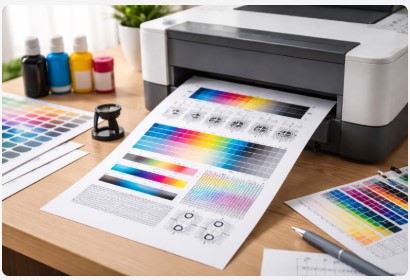
Printer Color Calibration Test Page: The 5-Minute Fix for Inaccurate Colors
Last month, a graphic designer rushed into my Chicago workshop carrying a box that made my stomach drop. Three hundred wedding invitations. Gorgeous ivory paper. Perfect typography. But the soft blush pink she’d carefully designed on her monitor? Printed as muddy peach. Every single one. Three hundred ruined invites because she skipped one thing—a simple printer color calibration test page.
I’ll never forget 2019 either. A bride walks in with fifty wedding albums stacked in her arms. Fifty. Every single page had orange skin tones. Not warm orange—pumpkin-orange faces on the groom, the bride, the flower girl, even grandma. Three thousand dollars of memories, completely ruined. She kept saying, “But it looked fine on my screen.” That sentence haunts me.
After twelve years fixing printers in Chicago, I’ve seen every color catastrophe you can imagine. And here’s the truth: ninety percent of them are caught by a simple printer test page. Not expensive repairs. Not new printers. Just a piece of paper that tells you exactly what’s wrong before you waste hundreds on ink and paper.
Quick Summary
A printer color calibration test page is the fastest way to diagnose faded prints, color shifts, and alignment issues. Print one before any important job—it takes five minutes and catches 90% of common problems. Look for weak color blocks (low ink), streaks (clogged nozzles), blurry text (misalignment), or tinted skin tones (calibration needed). Use it as your go-to printer color test page for troubleshooting whenever colors look off. Fix most issues yourself with simple maintenance steps—it’s the quick printer color calibration fix that saves time and money.
So what’s actually in this guide for you? Here’s what we’re covering:
- Exactly what a printer color calibration test page reveals about your printer’s health—the stuff most people never check until it’s too late
- Step-by-step printing instructions with the critical settings ninety percent of folks get wrong (I’ll save you the frustration I see daily)
- How to read the results like a professional technician in sixty seconds flat
- Simple fixes for the four most common print killers I deal with weekly—including how to fix faded colors with calibration test page results
- When to stop troubleshooting and call for professional help—because sometimes you need backup
Ever wondered why your printer throws a tantrum right before a big deadline? Trust me, I’ve been there. Let’s fix it together.
What Is a Printer Color Calibration Test Page? (And Why You Need One)
Think of it like a blood test at the doctor’s office. You can describe your symptoms all day—fatigue, headaches, feeling off—but the blood work tells the real story. Same with your printer. You can guess what’s wrong, but a printer color calibration test page gives you the hard data. No guessing. No wasted ink. Just facts.
Let me break down something that confuses a lot of folks. There’s a big difference between a nozzle check and a real test page. I tell my clients a nozzle check tells you if your printer is breathing. A proper test page tells you if it’s healthy.
| Feature | Nozzle Check | Printer Color Calibration Test Page |
|---|---|---|
| Purpose | Check if jets fire | Evaluate color accuracy and print quality |
| Color depth | Basic blocks | Full gradients, skin tones, mixing patches |
| Skin tones | No | Yes—light, medium, dark references |
| Detail patterns | No | Yes—fine lines, tiny text, hair textures |
| Alignment grids | Sometimes | Always—precision crosshairs |
| What it tells you | “Working” | “Working WELL” |
I had a graphic designer convince herself her printer was dying last year. Expensive Canon model. She’d run nozzle checks every morning—perfect grids, clean squares. But her client proofs looked terrible. Muddy greens. Flat blues. She was ready to drop fifteen hundred bucks on a new printer. I had her print one proper test page, and bam—corrupted color profile. Fifteen minutes of driver reinstallation, and she was back to printing gorgeous portfolios. The nozzle check said “working.” The test page said “working poorly.” Huge difference.
Understanding the Color Models: CMYK vs. RGB
Your prints don’t match your screen because they use different color languages. Your computer screen uses RGB—Red, Green, Blue. It’s light-based. Think of it like shining colored flashlights on a dark wall. Red plus green makes yellow. All three together? White light. Beautiful and bright.
Printers speak a different language entirely. They use CMYK—Cyan, Magenta, Yellow, and Key (Black). It’s ink-based, which means it’s subtractive. You start with white paper and add colors that absorb light. Mix all the inks together and you get muddy brown, not white.
That’s why comparing a CMYK print test page with an RGB image is so valuable. It shows you exactly how your specific printer translates screen colors into ink. A good rgb color test page for printer calibration will reveal where the translation breaks down. And a proper cmyk color calibration test page tells you if your printer is speaking its native language correctly.
What’s Actually on a Professional Test Page?
I’ve looked at thousands of these things over twelve years. Thousands. Here’s what I look for first—and what you should look for too.
| Component | What It Does | Why It Matters |
|---|---|---|
| Solid color blocks (CMYK) | Pure cyan, magenta, yellow, black | Check ink density and nozzle health. Weak or streaky block? That cartridge is the problem |
| Gradient ramps | Smooth transitions from light to dark | Reveals banding or clogs. Blocky transitions mean printhead issues |
| Alignment grids | Crosshairs showing color registration | Misalignment causes blurry text and “shadows” around images |
| Skin tone references | Light, medium, dark flesh tones | Universal benchmark. If faces look wrong, nothing else matters |
| Grayscale ramps | Pure black fading to pure white | Shows if black/white balance is neutral or tinted |
| Fine detail patterns | Tiny text, hair textures, thin lines | Tests resolution and sharpness |
When you’re learning how to check printer color accuracy, start with those skin tones. Human eyes are wired to spot problems in faces. If the skin looks natural, your printer alignment test page is probably telling you good things. If grandma looks like a pumpkin? You’ve got work to do.
The beauty of a cmyk color calibration test page is that it doesn’t hide problems. It exposes them so you can fix them before that big print job. Before three hundred wedding invitations go in the trash. Trust me on this one.
How to Print a Color Calibration Page: The Right Way
I cannot stress this enough. Never print a test page from a web browser screenshot or a compressed JPG you found on Google Images. Those images are already altered. The colors are compressed. The resolution is garbage. Printing one of those is like using a blurry photo to test your eyeglasses prescription. It tells you nothing useful.
I see this mistake at least once a week in my shop. Someone walks in holding a blurry, pixelated mess they printed from some random website. “See? My printer is broken.” No, your printer is fine. You fed it garbage, and it printed garbage.
Let’s do this the right way.
Step 1: Download a Proper Test Page PDF
You need a clean, high-resolution file. Something that actually tests your printer instead of just wasting paper.
Option A: Free High-Quality Source
Grab one of my go-to test pages from the main Printer Test Page Online site. They’re 300 DPI, include full gradients, and have proper ICC profiles baked in. No compression. No browser nonsense.
- Download Free CMYK Test Page PDF – Perfect for checking basic color accuracy and ink density.
- Download Photo Print Test Page for 2026 – Includes skin tones, fine detail patterns, and hair textures. This is what I use for photographers.
Option B: Manufacturer Built-In Test
Your printer probably has a test page built right into it. Check the menu under “Maintenance,” “Tools,” or “Utilities.” HP calls it “Print Quality Report.” Epson has “Nozzle Check” and “Test Print.” Canon uses “Maintenance” with various test options. They’re decent for basic checks.
Option C: Professional Wedges (for color-critical work)
If you’re doing commercial printing or high-end photography, look into Ugra/Fogra Media Wedges or the Kodak Color Separation Guide. These are industry standards. They’re overkill for home use but essential if you’re billing clients.
Here’s a pro tip: save the file to your desktop first. Never print directly from your browser. Browsers mess with color. They compress. They “optimize.” They lie. Print from Adobe Acrobat, Preview, or whatever you use to view PDFs. That way, what you see is what you get.
Step 2: Critical Printer Settings (Where 90% Fail)
Last year, a client couldn’t figure out why his blacks looked weak. Great guy, runs a small photography business. We ran three cleaning cycles together. Replaced the black cartridge. Checked for clogs. Nothing worked. He was ready to buy a new printer.
I walked over to his computer and looked at the print settings. Economy Mode. Had been set to Economy Mode for six months. One settings change fixed everything. He’d been fighting the wrong problem the whole time.
Don’t be that guy. Here’s exactly how to set up your print dialog:
| Setting | Correct Choice | Why It Matters |
|---|---|---|
| Color Management | “Off” or “Printer Manages Colors” | You want raw output. No “smart” corrections hiding problems |
| Paper Type | Match your actual paper | Glossy, matte, plain—they absorb ink differently |
| Print Quality | Highest/”Best” | Testing should reveal problems, not hide them behind draft mode |
| Scale/Size | 100% (Actual Size) | Scaling distorts test patterns. Never “fit to page” |
These are the best printer color calibration settings I’ve found after thousands of test prints. Ignore them, and you’re just guessing. Learning how to print a color calibration page correctly saves time, ink, and frustration.
Step 3: Paper Selection Matters More Than You Think
A few years back, a guy bought a Canon Pro-100—beautiful photo printer. He printed my test page on cheap copy paper, and it looked terrible. Muddy colors. Weird streaks. Grainy patches everywhere.
He packed the printer back in the box, ready to drive two hours to return it. I told him to unpack it. Grab the glossy photo paper he actually planned to use. Print again.
Perfect. Flawless. Gorgeous prints. He learned his lesson.
The Golden Rule: Always test on the paper you actually print on. Different papers absorb ink differently. A test on copy paper tells you how your printer performs on copy paper. If you print photos on glossy paper, test on glossy paper. If you print business cards on matte, test on matte.
Here’s a quick reference:
- Glossy: Brightest colors, highest contrast. Shows every flaw—excellent for testing
- Matte: Softer colors, more accurate for portraits and fine art
- Recycled/Plain: Less bright, can shift colors. Test on this if this is your actual paper
A printer color calibration test page for inkjet printers will look different than one for laser printers. Ink soaks into paper. Toner sits on top. Different technologies, different results. Test accordingly.
Step 4: Print and Inspect
Set your print quality to the highest setting. Always. Testing in draft mode defeats the whole purpose.
Hit print. Walk away for a minute. Let it do its thing.
Here’s something most people don’t know: let the page dry for two to three minutes before you evaluate it. Colors sometimes shift slightly as ink dries. What looks perfect wet might look different dry. What looks wrong wet might settle into something beautiful.
I learned this the hard way years ago, rushing to diagnose a client’s printer before the ink was even dry. Wasted an hour chasing a problem that didn’t exist. Patience pays off.
How to Analyze Your Test Page: A Technician’s Guide
Here’s how I scan a test page in my shop in under sixty seconds. I start with the solid color blocks. Cyan, magenta, yellow, black. If any look weak or streaky, that’s my first clue. Then I check the skin tones—light, medium, dark. If faces look wrong, nothing else matters. Next, the gradient ramps. Smooth transitions mean happy printer. Blocky bands mean trouble. Finally, the alignment grids. Double images? Blurry crosshairs? Printhead’s out of whack.
Sixty seconds. That’s all it takes to know if your printer needs help or if it’s ready to roll.
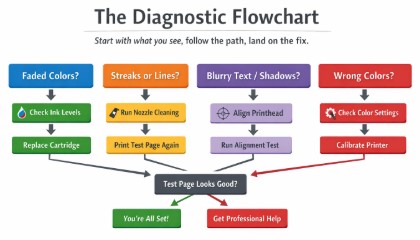
The Diagnostic Flowchart
Think of this as your roadmap. Start with what you see, follow the path, land on the fix.
Problem #1: Faded or Weak Colors
Visual Cue: Those solid color blocks on your test page look light, washed out, or faint. Like someone turned down the volume on your cyan.
Likely Culprit: Low ink or toner levels. It’s almost always that simple. In my shop, this is the cause eighty percent of the time.
Fix: Replace or refill the corresponding cartridge. That weak cyan block? Swap the cyan cartridge. Magenta looking faint? You know what to do.
Wondering why is my printer color calibration off? Start here. Nine times out of ten, it’s not calibration at all—it’s empty tanks. You can fix faded colors with calibration test page results by simply giving your printer the ink it’s begging for.
Problem #2: Streaks, Lines, or Missing Sections
Visual Cue: White lines or bands running through solid color blocks. Like someone dragged a fingernail through wet paint.
Likely Culprit: Clogged printhead nozzles. Ink can’t flow, so paper shows through.
I had a photographer in here last month ready to ship his high-end Canon off for expensive repairs. He was convinced the printhead was shot because skin tones looked green. I ran a test page, looked at the solid magenta block, and saw it was barely there. Eighty percent empty. A $40 cartridge replacement, not a $400 repair.
Fix: Run your printer’s built-in printhead cleaning cycle once or twice. Print another test page. Repeat if necessary. If cleaning cycles don’t work, you might need our guide on print head cleaning test page for deeper solutions.
Learning how to fix printer color calibration issues starts with recognizing what you’re actually dealing with. Streaks mean clogs, not magic.
Problem #3: Colors Misaligned / Blurry Text / “Shadows”
Visual Cue: Those alignment grids on your test page look doubled. Text appears blurry. Images have ghosting—like a cheap 3D movie without the glasses.
Likely Culprit: Printhead misalignment. The colors aren’t landing where they should.
Fix: Run your printer’s “Align Printhead” utility. It’s usually in the same maintenance menu as the cleaning cycles. The printer will print a page with patterns, you pick the best one, and it adjusts itself.
This is exactly what a printer color alignment test page is designed to catch. Fix it in three minutes and get back to printing.
Problem #4: Colors Are Inaccurate (Too Green, Too Magenta, Orange Skin)
Visual Cue: Skin tones look sickly. Gray ramps have a color tint—gray should be gray, not blue or pink. Grandma looks like she spent a week in a tanning bed.
Likely Culprit: Software color management issues or the need for full calibration. Your printer and your software aren’t speaking the same language.
Remember the bride with orange-skinned wedding albums from 2019? A simple two-minute test page before printing would’ve caught that. She skipped it because she’d used that printer for years. “It’s always been fine,” she said. Until it wasn’t.
Fix: Check your software color management settings. Make sure you’re using the right ICC profile for your paper. Perform a full printer calibration test page through your driver. Sometimes it’s as simple as turning off “color enhancement” features that think they’re helping but aren’t.
Learning how to calibrate printer colors for accurate printing isn’t complicated. It’s methodical. Work through a printer color calibration guide step by step, and you’ll get there. Start with the test page, identify which colors are off, then dig into your settings.
Quick Reference Fix Matrix
Here’s your cheat sheet. Print this out. Stick it on your wall.
| Problem | Visual Cue | Fix | Time |
|---|---|---|---|
| Faded colors | Weak blocks | Replace ink | 2 min |
| Streaks | White lines | Clean nozzles | 5-10 min |
| Blurry text | Double images | Align printhead | 3 min |
| Wrong colors | Tinted skin | Calibrate/check profiles | 10 min |
That’s it. Four problems. Four fixes. Your test page tells you exactly which one you’re dealing with. Listen to it.
Printer Maintenance: How Often Should You Calibrate?
Here’s the short answer: every one to three months for most home and small office users. Mark it on your calendar. Set a reminder on your phone. Do it when you change your smoke alarm batteries.
But honestly? The real answer depends on how you use your printer. A grandma printing family photos once a month has different needs than a photographer cranking out client proofs daily.
Calibrate immediately when:
- You’ve got a critical print job coming up. Wedding albums. Client presentations.
- You just changed ink cartridges or toner. New ink can behave differently.
- Your printer’s been sitting unused for several weeks. Ink settles. Nozzles dry.
- You notice a sudden change in output quality. Catch it early.
I had a law firm client whose printer would drift out of alignment every few weeks. They’d call me, I’d fix it, and leave. Finally, I asked: “When’s the last time you ran a test page proactively?” Blank stares. We set a recurring calendar reminder for the first of every month. Problem solved. They haven’t called me for that issue in two years.
If you’re doing printer color calibration for photo printing, you might need more frequent checks. Photos show every flaw. I tell photographers to test before every client session.
Proactive Maintenance Checklist
- Weekly: Quick visual check of prints.
- Monthly: Run a nozzle print test page.
- Quarterly: Full printer color calibration test page + alignment.
- Annually: Deep clean, driver updates, firmware checks.
That’s your answer. Weekly glances, monthly checks, quarterly deep dives.
Advanced: Professional Calibration vs. DIY
For ninety-five percent of users, a free test page PDF and the steps I’ve laid out are all you’ll ever need. Your holiday photos will look great.
But if you’re a professional photographer selling gallery prints, or a graphic designer whose clients demand exact Pantone matches, DIY testing is just the beginning. You need professional tools.
Professional Hardware Calibration
- X-Rite i1Studio: This is the industry workhorse. I see it in every serious photographer’s studio I visit. According to X-Rite, their i1Studio solution ensures “color accuracy from capture to print” by creating custom ICC profiles for your specific printer, paper, and ink combination. You can read more on X-Rite’s official product page.
- Datacolor SpyderPrint: Great if you’re already using Spyder for monitor calibration.
- ColorMunki: Another solid X-Rite option.
- Cost range: $200 to $500.
What they do: You print a target with hundreds of color patches. A device measures exactly what came out. Software compares it to what you meant to print and creates a custom profile to correct the difference.
Worth it? Only if color-critical work is your business. For family photos and office documents? Save your money.
The Cost of Skipping Calibration
- Three hundred ruined wedding invitations? That was a $1,200 rush reprint plus reputation damage.
- Fifty ruined wedding albums? Three thousand dollars down the drain.
- A photographer ready to ship his Canon for a $400 repair? The actual fix was a $40 cartridge.
ROI calculation is simple:
- Free test page download: $0
- Your time: 5 minutes
- Potential savings: Hundreds to thousands of dollars.
A printer color calibration guide step by step is great. But none of it matters if you don’t actually test before you print. The pros know this. That’s why they calibrate religiously.
If you’re using a Canon PRO series printer, the manufacturer itself recommends calibration in specific situations —after initial setup, if colors look different than before, or to match colors across multiple printers. Canon calls this color management that corrects color variations due to printer age differences. Even the pros at Canon know that printers drift over time.
Conclusion
A printer color calibration test page is the single most powerful tool you own. It’s free. It takes five minutes. And it catches ninety percent of color problems before they waste your ink, your paper, and your sanity.
Here’s what I want you to remember:
- Print with the right settings. Highest quality. Correct paper type. Color management off.
- Analyze using the sixty-second scan method. Solid blocks, skin tones, gradients, alignment grids.
- Fix what you find. Faded colors? Replace ink. Streaks? Clean nozzles. Blurry text? Align printhead.
- Calibrate every one to three months. Make it a habit. Prevention beats repair.
I’ve been doing this for twelve years. The people who test before they print are the people who never need emergency repairs. Don’t be the person standing in my shop with ruined invitations.
Download your free test page. Print it today. Know exactly where your printer stands. And if you run into a problem you can’t fix? You’ll know exactly what to tell a technician. “My cyan block is weak.” “My gradients have banding.” That specific information saves time and money on repairs.
That’s the quick printer color calibration fix—test first, fix second, print third. Every time.
[CTA Buttons]:
Print it today. Your future self will thank you.
FAQ
Why are my color prints coming out faded?
Low ink is the culprit 80% of the time. Check cartridge levels first. If they’re full, make sure you’re not in “Draft” or “Economy” mode. A quick printer color calibration test page will tell you exactly which color is weak.
What causes streaks or lines in my prints?
Clogged nozzles almost always cause streaks. Run your printer’s cleaning cycle 1-2 times and print another test page. If streaks remain after 2-3 cycles, you might have a more serious clog.
Why don’t my prints match what I see on my screen?
Your screen uses RGB (light) and your printer uses CMYK (ink)—they’re fundamentally different. A calibrated monitor and a printer color calibration test page are your best tools to minimize the difference.
How often should I calibrate my printer?
Every 1-3 months for most home users. But always run a test page before important jobs like wedding photos or client presentations. Five minutes of prevention saves hours of frustration.
Why is my printer output blurry?
Misaligned print heads cause blurry prints. Look at the alignment grids on your test page—if they look doubled, run your printer’s “Align Printhead” utility. Takes about three minutes.
Is a nozzle check the same as a color calibration test page?
No. A nozzle check just tells you if your printer is firing ink. A full test page checks color accuracy, gradients, skin tones, and fine detail. You need both for different purposes.
What if my test page looks perfect but photos print wrong?
Check three things: 1) Are you using the right ICC profile for your paper? 2) Is your editing software color-managed correctly? 3) Are your print settings consistent? This is where professional calibration helps.
Why does my printer still streak after cleaning?
Try a “deep clean” cycle if your printer has one. If streaks persist after that, you may need manual printhead cleaning or professional service.
Disclaimer: This article is based on personal expertise and industry knowledge gained over more than a decade. Always consult your printer’s manual or seek help from a certified technician for model-specific issues.

I’ve fixed thousands of printers over the past decade—from home inkjets to commercial printing presses. Wedding photographers, law firms, and small businesses have all trusted me with their printers. Every guide comes from real workshop experience, not theory.