Printer Quality Test Page: The Complete Guide to Diagnosing and Fixing Print Problems
You hit “print” on an important document, walk over to the printer, and find streaked text staring back at you. Maybe the colors are faded. Maybe everything’s blurry.
Before you blame the machine or drop cash on new cartridges, there’s one tool that tells the truth: the printer quality test page.
Let me prove it.
In 2019, a bride walked into my Chicago repair shop carrying five heavy bags. Fifty wedding albums. Every single page had orange skin tones—pumpkin-orange faces on the groom, the bride, the flower girl, grandma. Fifty albums. Three thousand dollars. Completely ruined.
What would have stopped it? A simple two-minute printer test page.
Her printer was fine. The issue was a corrupted color profile in her software. A basic printer diagnostic test page for troubleshooting would have caught it before she printed a single album.
I see this constantly. Small business owners losing money on reprints. Home users convinced their printer is possessed. Nine times out of ten, a test page reveals the real problem in under sixty seconds.
✅ Quick Summary
A printer quality test page is a diagnostic tool that reveals exactly what’s wrong with your machine—streaks, faded colors, blurry text, or misalignment—in under two minutes.
Here’s the short version:
- Print directly from the printer (not your computer) to rule out driver issues
- Check the color bars — missing or streaked colors mean clogged nozzles or low ink
- Look at the alignment grids — blurry lines mean your printhead needs calibrating
- Use a full test page, not just a nozzle check — nozzle checks only tell you if ink is firing, not if colors are accurate
Bottom line: One test page saves you from guessing, wasting money on wrong fixes, or ruining expensive print jobs.
Here’s what this guide covers: What a test page actually reveals, how to print one correctly (there’s a wrong way), how to read the results like I do in my shop, and exactly how to fix whatever problems it uncovers.
No fluff. Just what works.
What Is a Printer Quality Test Page?
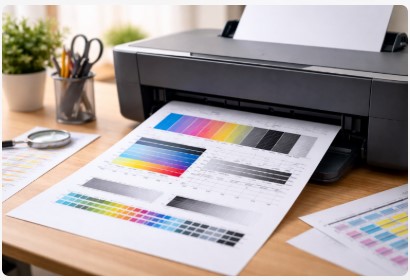
A printer quality test page is simply a printout packed with specific patterns—color bars, gradient ramps, grids, and tiny text. Each element stresses a different part of your machine.
Think of it as a blood test for your printer. The color bars check your ink delivery. The gradient ramps test smooth transitions. The alignment grids reveal if your printhead’s positioning is off by even a hair.
What does a printer quality test page show? Everything. Streaks, banding, missing colors, misalignment—they all leave their signature. Once you learn to read it, you’ll stop guessing and start fixing the actual problem.
In fact, there’s an international standard—ISO/IEC 29112:2018—that defines exactly how test pages should measure printer resolution and quality.
Nozzle Check vs. Full Test Page
This confusion walks into my shop weekly, so let’s clear it up.
Your printer probably has a “nozzle check” built in. That’s useful. But a nozzle check is not the same as a full printer test page for alignment and calibration.
Here’s the difference:
| Feature | Nozzle Check | Full Photo Test Page |
|---|---|---|
| Purpose | “Is ink coming out?” | “Is it coming out right?” |
| Color Depth | Basic solid blocks | Full gradients, 11-step ramps |
| Skin Tone Samples | None | Present—light, medium, dark |
| Detail Patterns | Absent | Fine lines, micro text |
| What It Tells You | “Your printer’s breathing” | “Your printer’s healthy” |
A nozzle check tells you if each color channel is firing. That’s it. It’s like checking if someone has a pulse.
A full test page—especially one designed for printer color accuracy—tells you the whole story. It reveals whether flesh tones look human or radioactive. It exposes tiny alignment issues that make text slightly fuzzy. It shows you how your printer handles smooth transitions from dark to light.
You need both. But if you’re only running nozzle checks, you’re only getting half the story.
Core Diagnostic Elements Explained
Okay, you’ve printed your test page. Now what?
Learning how to read a printer quality test page results is like learning to read a map. Once you know what each part means, you’ll never be lost again.
Let me walk through each element and what it’s telling you.
Color Bars (CMYK)
Those solid blocks of Cyan, Magenta, Yellow, and Black? They’re your first stop.
What to look for: Missing bars mean empty cartridges or completely blocked nozzles. Streaks within a single color bar? That’s a partial clog specific to that channel.
Last week, a client’s cyan bar looked like a zebra—streaks every 2mm. One deep cleaning cycle later, solid as a rock. If cyan’s streaky but magenta’s fine, you know exactly where to focus.
This is your best test page to detect clogged print heads. The pattern never lies.
Gradient Ramps (11-Step)
See those smooth transitions from dark to light in each color?
What to look for: Banding—those ugly stripes or harsh jumps—means inconsistent ink or toner flow. If the bands are evenly spaced, you might have mechanical vibration or worn drive gears.
I once spent two hours chasing a ghost banding issue only to realize the printer was sitting on a rickety table that shook with every pass. Moved it to the floor. Problem solved.
Skin Tone Samples
Three faces: light, medium, dark skin tones.
What to look for: This is the universal benchmark. Humans instinctively know when faces look wrong. Greenish skin? Too much cyan. Orange skin? Too much magenta.
If you’re printing photos for clients and skipping this check, you’re gambling with their trust—and your reputation.
Grayscale Ramps
Pure black fading to pure white.
What to look for: Color casts. A slight pink, green, or blue tint in what should be neutral gray tells you your color balance is off. This is huge for anyone printing black and white photography or documents with logos.
Fine Detail Patterns
Tiny text, hair textures, thin lines going every direction.
What to look for: Blurry details mean alignment issues or printhead problems. If those tiny letters are crisp, your resolution’s on point. If they’re smudged or doubled, you’ve got work to do.
This is where a printer test page for streaks and banding really earns its keep. Those fine lines expose problems that solid color blocks hide completely.
How to Print a Test Page (Three Methods)
Knowing how to print a printer quality test page correctly matters more than you’d think. Print it the wrong way and you’ll chase problems that don’t exist.
Here are the three methods I use in my shop, depending on what I’m trying to diagnose.
Method 1 – Direct from Printer (Hardware Test)
This is my go-to first step.
Why: It eliminates every variable—driver, cable, computer, Wi-Fi. Just pure printer hardware talking directly to paper.
How: Settings → Maintenance → Tools → Print Test Page or Print Quality Pages. Every manufacturer labels it slightly different, but it’s always somewhere in the maintenance menu. On Xerox Phaser 600s, it’s under Utilities on the front panel.
Best for: Isolating hardware problems from software issues. If this test page prints perfect but your computer prints garbage, you know the printer’s fine and the problem’s elsewhere.
Method 2 – From Windows 11/10
Sometimes you need to test the whole chain—printer, driver, cable, computer.
Windows 11: Settings → Bluetooth & Devices → Printers & Scanners → Select your printer → Print Test Page
Windows 10: Settings → Devices → Printers & Scanners → Select printer → Manage → Print Test Page
Best for: Validating that your driver and connection are working properly. If you run into driver issues here, check out our complete guide on how to install and update printer drivers.
Method 3 – From macOS
Same idea, different path.
How: System Settings → Printers & Scanners → Select printer → Options & Supplies → Utility tab → Print Test Page
Best for: Confirming Mac-specific driver performance. I’ve seen perfectly good printers act up only on Macs because of driver quirks.
For HP users, the process is slightly different. You can follow the official HP guide to printing and interpreting a self-test diagnostic page for model-specific instructions.
Critical Paper and Settings Protocol
The Copy Paper Trap
A few years back, a client bought a Canon Pro-100—beautiful photo printer. He printed a test page on cheap multipurpose copier paper, saw terrible results, and packed the printer back in the box for return.
He drove two hours to my shop to complain. I told him to go home, unpack it, and print the same test page on the glossy photo paper he actually planned to use.
He called me an hour later laughing. Perfect prints. Gorgeous colors. He still brings me cookies every Christmas.
Step 1: Pick the Right Paper
Test on the paper you actually use. If you print photos on glossy, test on glossy. If you use matte, test on matte. Different papers absorb ink differently. Testing on copy paper tells you nothing about real-world performance.
Step 2: Configure Printer Settings
- Quality: Select “Best” or “High.” Never “Draft,” “Standard,” “Fast,” or “Economy.” Those modes skip details to save ink.
- Media Type: Match exactly to your loaded paper.
- Software: Open your test file in Photoshop, Preview (Mac), or Adobe Acrobat Reader. Never print directly from a browser—browsers compress and “optimize” files, which destroys diagnostic accuracy.
Pro tip: Save a print quality test page pdf to your desktop. That way you always have a reliable, high-resolution file ready to go, no matter what printer you’re testing.
Download Professional Test Pages (Free PDF Library)
Here’s something that drives me crazy.
A few years back, I spent three hours hunting for decent test pages online. I found low-resolution JPEGs that were useless. Sites that wanted my credit card for a basic PDF. One download that gave my shop computer a virus scare bad enough I had to wipe the whole machine.
So I created my own. The ones I actually use in my shop every week. And I’m giving them to you for free—no email, no credit card, no malware risk. You can access the complete collection at our main printer test page hub.
Available Test Page Types
| Test Page | Resolution | Best For |
|---|---|---|
| Color Test Page | 300 DPI minimum | Full CMYK bars, skin tones, gradients |
| Grayscale Test Page | 300 DPI minimum | Black-only printers, B&W evaluation |
| Alignment Test Page | 300 DPI minimum | Grids, fine lines, micro text |
| Inkjet Diagnostic Page | 300 DPI minimum | Nozzle patterns, color mixing |
| Laser Diagnostic Page | 300 DPI minimum | Drum test, halftone patterns |
Need a solid cmyk printer test page download? Grab the Color Test Page. Running a black-and-white laser? The Grayscale page is your friend.
For anyone wanting the best printer quality test page template that covers all bases, start with the Color Test Page. It’s the one I reach for first with every new client machine.
Pro Tip: Save these files to your desktop. Never, ever print directly from your browser. Browsers compress images, “optimize” colors, and generally lie about what your printer can actually do. Always open in Photoshop, Preview (on Mac), or Adobe Acrobat Reader before printing.
If you need a specific download printer test page pdf for inkjet printers, the Inkjet Diagnostic Page is built specifically for spotting nozzle clogs and color mixing issues that plague inkjet machines. I use it weekly on Epson and Canon photo printers.
Symptom-to-Cause Diagnostic Matrix
Once you’ve got your test page in hand, you need to know what you’re looking at. This matrix is what I keep pinned on my workshop wall. It turns “something’s wrong” into “here’s exactly what to fix.”
| Test Page Observation | Primary Diagnosis | Secondary Considerations | Intervention Protocol |
|---|---|---|---|
| Missing color entirely | Empty cartridge or complete nozzle blockage | Cartridge not seated; electrical contact failure | Check levels → Reseat → Run deep cleaning → Replace cartridge |
| Streaks through one color | Partial nozzle clog (inkjet) or low toner (laser) | Air bubble in ink line; toner bridging | Run 1-3 cleaning cycles with 5-minute waits → Replace if persists |
| Streaks through all colors | Dirty encoder strip | Carriage obstruction; worn belt | Clean encoder strip with lint-free cloth + alcohol |
| Horizontal banding | Inconsistent paper feed | Worn feed rollers; dirty pickup roller | Clean feed rollers → Check paper moisture → Replace rollers |
| Blurry/ghosted text | Printhead misalignment | Paper path obstruction | Run alignment utility → Verify paper guides snug |
| Repetitive marks (fixed intervals) | Damaged drum or dirty roller | Debris on transfer belt | Measure defect spacing to identify component |
| Banding in gradients | Mechanical vibration or driver settings | Worn drive gears; incorrect quality mode | Check printer surface stability → Verify “Best” quality selected |
| Faded output, good test page | Driver/application issue | Economy mode enabled | Check driver settings → Test from different application |
| Blank page (hardware test) | Complete printhead failure | Mainboard failure | Requires service center evaluation |
A few real-world examples:
That “streaks through one color” row? That’s your printer nozzle check test page moment. For detailed guidance on tackling stubborn clogs, check out our print head cleaning test page guide. Run one cleaning cycle, wait five minutes (this matters—ink needs time to soak), then run another. Three cycles max before you consider replacement.
Seeing “repetitive marks” on a laser printer? Measure the distance between them. That measurement tells you exactly which roller is damaged. I’ve saved clients hundreds of dollars by replacing a $40 drum instead of the whole printer.
How to fix poor printer quality after test page comes down to matching your observation to the right protocol. Don’t guess. Don’t replace parts randomly. Let the test page tell you what’s wrong.
And if you’re seeing streaks only in magenta? That’s your test page pointing straight at a bad cartridge. Replace that one, not all three.
Advanced Diagnostics: Beyond Basic Symptoms
Sometimes the basic fixes don’t work. You’ve run cleaning cycles, checked cartridges, and that test page still looks wrong. Time to dig deeper.
Here’s what I check when a printer comes back with the same issue twice.
Banding Pattern Analysis
Not all banding is created equal. Look closer at those stripes.
Stepped banding — abrupt transitions instead of smooth fades. That’s usually driver settings or insufficient color depth. First thing I do? Verify “Best” quality is selected. You’d be surprised how many times I’ve found “Draft” mode silently enabled after a software update.
Periodic light/dark bands — evenly spaced stripes across the page. That’s mechanical. The printer’s vibrating as it moves, or drive gears are worn. Check if your printer’s on a stable surface. I once fixed a six-month banding issue by moving a printer off a rickety table onto the floor.
Color Channel Failure
This one drives people crazy. A color’s completely missing, but the cartridge is full.
What’s happening: Either the cartridge is dead or the printhead channel burned out.
How to tell: Swap cartridges between channels. Put the cyan cartridge in the magenta slot, the magenta in cyan. Print another test page.
If the missing color moves with the cartridge, it’s a bad cartridge. If the missing color stays in the same spot on the page, your printhead is fried. That’s a repair shop conversation.
Drum Defects (Laser Printers)
Seeing the same mark repeat down the page? Measure the distance between them. That measurement tells you exactly which part is damaged.
- 94mm (3.7 inches): OPC drum
- 75mm (3.0 inches): Developing roller
- 50mm (2.0 inches): Charge roller
I’ve had clients ready to scrap a laser printer over “why is my printer quality test page blurry” with repetitive marks. Ten minutes with a ruler saved them a thousand dollars on a new machine. For more laser-specific diagnostics, our laser printer test page guide goes deeper into these issues.
Encoder Strip Contamination
This one’s sneaky. The encoder strip is that clear plastic strip running behind the printhead. It tells the printer where the head is positioned.
When it gets dirty, ink or dust blocks the sensor’s view. The result? Random banding across all colors that seems to move around.
The fix: Open the printer, find the transparent strip, and gently wipe it with a lint-free cloth dampened with isopropyl alcohol. Don’t scrub—you don’t want to scratch it. Just a clean pass, let it dry, and run another printer test page for streaks and banding.
Nine times out of ten, that random banding disappears completely.
Technology-Specific Diagnostics
Here’s something most people don’t realize until they’ve been doing this as long as I have.
Inkjet and laser printers fail in completely different ways. If you treat them the same, you’ll waste time chasing the wrong problems.
Inkjet Printers
Inkjets are all about fluid dynamics. You’re pushing liquid through microscopic nozzles smaller than a human hair. Things go wrong when that liquid dries, gets air bubbles, or just refuses to flow.
Primary failure modes:
- Nozzle clogs from dried ink
- Air bubbles in the ink line
- Electrical failure of thermal nozzles (they literally burn out)
What to focus on: Nozzle patterns, color mixing, gradient smoothness.
Diagnostic indicator: Look for the “snowflake” pattern—missing dots scattered randomly through a color block. That’s specific nozzles failing. Complete missing sections? Blocked ink channels. Bigger problem.
For a deeper dive into inkjet-specific issues, our inkjet printer test page guide covers everything from nozzle checks to color accuracy.
Laser Printers
Lasers are electrophotographic. They use static electricity, heat, and powdered toner. The failure points are mechanical.
Primary failure modes:
- Drum wear or scratching
- Toner starvation (uneven distribution)
- Charge roller contamination
- Fuser degradation
What to focus on: Repetitive marks, halftone patterns, solid fills.
Diagnostic indicator: Hold the page at an angle under good light. Tilt it. That subtle shading you can’t see straight-on? That’s drum damage. I’ve saved countless printers by catching scratches that were invisible in normal viewing.
A proper laser printer quality test page example will have large solid black areas specifically for this trick. Use them.
The big takeaway? A printer quality test page vs alignment page distinction matters less than knowing what technology you’re dealing with. An alignment page won’t tell you about drum scratches. A nozzle check won’t reveal fuser issues.
Match your diagnostic to your machine.
How Often to Test
So how often should you actually run a test page?
Depends on how much you print. Here’s the schedule I give every client who walks out of my shop.
| Usage Category | Definition | Recommended Testing Frequency |
|---|---|---|
| Production | >10,000 pages/month | Weekly |
| Active Office | 1,000-10,000 pages/month | Monthly + after cartridge changes |
| Home/Small Office | 100-1,000 pages/month | Quarterly or before critical jobs |
| Occasional | <100 pages/month | Monthly (prevents ink dehydration) |
From the Workshop:
Had a client in Florida who kept bringing in the same printer with the same problem. “Tire tracking” patterns—repetitive marks running across every page. We’d clean it, it’d work for a week, then back to the shop.
Turns out he was storing his paper in an unconditioned garage. Florida humidity. Ninety percent. Paper was absorbing moisture, warping slightly, and causing inconsistent feed every single time.
We moved the paper inside, and the problem vanished.
Here’s the thing: A printer test page to check ink levels isn’t just about ink. It’s about catching environmental issues before they become mechanical problems. That monthly test for occasional users? It’s not wasting ink. It’s preventing dried-out printheads that cost ten times more to replace.
How often should you print a printer test page? For most home users, once a month, first thing in the morning, before you actually need to print something important. That way you’re not discovering problems at 4:55 PM with a deadline looming.
Conclusion
Look, I’ve been doing this for fifteen years. I’ve seen every printer problem you can imagine—and some you probably can’t.
Here’s what I know for sure: A printer quality test page reveals 90% of print issues in under sixty seconds. It transforms frustrated guessing into a clear action plan. You stop throwing money at random parts and start fixing what’s actually broken.
The key takeaway? Master test page reading. The technicians who read these pages fluently catch problems before they ruin jobs. They replace the right part the first time. They don’t waste client money on trial-and-error repairs.
That bride with the orange wedding albums? She’d still have her three thousand dollars if someone had shown her this sooner.
Your move: Download that free diagnostic test page bundle I put together—color, grayscale, alignment, inkjet, and laser versions. Visit our main printer test page library to grab them all. No email required. No malware risk. Just honest tools that actually work.
Print one today. Keep it in a folder. Run it monthly. And the next time your printer acts up, you’ll know exactly what to do.
FAQ
What is a printer test page?
A printer test page is a diagnostic tool that checks your machine’s performance through standardized patterns—color bars, grayscale ramps, alignment grids, and text samples. These elements reveal streaks, missing colors, and misalignment in under a minute. Think of it as your printer telling you exactly what’s wrong.
What does a printer test page show?
It shows color accuracy through CMYK bars, tonal smoothness through gradient ramps, alignment precision through grid patterns, and text sharpness through samples at various sizes. If you’re learning how to check printer quality with a test page, start by examining each of these elements individually.
Do test pages waste ink?
No. Test pages use minimal ink while providing maximum diagnostic information. The preventive value—avoiding wasted production on failed prints and preventing permanent printhead damage—far exceeds the tiny amount of ink used. One test page can save you from a $200 service call.
Why does my test page have streaks?
Clogged printhead nozzles or low ink/toner. Run 1-3 cleaning cycles with five-minute waits between cycles. Ink needs time to soak into those dried clogs. If streaks persist after three cycles, replace the cartridge. Our print head cleaning test page guide has detailed steps.
How do I know if it’s a hardware or software problem?
Print a test page directly from the printer using its front panel menus. If that page is perfect but a Windows test page fails, the problem is driver or connection-related, not the printer mechanism. Check our printer driver guide for help.
What causes repetitive marks at fixed intervals?
A damaged rotating component—drum, roller, or charge wheel. Measure the distance between marks with a ruler. That measurement tells you exactly which part needs replacement. For laser printers, this is your primary printer quality test page for color calibration and mechanical diagnosis. See our laser printer test page guide for more.
Where can I download a professional test page?
Free downloads are available at our main printer test page hub—color, grayscale, alignment, inkjet, and laser versions at 300 DPI minimum. No email required. No credit card. No malware risk. Just the same test pages I use in my shop every week.
How often should I run a printer test page?
Monthly for most printers. If you print infrequently, test monthly to prevent ink dehydration. Always test after changing cartridges and before critical print jobs. A test page on Monday beats a ruined job on Friday.
Why do my photos look orange on the test page?
Excessive magenta in the color balance. This usually means a color profile corruption or incorrect driver settings. Try disabling automatic color management in your print settings and let your software handle the colors instead. Our inkjet printer test page guide covers color issues in depth.
What paper should I use for test pages?
Use whatever paper you actually print your final output on. Testing on cheap copy paper tells you nothing about how your printer performs with photo paper. Different papers absorb ink differently—test on the real stuff.

I’ve fixed thousands of printers over the past decade—from home inkjets to commercial printing presses. Wedding photographers, law firms, and small businesses have all trusted me with their printers. Every guide comes from real workshop experience, not theory.