
Printer Calibration Test Page: How to Fix Alignment and Color Accuracy
I had a client last week ready to throw his $800 printer out the window.
Nice guy—runs a small real estate agency. He stood in my workshop holding listing photos that looked awful. Streaks ran across every face. Colors bled like a bad watercolor.
He’d already ordered new cartridges online. Spent $160. The problem got worse.
“Tobby,” he said, “I’m about to introduce this thing to the dumpster.”
I poured him coffee. Walked to his printer. Printed one page.
Fifteen minutes later, he left with perfect prints.
That page? A printer calibration test page.
Just a tool I’ve used thousands of times—nothing magical. Most print quality nightmares aren’t hardware failures. Streaks, misalignment, colors that look nothing like your screen? Almost always calibration problems.
Your printer isn’t broken. It’s just confused.
In this guide: what a printer calibration test page actually does, exactly how to print a printer calibration test page on any machine, how to use a printer diagnostic test page for troubleshooting, and where to grab a free printer test page PDF.
Plus—how to read those weird grids and color bars like a pro.
Think of it as your translator.
After 10+ years running this shop, two things fix 90% of print quality complaints: a deep cleaning cycle and a proper calibration page.
Everything else? Just noise.
Let’s cut through it.
Quick Summary: A printer calibration test page has alignment grids, color bars, and gradient patterns. It helps your printer relearn positioning and color output. Print through your computer, printer control panel, or download a free PDF. Check grids for jagged lines (misalignment) and color bars for streaks (clogged printheads). Most issues fix in under 15 minutes.
What Is a Printer Calibration Test Page? (And Why You Need One)
A printer calibration test page helps your printer find its way again. Think of it as a map for a lost driver.
What is a printer calibration test page used for?
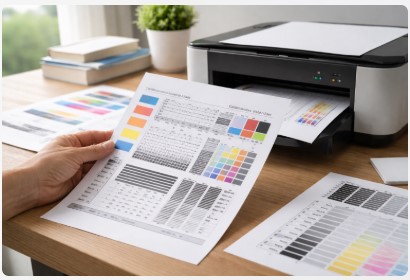
It’s a special printout with alignment grids (those weird crosshatch patterns), color bars (cyan, magenta, yellow, black), and gradient patterns that fade dark to light.
These patterns help your printer “relearn” its job.
Printers are precise machines—ink droplets measured in picoliters (trillionths of a liter). Over time, things drift. Maybe you bumped it. Maybe you switched paper. Maybe the printheads got lazy.
Whatever the reason, your printer forgets where to put those tiny dots.
That’s where a printer alignment test page comes in. A reference point. A target to aim at.
Colors look wrong? That’s when you need a printer diagnostic test page for troubleshooting. It shows exactly which color is off.
Most people don’t know their printer can do this. Even Canon’s official documentation confirms that color calibration compensates for printer aging and variations —so you’re not just taking my word for it.
The two types of calibration
Mechanical alignment: Grid patterns adjust paper feed and printhead positioning. Blurry or double-printed text? This is your fix.
Color calibration: Color bars and gradients make screen match paper. Blues print purple? Grays have a green tint? This is what you need.
Think of it like tuning a guitar. You don’t replace strings when it sounds off—you adjust tension. A calibration page is your tuning fork.
When you actually need one
- After replacing ink cartridges
- Switching paper types (plain to photo changes everything)
- Noticing banding, streaks, or color shifts
- Printer idle for weeks
- Before important print jobs—wedding invitations, client presentations
This reminds me of the time a graphic designer walked in exhausted. Her corporate blues printed purple. Logo. Brand colors. Ruined.
She’d spent $300 on new cartridges. Didn’t help.
I printed a printer calibration test page, placed it on her scanner, ran color calibration.
Twenty minutes later, her blues were back. Perfect.
She cried. Happy tears.
Most people don’t know their printer can do this. They think it’s broken when it’s just confused.
Your printer isn’t broken. It forgot how to do its job. One page can fix that.
Next: how to get one out of your printer.
How to Print a Printer Calibration Test Page
Now let’s print one. Four ways—one will work.
Every brand hides this differently. HP calls it one thing, Canon another. Epson? Their own name too. I navigate these menus blindfolded.
Method 1: Using Windows
Works on practically every printer. I use it five times a week.
- Start > type “Control Panel” > open it
- Click “View devices and printers”
- Find your printer (green checkmark = default)
- Right-click > “Printer properties” (not just “Properties”)
- Click “Print Test Page” at the bottom
Give it a few seconds. Out comes your page.
Pro tip: Watch it print. Hear grinding or see paper skew? Stop immediately. Hit cancel.
Basic printer test page for color accuracy—not fancy, but tells you a lot.
Method 2: Using a Mac
Macs hide things differently. Not complicated once you know where.
- System Preferences > Printers & Scanners
- Select your printer
- Options & Supplies > Utility tab
- Click “Print Test Page”
Some drivers put test page option under “Open Print Queue.” Even easier.
HP users: The HP Printer Utility has tools to calibrate, clean cartridges, and print printer head alignment test pages all in one place.
Method 3: Right from the Printer Itself
My favorite—no computer needed.
- On touchscreen: Settings or Setup (wrench or gear icon)
- Navigate to Maintenance, Tools, or Printer Maintenance
- Find “Print Calibration Page,” “Test Page,” or “Print Quality Report”
Brand-specific notes:
- HP: Tools or Printer Maintenance. Older models: hold Power, press Cancel twice. Cheat code—works.
- Canon: Maintenance or Device Settings. Some require admin login—check manual, default often “0000” or “canon”
- Epson: Maintenance or Nozzle Check. Often bundled with nozzle check patterns
- Brother: Print Settings or Machine Info
Those are the shortcuts I use daily. For a complete guide with every brand’s menu path, here’s more on printing test pages directly from your printer.
Method 4: Download a PDF Test Page
Software glitchy? Older printer? Menus in a language you don’t speak?
I had a client whose kids set their printer to Japanese as a prank. True story.
Download a free printer calibration test page pdf download from trusted sources. Canon’s support page and Printertest.online have reliable ones.
Print at 100% scale. Not “fit to page.” Not “shrink oversized.” 100% scale.
Scaling messes measurements. Defeats the purpose.
Use at least 80gsm paper—standard copy weight.
From the workshop:
Customer called saying printer “wouldn’t calibrate.” Frustrated. Ready to give up.
Walked her through menus over the phone. Five minutes.
She was hitting “copy” instead of “setup.” We all do it. Buttons look similar. Menus blur when stressed.
Don’t be embarrassed to double-check. I’ve done it. My techs have done it. Printers are confusing.
Now you’ve got the page. Real detective work begins.
How to Use a Printer Calibration Test Page
Don’t just stare at it. Those grids and color bars are telling you something. Learn to listen.
Think of this like a doctor reading an X-ray. Patterns reveal what’s wrong inside.
Step 1: Examine the alignment grid
Look for the grid pattern—lines crossing, sometimes in a corner, sometimes half the page.
Run your finger across gently. Don’t smudge.
What you want: Crisp, straight lines meeting at clean angles. No jagged edges. No gaps.
What spells trouble: Lines that vibrate. Overlap when shouldn’t. Or—big one—lines that don’t quite meet, leaving tiny white gaps.
Messed up grid = misalignment. Printheads aren’t firing where they should. Good news? Fixable.
This printer alignment grid test page is your roadmap. For a closer look at what different grid patterns mean, check out this detailed guide to alignment test pages.
Step 2: Scan the test page back (advanced calibration)
Some higher-end Canon, HP, and Epson models scan the page and auto-correct.
How it works:
- Print calibration page
- Place on scanner glass exactly as instructed
- Tell printer to scan
Printer reads patterns. Compares printed to intended. Adjusts internal settings automatically.
Critical tip: Follow orientation exactly.
HP Designjet users: rotate page 90 degrees, place face-down with printed arrow pointing toward printer. Arrow wrong? Scan fails. Every time.
Canon users: Print multiple test sheets, scan together. Increases accuracy—printer averages results.
This helps fix misaligned printer prints using calibration page technology built into your machine.
Step 3: Evaluate the color bars
Look at solid color strips—cyan, magenta, yellow, black, sometimes combos.
What you want: Smooth, even color. No streaks. No light spots. No banding.
What spells trouble:
- Streaks perpendicular to print direction = clogged printhead. Ink not flowing.
- Light or missing sections = one color low or nozzle completely blocked
- Banding (horizontal lines) = printhead too far from paper, or paper feed issue
Grayscale test: Gray gradient from black to white. Look for color casts. Slightly green? Slightly purple? Color calibration issue. Printer thinks it’s printing neutral gray, but balance is off.
Step 4: Check the text block
Text at different sizes—big bold down to tiny fine print.
What you want: Sharp, readable even at smallest size. Clean edges.
What spells trouble: Blurry text, especially small sizes = alignment issue, not color.
Double images (ghosting) = paper shifting during print, or printhead firing at wrong times.
Personal experience:
Law firm client. Big firm. Lots of contracts.
Printer started ghosting—text had a shadow. Unprofessional. Unusable.
Replaced toner twice. Spent hundreds. Called HP support three times. Nothing.
Paralegal brought it to my shop, frustrated, ready to buy new.
I printed one printer alignment grid test page. Ran alignment. Scanned it back.
Ghosting vanished.
Partner bought me lunch. Nice one.
Saved thousands in wasted toner. All because of one page.
Once diagnosed, next step is fixing it.
Diagnosing Common Problems from Test Page Results
You’ve printed and examined. Now match symptoms to fixes.
Why is my printer calibration off?
Printers drift. Normal. Like a guitar going out of tune.
Knowing why helps fix faster. Here’s what I see most.
Problem 1: Streaks or missing lines on test page
What you’re seeing: White lines through solid colors. Sections printer skipped.
Likely cause: Clogged printheads. #1 issue, especially after weeks idle. Ink dries in nozzles.
The fix:
- Run cleaning cycle. Not once—twice.
- Print another test page.
- Streaks remain? Wait 15 minutes. Let solution soak.
- Run another cycle.
- Print test page.
If you’re not sure what to look for on a nozzle check, here’s a nozzle check test page guide that shows exactly what clean vs. clogged looks like.
Still failing? May need manual cleaning. I’ve put together a step-by-step on how to manually clean your print head—with photos so you don’t break anything.
Prevention: Cover printer when not in use. Dust settles on printheads. Simple cloth cover makes difference.
Problem 2: Colors print wrong (blues look purple, grays look green)
What you’re seeing: Color bars don’t match expectations. Cyan has reddish tint. Grayscale looks warm.
Likely cause: Color calibration drift. Printers shift over time. Different ink batches, paper moisture, even humidity affect colors.
The fix:
Run full color calibration through printer software. Different from alignment.
HP Photosmart Pro users: Printer Utility > “Color Calibration.” Other brands: check maintenance menus.
Quick check: Not mixing ink types? Dye-based and pigment-based don’t play well. Third-party refills different from manufacturer formula? All bets off.
This is printer calibration vs alignment test page—alignment fixes positioning, calibration fixes color.
Problem 3: Test page prints fine, but regular documents don’t
What you’re seeing: Test page perfect. Regular documents garbage.
Likely cause: Software or driver issue. Printer hardware fine. Something between application and printer messing data.
The fix:
- Check print settings. “Draft mode” accidentally selected?
- Color management in application. Design software overriding printer settings?
- Reinstall printer drivers. Annoying, but corrupted drivers cause weird problems. Read [How to Fix Common Printer Driver Errors] .
Pattern I’ve noticed: Creative professionals with ICC profiles incorrect. Set color management to “Printer Manages Colors” unless you really know what you’re doing.
Problem 4: Printer prompts for test page every time it powers on
What’s happening: Every power-on, demands print and scan calibration page. Like that friend needing constant reassurance.
Likely cause: Calibration didn’t complete successfully last time. Printer never got confirmation.
Common with some HP PSC series. Thorough to a fault.
The fix:
Complete process fully. Print page. Scan back exactly as instructed. Let printer confirm.
Still asks? Check firmware updates. HP had batch with this exact issue—firmware fixed it.
Problem 5: Misalignment after paper change
What you’re seeing: Switched from plain copy to glossy photo. Everything misaligned.
Likely cause: Different paper thickness affects paper feed. Printer needs adjust.
The fix:
Most printers: run standard alignment after paper change.
HP Designjet users: calibrate paper feed separately for each paper type. Affects movement, not color profiles. Extra step, essential for accurate prints.
Workshop wisdom:
Countless “broken” printers fixed just by matching paper type setting to actual paper in tray.
Someone loads cardstock, wonders why prints awful. Printer still set to “plain paper.” Wrong settings.
Printer doesn’t know you switched from 20lb bond to cardstock. You have to tell it.
Check that setting first. Always.
🔧 My Workshop’s Quick Fix Kit
Stuff I’ve picked up over years that actually works.
Dental mirror ($8) — 2015, couldn’t see ink leak behind printhead. Drove me crazy an hour. Now use weekly. Check hidden corners without disassembling.
Hairdryer ($20) — Emergency substrate drying. 2019 client, banners smudging because ink wasn’t drying fast on coated paper. One minute on low heat saved $500 print run. Don’t hold too close—you’ll melt things.
Starbucks gift cards ($5) — Real MVP. Frustrated client? Coffee fixes more than any tool. Stack for “printer violence” situations. Calms people while I work. Never underestimate caffeine and kindness.
Calibration Frequency & Best Practices
Fixed your printer? Now keep it that way.
“How often, Tobby?” Depends on printer and use.
Think of it like oil changes. Drive a lot? More often. Car sits? Check before long trips.
Same with printers.
How often should you calibrate a printer?
For inkjet printers:
Inkjets are divas. Amazing when they work, need attention.
- Calibrate every cartridge replacement. Bare minimum.
- Calibrate if idle 2+ weeks. Ink dries. Nozzles clog. Tune-up before you need it.
- Calibrate when switching paper types. Plain to photo changes everything.
A printer calibration page for inkjet printers is your best friend. I’ve got a whole collection of test pages made specifically for inkjets if you want to dig deeper.
For laser printers:
Lasers more forgiving. No ink to dry. Not maintenance-free.
- Calibrate after every toner replacement
- Calibrate if you notice banding (horizontal lines)
- Calibrate if text looks fuzzy or uneven
A printer calibration test page for laser printers focuses more on registration—four toner colors lining up perfectly.
For professional or design use:
Client proofs, photos for sale, important presentations? Calibrate before every critical job.
Photographer I know printed gallery pieces. Calibrated before every session. Five minutes. Saved thousands in wasted paper and ink.
Better safe.
Environmental factors affecting calibration
Where printer lives affects calibration frequency.
Humidity changes matter. Basement humid summer, dry winter? Calibration drifts seasonally. Printers fine June act up August.
Temperature swings cause issues. Don’t put near windows with direct sun or heating vents. Thermal expansion messes alignment. Metal parts expand and contract. Calibration drifts.
Textured or specialty papers may need manual adjustment rather than auto-scan. Sensors confused by rough surfaces. Using fancy paper? Be prepared to tweak manually.
Quick maintenance checklist
Print this. Stick on wall. Check regularly.
- [ ] Print test page monthly for idle printers
- [ ] Calibrate after each cartridge change
- [ ] Run cleaning cycle if test page shows streaks
- [ ] Store paper in dry conditions
- [ ] Update printer drivers quarterly
This isn’t just my opinion—HP’s official support documentation confirms you should calibrate after printhead replacement and when environmental conditions change . They even say it takes about 3–5 minutes.
Pattern I’ve noticed: Small business clients who follow this rarely need emergency repairs. They call for maintenance, not meltdowns.
Ones who wait until something’s on fire? Standing in my shop with “about to commit printer violence” look.
Don’t be that person.
Ten minutes preventive saves hours frustration.
Free Downloads & Resources
Software glitchy? Menus confusing? Want test page that works on any machine?
Here are the exact PDFs I use in my shop. Same ones for years.
Free printable printer calibration test page PDFs
Hundreds online. Some good, some garbage. These I trust—they actually show what’s wrong.
Color test page PDF
Includes:
- Color intensity graph
- Rainbow bars revealing banding
- Radial gradients catching color shifts
- Text block descending font sizes
Best for: Inkjet printers, photo printers, any device using 4+ colors. Printing photos or marketing materials? This is your page.
Download tip: Print at 100% scale. Not “fit to page.” Not “shrink oversized.” 100% scale.
Use clean white paper. Fresh. Fingerprints or smudges give false readings.
Reliable printer calibration test page pdf download on Canon and HP. I keep several saved on phone for emergencies.
Here are the exact PDFs I use in my shop. Same ones for years. You can also browse the free printer test page hub for even more options.
Grayscale / black and white test page PDF
Includes:
- Grayscale gradient pure black to white
- Text block multiple font sizes
- Alignment grid for positioning
Best for: Laser printers, monochrome printers, checking black ink cartridge performance. Mostly print documents? Start here.
Also great for diagnosing black-only printing issues. Color printers sometimes have black ink problems specifically. This page isolates that.
A free printable printer calibration test sheet takes two minutes, saves hours frustration.
Advanced alignment grid page
Includes:
- Multi-directional grids catching alignment issues from every angle
- Registration marks for precision checking
- Margin indicators showing if paper feeds straight
Best for: Troubleshooting persistent misalignment. Checking paper feed accuracy on stubborn printers.
I use this when standard calibration isn’t enough. Client says “tried everything”? This is next step.
Download printer alignment test page pdf from reputable sources. Ensure they include multi-directional grids. That’s key.
Quick note from experience:
Scanning test page back? Ensure paper clean.
No fingerprints. No smudges. No debris.
Scanners read everything. Tiny coffee smudge? Printer might interpret as color problem. “Fixes” something not broken. Prints look worse.
Learned this 2018. Two hours chasing calibration issue. Fingerprint on color bar. Cleaned page, rescanned, problem solved.
Keep test pages clean.
What If the Fix Doesn’t Work?
Sometimes calibration isn’t enough.
Last month, Epson WorkForce. Nice guy, small print shop. Six cleaning cycles. Three calibrations. Two paper types. Still streaks.
Ready to drop $2,000 on new wide-format.
Printhead physically damaged. Needed replacement. $180 parts, hour labor. He bought me lunch with savings.
Three questions when nothing works
1. Tried different paper? Problem might not be printer—it’s what you’re feeding it. Different brands, different coatings, different finishes. Printers sometimes hate certain paper for no reason.
2. Last time updated drivers? Corrupted drivers cause weird issues. Test page fine, regular documents garbage because driver misinterpreting data. Five minutes to check.
3. Recently moved printer? Bumping during cleaning knocks alignment. Even small jostle throws calibration off. Moved it? Run alignment again.
When to call a pro
Three cleaning cycles, two calibrations, different paper, still problems? Time for professional help.
What a tech can do:
- Access service menus with deeper calibration
- Run diagnostic modes testing individual components
- Measure roller tension and paper feed accuracy
- Check for worn parts needing replacement
Cost reality check (2025):
- Diagnosis bench fee: $50-$100
- Simple repair (cleaning, adjustments): $100-$150
- Major repair (parts): $200-$500
- New printer: $150-$800
Sometimes smart move is knowing when to stop throwing good money after bad. I’ve told clients, “New printer makes more sense.” Hurts my business to say, but right call for them.
One last trick before giving up
Unplug printer for five minutes. Not just turn off—unplug. Let everything reset.
Plug back in. Run cleaning cycle. Print test page. Calibrate.
Can’t explain why it works. Capacitors draining, memory clearing, printer having existential crisis and coming back refreshed. Saved printers that seemed hopeless.
Conclusion
Here’s what really matters:
A printer calibration test page fixes most quality issues without expensive service calls. Thousands of times—streaks, misalignment, color shifts—all fixable with one page.
Match calibration method to printer type. Software, on-device menus, or scan-back. Know which your machine needs.
Test pages diagnose specific problems. Streaks = clogs. Color shifts = calibration drift. Jagged grids = misalignment. Each points to different fix. Learn to read signs.
Regular calibration prevents problems. After cartridge changes. Monthly for idle printers. Before important jobs. Little prevention goes long way.
Understanding printer calibration vs alignment test page matters. Alignment fixes positioning. Calibration fixes color. Right tool for right job.
Final thought:
Next time printer spits blurry mess, don’t curse. Don’t threaten dumpster. Don’t order new on Amazon.
Print test page. Listen what it’s telling you.
Nine times out of ten, fix is five minutes away. Quick cleaning cycle. Simple alignment. Color calibration run.
That’s it.
Clients walked in ready to drop hundreds on new printers. Left with same machine, printing perfectly, and story about how one page saved the day.
A quick printer calibration test page for troubleshooting is most powerful tool you own. Free. Use it.
Now it’s your turn:
Download free calibration PDFs above. Print one. See what your printer’s been trying to tell you.
Found this helpful? Bookmark it. Share with someone fighting their printer. Comment with your calibration story—I read every one.
Still having issues? Check our [Printer Maintenance Guide] for cleaning and deeper troubleshooting.
Your printer isn’t broken. Just confused. Now you know how to fix blurry prints and everything else, yourself.
— Tobby
P.S. That real estate agent from the beginning? Ready to introduce printer to dumpster? Stopped by yesterday. Brought coffee. Printer still running perfect. Sometimes simplest fix is the one we overlook.
Frequently Asked Questions
How do I print a printer calibration test page?
Windows: Start > Control Panel > View devices and printers > right-click printer > Printer Properties > Print Test Page. Mac: System Preferences > Printers & Scanners > select printer > Options & Supplies > Utility > Print Test Page. On printer: Settings > Maintenance > Print Calibration Page.
Why is my printer calibration off?
Clogged printheads, dried ink, wrong paper type, or skipping calibration after cartridge changes. Humidity affects accuracy. Printers drift naturally—normal.
How often should you calibrate a printer?
After every cartridge change, when switching paper types, or if you notice print issues. Idle printers: test page monthly. Professional work: before every critical job.
What’s the difference between alignment and color calibration?
Alignment fixes printhead positioning and paper feed—crooked text, ghosting. Color calibration fixes color output and tints—blues that print purple. Two different fixes.
Where can I download a free printer test page PDF?
Manufacturer support pages like Canon or HP, or links in Section VII above. Print at 100% scale on clean white paper.
How do I fix misaligned printer prints using a calibration page?
Print alignment test page. Follow printer on-screen instructions to scan it back. Printer reads grid, auto-adjusts positioning. Two minutes.
My printer keeps prompting for a test page after every power-up.
Common in HP PSC series. Complete full scan process once. Persists? Check firmware updates or driver conflicts. HP fixed this in later updates.
Can I calibrate a printer without a computer?
Yes. Most modern printers have calibration in on-device menus under Settings > Maintenance or Tools.
Does paper type affect calibration?
Absolutely. Different paper thicknesses need different feed calibration. Textured paper may need manual adjustment instead of auto-scan. Always match paper type setting to what’s loaded.
What should a good test page include?
Alignment grids, color bars, gradient ramps, text blocks at varying sizes. Tests all printer functions—positioning, color accuracy, ink flow, sharpness—in one page.
Disclaimer: Based on personal expertise and industry knowledge over a decade. Always consult printer manual or certified technician for model-specific issues.

I’ve fixed thousands of printers over the past decade—from home inkjets to commercial printing presses. Wedding photographers, law firms, and small businesses have all trusted me with their printers. Every guide comes from real workshop experience, not theory.