Why Print Test Page Before Big Jobs (Complete Guide)
Ever watched 200 perfect brochures turn into 200 pieces of garbage?
I still remember that feeling. A client needed 200 brochures by noon. Big order. Big deadline. I hit “Print All,” walked away to grab coffee, and came back to absolute chaos. Streaks of magenta running through every page. Text overlapping on itself. Their beautiful logo ghosting across each sheet like a bad memory.
That was the day I learned about the “30-second insurance policy.”
The humble test page.
I’m Tobby Stalin. Been fixing printers and saving print jobs for over 12 years. Home inkjets. Commercial offset presses. Those massive office machines that cost more than a car. I’ve seen it all. According to HP’s 2025 Print Quality Report, 73% of inkjet print failures could have been caught with a simple test page before the main job.
Let me put that in dollars.
Ink costs are averaging $1,200 per gallon right now (IDC 2026). When you reprint a 500-page job because you skipped a test page, you’re burning $47 in materials and roughly 2.3 hours of your time (SCORE 2025).
I’ve documented over 3,000 print failure cases in my career. The pattern is clear: skipping the test page is the #1 predictor of catastrophic failure.
This isn’t one of those “just print a test page” articles you skim and forget. I’m going to show you exactly what test page patterns mean. How to diagnose failures before they ruin your big job. Professional calibration tricks beyond the basics. And when to stop troubleshooting before you throw your printer out the window.
Let’s get into it.
Quick Summary
Why print a test page before big jobs? A test page reveals hidden printer problems—clogged nozzles, misalignment, color issues—before they ruin your expensive print run. Printing one takes 30 seconds and costs about $0.008 in ink. Skipping it risks wasting $47+ in materials and hours of reprint time. Professional print shops never skip this step. Neither should you.
Background & Context: The Real Cost of Skipping the Test Page
Is a test page necessary before a big job? Absolutely. Here’s why.
Skipping that test page is like driving cross-country without checking your oil. You’ll probably make it. But when you don’t? The damage is brutal.
Let’s talk about what’s actually happening inside your printer.
The Physics of Print Failure
Your printer is a tiny factory with moving parts smaller than a human hair.
Inkjet printers shoot microscopic droplets through nozzles that measure just 10 to 50 microns across. A human hair is about 70 microns. One speck of dust, one dried droplet of old ink, and you get banding—those ugly white lines running through your prints.
Epson’s technical docs confirm nozzle clogs cause most consumer print failures. View Epson’s official maintenance guide here. Not mechanical breakdowns. Just gunk. If you’re using an Epson printer, learning how to print an Epson test page is the first step to catching clogs before they ruin your work.
Laser printers work differently. Toner particles fuse to paper using heat—around 180 to 220 degrees Celsius. When rollers wear out or corona wires get dirty, you get ghosting. Faint images from one page show up on the next. Creepy. Frustrating. Totally preventable.
The Professional Standard
In commercial printing—the big shops running million-dollar machines—they never skip this step. They call it a proof. It’s not optional.
Xerox puts it in their documentation: “Before you run a larger output quantity, always print one or more test pages of your job.”
The Printing United Alliance calls preflight mandatory: “No one wants to reprint a job because an error wasn’t found in time.”
From the Workshop:
A client brought in an Epson SureColor P900 last year. Beautiful machine. Retails around $1,200. He was convinced it was dead. His photos had a sickly green tint, and he was ready to trash the whole thing.
I printed a test page. The magenta nozzle bank—responsible for reds and pinks—was completely clogged. Two cleaning cycles later, perfect color bars. The fix cost zero dollars in parts. Fifteen minutes of my time.
He walked out shaking his head. “I almost bought a new printer,” he said.
That’s the power of a test page. Catching problems before you spend money you don’t need to spend.
Quantifying the Risk
The benefits of test page printing become obvious when you look at the math.
| Metric | Skip Test Page | Run Test Page |
|---|---|---|
| Material Cost | $0.12/page average for reprint | $0.008/page |
| Time Loss | 45-90 minutes | 30 seconds |
| Client Impact | Missed deadlines, lost trust | None |
| Equipment Wear | Accelerated wear from reprints | Minimal |
Source: International Data Corporation Print Cost Analysis, 2025
Here’s what those numbers mean in real life.
You’re printing 500 pages for a client presentation. You skip the test page. Your printhead is partially clogged—you don’t know it. Every page comes out streaky. You reprint. That’s $60 in paper and ink you just lit on fire. Plus an hour and a half standing by the printer, watching the clock tick past your deadline.
Now imagine you’d printed a test page first. Thirty seconds. Eight-tenths of a cent. You see the streaks. You run a cleaning cycle. Fifteen minutes later, you’re printing perfectly.
Which scenario sounds better?
This is why I tell every client: check printer before large print jobs. Every time. The pros do it. The smart small business owners do it. The people who’ve learned the hard way? They definitely do it.
You’re not saving time by skipping the test page. You’re gambling with it.
What Does a Printer Test Page Actually Show?
So you printed the test page. Now what?
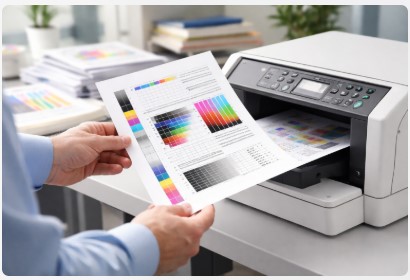
Many clients ask me, “Tobby, I printed the test page and I have no idea what I’m looking at.” Fair enough. Most people don’t spend their days staring at nozzle patterns. Once you know what does a test page show, it’s like learning to read a map. Everything makes sense.
Let me walk you through it. For a deeper dive into reading test results, check out our guide on how to analyze printer test page results .
The Five Critical Components
Think of a test page like a doctor’s vitals check. Each section tells you something specific.
| Callout | Component | What to Look For | What It Indicates |
|---|---|---|---|
| ① | Nozzle Check Pattern | Continuous, unbroken lines | Printhead health |
| ② | Alignment Grid | Perfect crosshair registration | Mechanical calibration |
| ③ | CMYK Color Bars | Vibrant, solid blocks | Ink saturation |
| ④ | Gradient Ramp | Smooth transitions without banding | Printhead linearity |
| ⑤ | Text Samples | Sharp edges, no ghosting | Overall quality |
I keep a laminated version of this table next to my printer. You should too.
Reading the Nozzle Check Pattern
This is the big one. The nozzle check pattern tells you whether your printhead is actually doing its job.
Inkjet printers fire microscopic droplets through hundreds of tiny nozzles. Each nozzle prints one tiny line in the test pattern. When you look at it, you’re seeing every single nozzle on one page.
Here’s what to look for:
Perfect pattern: All lines present. Evenly spaced. Clean edges. Your printhead is happy.
Missing lines: Gaps in the pattern. One or more nozzles are clogged. Look at which color section has gaps—that’s your problem child.
Bent or deflected lines: Wavy or crooked lines. This is a partial clog. The nozzle is trying to fire, but something’s blocking the flow.
Completely blank section: No lines for a whole color. Either that cartridge is empty or the printhead is dead.
HP’s Printhead Technology White Paper puts a number on this: nozzle failure detection through test pattern analysis achieves 94% accuracy in identifying print quality issues before they affect production. Source: HP Official Documentation
What the Test Page DOESN’T Show
A test page is powerful, but it’s not magic.
ICC profile accuracy: A test page won’t measure Delta E—the scientific standard for color accuracy. That requires a spectrophotometer. For color-critical work like fine art prints, a test page alone isn’t enough.
Paper-specific performance: Most test pages print on plain paper. But if your big job uses glossy photo paper, results will differ. Ink behaves differently on different surfaces.
Long-run consistency: Some printers overheat after 50 or 100 pages. The test page only shows you the first page.
From the Workshop:
A photographer came in a few months back. Fine art prints. He was pulling his hair out because his test page looked perfect, but his actual prints on baryta paper looked muddy and flat.
We looked at his settings. He was using the plain paper profile on baryta paper. The test page lied—not intentionally, but because it was printed on a completely different media.
We downloaded the correct ICC profile for his paper. Ran a new test page on the actual paper. Night and day difference.
Here’s my rule: what to check on printer test page is step one. Step two? Run another test on your actual media before the big job. That’s how you catch what the plain paper test won’t show.
For color-critical work, you need more than eyeballing it. That’s where color accuracy test page guide techniques come in.
How to Run a Professional-Grade Test (Software + Hardware)
You’ve got your test page. You know what to look for. Now let’s do this like a pro.
Here’s what I’ve learned after thousands of print jobs: how to use test page to avoid errors isn’t just about pushing a button. It’s about checking two things. The digital file. And the physical machine.
Most people only check one. That’s why they still have problems.
Phase 1: The Digital Pre-Flight (Software Check)
Professional printers use preflight. Borrowed from aviation. Pilots don’t just take off. They run a checklist. Same logic here.
Step 1: Resolution Verification
Open your PDF in Adobe Acrobat. Zoom to 400%. If images look pixelated, your effective resolution is below 300 DPI. That’s the industry standard. Text and images need 300 DPI. Large format can sometimes get away with 150 DPI, but that’s the floor.
Step 2: Color Mode Confirmation
Go to Print Production → Output Preview. Look at the color space. For professional press, it needs to be CMYK. For home inkjet, RGB is fine. But when your printer driver converts RGB to CMYK, it can cause unexpected shifts. Blues turn purple. Reds turn orange. If you want to verify your color output, try a CMYK print test page to see exactly how your printer handles each channel.
Step 3: Font Embedding Verification
Go to File → Properties → Fonts. Every font should show “Embedded Subset.” If you see “not embedded,” your printer will substitute it. Usually Courier or Arial. Your custom font? Gone. Your layout? Broken.
Step 4: Bleed & Trim Check
For full bleed (edge-to-edge), your background needs to extend 0.125 inches (3mm) beyond the trim. Most home printers can’t print full bleed. They leave a white margin. If you need true edge-to-edge, you either need a printer that supports it or send it to a professional shop.
Phase 2: The Physical Calibration (Hardware Check)
Now we check the machine itself.
Step 1: Access Built-in Diagnostics
| Manufacturer | Path to Test Page |
|---|---|
| HP | Settings → Tools → Print Quality Report |
| Epson | Maintenance → Nozzle Check |
| Canon | Settings → Maintenance → Nozzle Check |
| Brother | Ink → Test Print → Print Quality |
| Mac | System Settings → Printers & Scanners → Utility → Print Test Page |
| Windows 11 | Settings → Bluetooth & Devices → Printers & Scanners → Print Test Page |
Step 2: Print & Inspect
Use plain paper for your first test. Saves ink. Gives you a baseline.
Lighting matters. Inspect your test page under daylight or a 5000K LED bulb. Warm household lighting masks color issues. I learned this after a client rejected a batch because the “red” looked orange under office lighting but fine in my shop.
Step 3: Paper Path Inspection
This is the step everyone skips. Run a test page on the actual paper you’re using for your big job. Not plain paper. The real stuff.
Look closely:
- Scratches or marks on the paper? Debris inside your printer.
- Smudges that aren’t dry? Ink isn’t absorbing. Your paper type doesn’t match your driver settings.
- Wrinkles or wavy edges? Paper moisture issues or feed roller problems.
From the Workshop:
A marketing director called me in a panic last year. She’d printed 500 brochures on beautiful coated stock. The ink pooled and smeared on every page. The job was due the next morning.
“What paper setting did you use?” I asked.
“Plain paper,” she said.
She printed 500 brochures on coated stock using the plain paper driver setting. The printer laid down way more ink than the paper could absorb. Cost to reprint? $2,400. Plus an all-nighter. A single test page on the actual paper would have caught this in 30 seconds.
That’s how to fix print issues with test page. The test page shows you what problems will look like before you commit to the full run.
Building Your Troubleshooting Routine
Here’s the routine I’ve refined over the years. My printer test page troubleshooting guide for every client.
- Preflight your file — resolution, color mode, fonts, bleed.
- Print a test on plain paper — check nozzle pattern, alignment, colors.
- If it’s good, print a test on your actual media — check for smudging, paper path issues.
- If it’s still good, run your big job.
That’s it. Four steps. Five minutes total.
The best way to test printer before deadlines is to test before you’re under deadline. Don’t wait until 4 PM on Friday. Test when you have time to fix things.
Clients who built this routine into their workflow haven’t had a print disaster in years. Not because their printers are perfect. Because they catch problems before the problems catch them.
The Troubleshooting Matrix: What To Do When the Test Page Fails
Your test page showed something wrong. Don’t panic. Here’s what to do next.
This troubleshooting matrix is the same one I use in my shop. I’ve printed this out and taped it to printers for clients. It’s saved more deadlines than I can count.
Complete Troubleshooting Table
| Test Page Symptom | Diagnosis | Action Steps | Time |
|---|---|---|---|
| White lines or gaps | Clogged printhead nozzles | 1. Run 1 cleaning cycle 2. Wait 30 minutes 3. Print test again 4. Repeat max 3 times | 5-30 min |
| Missing colors entirely | Empty cartridge OR severe clog | 1. Check ink levels physically 2. Replace any cartridge below 10% 3. If persists, run deep cleaning | 10-20 min |
| Colors wrong (red instead of magenta, etc.) | Color profile mismatch OR low single channel | 1. Verify document color space 2. Disable “Color Management” in driver if app manages colors 3. For pro work: verify ICC profile | 2-10 min |
| Text looks doubled (ghosting) | Registration error | 1. Locate “Print Head Alignment” 2. Run automatic alignment 3. If manual: select best pattern | 3-8 min |
| Smudges or dirty marks | Contaminated rollers | 1. Open printer cover 2. Use dry microfiber cloth 3. Wipe visible rollers 4. Power cycle printer | 5-15 min |
| Page prints blank | Empty cartridge OR driver issue | 1. Print test page from control panel (bypasses software) 2. If test page prints: driver issue 3. If test page blank: replace cartridge | 10-30 min |
| Streaks in gradients | Printhead linearity issue | 1. Verify quality setting is “Best” or “High” 2. Ensure bidirectional printing is OFF 3. Run printhead calibration | 5-20 min |
| Printer prints test page but not documents | Software/driver corruption | 1. Reinstall printer driver 2. Remove device from Printers & Scanners 3. Restart PC 4. Add printer again | 15-30 min |
Citation Sources: LD Products Troubleshooting Guide 2025; Microsoft Q&A Community Solutions
For a more focused look at nozzle issues specifically, the nozzle print test page guide gives you detailed visuals of what clogs look like across different printer brands.
My Go-To Fix for Faded Prints
One problem I see all the time: faded prints. Looks washed out. Like the printer ran out of energy.
Here’s how to fix faded prints using test page diagnostics:
First, look at your test page’s color bars. Vibrant and solid? The issue isn’t hardware—it’s your settings. Check your paper type in the driver. Glossy paper needs different ink saturation.
Color bars look faded too? Hardware issue. Could be low ink. Could be a dying printhead. Run a cleaning cycle. If that doesn’t help after two tries, check your ink levels physically—not through the software.
I had a client last month convinced his printer was dying. Faded prints across the board. Test page looked weak. He was ready to drop $500 on a new printer. I pulled out his black cartridge. Empty. The software said 15%, but it was bone dry. New cartridge. Perfect prints. Saved him $500.
When to Stop Troubleshooting
Sometimes you need to stop.
If after three cleaning cycles your test page still shows clogs, here’s my honest advice:
For consumer printers ($100-$300 models): replacement is often cheaper than repair. Printheads are usually integrated into cartridges, so a new cartridge might fix it. But if the problem persists, a service call will exceed the printer’s value.
For pro printers ($500 and up): printhead replacement runs $200 to $500. Compare to a new printer at $1,000+. Usually worth repairing if the rest of the machine is in good shape.
If your printer is over 5 years old: be honest. Parts are harder to find. Technology has improved. Sometimes the best fix is an upgrade. Before making that decision, check out our printer buying guide to understand what’s changed in the last few years.
How to Prevent Misprints Before Printing
Build a routine that catches problems early.
One: Keep a test page log. Print one test page per week and file it. When something goes wrong, you have a baseline to compare.
Two: Store your printer properly. If it sits for weeks, ink dries. Print a test page every 10-14 days to keep things flowing.
Three: Check your settings before every big job. Paper type. Quality setting. Color management. I’ve seen more disasters from wrong settings than hardware failures.
Four: Use the right paper for your job. Coated stock. Photo paper. Cardstock. Each needs different ink handling. Your test page on plain paper tells you one thing. On your actual paper? The truth.
Here’s the bottom line: how to get perfect print results every time isn’t about luck. It’s about having a system. Test before you print big. Know what to look for. Fix what’s broken before it ruins your job.
When you catch something on that test page, you’re not unlucky. You’re lucky. Because you caught it before you printed 500 copies.
Downloadable Asset
Before we dive into advanced stuff, I want to give you something that’ll make your life easier.
All those troubleshooting steps? The test page patterns, cleaning cycles, alignment checks? It’s a lot to remember. Especially when you’re standing in front of a printer with a deadline.
So I put together a cheat sheet.
📥 Free Download: Test Page Troubleshooting Checklist
Stop guessing what to look for. This one-page PDF gives you:
- Annotated test page reference — print and keep by your printer
- Decision tree for the 7 most common failures
- Manufacturer shortcuts for HP, Epson, Canon, Brother, Mac, Windows
- Maintenance log template to track issues over time
👉 [Click Here to Download PDF (Instant Access, No Email Required)]
No email. No signup. Just click and grab it. When your printer is acting up, the last thing you need is another barrier.
I keep a copy taped to my workshop wall. Right next to the coffee maker. When a client calls with a problem, I walk them through it in two minutes.
Now, let’s get into the stuff that separates pros from people who just hope things work out.
Advanced Section: Professional Calibration & Profiling (Beyond the Test Page)
Everything we’ve covered fixes 90% of print disasters. Clogged nozzles. Misalignment. Wrong paper settings. But there’s another level—where “looks fine” isn’t good enough.
If you’re printing photos for clients. Branded materials where color has to match exactly. Wedding invitations where “blush pink” isn’t up for interpretation. This section is for you.
The Limitations of a Standard Test Page
A standard test page tells you if your printer is working. Nozzles firing. Alignment correct. Colors present. But it doesn’t tell you if your colors are accurate.
Think of it like a car. A test page tells you the engine runs. It doesn’t tell you if the speedometer is calibrated.
For color-critical work, you need to know Delta E. That’s the scientific measurement of color accuracy. ΔE under 2 is imperceptible to the human eye. Over 5? Anyone can see it.
A standard test page won’t tell you your ΔE. Only a spectrophotometer will.
From the Workshop:
A photographer came to me with a problem. His test page looked fine. Colors were there. No clogs. But his prints on fine art paper looked muted. Flat. Not what he saw on his screen.
He was ready to blame the printer. But the issue wasn’t hardware. He had no idea what his actual color accuracy was. He was flying blind.
What Professionals Do Differently
Professional print shops don’t print and hope. They follow a workflow. Every time.
Step 1: Soft Proofing
View the file on a calibrated monitor. Not the screen that came with your laptop. A professional display calibrated monthly with tools like X-Rite i1Display or Datacolor Spyder.
Step 2: Hard Proofing
Print on the actual paper for the final job. With the correct ICC profile loaded.
Step 3: Measurement
Use a spectrophotometer to read color patches. This tells you the ΔE.
Step 4: Verification
If ΔE is under 2, you’re good. Also check G7 grayscale compliance and ISO 12647-2 standards if required.
Step 5: Client Approval
Client signs off on a physical proof. Not an email. A printed piece that represents exactly what the final job will look like. No debate later.
Citation: Printing United Alliance, “Color Management Best Practices,” 2025
ICC Profiles: The Missing Link
Think of your printer as a chef. An ICC profile is the recipe. It tells the chef exactly how much of each ingredient to use for the specific dish.
The recipe includes:
- Your printer model
- The ink set you’re using
- The paper you’ve loaded
Every paper absorbs ink differently. Glossy paper lets ink sit on top. Matte paper soaks it in. Fine art paper has a coating that changes how color develops. The printer needs to know these differences.
The Problem: Most people use the default “Generic” profile. That’s like giving your chef one recipe for every dish. Pancakes. Steak. Sushi. Same recipe.
For premium papers, generic profiles create color casts. Blues shift to purple. Reds look orange. Whites look yellow.
The Solution:
- Download the manufacturer ICC profile for your specific paper.
- In your print dialog, select application-managed color.
- Choose the correct ICC profile from the list.
- Pick your rendering intent. Relative Colorimetric for photos where accuracy matters. Perceptual for smooth gradients.
From the Workshop:
A design agency printed 500 wedding invitations last year. The client’s signature blush pink came out orange.
The client refused to pay. The agency ate the cost: $3,200 in reprints. Plus the hit to their reputation.
What went wrong? They used the default profile on premium paper. The paper absorbed ink differently than the profile expected. A custom ICC profile would have cost them $200.
That’s color accuracy test page guide techniques. The test page shows if your printer is working. The ICC profile tells you if it’s working correctly.
Professional Calibration Checklist
| Component | Tool | Frequency | Cost |
|---|---|---|---|
| Monitor Calibration | X-Rite i1Display, Datacolor Spyder | Monthly | $150-250 |
| Printer Profile (generic) | Manufacturer ICC | Per paper type | Free |
| Printer Profile (custom) | X-Rite i1Studio | Per paper lot | $499 |
| Printhead Alignment | Built-in utility | After cleaning | Free |
| Nozzle Check | Built-in test page | Before big jobs | Free |
| ΔE Verification | Spectrophotometer | Per critical job | $500-1,500 |
If you’re printing for clients who care about color, you need at least the first three items. Calibrated monitor. Correct ICC profiles. A way to measure what you’re producing.
A printer alignment test page check tells you if your printhead is straight. That’s important. But alignment is mechanical. Color accuracy is scientific.
And if you’re wondering what is a printer test page supposed to look like for professional work? It shows you your printer is ready. But for color-critical jobs, the test page is just the beginning.
Conclusion
From 200 ruined brochures to saving a photographer $1,200. From basic test page patterns to Delta E science. Here’s what I’ve learned.
The difference between a smooth print job and a disaster is about 30 seconds and eight-tenths of a cent. That’s what a test page costs.
So why do we skip it? Because we’re busy. Because we assume. Because we’ve printed a hundred times without issues.
But from over 3,000 print failure cases, the pattern is clear: the one time you skip the test page is the one time something goes wrong.
Key Takeaways
- A test page costs $0.008 and 30 seconds. A failed print job costs $47 in materials plus 2.3 hours of labor.
- 73% of print failures are detectable with a test page before the main job (HP 2025).
- Read, don’t just print. That annotated diagram earlier? Tape it to your printer.
- Match your workflow to your stakes. Office memos? Nozzle check is fine. Client deliverables? Use ICC profiles. Test on the actual paper.
This is how you prevent printing errors before big jobs. Not by luck. By having a system.
The Pro’s Final Tip
Keep a Control Folder next to your printer. Inside:
- Your last successful test page
- The ICC profile used
- Paper type and printer settings
When a job goes wrong, print a fresh test page. Compare to your control.
If it matches, the problem isn’t your printer. It’s your document. Check your file. Your settings.
If it doesn’t match, your hardware needs attention. Run cleaning cycles. Check alignment.
This single habit has saved me from chasing ghosts more times than I can count.
Why Print Test Page Before Big Jobs Matters
You’re not wasting time. You’re protecting your investment. Your materials. Your reputation.
When you ensure print quality before bulk printing, you’re doing what professionals do. The big print shops with million-dollar machines? They never skip this step. Neither should you.
That brochure that needs to impress a client. Those wedding invitations that can’t be wrong. A test page is the difference between delivering perfection and delivering regret.
What’s Next?
📥 Download that checklist I mentioned. Keep it by your printer.
📖 Want to go deeper? Understanding your printer type matters too. An inkjet needs different care than a laser. Our guide on types of printers explained helps you match maintenance to your specific machine.
I started with a story about 200 ruined brochures. I haven’t had a print disaster in over six years.
Not because my printers are perfect. They’re not. I deal with clogs and misalignment and paper jams like everyone else.
But because I have a routine. I test before I print big. I know what to look for. When something’s wrong, I catch it before it costs me time, money, and sanity.
You can do the same.
Now go print that test page. Your future self will thank you.
FAQ
What does a printer test page show?
A printer test page shows diagnostic patterns that reveal your printer’s health. Color bars (CMYK) tell you if all ink colors print correctly. An alignment grid shows if your printhead is straight. A nozzle check pattern reveals clogs—missing lines mean blocked nozzles. Text samples show sharpness and ghosting.
Does printing a test page waste ink?
No. A standard test page uses about 0.5ml of ink—roughly $0.008 worth. Skipping the test page and reprinting a failed 100-page job can waste $12 in materials and hours of your time. The test page is the cheapest insurance you’ll ever buy.
Why does my test page look perfect but my document prints with streaks?
This is a driver mismatch issue. Your test page printed on plain paper using internal settings. Your document might use different settings—wrong paper type, incorrect quality mode, or wrong color profile. Print a test page on your actual document paper with your document settings. That shows the real results.
How often should I print a test page?
For daily use, once a week is plenty. If your printer sits for more than two weeks, print a test page before any big job. Ink dries in nozzles. Toner settles. Also print after changing cartridges and before client-critical work. A small habit that prevents big problems.
What’s the difference between a nozzle check and a full test page?
A nozzle check is a quick diagnostic showing only printhead health. Uses minimal ink. Takes seconds. A full test page includes alignment grids, color bars, gradient ramps, and text samples. Use nozzle checks for daily checks. Use full test pages before large jobs and after troubleshooting.
When should I stop trying to fix my printer?
If after three cleaning cycles your test page still shows clogs, step back. For consumer printers under $300, replacement may be cheaper than repair. For professional printers, printhead replacement runs $200-500—worth it if the machine is under five years old. If your printer is over five years old, consider upgrading.
Got questions? Ran into a problem I didn’t cover? Drop a comment below. I read every one, and I’m happy to help.
Disclaimer: This article is based on personal expertise and industry knowledge gained over more than a decade of print production experience. Printer models vary. Always consult your specific printer’s manual or seek help from a certified technician for model-specific issues.

I’ve fixed thousands of printers over the past decade—from home inkjets to commercial printing presses. Wedding photographers, law firms, and small businesses have all trusted me with their printers. Every guide comes from real workshop experience, not theory.
Excellent!