How to Use Test Page for Troubleshooting (Step-by-Step Guide)
“I’m about to throw this printer out the window.”
That’s what Maria, a small business owner, told me when she walked into my repair shop last Tuesday.
Her $400 HP OfficeJet was printing streaky documents. She’d already replaced the black cartridge—twice. Total waste: $90. She was ready to buy a new printer for $350.
I printed one page. A test page.
Thirty seconds later, I showed her the problem. Cyan nozzle clogged. Not the black cartridge at all. One cleaning cycle later, her printer worked like new. Total fix cost: $0.
With over 12 years as a certified printer technician, I’ve seen this scenario hundreds of times.
A printer test page isn’t just a boring maintenance sheet. It’s a diagnostic superpower. It tells you exactly what’s wrong. No guessing. No wasting money on wrong parts.
Quick Summary
What is a printer test page and how do you use it for troubleshooting?
A printer test page is a diagnostic printout that reveals exactly what’s wrong with your printer. Streaks mean clogged nozzles. Missing colors mean low ink or dead cartridges. Blurry text means misalignment. By printing and reading this single page, you can diagnose most printer problems in under 5 minutes—saving $100-200 on unnecessary service calls or wrong parts.
In this guide, I’ll teach you how to read a test page like a pro. You’ll learn:
- What each pattern on the page actually means
- How to fix 90% of problems in under 10 minutes
- When to DIY versus when to call a professional
- How to save $100-200 on unnecessary service calls
Grab a piece of paper. Let’s print that test page.
What Is a Printer Test Page? (And Why Your Printer Needs One)
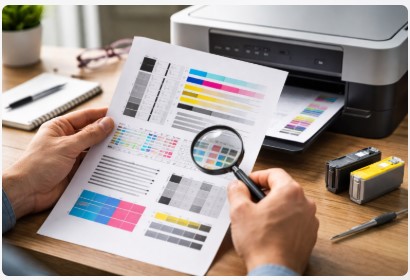
A printer test page isn’t just a random printout to see if your printer “works.” It’s a full diagnostic report. Color bars, alignment grids, gradient scales, text samples—each pattern tests a different part.
Clogged nozzle? Color bars show white lines. Misaligned cartridge? The grid looks staggered. Dying drum on a laser? You’ll see repeating marks every few inches.
This guide will help you spot those patterns. Once you know what to look for, that boring sheet becomes the most powerful troubleshooting tool you own.
If you want to see what a perfect test page looks like before we dive into troubleshooting, our printer test page guide shows you exactly what to expect from different printer models.
Two Types of Test Pages
Type 1: OS-Generated Test Pages
Windows and Mac create these. They test the connection between your computer and printer. If this prints but your documents don’t? The problem is software, not hardware.
Type 2: Printer-Generated Test Pages
These come directly from your printer’s internal diagnostics, accessed through the control panel. They bypass your computer entirely. If this prints but the OS test page fails? Your network connection or driver is the culprit.
Knowing which test page to use cuts troubleshooting time in half. I learned this the hard way—spent three hours chasing a “printer problem” that was actually a Windows update issue.
What’s Inside a Test Page?
| Component | What It Tests | Inkjet vs Laser Difference |
|---|---|---|
| Color bars | Individual ink/toner colors | Inkjets show nozzle patterns; lasers show toner distribution |
| Grayscale gradient | Transition smoothness | Inkjets reveal banding; lasers show drum wear |
| Alignment patterns | Cartridge positioning | Both use grids; lasers may include registration marks |
| Text samples | Sharpness and clarity | Both test; lasers check fuser adhesion |
| Printer info | Driver version, page count | Identical for both |
Inkjet vs laser test page differences matter because the fixes are totally different.
Inkjet test pages focus on nozzle health. When those tiny microscopic holes clog, you’ll see streaks or missing colors. The fix is cleaning cycles or manual printhead cleaning.
Laser test pages focus on toner distribution and drum condition. Vertical lines usually mean drum damage. Repeating marks at regular intervals point to fuser or roller issues. The fix is often replacing parts, not cleaning.
The Cost of Ignoring Test Pages
I had a client with an Epson EcoTank who hadn’t printed a test page in three years. Her magenta nozzle was 40% clogged. She’d been printing faded marketing materials for months—her customers noticed before she did.
A simple monthly test page would have caught this early. A cleaning cycle would have fixed it in five minutes.
A printer health test page is like checking your oil. You don’t wait for the engine to seize. Print one monthly. Problems start small—a slightly clogged nozzle, a tiny alignment drift. Catch them early? Simple fix. Ignore them? You’re looking at $80-150 in repairs.
I’ve kept my own Canon Pixma running for 12 years. Weekly test pages. One page. Pennies in ink. Hundreds saved in repairs.
Up next: how to print a test page on any device.
How to Print a Test Page: Step-by-Step for Every Setup
I’ve done this thousands of times. On Windows machines from XP to 11. On Macs going back to OS X Lion. The steps are usually the same, but sometimes they hide the button in weird places.
Method 1: Windows 10 & 11
- Open Settings (Windows key + I)
- Click Bluetooth & devices → Printers & scanners
- Select your printer
- Click Printer properties (not just “Properties”)
- Click Print test page
If you click “Properties” instead of “Printer properties,” you won’t see the test page button. I’ve made this mistake more times than I’d like to admit.
Method 2: macOS
- Click the Apple logo → System Preferences (or System Settings)
- Click Printers & Scanners
- Select your printer
- Click Options & Supplies
- Click Utility → Open Printer Utility
- Look for Print Test Page or Nozzle Check
Macs sometimes take longer to communicate with printers than Windows machines. If nothing happens right away, give it 30 seconds.
Method 3: Printer Control Panel (No Computer Needed)
This is my favorite method. It bypasses your computer entirely. If this prints but your computer won’t? The problem isn’t your printer.
Brother: Press Ink or Menu → Improve Print Quality → OK
Canon (with screen): Settings → Maintenance → Nozzle Check
Canon (no screen): Hold Resume/Cancel button for 5 seconds
Epson: Settings → Maintenance → Nozzle Check
HP (with screen): Setup → Tools → Print Quality Report
HP (no screen): Press Cancel and Start Copy simultaneously
If your printer doesn’t have a screen and the button combination isn’t working, you can find specific instructions for your model in our guide on printing a test page without a computer .
Troubleshooting: Test Page Not Printing Fix
Here’s my checklist in the order I use it:
1. Check if your printer is “offline.” If it says Offline in Settings, click it and select “Use printer online.”
2. Restart the print spooler. Open Services (search “services”), find Print Spooler, right-click → Restart. Or just restart your computer.
3. Remove and re-add the printer. Go to Printers & scanners, remove your printer, then add it again. This fixes about 40% of these issues.
4. Try printing from a different device. Phone, tablet, another computer. If it works? The problem is your original computer.
Up next: how to read that test page like a technician.
How to Read Your Test Page: Decoding the Patterns
You’ve printed the test page. Now you’re staring at it, probably thinking, “What am I supposed to see here?”
I was the same way. For my first few years fixing printers, I’d guess what was wrong. Sometimes I got lucky. Then I learned the patterns.
Every defect tells a story. Here’s how to read it.
For a deeper dive into pattern analysis and what each defect means for your printer’s overall health, check out our full guide to analyzing printer test page results .
Streaks, Lines, or Gaps in Color Bars
What You See: White lines running through colored blocks.
What It Means: Clogged printhead nozzles. Ink dries inside the microscopic holes when printers sit unused.
The Fix: Run ONE cleaning cycle. Print another test page. Run ONE more cycle if needed—but stop there. Each cleaning cycle uses significant ink. I’ve seen clients run 10 cycles and waste more ink than printing.
If two cycles don’t work: For inkjets, remove the cartridge and gently wipe the copper contacts with a lint-free cloth. For stubborn clogs, hold a damp paper towel (distilled water only) against the printhead for 30 seconds with the printer off.
A client once handed me a test page so streaked it looked like a barcode. She asked if her printer was possessed. Two cleaning cycles later, perfect prints.
Faded or Missing Entire Colors
What You See: One color is washed out or completely absent.
What It Means: Low ink, severe clog, or dead cartridge.
The Fix: Check ink levels first. If low, replace. If levels are fine, remove and reseat the cartridge. If still missing, run one cleaning cycle.
I had a client who replaced black ink twice—$120 total. The test page showed perfect black bars. The problem? Cyan nozzle was clogged, and the printer was using composite black to compensate. Read the test page first. Buy cartridges second.
Misaligned or Blurry Text
What You See: Text looks doubled. Colors bleed outside lines.
What It Means: Printhead or cartridge misalignment. Cartridges shift during shipping, replacement, or after a paper jam.
The Fix: Run alignment utility from your printer software. For HP, it prints automatically after cartridge install. For Epson and Canon, look in the maintenance menu.
A law firm client was about to buy a $500 new printer because of blurry text. I ran the alignment utility. Three minutes later, perfect prints. They sent me a fruit basket.
Blank Sections or Entirely Missing Patterns
What You See: Large white areas. Half the page is blank.
What It Means: Severe clog, dead printhead, or empty cartridge.
The Fix: Check ink levels. If fine, run a deep cleaning cycle. If that fails, try manual cleaning with distilled water.
If three cleaning cycles don’t fix it, the printhead may be dead. For cheap printers ($100 or less), replacement often costs more than a new printer. I can’t fix every printer. Sometimes replacement is the honest answer.
Repeating Defects at Regular Intervals
What You See: The same mark appears repeatedly down the page.
What It Means: Physical damage to a rotating component.
This is advanced diagnostics. Grab a ruler. Measure the distance between defects.
| Distance | Component | Fix |
|---|---|---|
| 2.8 inches (71mm) | Fuser roller | Replace fuser assembly |
| 3.7 inches (94mm) | Drum | Replace imaging drum |
| 1.5 inches (38mm) | Developer roller | Service required |
| 1.0 inches (25mm) | Transfer roller | Clean or replace |
When I was 23, a senior tech taught me this trick. A client’s LaserJet had ghost images. My tech measured the repeating defects, identified the fuser roller, and fixed it. A test page isn’t just a picture—it’s a precise measurement tool.
Banding or Uneven Shading
What You See: Horizontal bands in the grayscale gradient.
What It Means: Printhead timing issues, low ink, or dirty encoder strip.
The Fix: Clean the encoder strip—the clear plastic strip inside your printer. It has tiny markings like a ruler. Dust accumulates on it. Gently wipe with a lint-free cloth and distilled water. This fixes banding 80% of the time.
Up next: the most frustrating printer problem—test page prints, but documents won’t.
The Mystery Solved: Test Page Prints Perfectly But Documents Won’t
Test page prints perfectly. Word document? Nothing. Excel? Blank. Email? Won’t print.
I see this weekly. And every time, the client is convinced their printer is broken.
Here’s the truth: when your printer prints test page but not documents, your printer hardware is fine. The problem is communication.
Test pages use basic Windows drivers. Documents use application-specific settings—fonts, margins, color profiles. Sometimes these settings conflict.
The 5-Minute Fixes
Fix 1: Restart everything. Turn off printer, unplug for 30 seconds, restart computer. This fixes 40% of cases.
Fix 2: Check default printer. Windows sometimes switches default printers after updates. Settings → Printers & scanners. Make sure your printer has the green checkmark.
Fix 3: Print from Notepad. Open Notepad, type “test,” hit print. If Notepad prints but Word doesn’t? The problem is Microsoft Office. Close Word, clear temp files, restart.
The Advanced Fixes
Fix 4: Static IP address for wireless printers.
Your router assigns a temporary IP address that changes occasionally. When it changes, your computer loses connection.
Print a configuration page from your printer. Find the IP address (looks like 192.168.x.x). Type it into your browser. Log into printer settings. Change from DHCP to “Static” or “Manual.” Enter the same IP address. Save and restart.
If you’re using an HP printer, HP’s official support documentation provides model-specific screenshots for this process, which can be helpful if your printer’s menu looks different.
A law firm client had this exact problem—every morning, their printer wouldn’t print. A static IP fixed it in 5 minutes.
Fix 5: Reset print spooler.
Open Services (services.msc), find Print Spooler, right-click → Stop. Navigate to C:\Windows\System32\spool\PRINTERS and delete all files. Go back and start Print Spooler.
This is a common fix, but if your print queue keeps getting stuck, our detailed guide on clearing the printer queue and fixing the spooler has advanced steps that can prevent this from happening repeatedly.
Fix 6: Remove and re-add printer. Sometimes driver configuration gets corrupted. Remove printer from Settings, restart computer, re-add it.
Up next: advanced diagnostics for stubborn problems.
Advanced Diagnostics: Professional Tools
Most printer guides stop at cleaning cycles and driver resets. Sometimes you need to go deeper.
What Is CE Mode?
CE Mode stands for “Customer Engineer Mode.” It’s the printer’s diagnostic backdoor. You bypass all normal software and talk directly to the hardware.
Warning: You can break your printer in CE Mode. If you’re not comfortable with printer internals, stop here.
How to Enter CE Mode
Dell: Turn off, hold Left Arrow + Right Arrow + Menu, turn on, release when “CE Mode” appears.
HP LaserJet: Turn off, hold Stop + Cancel + Start, turn on, release when “Ready” appears with unusual symbols.
Brother: Turn off, hold Menu, turn on, release when “MAINTENANCE” appears.
I bricked a printer’s network board my first time in CE Mode. That failure taught me which settings are safe. If you’re dealing with persistent error codes, our printer error codes guide can help you understand what the machine is trying to tell you.
What You Can Do in CE Mode
| Test | Purpose | When to Use |
|---|---|---|
| 20% density fill | Check toner distribution | Uneven printing across page |
| Gradation patterns | Test color transitions | Color mismatch, banding |
| Contamination check | Spot debris inside | Random dots on prints |
| Motor test | Check paper feed | Jams with no obstruction |
| Sensor test | Verify jam detection | False jam errors |
When to Stop DIY
If you’ve run three cleaning cycles, manually cleaned the printhead, reset the spooler, tried CE Mode, and nothing works? Call a professional.
For Epson owners specifically, if you’re dealing with persistent clogs, it’s worth looking at the official procedure. According to Epson , their recommended method for a “Power Cleaning” can sometimes resolve issues that standard cleaning cycles miss.
I’ve seen clients spend $200 on parts trying to fix a $150 printer. The replacement rule: if repair cost exceeds 50% of a new printer, replace it.
Up next: prevention. The best fix is the one you never need.
Test Page Maintenance Protocol
The most expensive printer I’ve ever fixed wasn’t a $10,000 press. It was a $150 Canon that sat for six months. The printhead was so clogged it looked like a rock.
The Monthly Test Page Habit
Set a phone reminder. First of every month. Print one test page.
This prevents 80% of clogged nozzle problems. If you use your printer less than once a week, do it weekly.
What to Check Each Month
- Color bars: Any streaks or gaps? Run one cleaning cycle.
- Alignment: Text still sharp? Run alignment utility.
- Page count: Helps predict drum or toner replacement.
Why Infrequent Printing Kills Inkjets
Inkjets are designed to be used weekly. When they sit, ink dries in the nozzles. Dried ink clogs. Clogs require cleaning cycles. Cleaning cycles waste ink.
A weekly test page costs pennies. Replacing a printhead costs $80. The math is simple.
The Maintenance Schedule
| Frequency | Action | Time |
|---|---|---|
| Weekly | Print one test page (if used less than weekly) | 1 min |
| Monthly | Print test page, inspect, run alignment if needed | 5 min |
| Quarterly | Deep clean exterior, check for debris | 10 min |
| Annually | Replace drum (laser) or consider printhead (inkjet) | 15-30 min |
Up next: the real cost of ignoring test pages.
The Cost of Ignoring Test Pages: Real Numbers
A client walked in carrying a brand new Epson EcoTank—still wrapped. She’d replaced ink twice ($120) on her old printer, then bought a new one for $400. I printed a test page. Cyan nozzle clogged. One cleaning cycle. Printer worked perfectly.
What I See in My Shop
| Issue | Average Waste |
|---|---|
| Wrong cartridge replacement | $45-90 |
| Unnecessary service call | $100-150 |
| Printhead replacement (preventable) | $80-150 |
| New printer purchase (unnecessary) | $150-400 |
Every single cost could have been avoided with a test page. A test page isn’t just about fixing current problems; it’s the best tool for diagnosing your printer’s health before you even think about buying a new one.
The ROI of a Test Page
One test page costs $0.02 in ink. A monthly habit costs $0.50 per month. Six bucks a year.
It saves at least $100 per year in avoided mistakes. That’s a 1,600% return.
When to Replace vs Repair
| Printer Age | Issue | Recommendation |
|---|---|---|
| Under 2 years | Clogged printhead | Clean or replace printhead |
| Under 2 years | Major failure | Warranty first |
| 2-5 years | Clogged printhead | Repair if cost < $100 |
| Over 5 years | Any major issue | Replace printer |
| Any age | Repair cost > 50% of new | Replace printer |
Conclusion
You came here frustrated. Maybe your printer was streaking. Maybe you were about to throw money at a problem you didn’t understand.
Here’s the truth: most printer problems aren’t hardware failures. They’re communication breakdowns and tiny clogs that snowball.
A test page catches them before they snowball.
What You’ve Learned
- A test page reveals printhead health, alignment, and supply levels
- Streaks mean clogs. Faded colors mean low ink. Repeating defects mean drum or fuser issues
- 90% of common problems resolve in under 10 minutes
- Monthly test pages prevent costly repairs
The 5-Minute Test Page Habit
Print a test page right now. Even if nothing seems wrong.
Look at the color bars. Check the alignment grid. Note the page count. You might spot a problem you didn’t know you had.
Five minutes. Once a month. That’s it.
I’ve been fixing printers for 12 years. I’ve seen clients throw away $500 printers because of a $0 problem. A test page would have caught it. A cleaning cycle would have fixed it.
Don’t be that client. Print the test page.
Ready to master your printer? Download our complete Printer Test Page Diagnostic Kit—including the pattern reference card, troubleshooting flowchart, and monthly maintenance calendar. Free for readers of this guide.
Frequently Asked Questions
Why does my printer print a test page but not documents?
Test page prints perfectly? Printer hardware is fine. The problem is communication. Restart printer and computer first—this fixes 40% of cases. If Notepad prints but Word doesn’t, the issue is Microsoft Office. For wireless printers, assign a static IP address to prevent network disconnections.
What does a printer test page tell you?
A test page reveals five things: printhead health (streaks mean clogged nozzles), alignment accuracy (staggered lines mean misalignment), ink levels (faded colors mean low supplies), drum condition (repeating defects), and driver status. The patterns tell you exactly what’s wrong.
How do I fix streaks on my printer test page?
Streaks mean clogged printhead nozzles. Run ONE cleaning cycle, print another test page. Run ONE more cycle if needed—stop there. If streaks remain, remove cartridges and gently wipe copper contacts with lint-free cloth. If still streaked after three attempts, the printhead may need replacement.
Why is my test page failing to print with an error?
“Test page failed to print” usually means driver corruption or print spooler problems. Restart printer and computer first. If that fails, run Windows printer troubleshooter. Still failing? Reset print spooler: stop Print Spooler in Services, delete files in C:\Windows\...\PRINTERS, then restart the service.
How often should I print a test page?
Monthly for printers you use regularly. Weekly for inkjet printers used less than once a week—this prevents ink from drying and clogging nozzles. Always print a test page after installing new cartridges to verify they’re working correctly.
Do test pages waste ink or toner?
No. Test pages use less than 1% of a standard cartridge—pennies worth of ink. Compare that to printhead replacement ($80-150) or unnecessary service calls ($100-150). However, don’t run multiple cleaning cycles without checking results. Cleaning cycles consume far more ink than test pages.
What’s the difference between inkjet and laser test pages?
kjet test pages focus on nozzle health—streaks mean clogged printheads. Fix with cleaning cycles. Laser test pages focus on toner distribution and drum condition—vertical lines mean drum damage, repeating defects point to fuser or roller issues. The diagnostic approach differs significantly.
How do I print a test page without a computer?
Brother: Ink icon → Improve Print Quality. Canon with screen: Settings → Maintenance → Nozzle Check. Canon no screen: Hold Resume/Cancel for 5 seconds. Epson: Settings → Maintenance → Nozzle Check. HP with screen: Setup → Tools → Print Quality Report. HP no screen: Press Cancel and Start Copy simultaneously.
How do I fix a clogged printhead without a cleaning cycle?
For removable printheads: remove, soak in distilled water 30 minutes, rinse, dry 24 hours, reinstall. For integrated printheads: remove cartridges, press damp lint-free cloth (distilled water only) against printhead 30 seconds, wipe clean, reinstall cartridges. Never use tap water—minerals make clogs worse.
Disclaimer: This article is based on personal expertise and industry knowledge gained over more than a decade. Always consult your printer’s manual or seek help from a certified technician for model-specific issues.

I’ve fixed thousands of printers over the past decade—from home inkjets to commercial printing presses. Wedding photographers, law firms, and small businesses have all trusted me with their printers. Every guide comes from real workshop experience, not theory.