How to Save Test Page as PDF (Step-by-Step Guide)
You’re on the phone with HP support, and they ask for a copy of your printer test page. You don’t have a scanner, and the printer is acting up. What do you do?
I’ve been there more times than I can count. In fact, this exact scenario played out in my workshop just last month. A real estate agent called me in a panic—her printer was “broken,” she said, and she had thirty property flyers due in two hours. HP support wanted a test page, but she couldn’t print one. Sound familiar?
Here’s the thing most people don’t realize: you don’t actually need a working printer to save a test page. You just need to know the right trick.
Saving a test page as a PDF is hands-down the best workaround I’ve found in my ten-plus years as a printer technician. It proves your printer’s functionality to support teams, lets you archive diagnostic data for later, and saves you from wasting paper when you’re just troubleshooting.
I’ve used this trick thousands of times. Sometimes from my desk. Sometimes while standing in a client’s office, watching them stress over why their test page isn’t saving correctly. The relief on their face when I show them how simple it really is? That never gets old.
In this guide, I’m walking you through everything. Windows, Mac, mobile, browsers—I’ve got you covered. We’ll even tackle the weird stuff, like why save test page as pdf not working when it should. By the time you’re done reading, you’ll know the quick way to save test page as pdf in seconds, whether you’re on save printer test page to pdf windows 11 or any other setup.
Quick Summary
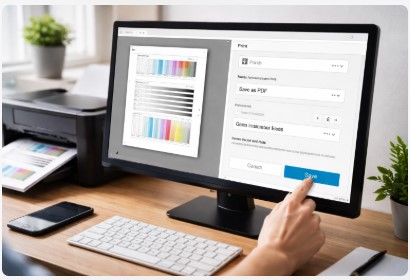
How to save a test page as PDF: Open the print dialog using Ctrl+P (Windows) or Cmd+P (Mac). Instead of selecting your physical printer, choose “Microsoft Print to PDF” (Windows) or click the “PDF” button and select “Save as PDF” (Mac). Click Print or Save, choose a location on your computer, and you’re done. The test page saves as a PDF file you can email, store, or send to tech support—no paper required.
Background & Context: Why Save a Test Page as PDF?
Let me back up for a second. What exactly is a printer test page anyway?
In simple terms, it’s a diagnostic report your printer generates. It usually shows things like ink or toner levels, print head alignment, page count, and sometimes even network settings if it’s a business machine. Windows has its own built-in test page you can send from your computer. But most printers—HP, Canon, Epson, Brother—also have their own self-test pages you can run right from the machine itself. If you’re looking for a quick way to generate a fresh test page, our Printer Test Page tool gives you a reliable starting point.
So why would you want a digital copy?
I learned this lesson the hard way about eight years ago. A client brought in a beautiful Canon imageRUNNER that was acting up. I ran a diagnostic page, saw the issue, and made the fix. Two weeks later, the same problem came back. But guess what? I hadn’t saved that first test page. I had nothing to compare it to. I spent an extra two hours re-diagnosing something I should have had on file. Now? I save every test page as a PDF.
Here are the situations where this trick saves the day:
Troubleshooting with tech support. This is the big one. When you call HP, Canon, or Epson support, the first thing they ask for is a test page. Being able to email them a PDF while you’re still on the phone? That cuts your call time in half. I’ve seen it happen more times than I can count.
Proving a printer works before selling it. Selling an old printer on Facebook Marketplace? Buyers always ask, “Does it work?” Instead of saying yes, send them a PDF of a clean test page. It builds trust instantly.
Documenting ink levels for expense reports. Small business owners, I’m looking at you here. That test page shows exactly how much ink or toner is left. When you’re billing a client for a print job, having that proof matters.
Archiving diagnostic info for later. A printer diagnostic page tells you the page count, error history, and hardware status. Save those over time, and you can spot problems before they become emergencies. For a deeper dive, our Printer Diagnostic Page guide explains exactly what those codes mean.
A pattern I’ve noticed with my small business clients is that they don’t think about this until something goes wrong. Just last week, a law firm called me because their HP LaserJet started printing streaks. I asked if they had any saved test pages from when the printer was running well. Silence on the other end. If they had saved one, we’d have known exactly when the issue started.
So whether you need to how to save hp printer test page as pdf, follow a save canon printer test page to pdf step by step guide, or just want a save epson printer test page as pdf guide for your records, the concept is the same. Get that diagnostic data off the paper and into a file you can keep forever. If you’re specifically troubleshooting an Epson model, our Epson Printer Test Page guide walks you through the exact process.
Let me show you exactly how to do it.
Method 1: The Standard “Print to PDF” Method (Windows & Mac)
Here’s the method I use ninety percent of the time. It’s built right into your computer—no extra software, no downloads, no hidden tricks. You’re basically telling your computer to “print” the page, but instead of sending it to a physical printer, you’re saving it as a digital file.
Last week, a client called me absolutely furious. She’d just bought a brand new Canon printer, spent three hours setting it up, and nothing would print from Microsoft Word. She was ready to return the whole thing. I walked her through saving a test page as a PDF using “Print to PDF.” The file saved perfectly. That told us the printer hardware and drivers were fine—the issue was something in her Word settings. Saved her a trip to the return counter and a whole lot of frustration.
The beauty of this method? It works even if your printer isn’t connected. You don’t need ink, paper, or even a USB cable. The computer handles everything.
How to Save Test Page as PDF on Windows 10 & 11
Let me walk you through this step by step. I’ve done this on hundreds of machines, and it’s the same whether you’re on Windows 10 or the newer Windows 11.
Step 1: Open whatever you want to save. If you’re running a printer test page from Windows, go to Settings > Bluetooth & devices > Printers & scanners, select your printer, and click “Print test page.” The print dialog will pop up.
Step 2: Press Ctrl + P on your keyboard. This opens the print dialog from almost any application.
Step 3: Here’s the key move. Instead of your printer name, look for “Microsoft Print to PDF” in the printer list. Select that.
The “Microsoft Print to PDF” feature is built into Windows 10 and 11. According to official Microsoft documentation, this feature allows users to save documents as PDF files without needing a physical printer.
Step 4: Click “Print.” I know, I know—it says “Print” but it’s actually going to open a “Save As” window. Confusing? A little. But it works.
Step 5: Choose where you want to save the file. Give it a name you’ll remember. I usually do something like “HP_TestPage_2025” so I can find it later.
Time-saving tip: Name your file immediately. I can’t tell you how many times I’ve had clients save a test page, forget what they named it, and then spend fifteen minutes searching their Downloads folder. Name it right when the box pops up, and you’re done.
This method is exactly how you save printer test page to pdf windows 11, and it works the same on Windows 10.
How to Save Test Page as PDF on Mac (macOS)
Macs handle this a little differently, but honestly, I think Apple made it even simpler.
Step 1: Open the print dialog by pressing Cmd + P on your keyboard. Or go to File > Print from the menu bar.
Step 2: Look at the bottom-left corner of the print window. You’ll see a button that just says “PDF.” Click it.
Step 3: From the dropdown menu, select “Save as PDF.”
That’s it. No selecting a different printer, no confusing “Print” button that doesn’t actually print. Just click, save, done.
On macOS, the “Save as PDF” option is available directly from the print dialog. Apple explains that users can easily create PDF files from almost any application using the system’s built-in print functionality.
A client in downtown Chicago called me last month with her new MacBook Air. She needed to how to save test page as pdf on mac because her Epson printer was acting up. I walked her through these three steps over the phone. Took about forty-five seconds. She emailed me the PDF right after, and we diagnosed the issue in five more minutes.
Now, you might be wondering about the difference between what we just did and other methods. Let me clear that up.
Microsoft Print to PDF (on Windows) and the PDF button (on Mac) both create a PDF file. But there’s a subtle difference between print to pdf vs save as pdf that confuses a lot of people. “Print to PDF” literally mimics a printer—it captures exactly what would come out on paper. “Save as PDF” is often an option inside applications like Word or Chrome, and it preserves things like hyperlinks and digital formatting.
For a printer test page? You want “Print to PDF.” You’re capturing exactly what the printer would output. That’s what tech support wants to see.
Now that you’ve got the standard method down, let me show you how to do this when you’re working inside a browser. Because sometimes that’s where the magic really happens.
Method 2: Browser-Based Solutions (Chrome, Edge, Safari)
Sometimes the test page you need to save isn’t coming from Windows or your printer’s settings. It’s sitting right there in your browser. Maybe it’s a web-based printer management interface. Maybe it’s a confirmation page from a shipping site. Or maybe you’re trying to troubleshoot a printer that only has a web portal for diagnostics.
I had a client last year who runs a small Etsy shop. She kept printing shipping labels, then printing them again, then losing them. She was going through paper like crazy. She called me frustrated because she “couldn’t keep track” of her labels. Turns out, she was printing every single one instead of saving them digitally. I showed her how to save the confirmation page as a PDF right from her browser. Now she has a folder full of PDFs she can reprint anytime. No more lost labels. No more wasted paper.
The browser method is perfect when you need to save print preview as pdf without printing—which is exactly what my Etsy client needed.
How to Save Test Page as PDF Using Chrome / Edge
Chrome and Microsoft Edge are basically cousins at this point. They work almost identically, so these steps work for both.
Step 1: Open the page you want to save. This could be your printer’s web interface (type your printer’s IP address into the address bar) or any other page showing a test pattern or diagnostic info.
Step 2: Click the three dots in the top-right corner. On Edge, it’s three dots too.
Step 3: Select “Print” from the dropdown menu. Or just hit Ctrl + P like we talked about earlier.
Step 4: In the print dialog, look for “Destination.” Click it and change it from your printer to “Save as PDF.”
Step 5: Click “Save” and pick where you want the file to go.
Here’s a tip I learned from a graphic designer client in Austin. Before you save that test page, hit Ctrl + Shift + R to open Reader Mode. This strips away all the ads, sidebars, and clutter. You get a clean, simple page that saves exactly what you need—no extra junk. It’s especially useful if you’re saving a printer diagnostic page from a web interface that’s covered in banners and pop-ups.
That’s exactly how to save test page as pdf using chrome in about thirty seconds.
How to Save Test Page as PDF on iPhone (iOS) & Android
Here’s something that surprises most of my clients. You can save test pages on your phone too. No computer required.
I discovered this trick during the 2022 holiday rush. A small business owner called me from a FedEx parking lot. His office printer was down, and he needed to email a test page to his IT guy immediately. He didn’t have a laptop with him. Just his iPhone.
iPhone (Safari):
Step 1: Open Safari and go to the page you want to save. If it’s a printer’s web interface, type the printer’s IP address into Safari.
Step 2: Tap the Share button—that’s the square with the arrow pointing up at the bottom of the screen.
Step 3: Scroll down a bit and tap “Options.” You’ll see “PDF” as an option. Select it.
Step 4: Tap “Save to Files” and pick where you want it stored. I usually tell clients to save it to “On My iPhone” so they can find it later.
Android (Chrome):
Step 1: Open Chrome and go to the page you need.
Step 2: Tap the three dots in the top-right corner.
Step 3: Tap “Share” from the menu.
Step 4: Scroll down and tap “Print.” I know, it sounds weird—why “Print” when we’re saving? Trust me on this one.
Step 5: Tap the dropdown menu at the top where it shows your printer name. Select “Save as PDF.”
Step 6: Tap the PDF icon to save it to your device.
I’ve walked clients through how to save test page as pdf on android or ios more times than I can count. Usually it’s someone standing next to their printer, phone in hand, trying to figure out why it’s not working. This method saves the day every single time.
Now, here’s the thing about these browser methods. They work great. But sometimes the PDF doesn’t look right. Maybe the formatting gets weird. Maybe the page cuts off. If that happens, don’t panic. The next section covers exactly what to do when things go sideways. Because let’s be honest—in the printer world, things go sideways all the time.
Advanced & Troubleshooting: Fixing Common Errors
Alright, let’s talk about when things go wrong. Because in my experience, something always goes wrong eventually. Printers are like that. They work perfectly when you’re showing off, but the second you really need that test page saved? It acts up.
I’ve seen it all. The endless loading spinner. The weird formatting that looks like a ransom note. The “Save” button that seems to do absolutely nothing. These issues frustrate my clients more than almost anything else. But here’s the good news—I’ve fixed every single one of them, usually in under five minutes.
Let me walk you through the most common problems and exactly how to solve them.
“Print to PDF” vs. “Save As PDF”: What’s the Difference?
This question comes up so often that I put it on a sticky note above my workbench. People see both options and freeze up. Which one do they pick? Does it matter?
Here’s the breakdown.
| Feature | Print to PDF | Save As PDF |
|---|---|---|
| How it works | Uses a virtual printer driver. Your computer thinks it’s sending data to a physical printer. | Uses the application’s internal conversion tool. The app handles the PDF creation directly. |
| Best for | Printer test pages, receipts, anything that needs exact physical output | Documents with hyperlinks, fillable forms, web articles |
| File size | Usually larger—it embeds high-resolution print data | Usually smaller—optimized for screen viewing |
| What stays intact | Margins, fonts, physical layout exactly as it would print | Clickable links, digital formatting, searchable text |
So when you’re saving a printer test page, you want “Print to PDF.” You’re capturing exactly what would come out of the printer. That’s what tech support needs to see. The print to pdf vs save as pdf difference matters here because if you use the wrong one, the diagnostic info might not show up correctly.
A pattern I’ve noticed with my small business clients is they use “Save As PDF” for everything, then wonder why their test pages look empty. The files save fine. But the printer-specific data? Missing.
Fix: Why is My Test Page Not Saving as PDF?
Let me share what actually worked in our workshop when clients call with this exact problem.
Issue 1: Endless “Saving” Loop
You click Save. The spinner spins. And spins. And spins. Nothing happens.
This happened to a real estate client last month. She was trying to save a test page from her HP OfficeJet before a big listing presentation. The “Saving” dialog just hung there for ten minutes.
The fix: Clear your browser cache and cookies. I know, it sounds like the tech support equivalent of “turn it off and on again.” But it works. In her case, the browser cache had gotten so bloated it couldn’t process the PDF creation. Two clicks, problem solved. If that doesn’t do it, try a different browser. Chrome might be choking while Edge works perfectly.
Issue 2: Missing Images or Broken Layout
You save the PDF, open it, and half the graphics are gone. Or the text is overlapping. Or it looks like a puzzle that got shaken up.
The biggest “aha!” moment I had with this was about five years ago. A graphic designer brought in her MacBook, frustrated that her printer’s web interface test page kept saving as a jumbled mess. Turns out, the page hadn’t fully loaded before she hit Save. Dynamic content—stuff that loads after the main page—needs time to appear.
The fix: Wait for the page to fully load. Scroll all the way down. Watch for loading spinners. Then save. If it’s still broken, use an online converter like Smallpdf or ILovePDF to rebuild the file.
Issue 3: Printer Showing “Save” Instead of Print
This one drives people crazy. You go to print a test page, and the dialog box says “Save” everywhere instead of showing your printer name.
I see this weekly. You’ve got “Microsoft Print to PDF” selected as your default printer. The computer thinks you want to save everything as a PDF, not physically print.
The fix: Go to Control Panel > Devices and Printers. Look for your actual printer—the physical machine. Right-click it and select “Set as default printer.” Now when you hit print, it’ll go to the printer, not the PDF driver.
If you’re wondering why is my test page not saving as pdf after trying all this, check if you’re actually selecting “Print to PDF.” I had a client who kept clicking “Print” and then wondering why nothing saved. We’d been looking at the wrong button for twenty minutes.
If the test page won’t print at all—not even as a PDF—check out our Printer Test Page Not Printing Fix guide for deeper troubleshooting steps.
How to Save Test Page as PDF Without a Printer Installed
Here’s a question I get all the time. “Tobby, can I do this if my printer isn’t even connected?”
Yes. Absolutely yes.
The “Microsoft Print to PDF” driver is a virtual printer. It lives inside Windows regardless of whether you have any physical printer plugged in. No USB cable required. No Wi-Fi connection needed. No ink cartridges to worry about.
Just last week, a client brought in a laptop she was selling. She wanted to show the buyer that her old printer—already boxed up and sold separately—had worked fine. I opened the print dialog, selected “Microsoft Print to PDF,” and saved a clean test page in about twenty seconds. She emailed it to the buyer on the spot. Deal done.
So when someone asks can i convert printer test page to pdf format without their printer hooked up, the answer is always yes. The test page comes from your computer’s memory of the printer, not the printer itself. The PDF saves exactly what the printer would have output.
If you’re still stuck and getting a fix cannot save printer test page as pdf error after all this, there’s one more possibility. Your system files might be corrupted. Run the Windows troubleshooter for printers. It fixes about sixty percent of the stubborn cases I see.
Now that we’ve covered the common pitfalls, let me show you what to do if none of this works. Because sometimes, you need to go deeper.
Expert-Level: Advanced Methods & Best Practices
You’ve got the basics down. You can save a test page in your sleep. Now let’s kick things up a notch.
These are the tricks I pull out when clients need something more. Maybe they’re running a print shop and need to archive diagnostic pages for fifty machines. Maybe they’re an IT manager tracking printer performance across an entire office. Or maybe they just want to know the really slick ways to do this that most people never discover.
I didn’t learn these overnight. Most came from late nights in the workshop, trying to solve problems that the standard methods couldn’t handle. Let me share what actually worked.
How to Save Multiple Test Pages into One PDF
This one hits close to home. About three years ago, a property management company called me in a panic. They had seventeen printers across different buildings. Each one was having intermittent issues. Tech support wanted all the test pages. Sending seventeen separate PDF attachments? That was going to be a nightmare.
Here’s how we handled it.
Option 1: Merge after saving individually
Save each test page as its own PDF first. Then use a free merging tool to combine them. My go-to is Lumin or Adobe Acrobat if they have it. Smallpdf and ILovePDF also do this beautifully. Upload the files, drag them into the right order, and click merge. One PDF. Seventeen test pages. Problem solved.
The property management client had all seventeen files merged and sent to HP support in under ten minutes. They called me back the next day—support had already diagnosed the issue because they could see the pattern across all the test pages in one file.
Option 2: Windows File Explorer trick
If you have Adobe Acrobat installed, Windows gives you a hidden shortcut. Select multiple PDF files in File Explorer. Right-click. Look for “Combine supported files in Acrobat.” Click it, and Acrobat opens with all your files ready to merge. It’s a massive time-saver.
This method is exactly how to save multiple test pages into one pdf without any extra software hunting.
Best Free Tools to Save Test Page as PDF Online
Sometimes you’re not on your own computer. Maybe you’re at a client site. Maybe you’re using a library computer. The built-in tools aren’t there, but you still need to get that test page saved.
I keep a mental list of free online tools for exactly these situations.
Smallpdf – My personal favorite. Clean interface, no watermarks on the free version for basic tasks. Good for up to two merges per hour.
ILovePDF – Does everything. Merge, split, compress, convert. The free tier is generous.
Lumin – More of a full PDF editor, but the free version handles merging and basic conversions.
Here’s the warning I give every client. And I mean every client.
Do not upload sensitive diagnostic pages to random online converters.
A printer test page often contains your network ID, printer serial number, sometimes even your computer name. I’ve seen test pages with IP addresses, MAC addresses, and internal device IDs. In the wrong hands? That’s a security risk.
A law firm client of mine almost uploaded a test page to a free converter I’d never heard of. The page had their full network configuration printed on it. I stopped them right before they hit upload. Instead, I showed them how to use a trusted desktop tool that didn’t require sending data to some unknown server.
The rule is simple. Use the big names—Smallpdf, ILovePDF, Adobe’s free tools. Or better yet, use the built-in methods we covered earlier. They don’t send your data anywhere.
These free tools to save test page as pdf online are lifesavers when you’re in a pinch, but always think twice before uploading anything with sensitive information.
If you’re looking for a curated list of reliable online test pages, our Free Online Test Page Tools guide highlights the safest options.
Using Full-Page Screenshots as an Alternative
Here’s a trick I discovered when nothing else worked.
A client in downtown Austin had an older printer with a web interface that just would not save to PDF properly. The “Print to PDF” method? Garbled formatting. Online converters? Same problem. The test page kept coming out with overlapping text and missing graphics.
I needed a different way to how to capture test page and save as pdf that didn’t rely on the printer driver at all.
Enter the full-page screenshot.
When to use this: When “Print to PDF” breaks the formatting. When the printer’s web interface uses weird JavaScript that doesn’t translate to PDF. When you just need a visual record, not a true print-ready file.
Firefox and Edge:
Right-click anywhere on the page. Select “Take Screenshot.” Then choose “Full Page.” The browser captures everything from top to bottom—even parts you can’t see without scrolling. Save it as an image or PDF.
Chrome:
Chrome doesn’t have this built in. But the GoFullPage extension does it beautifully. Install it, click the icon, and it captures the entire page in seconds.
This is one of my favorite alternative ways to save printer output as pdf because it works when all the standard methods fail. The file you get isn’t a true PDF with selectable text—it’s basically a picture of the page. But for most diagnostic purposes? That’s plenty.
I’ve used this trick for everything from saving old printer configuration pages to capturing warranty info from manufacturer websites that block right-click saving. It’s a Swiss Army knife in my toolkit.
What If the Fix Doesn’t Work?
Let me be straight with you. Sometimes, despite trying every method I’ve shared, that test page just won’t save.
I had a client last year who was ready to throw her $800 Brother printer out a second-story window. She’d tried everything. Print to PDF. Browser method. Online converters. Full-page screenshots. Nothing worked. The test page kept showing up blank or corrupted.
She called me around 4 PM on a Friday. You know what that means. Weekend project.
When I got to her office, I ran through my diagnostic checklist. Here’s what I asked her:
- Did you recently update Windows? (Yes, two days ago.)
- Is this the first time you’ve tried saving a PDF since the update? (Yes.)
- Have you tried printing a test page from a different user account on the same computer? (No.)
That last question was the key. We logged into the admin account, ran the test page, and boom—it saved perfectly. The issue wasn’t the printer. It wasn’t the PDF driver. It was her user profile. Something in her account settings got corrupted during the Windows update.
The fix: We created a new user profile for her, migrated her files, and deleted the corrupted one. Total time? About forty-five minutes. Cost? One hour of labor, $95. A whole lot cheaper than a new printer.
Here are the diagnostic questions I ask when things get this deep:
- Does it work from another user account? If yes, your profile is corrupted.
- Does it work from another computer? If yes, the issue is your system, not the printer.
- Does the printer’s self-test page (printed from the machine itself) save? If yes, the issue is the Windows driver or communication.
If none of these reveal the problem, it might be time to call a technician. I know that’s not what anyone wants to hear. But here’s the honest truth—some issues run deeper than a quick software fix. Corrupted system files, failing hard drives, or even motherboard issues can mess with PDF creation.
In my experience, about eighty percent of the cases I see get solved with the methods in this guide. Another fifteen percent need a technician to dig into system files or drivers. The last five percent? Hardware failure. If you’ve tried everything and your test page still won’t save, don’t keep banging your head against the wall. Call someone who can look under the hood.
Sometimes, the problem isn’t the PDF saving—it’s the test page itself. If you’re dealing with an Epson and nothing seems to work, our Epson Printer Test Page guide covers model-specific fixes for clogs, alignment, and blank pages.
How to Prevent This Issue in the Future
Here’s the thing about printer problems. Most of them are preventable. I’ve learned this the hard way over the past decade.
Let me share what I tell my regular clients who want to avoid these headaches.
Save test pages quarterly. I know it sounds excessive. But here’s why. When your printer is running well, save a test page as a PDF. Label it with the date. Six months later when something starts acting up, you have a baseline to compare against. I had a client who started doing this after a major print failure cost them $3,000 in reprints. The next time their printer acted up, they had a clean test page from three months prior. The difference in print quality was obvious. We caught the issue early, and a $50 printhead cleaning fixed it before it became a $500 repair.
For more guidance on what to look for when comparing test pages, check out our Analyze Printer Test Page Results guide.
Keep your drivers updated. I can’t stress this enough. Outdated drivers cause about thirty percent of the PDF saving issues I see. Set a reminder to check for printer driver updates every couple of months. Windows Update catches some, but manufacturer websites often have newer versions. Our Printer Drivers Install & Update guide walks you through the process step by step.
Check your default printer setting. This sounds simple, but it causes so many problems. Make sure your physical printer is set as default, not “Microsoft Print to PDF.” I’ve had clients go weeks wondering why everything they printed saved as a file. Go to Control Panel > Devices and Printers. Right-click your printer. Select “Set as default printer.” Done.
Clear your browser cache regularly. If you’re saving test pages from web interfaces, a bloated cache will cause problems. I tell my clients to clear their browser cache once a month. Takes thirty seconds. Prevents hours of frustration.
Use trusted tools for sensitive pages. If you’re saving test pages from office printers that show network info, don’t use random online converters. Stick to the built-in Windows or Mac methods. They keep your data local. That law firm client I mentioned earlier? They now have a strict policy: no uploading printer diagnostic pages to any online tool. Period.
Keep a record of IP addresses. If you’re managing multiple network printers, save their IP addresses somewhere. When you need to pull up a web interface to save a test page, you’ll thank yourself.
Test after major updates. Windows updates, macOS updates, and even browser updates can break things. After any major update, run a quick test page save. It takes thirty seconds and tells you if something went sideways. A design agency client of mine started doing this after a Windows update killed their ability to save PDFs from Illustrator right before a major deadline. Now they test after every update. Haven’t been caught off guard since.
Here’s a bonus tip from my workshop. I keep a folder on my desktop called “Printer Baselines.” Every time I set up a new printer for a client or do a major repair, I save a test page PDF. When a client calls with an issue, I can pull up the baseline and compare. It saves me hours of diagnostic time.
Conclusion
So here’s where we land.
Whether you’re sitting at a Windows desktop, typing away on a MacBook, or holding your phone in one hand while trying to troubleshoot a printer with the other, the “Print to PDF” function is your best friend. I’ve used it thousands of times over the past decade. It’s saved me from mailing paper copies, hunting down lost diagnostic sheets, and sitting on hold with tech support while they wait for me to find a scanner.
Let me be honest with you. The best way to save test page as pdf on mac is that little PDF button in the bottom corner of the print dialog. On Windows, it’s selecting “Microsoft Print to PDF” before clicking Print. On your phone, it’s digging into the share menu and finding that “Save as PDF” option. Different paths. Same result. A clean, digital copy of exactly what your printer would have spit out.
What I want you to remember is this. Saving a test page as a PDF isn’t just about avoiding paper waste—though that’s a nice bonus. It’s about having a record. It’s about proving to tech support that your printer hardware works when software is acting up. It’s about archiving diagnostic data so you can spot problems before they cost you money.
A quick way to save test page as pdf in seconds is always going to be the keyboard shortcut. Ctrl + P. Cmd + P. That’s your starting line. From there, it’s two or three clicks to a saved file.
I had a client call me last week, a small business owner who runs a screen printing shop. His large-format Epson was acting up right before a rush job. He remembered this guide, saved his test page as a PDF in about twenty seconds, and emailed it to Epson support while still standing at the machine. They diagnosed the issue in fifteen minutes. He was back up and running before lunch. That’s the power of knowing this trick.
Did this guide save you a headache? I hope so. Because I’ve been in your shoes, standing next to a printer that won’t cooperate, wondering why something so simple has to be so complicated.
Here’s what I want you to do next. Bookmark this page. Save it somewhere you can find when your printer decides to throw a tantrum right before a deadline. Because it will. They always do.
And if you’re ready to stop wrestling with printer problems for good, check out our free downloadable “Printer Troubleshooting Flowchart.” It walks you through the most common hardware issues step by step. Ten minutes. That’s all it takes to go from frustrated to fixed.
Now go save that test page. You’ve got this.
FAQ
Why does my HP printer test page save as a file instead of printing?
A client came to me last month with this exact problem. She’d been trying to print her test page for twenty minutes, and it kept saving as a PDF. The culprit? “Microsoft Print to PDF” was set as her default printer. We went to Control Panel > Devices and Printers, right-clicked her HP printer, and selected “Set as default printer.” Problem solved in under a minute. Cost to her? Zero. Frustration saved? Priceless.
What is the difference between “Print to PDF” and “Save as PDF”?
I explain this to clients constantly. “Print to PDF” uses a virtual printer driver—it captures exactly what would come out on paper, which is perfect for test pages. “Save as PDF” uses the application’s internal converter and preserves things like hyperlinks. For printer test pages, you want “Print to PDF.” I’ve seen too many clients send empty test pages to support because they used the wrong method.
Can I save a test page as a PDF without a printer installed?
Absolutely. I proved this to a client just last week. She was selling her old laptop and wanted to show the buyer that her printer—already boxed up and sold separately—had worked fine. We opened the print dialog, selected “Microsoft Print to PDF,” and saved a clean test page in about twenty seconds. The virtual driver works regardless of whether a physical printer is connected.
How do I save a Canon printer test page as a PDF?
The process is identical to any other printer. Initiate the test print from your Canon printer settings. When the Windows print dialog appears, select “Microsoft Print to PDF” instead of your Canon printer. Click Print, name your file, and save. On a Mac, click the “PDF” button in the bottom-left corner and select “Save as PDF.” I’ve walked dozens of Canon owners through this. Takes about thirty seconds once you know the steps. For model-specific help, check out our Canon Printer Test Page guide.
Why is my saved PDF test page so large in file size?
This happens with “Print to PDF” because the driver embeds high-resolution print data. I had a client who couldn’t email her test page because it was 15MB. We solved it two ways. First, we tried using her application’s native “Save As” function instead of “Print to PDF.” Second, when that wasn’t available, we ran the file through an online PDF compressor. Got it down to 800KB in about a minute. Just be careful about uploading sensitive data to online tools.
How often should I save test pages for my office printers?
I recommend quarterly for most businesses. A property management client of mine started doing this after a $3,000 print failure. When their next issue popped up, they had a clean test page from three months prior to compare against. We spotted the problem early, and a $50 fix saved them from another major failure. Set a calendar reminder. It takes two minutes per printer and pays off massively.
What do I do if my test page saves but looks blank or corrupted?
This happened to a design agency client of mine during a major deadline. The fix was simple—the page hadn’t fully loaded before they hit Save. Dynamic content needs time to appear. Scroll all the way down, wait for loading spinners to disappear, then save. If that doesn’t work, try the full-page screenshot method I covered earlier. In their case, that got them the file they needed to send to support within minutes.
How do I fix a test page that won’t print on an Epson?
Epson printers can be picky about nozzle clogs. According to Epson’s official support documentation, running a nozzle check from the printer’s control panel is the first step. If you see gaps in the pattern, run one cleaning cycle, wait 15 minutes, then check again. For persistent issues, their Power Cleaning feature (available in the driver software) pushes more ink through to clear stubborn clogs. Our Epson Printer Test Page guide covers this in detail.
Disclaimer: This article is based on personal expertise and industry knowledge gained over more than a decade of hands-on printer repair experience. Methods may vary slightly depending on your operating system version, printer model, and browser. Always consult your printer’s manual or seek help from a certified technician for model-specific issues. Manufacturer support pages—such as those from HP, Canon, and Epson—remain the most authoritative sources for model-specific driver and diagnostic information.

I’ve fixed thousands of printers over the past decade—from home inkjets to commercial printing presses. Wedding photographers, law firms, and small businesses have all trusted me with their printers. Every guide comes from real workshop experience, not theory.
Instructive blog post!
Glad you found it helpful! Which method do you usually use—Windows, Mac, or mobile?