The Ultimate DPI Print Test Page Guide: How to Print, Analyze, and Calibrate for Perfect Prints
You just dropped fifty bucks on premium photo paper, spent an hour tweaking your design in Photoshop, and hit print with that satisfying click. What slides out? A grainy, muddy mess that looks like it was printed on a 1998 dot matrix. The colors are wrong, the text is blurry, and there’s this weird striped pattern ruining your gradient.
I’ve been there. Probably a thousand times.
Here’s the thing most folks don’t realize—it’s probably not your printer being a jerk. It’s almost always a DPI issue. And the fastest way to diagnose that? A DPI print test page.
Think of a printer resolution test page like a report card for your machine. It tells you exactly what’s working, what’s struggling, and where your settings are off. I’ve run thousands of these tests in my shop over the last decade—from fixing a panicked mom’s blurry school photos to calibrating million-dollar commercial presses for print shops in downtown Austin.
What is dpi print test page meaning in plain English? It’s simply a page designed to reveal your printer’s true resolution, alignment, and color accuracy. No guesswork. Just cold, hard facts about what your machine can actually do.
In this guide, I’m walking you through everything I’ve learned. We’ll cover what DPI really means (and why everyone confuses it), how to find or create the perfect test page for your specific printer—whether you need the best dpi test page for inkjet printers or a solid printer test page for a laser machine—and most importantly, how to read those results like a seasoned tech so you can fix problems fast.
Stick with me. By the end, you’ll never waste paper on bad prints again.
Quick note: I’ve got a free dpi print test page download later in this guide that I’ve refined over years in the shop. Way better than those generic ones floating around.
What is a DPI Print Test Page? (And Why You Need One)
Let’s start with the basics before we get into the weeds.
DPI stands for Dots Per Inch. Sounds technical, but here’s the simple version—it’s how many tiny ink dots your printer can squeeze into one straight line. Imagine drawing a line one inch long with a marker. Now imagine drawing that same line using thousands of microscopic dots instead. The more dots you pack in, the sharper and more detailed that line looks.
So when someone asks what is dpi print test page meaning, I tell them it’s literally a page designed to show you exactly how many of those dots your printer is actually laying down—and how accurately.
What Makes a Test Page Different From Regular Prints?
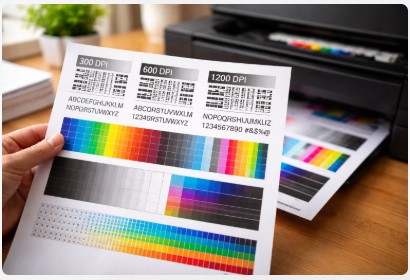
A dpi resolution printer test page isn’t just random ink on paper. It’s a carefully designed document packed with specific elements that normal prints don’t have:
- Tiny lines running horizontal, vertical, and diagonal to check precision
- Smooth gradients that fade from dark to light to reveal banding issues
- Solid color blocks to spot ink saturation problems
- Text in various font sizes to check sharpness
- Pattern grids that show misalignment down to fractions of a millimeter
Each element tests a different part of your printer’s performance. Think of it like taking your car to a mechanic who runs multiple diagnostic tests instead of just guessing what’s wrong.
Why You Can’t Skip This Step
Without a printer test page for 300 dpi or whatever resolution you’re targeting, you’re flying blind. You’re stuck saying “my prints look bad” without knowing why.
A test page gives you precise language: “My 300 DPI prints are losing detail in the shadows, and my black ink is misaligned by about half a millimeter.”
That’s the difference between guessing and actually fixing the problem.
The Wedding Photographer Story
Had a frantic wedding photographer come into my shop last year. Let’s call her Sarah. She was near tears—her lab prints for a major client were coming back soft and slightly muddy. She’d already blamed the lab, fought with them on the phone, and wasted two weeks going back and forth.
I asked her to run a printer dpi calibration test page on her own machine first.
She looked at me like I was crazy. “My printer? But the lab is the one printing the final products.”
“Humor me,” I said.
She ran the test, brought me the page. Soon as I saw it, the problem was obvious. Her cyan was under-saturating by about 15%. The gradients showed a clear gap in the blue spectrum.
Her printer—the one she used for proofs—was the problem all along. She’d been sending low-quality proofs to clients, then wondering why the lab prints (which were actually fine) didn’t match expectations.
One calibration later, her proofs matched her finals. She brought me coffee for a month after that.
That’s the power of a simple test page. It moves you from frustration to solution in about five minutes.
And here’s the thing—you don’t need to be a certified tech to read these pages. Once you know what to look for, you’ll spot problems faster than most repair shops. I’ll show you exactly how in section four.
Speaking of running tests, let’s talk about the three different ways to actually get a test page printed. I use all of them depending on the situation, and I’ll walk you through each method step by step…
How to Print a DPI Test Page: 3 Proven Methods (From Built-in to Pro)
Alright, let’s get down to business. You know what a test page is and why it matters. Now I’m going to show you exactly how to print a dpi test page using three different methods.
I use all of these in my shop depending on what a client needs. Sometimes I need answers fast. Other times I need deep diagnostic data. Each method serves a purpose.
Let me walk you through them.
Method 1: The 30-Second Built-in Printer Test
This is my go-to when someone calls me panicking because their printer “won’t print” or is “making weird noises.”
Goal: Quick hardware check that bypasses your computer completely.
Here’s the beautiful thing—your printer has a brain. It can print a test page without any help from your computer, drivers, or Wi-Fi. This tells you immediately if the hardware itself is working.
How to do it:
The menus vary slightly by brand, but here’s where you’ll find it:
- HP printers: Hit the Setup button (looks like a wrench or gear). Navigate to Tools > Print Quality Report. Some newer HP models have it under Support > Print Diagnostic Page.
- Canon printers: Press the Setup button (wrench icon). Scroll to Maintenance > Test Print > Nozzle Check. This prints a pattern that shows if any printhead nozzles are clogged. For a full canon dpi print test page instructions variant, look for “Pattern Print” or “Print Alignment Value.”
- Epson printers: Press the Setup button. Go to Maintenance > Nozzle Check. Epson also has a “Power Cleaning” option if the test shows gaps, but don’t use that unless you really need it—it guzzles ink.
- Brother printers: Hit Menu > Print Reports > Print Quality. Brother calls theirs a “Print Quality Check Pattern.”
Pro Tip: This is my first step for any “won’t print” call. Every single time. If this page prints cleanly—crisp lines, no gaps, solid colors—the issue isn’t your printer hardware. It’s your driver, your software, or your connection. Saved me hundreds of hours chasing ghosts.
Method 2: Downloading a Professional-Grade Test Page (Our Recommendation)
The built-in test is great for hardware checks. But for serious diagnostic work? You need something more detailed.
Goal: Deep analysis of resolution, gradients, alignment, and color accuracy.
I spent years refining a test page in my shop. Started as a messy file I’d throw together for clients, evolved into something I now use daily. It’s got elements that factory tests often miss.
What makes a good test page:
- Fine lines at different angles to spot alignment issues
- Color bars showing CMYK separation
- Grayscale gradients from 0% to 100% black
- Text blocks from 4-point to 12-point fonts
- Resolution targets specifically for 300 DPI, 600 DPI, and 1200 DPI
How to use it:
Just click the link below, save the PDF to your computer, and print it like any other document. But here’s the trick—don’t let your printer software “scale to fit” or make adjustments. Print at 100% size with no scaling.
[Download our Advanced DPI Test Page PDF Here – includes 300 DPI, 600 DPI, and 1200 DPI sections]
I’ve had print shops from three different states ask for this file. It’s free, no email signup required. Just a tool I believe every printer owner should have.
If you’re checking those gradients and suspect your colors are off, don’t panic just yet. Might be a color setting thing. I’ve got a whole guide on how to diagnose and fix faded colors using a color print test page—covers everything from A to Z.
Method 3: Using an Online Generator for a Quick Browser Check
Sometimes you’re not at your own computer. Maybe you’re helping a family member remotely, or you’re traveling and need to test a hotel business center printer.
Goal: A fast, no-download option for basic checks.
There are several websites that let you generate a dpi print test page online generator style page right in your browser. You just click a button, hit print, and you’re done.
The pros:
- No files to download or save
- Works on any device with a browser
- Dead simple—grandma could do it
The cons:
- Browser print settings can mess with the output
- Less precise than a dedicated PDF
- Often have ads or tracking (annoying)
My advice: Use these for quick checks when you’re in a pinch. But for real diagnostic work, stick with Method 2. The PDF version gives you control that browser printing just can’t match.
I had a client last month who was traveling and thought her hotel printer was broken. Used an online generator, printed a test page, and realized the hotel had set the default resolution to draft mode. Changed the setting, problem solved. So online tools definitely have their place.
Once you’ve got your test page printed, the real detective work begins. In the next section, I’m going to show you exactly how to read those results like a seasoned tech—what to look for, what it means, and how to fix the most common problems…
The Technician’s Guide: How to Interpret a DPI Test Page Result
You’ve got your test page printed. Now what?
This is where most people mess up. They look at the page, shrug, and go back to guessing. But I’m going to teach you exactly how to interpret a dpi test page result like someone who’s been doing this for a decade.
Think of your test page as a patient’s X-ray. Every line, every color, every gradient tells a story. You just need to know what to look for.
The “Big Three” Visual Checks
I train every new tech in my shop to start with these three things. Master these, and you’ll catch 90% of printer problems in under a minute.
Check 1: Banding & Streaks
Look at your page. See any horizontal lines running across it? Gaps where ink should be but isn’t?
That’s banding.
In inkjet printers, banding almost always means clogged printhead nozzles. Ink dries up, blocks the tiny holes, and your printer starts skipping spots. In laser printers, it usually points to low toner or a dying drum unit.
I had a small business owner come in last month convinced his printer was dying. His invoices looked terrible—stripes running right through the text. We ran a printer dpi test pattern pdf I’d sent him, and sure enough, three distinct bands across the cyan section.
Twenty minutes with a cleaning cycle and a lint-free cloth, and he was back in business. Cost him nothing but time.
Check 2: Misalignment & Ghosting
Look at the text blocks on your test page. Is the text sharp? Crisp?
Now look closer. Do you see a faint shadow behind the letters? Like the text has a ghost following it?
That’s misalignment.
Your printhead moves back and forth across the page at incredible speed. When it gets slightly out of whack, it lays down ink in the wrong spot. Text looks blurry. Lines look doubled.
I once saw a logo on a client’s test page that looked like it had a intentional 3D shadow effect. Nope—just a classic alignment fail. We ran the printer’s auto-alignment routine, and the ghost disappeared instantly.
Check 3: Color Accuracy & Gradients
This one matters most if you print photos or marketing materials.
Look at the color bars on your test page. Do the cyan, magenta, yellow, and black blocks look solid and true? Any weird tints or unevenness?
Now look at the grayscale gradient. It should fade smoothly from pure white to deep black. If you see harsh lines where dark suddenly jumps to light—that’s called posterization. Your printer is struggling to reproduce smooth transitions.
Dpi test for color accuracy isn’t just about pretty pictures. I had a real estate agent client whose listing flyers looked muddy. Potential clients complained the photos looked “off.” One test page revealed his magenta was running weak. Replaced the cartridge, and his houses looked sellable again.
Alignment issues? Yeah, they’re a headache. But luckily, there’s a solid way to diagnose and fix alignment problems specifically, beyond just our test page here. Check out my alignment print test page guide for the full breakdown.
Advanced Analysis: What the Fine Lines Tell You
Okay, you’ve mastered the big three. Now let’s get into the details that separate hobbyists from pros.
This is for anyone who prints detailed graphics, small text, or technical drawings.
Look at the fine lines section of your test page. You’ll see lines running in different directions—horizontal, vertical, diagonal. Some are thick, some are impossibly thin.
What to look for:
Are the lines crisp and continuous? Or do they look wavy, broken, or fuzzy?
Crisp lines mean your printer’s mechanical precision is spot-on. The carriage is moving smoothly, the paper feed is consistent, and the printhead is firing accurately.
Wavy or broken lines tell a different story. They suggest your printer is struggling with mechanical consistency. Maybe the paper isn’t feeding smoothly. Maybe the carriage belt is worn. Maybe there’s gunk on the encoder strip (that clear plastic strip inside your printer).
The Architect’s Blueprint Story
Had an architect storm into my shop about six months ago. Frustrated doesn’t begin to cover it. He was ready to throw his printer out the window.
His fine line drawings—the ones he charged clients thousands for—were coming out washed out and fuzzy. He’d tried new drivers, new cables, even a new computer. Nothing worked.
I asked him to run a dpi print test page troubleshooting session with me. He printed our test page, and I spotted the problem in about five seconds.
His printer was stuck in “economy mode.”
Somewhere along the line, probably while trying to save ink, he’d set the default print quality to draft. The printer was using fewer dots per inch to save ink, which made his fine lines look like they’d been drawn with a wet marker.
We switched the default to “high quality” or “best,” ran another test, and his lines came out razor-sharp.
He looked at me like I was a wizard. I felt a little bad charging him for that—it was a two-second fix—but he insisted on paying. Said I saved him from buying a new printer.
One More Thing
If your test page looks perfect but your actual prints still look bad, the problem might be your source file. Check your image resolution. For sharp prints, your images should be 300 PPI at the final print size. Anything less, and even a perfect printer can’t save you.
Okay, you’ve diagnosed the problem. Now what? In the next section, I’m going to clear up one of the biggest sources of confusion I see in my shop—the difference between DPI and PPI, and why mixing them up ruins prints…
DPI vs. PPI: Crushing the Most Common Printing Confusion
I’d estimate that half the printing problems walking into my shop come down to one simple mix-up.
People confuse DPI and PPI.
And honestly? I don’t blame them. The terms get thrown around like they mean the same thing. Printer manufacturers use them interchangeably. Software uses them interchangeably. Even some techs use them interchangeably.
But they’re not the same. Not even close.
Understanding this difference is like putting on glasses for the first time. Suddenly, everything makes sense. Let me break it down so you never mix them up again.
The Simple Breakdown
DPI stands for Dots per Inch.
This is a printer property. Pure hardware. It’s the number of tiny ink droplets your printer can physically lay down in one straight line, one inch long.
Think of it like this: your printer is a machine with thousands of microscopic squirt guns. DPI tells you how densely packed those squirts can be. More DPI means more detail, smoother gradients, sharper text.
When someone asks what is dpi print test page meaning, they’re asking about a tool that reveals this printer capability. It shows you what your machine is actually doing with all those dots.
PPI stands for Pixels per Inch.
This is a digital property. It lives inside your image files, your photos, your designs. It’s how many pixels make up one inch of your digital image.
Think of PPI as the raw ingredients. Your digital image has a certain amount of information—pixels—packed into every inch. When you print, your printer has to translate those pixels into dots.
Here’s the crucial part: your printer can’t create detail that isn’t in the image. If your digital file has low PPI, printing it at high DPI won’t magically make it sharp. Garbage in, garbage out.
The dpi vs ppi printer test comparison matters because one is about the machine, the other is about the source material. You need both working together.
The Golden Rule for Sharp Prints
So what’s the magic formula?
Here’s the rule I’ve used for years, and it’s never failed me:
Your image should be 300 PPI at the final print size.
That’s it. That’s the sweet spot.
Let me explain why. Most commercial printing uses a line screen (lpi) of around 150. The old rule of thumb is you want your image PPI to be about double that—hence 300 PPI. It gives the printer enough information to create smooth tones and sharp details.
For dpi print test for high resolution prints, you’ll often see targets at 300, 600, and 1200 DPI. But here’s what most people miss: if your source image is only 72 PPI (standard for web images), printing it at 1200 DPI won’t help. You’re just making bigger dots from limited data.
How to check your image’s PPI:
This is easier than you think.
On a Mac:
- Open the image in Preview
- Click Tools > Show Inspector
- Look for “Image DPI” (yes, they call it DPI—confusing, I know)
On Windows:
- Right-click the image file
- Select Properties
- Go to Details tab
- Look for “Horizontal Resolution” and “Vertical Resolution”
In Photoshop:
- Open your image
- Go to Image > Image Size
- Look at the Resolution field
- Make sure “Resample” is unchecked before changing values
I walk clients through this all the time. They’ll bring me a blurry 11×14 print, and I’ll check their source file. Nine times out of ten, it’s a 72 PPI web image stretched to poster size. Their printer did the best it could with what it was given.
The Test Page Connection
Here’s where your test page becomes a detective tool.
Run a test page with fine lines and text at different sizes. If those elements print crisp and clean, your printer’s mechanics are solid. Your DPI settings are working.
Now print one of your own images that’s been giving you trouble. If that image looks soft or pixelated but your test page looks great, the problem is your source file. Your PPI is too low.
I had a graphic designer client swear her printer was broken. Her logos looked fuzzy. We ran a test page—perfect. Crisp lines, solid colors, smooth gradients.
Opened her logo file in Photoshop. 96 PPI. Saved for web use, never meant for print.
We resampled the image to 300 PPI at the correct dimensions, reprinted, and her logo looked like it was embossed on the page. She bought me lunch for that one.
But here’s the flip side. If your test page shows banding, misalignment, or jagged lines, your printer hardware needs attention before you worry about PPI. Fix the machine first, then check your source files.
The test page tells you where to focus your energy.
Once you’ve got your DPI and PPI working together, you’re most of the way there. But different printers have different personalities. In the next section, I’m going to show you how inkjet and laser printers need completely different approaches to test pages…
DPI Print Test Page: Inkjet vs. Laser Printer Strategies
Here’s something most online guides won’t tell you.
Your printer type changes everything about how you should approach test pages.
I’ve lost count of how many clients come in with a laser printer, running inkjet-style tests, freaking out over “problems” that don’t matter for their machine. Or inkjet owners ignoring issues that are critical for photo quality.
Let me save you that headache right now.
For Inkjet Users: The Gradient is King
Inkjets are artists. They spray microscopic droplets of liquid ink onto paper, mixing colors with incredible subtlety. That’s why they dominate photo printing—they can create smooth transitions that look like real photographs.
If you own an inkjet, here’s what you need to care about most:
Gradients. Gradients. Gradients.
Your best dpi test page for inkjet printers should have large, sweeping color transitions. Look for skies fading from deep blue to light cyan. Skin tones shifting from highlight to shadow. Grayscale ramps going from pure white to rich black.
What you’re hunting for:
- Banding in gradients (sudden lines where color jumps)
- Graininess in smooth areas (ink spreading unevenly)
- Color casts in neutral grays (should be neutral, not blue or pink)
I test every inkjet that comes through my shop with a photo-rich test page. One with a portrait, a landscape, and a grayscale gradient. If that page looks good, the printer’s ready for client work.
Had a photographer last year who couldn’t figure out why her prints looked “digital”—too sharp, almost crunchy. Her test page showed perfect text and lines, but her gradients were posterizing like crazy. Turned out she’d cranked the sharpening in her driver settings, thinking it would help. Reset to default, and her photos looked buttery smooth again.
For Laser Users: Fine Lines and Text are Everything
Lasers are precision machines. They use toner—fine powder—and heat to fuse text and graphics onto paper. They’re built for speed and sharpness, not necessarily smooth gradients.
If you run a laser printer, your priorities shift hard.
Your dpi test print page for laser printer should focus on:
- Small text at 4pt, 6pt, 8pt sizes—is it readable?
- Fine lines in all directions—any waviness or breaks?
- Solid black fills—streaking or uneven coverage?
- Registration (for color lasers)—are the colors lining up perfectly?
Color lasers have an extra challenge. They lay down cyan, magenta, yellow, and black separately. If those layers don’t align perfectly, you get color fringing—a halo of wrong color around your text and graphics.
Look closely at black text on your test page. Any red or blue edges? That’s misregistration. Run the printer’s auto-alignment routine, usually found in the maintenance menu.
I’ve got a law firm client that prints thousands of pages of contracts monthly. They don’t care about gradients. They care about 6pt font being razor-sharp and black fills being solid. Their test page is all text and fine lines. Takes two minutes to run and tells them everything they need to know.
The “Mixed Media” Challenge
Here’s where things get tricky.
Most people run test pages on whatever paper is sitting in the tray. Usually cheap multipurpose paper.
But here’s the truth that dpi test page for mixed media printing reveals: paper changes everything.
Print the exact same test page on:
- Plain copy paper
- Glossy photo paper
- Matte presentation paper
- Cardstock
You’ll get three different results.
I’m not kidding. The paper’s surface, weight, and coating interact with your ink or toner in unique ways. Glossy paper lets ink sit on top—vibrant colors, but slower drying. Plain paper absorbs ink—faster drying, but colors can look dull.
The rule I teach every client:
Run your test page on the actual media you’ll use for your final job.
If you’re printing wedding photos on luster paper, test on luster paper. If you’re running business cards on 100lb gloss cover, test on that exact stock. If you’re doing yard signs on vinyl, test on vinyl.
I learned this lesson the hard way about eight years ago. Big print job for a real estate developer. Brochures on expensive matte paper. I’d done all my tests on plain copy paper, everything looked great.
First batch of brochures? Muddy. Flat. The matte paper was absorbing ink differently, killing my contrast.
Had to re-run every test on the actual paper, tweak my settings, and reprint the whole job. Took three extra days and ate my profit margin.
Now I don’t skip that step. Neither should you.
Since inkjets and lasers need totally different approaches, it’s worth knowing which printer actually fits your life. Before you buy a new one—especially if you’re confused like Mike was—read through my complete guide on printer types. Trust me, it’ll save you some money.
One more pro tip:
If you regularly print on different media types, save your settings. Most printer drivers let you create custom profiles. Name them “Glossy Photo – Best,” “Plain Paper – Draft,” “Cardstock – Heavy.” Then when you switch paper, you just pick the profile instead of guessing settings.
Your advanced dpi test page with fine lines will look different on each setting. That’s fine. You’re not looking for identical results—you’re looking for optimal results for that specific paper.
Alright, we’ve covered the what, the how, and the why. But before I send you off to start testing, let me wrap everything up with some final thoughts and a few resources that’ll make your life easier…
Conclusion: Your Path to Flawless Prints
We’ve covered a lot of ground together.
And honestly? I hope you’re feeling something you didn’t expect—confidence.
Most people approach printing like it’s magic. They hit print, cross their fingers, and hope for the best. When things go wrong, they blame the printer, the paper, the ink, the alignment of the stars.
But you’re not most people anymore.
You now know that a free printable dpi test page is the simplest diagnostic tool in existence. It’s not complicated. It’s not mysterious. It’s just a page of ink that tells you exactly what your printer is doing.
Let me boil everything down to what actually matters:
Your key takeaways:
First, a DPI test page is your printer’s report card. It reveals problems before they ruin your important prints. Run one regularly, not just when things go wrong.
Second, use the right test for the right job. The built-in printer test takes 30 seconds and tells you if your hardware’s alive. A detailed PDF test page—like the one I’m giving you below—tells you about resolution, gradients, alignment, and color accuracy. Use both.
Third, learn to read the signs. Banding means clogs or low toner. Ghosting means misalignment. Rough gradients mean color issues. Once you know what to look for, you’re not guessing anymore—you’re diagnosing.
Fourth—and I can’t stress this enough—remember the DPI vs PPI thing. Your printer’s DPI is about hardware capability. Your image’s PPI is about source quality. A perfect printer can’t fix a crappy image, and a perfect image can’t fix a broken printer. They work together.
For the pros and small shop owners reading this:
I’ve designed our test page with you in mind. It’s not some basic rectangle-and-text job. It’s an dpi print test page for professional printing with specific targets for 300 DPI, 600 DPI, and 1200 DPI. Fine lines that reveal mechanical issues. Color bars that expose calibration drift. Gradients that show exactly how smooth your transitions really are.
Use it before every big job. Trust me on this.
One last story before I let you go.
Had a print shop owner call me two weeks ago. Panicked. His biggest client’s annual report was due in 24 hours, and the proofs looked terrible. He’d already run through every troubleshooting step he could think of.
I asked when he last ran a test page.
Silence.
Turns out, six months. He’d gotten complacent. Assumed because the printer ran every day, it was fine. But somewhere along the line, his black toner density had drifted. His “rich black” was reading as dark gray.
One test page revealed the problem. Twenty minutes of calibration fixed it. The annual report printed perfectly and went out on time.
He texted me later: “Never skipping test pages again.”
That’s the takeaway. Test pages aren’t just for when things break. They’re for making sure things don’t break in the first place.
Your move.
Stop guessing. Stop hoping. Start knowing.
Download our free test page below. Run it through your printer today. Not tomorrow, not when you have time—today. It takes two minutes and a single sheet of paper.
Look at the results. Compare them to what I’ve shown you in this guide. See where your printer shines and where it might need some love.
And if you get stuck? If something on your test page doesn’t look right and you can’t figure out why? Drop your question in the comments. I read every single one. I’ve been doing this for over a decade, and I still learn new things from reader questions. We’ll figure it out together.
[Download Your Free Professional DPI Test Page PDF Here]
No email required. No upsells. Just a tool I’ve refined over years in the shop, free for anyone who needs it.
Here’s to prints that actually look like they’re supposed to.
— Tobby
P.S. If this guide saved you from wasting paper and ink, bookmark it. Share it with a friend who’s always complaining about their printer. And if you’ve got a printer horror story of your own, I’d love to hear it in the comments. The ones that make you want to throw the machine out the window are my favorite.
Frequently Asked Questions (FAQ)
I get these questions all the time in my shop and over email. Here are the answers I wish I could give everyone in person, with a coffee in hand, looking at their actual test page together.
Why does my 300 DPI print look pixelated?
It’s your image file, not your printer. Your image is likely low-resolution (72 PPI) stretched too large. Check your image’s PPI in editing software. For sharp prints, aim for 200-300 PPI at final size.
Is 600 DPI overkill for regular documents?
Yes. Stick to 300 DPI for office documents, memos, and basic graphics. You’ll waste toner/ink and slow down print jobs with no visible improvement. Use 600 DPI only for photos, line art, or professional printing.
How do I clean my printer if the test page has streaks?
For inkjets: Run printhead cleaning once, print test page. Repeat once if needed. Don’t over-clean. For lasers: Check toner levels first, then inspect the drum unit.
Where can I find a DPI test page for my specific HP printer?
Go to Setup > Tools > Print Quality Report on your HP printer menu. This runs a diagnostic built specifically for your model. Our free PDF test page also works great for deeper analysis.
What DPI test page should I use for professional photo printing?
Use an advanced page with wide color gamut, smooth grayscale ramps, and detailed highlight/shadow sections. Our downloadable “Pro” version is designed for this. Print it on your actual photo paper, not plain paper.
How often should I run a test page?
Monthly for light use. Weekly for heavy use. Before every big job for professional work. Takes two minutes and prevents costly mistakes.
Got a question I didn’t answer here? Drop it in the comments. I read every single one, and I might feature yours in an update to this guide.

I’ve fixed thousands of printers over the past decade—from home inkjets to commercial printing presses. Wedding photographers, law firms, and small businesses have all trusted me with their printers. Every guide comes from real workshop experience, not theory.