
Print Spooler: How to Fix, Restart, and Troubleshoot Errors
You’re in a rush. Hit print. Nothing happens.
The document sits in the queue, mocking you. You try again. Nothing. Restart the printer. Still nothing. Check the Wi-Fi. It’s fine. Now you’re staring at the screen, watching that little job sit there like it owns the place.
Sound familiar?
I can’t count how many times I’ve gotten panicked calls about this exact scenario. It’s always when you’re in a hurry. Always when the clock’s ticking. Always when printing actually matters.
Print spooler errors are hands-down one of the most frustrating problems in Windows. They’re also incredibly common. The good news? Most of them are fixable in minutes.
Here’s what I’ve learned after a decade running my repair shop in Austin. I’ve seen every spooler meltdown imaginable — from the simple queue freeze to the terrifying “printer spooler service not running” message that makes people think their computer’s toast.
This guide walks you through what the print spooler actually does, why it fails, and most importantly — how to fix print spooler issues step by step. We’ll cover everything from quick restart print spooler Windows 10 tricks to deeper repairs. I’ll even show you how to clear print spooler Windows 11 when jobs get stuck.
And when you’re done fixing? I’ll help you run a quick printer test page to make sure everything’s working again.
Let’s dig in.
What Is the Print Spooler? (And Why Does It Keep Breaking?)
The print spooler is basically a middleman. A behind-the-scenes worker that takes your print jobs, lines them up in order, and feeds them to the printer one at a time.
Think of it like a restaurant kitchen. You place your order — that’s you hitting “print.” The spooler is the waiter. It takes the ticket, puts it on the wheel, and makes sure the kitchen doesn’t get slammed with fifty orders at once. Without that waiter? Chaos. Burnt food. Angry chefs.
Same with your printer. Without the spooler, your computer would have to wait for the printer to finish before doing anything else. You’d be staring at an hourglass all day.
What is spooling printer technology really means? Spool stands for “Simultaneous Peripheral Operations Online.” Fancy term. Simple job. It just holds your documents in a queue and feeds them out as the printer’s ready.
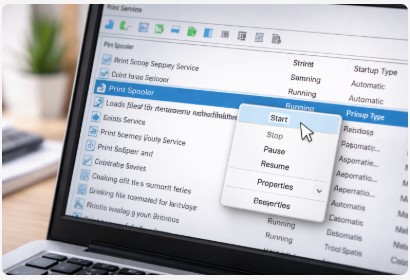
So what is the spooler service on a printer exactly? It’s a Windows service called “Print Spooler” that runs in the background. You can find it in Services if you ever need to poke around.
Now, why does it keep breaking?
A few reasons, honestly. Corrupted print jobs are the biggest culprit. One bad file gets in the queue and everything behind it freezes. Outdated drivers cause issues. Windows updates sometimes break things. And yeah, sometimes too many jobs pile up and the spooler just gives up.
You’ll know it’s failing when you see messages like:
- “Print spooler service not running”
- “Local print spooler service is not running”
- “Printer spooler keeps stopping”
Scary stuff if you don’t know what’s happening. But here’s the thing — most of these are easy fixes.
If you really want to geek out on how the spooler works under the hood, Microsoft’s official documentation has all the technical details. I keep it bookmarked for when things get weird.
From the Workshop: I had a client once who swore their printer was haunted. Every time they printed invoices for their plumbing business, the spooler would crash. Took me five minutes to find the culprit — one corrupted invoice file stuck in the queue. We cleared it out, and the “ghost” never came back. Two minutes of work. Client thought I was a wizard.
That’s the thing about the print spooler service. When it works, you never think about it. When it breaks, it feels like the end of the world. But it’s usually just a small problem with a simple fix.
The Quick Fix: Restart Print Spooler in 30 Seconds
Before we dive into anything complicated, let’s try the simplest fix first.
Restarting the print spooler clears out temporary glitches and resets the queue. It’s like giving your computer’s printing system a quick nap and waking it up fresh. I’d say this works for about 60% of basic spooler issues right out of the gate.
Here’s how to do it.
Restart via Services (Easiest Method)
This is the method I walk every client through over the phone. It’s simple and doesn’t require typing commands.
Press Win + R on your keyboard. That little Run box pops up. Type services.msc and hit Enter.
A huge list opens up. Don’t let it overwhelm you. Scroll down until you find Print Spooler. It’s usually in the P’s.
Right-click it and select Restart.
If Restart is grayed out (happens sometimes), click Stop instead. Wait a few seconds. Then click Start. Same result.
That’s it. Go test your printer now.
How to restart print spooler in Windows 10 is exactly the same process. Works on Windows 11 too.
Restart via Command Line (For Power Users)
If you’re comfortable with command lines, this way’s even faster.
Right-click the Start button and select Command Prompt (Admin) or Windows Terminal (Admin).
Type this and hit Enter:
net stop spoolerWait a second. Then type:
net start spoolerHit Enter again. Done. The service stopped and restarted instantly.
This is my go-to when I’m remoted into a client’s computer. Faster than clicking through menus.
Why This Works
The print spooler is just a program running in the background. Like any program, it can get confused. Memory gets clogged. Temporary files get stuck. A restart wipes the slate clean.
Think of it like your phone when an app freezes. You don’t reinstall the app — you just force close it and open it again. Same idea here.
How do you restart a printer spooler when nothing else is working? This. Every time.
Sometimes restarting the spooler doesn’t just fix the queue — it also wakes up a printer that’s showing as offline. If your printer still says ‘offline’ after this, check out our Printer Offline? Quick Fix That Actually Works.
From the Workshop: A local dentist called me in a panic last year. Couldn’t print insurance forms. Patients were waiting. Front desk was losing it. Walked them through restarting the spooler over the phone. Forty-five seconds later, forms were printing. Billed them zero dollars — it was a thirty-second fix, felt wrong to charge. Know what? They send me patients now. Best ROI I ever got.
Restart print spooler Windows 11 works the exact same way. Microsoft hasn’t changed this one in years. Thank goodness.
If this fixed your issue? Awesome. You’re done. If not, don’t worry — we’ve got more tools in the box. Next up, we’ll clear out those stuck jobs manually.
Clear the Print Spooler Queue (When Jobs Get Stuck)
Okay, you tried restarting the spooler. Maybe it helped for a minute. Maybe it did nothing. Either way, the jobs are still sitting there, staring at you.
This is the number one cause of spooler failure — stuck print jobs. One bad file gets in the queue, and everything behind it freezes like a deer in headlights.
The fix? Clear them out manually.
The Manual Method (Safe for Beginners)
This is the method I teach everyone. It’s foolproof. Takes two minutes.
Step 1: Stop the Print Spooler service first. Remember how from Section III? Press Win + R, type services.msc, find Print Spooler, right-click, and choose Stop. Don’t skip this. The files won’t let you delete them if the service is still running.
Step 2: Open File Explorer. Click the address bar at the top and paste this path exactly:
C:\Windows\System32\spool\PRINTERS
Hit Enter.
Step 3: You’ll see some files in there. Maybe a lot. Maybe none. Select them all (Ctrl+A) and delete them. Don’t worry — these aren’t your actual documents. They’re just temporary spool files.
Step 4: Go back to Services. Find Print Spooler again. Right-click and choose Start.
That’s it. Go print something now.
Clear print spooler Windows 10 works exactly like this. So does clear print spooler Windows 11. Same folder. Same steps.
Once you’ve restarted the spooler, run a test page to make sure everything’s working. If you have an Epson, our Epson Printer Test Page – Quick Fix Guide shows you exactly how.
The One-Liner Command Method
If you’re comfortable with command lines, this one’s beautiful. One line does everything.
Open Command Prompt as Administrator. Paste this whole thing:
net stop spooler && del /Q /F %systemroot%\System32\spool\PRINTERS\* && net start spoolerHit Enter. Watch it run. Stops the service, deletes everything in that folder (quietly, without asking), and restarts the service.
Takes about three seconds. Makes you feel like a hacker.
What NOT to Do
I’ve seen people get overzealous. Don’t be that person.
Don’t delete files outside the PRINTERS folder. That folder exists for a reason. Poking around in System32 and deleting random stuff is how computers break.
Don’t skip stopping the service first. If you try deleting while the spooler’s running, Windows will tell you the files are in use. You’ll get frustrated. Nothing will happen.
Don’t panic if the folder is empty. That’s actually normal. Sometimes the spooler crashes before creating visible files. An empty folder doesn’t mean you’re crazy — it just means the spooler gave up early.
From the Workshop: A graphic designer once called me in tears. She had 47 jobs stuck in the queue. Thought she’d lost weeks of client work. I talked her through clearing the PRINTERS folder. Fifteen seconds later, everything was gone — but her actual design files? Still safe in her software. She printed them again and was back in business. “That’s it?” she asked. Yep. That’s it.
How to manually delete print spooler files is literally just this. Stop service. Delete files. Start service. You’ve got this.
Clear printer spooler Windows 10 users? Same deal. Clearing printer spooler Windows 10 takes two minutes. How to clear print spooler Windows 11 takes two minutes. Doesn’t matter which version you’re on.
If your queue is empty now and printing works? Awesome. You’re done. If the spooler’s still acting up, we’ve got more to try. Next up — fixing that dreaded “service not running” message.
Fix “Print Spooler Service Not Running” or Keeps Stopping
This is the big one. The error message that makes people panic.
You go to print and Windows hits you with: “Print spooler service not running.” Or maybe “The local print spooler service is not running.” Or the spooler starts, runs for a bit, then quits again.
I get calls about this constantly. And yeah, it sounds scary. Like something’s broken deep in your system. But most of the time? It’s a simple fix.
Let’s walk through them.
Check Service Startup Type
This is the first thing I check. You’d be surprised how often this is the culprit.
Open services.msc again (Win + R, type it in). Find Print Spooler. Right-click and choose Properties.
Look at Startup type. What does it say?
It should say Automatic. That means the spooler starts when Windows boots and stays ready.
If it says Disabled or Manual, that’s your problem. The spooler isn’t starting on its own.
Change it to Automatic. Click Apply. Then click Start if it’s not already running.
From the Workshop: A client’s spooler kept stopping every hour like clockwork. Drove them nuts. Turned out a Windows update had flipped the startup type to Manual. One dropdown change. Thirty seconds. Fixed. They felt silly. I told them not to — sometimes the solution is embarrassingly simple.
Check Dependencies
The print spooler doesn’t work alone. It relies on other services — especially RPC (Remote Procedure Call).
In that same Properties window, click the Dependencies tab. You’ll see a list of services the spooler needs.
The big one is RPC. If that service is stopped or disabled, the spooler won’t start.
Open Services again. Scroll to Remote Procedure Call (RPC). Make sure it’s running and set to Automatic. Same for any other services listed.
Printer spooler service not working often traces back to RPC issues. Fix the dependency, fix the spooler.
Fix Corrupted Service Files
Sometimes the spooler files themselves get corrupted. Bad Windows update. Accidental deletion. Who knows.
Windows has built-in tools for this.
Open Command Prompt as Administrator. Type this and hit Enter:
sfc /scannowIt’ll scan all protected system files and replace corrupted ones. Takes a few minutes. Let it finish.
Then run this:
DISM /Online /Cleanup-Image /RestoreHealthThis fixes the image Windows uses to repair itself. Also takes a few minutes.
Restart your computer after both finish. Then test the spooler.
How to fix print spooler service not running when nothing else works? This. Every time.
Still stuck? Microsoft’s official printer troubleshooter walks through spooler issues step by step. I send clients here all the time when they want to double-check my advice.
Registry Fix (Advanced Users Only)
Alright, warning first. The registry is where Windows keeps all its settings. Mess with the wrong thing and you can break your system. Back up before touching anything.
If you’re comfortable, here’s the path:
Open Registry Editor (regedit). Navigate to:
HKEY_LOCAL_MACHINE\SYSTEM\CurrentControlSet\Services\Spooler
Look on the right side for a value called Start. Double-click it.
It should be 2. That means Automatic.
If it’s something else — 3 is Manual, 4 is Disabled — change it to 2. Click OK. Close Registry Editor. Restart the spooler or reboot.
Local print spooler service is not running can absolutely be caused by a registry setting gone wrong. I’ve seen it maybe a dozen times over the years.
From the Workshop: A small accounting firm called me last month. Their print spooler service keeps stopping every time they tried to print payroll reports. Tried everything — restart, clearing queue, even reinstalled drivers. Nothing. Finally checked the registry. Somehow the Start value had flipped to 4 (Disabled). Changed it back to 2, rebooted, problem gone. Still have no idea how it changed. Sometimes Windows just does weird stuff.
Print spooler keeps stopping in Windows 10 is fixable. Printer spooler service not working is fixable. Work through these steps in order. One of them will get you there.
Still stuck? The issue might be a different kind of error altogether. Browse our Printer Error Codes Guide for more troubleshooting help.
If you’ve tried all this and the spooler’s still acting up? Next up — drivers might be the real problem.
Driver Conflicts: The Hidden Spooler Killer
You’ve restarted the spooler. Cleared the queue. Checked the service settings. Everything looks right.
But the spooler still crashes. Especially when you print to one specific printer.
Welcome to driver hell.
This is the #1 cause of recurring spooler crashes that don’t make sense. It’s not the spooler itself — it’s the printer driver yelling at it.
How to Spot a Driver Problem
How do you know if it’s a driver issue? Look for these signs.
The spooler only crashes with one printer. If you print to your Brother laser and it’s fine, but your HP inkjet kills the spooler every time? That’s driver-specific.
Event Viewer shows driver errors. Open Event Viewer. Go to Windows Logs > System. Look for errors from “PrintService” or “Spooler.” If you see DLL names mentioned — like “hpf5200c.dll” or something — that’s your culprit.
The problem started after installing new printer software. New printer, new driver, new headaches. Classic pattern.
Print spooler vs printer driver difference is simple. The spooler manages the queue. The driver translates your document into printer language. Bad translation? Spooler crashes.
Remove Old or Conflicting Drivers
Windows loves to keep old drivers hanging around. Five years later, there’s still a ghost driver from a printer you returned to Costco.
Time to clean house.
Step 1: Open Device Manager. Expand Print queues. You’ll see every printer driver ever installed. Right-click anything old or unfamiliar and choose Uninstall device.
Step 2: Go to Control Panel > Devices and Printers. Right-click any printer icon and select Print server properties. Click the Drivers tab.
This is the graveyard. Every driver Windows knows about. You’ll see multiple versions of the same brand. Old ones. Ones you forgot about.
Select any driver you don’t need and click Remove. Stick with “Remove driver and driver package” if it asks.
Step 3: Repeat until the list is clean.
From the Workshop: A law firm called me in. Their spooler crashed every single time they printed. Took me five minutes to find the problem — five different HP drivers installed from the last eight years. Drivers from 2016. 2018. 2020. All fighting each other. Cleaned them all out, installed one fresh driver, and their ancient LaserJet worked like new. The office manager said, “That’s it?” Yep. That’s it.
Clean Driver Removal with PnPUtil
Sometimes drivers don’t show up in Device Manager. They’re deeper. PnPUtil is the nuclear option.
Open Command Prompt as Administrator.
First, list all drivers:
pnputil /enum-driversYou’ll get a huge list. Look for your printer manufacturer. Find the Published Name — it’ll look like oemXX.inf (oem0.inf, oem12.inf, etc.).
Once you’ve identified the right one, delete it:
pnputil /delete-driver oemXX.infReplace oemXX.inf with the actual name. Hit Enter. Gone.
This is advanced. Double-check you’re deleting the right driver. Delete the wrong one and you might lose something important.
Install Fresh Drivers
Now that the old junk is gone, install a clean driver.
Always download from the manufacturer’s website. HP.com. Canon.com. Epson.com. Don’t let Windows Update handle it — sometimes it grabs the wrong version.
Find your exact model. Download the latest driver for your Windows version (10 or 11, 32-bit or 64-bit).
Run the installer as Administrator. Right-click and choose that option. This ensures it can write to protected system folders.
Reboot after installing. Then test.
Compare print spooler reset vs reinstall driver — reset fixes the queue, reinstall fixes the language translator. Sometimes you need both.
From the Workshop: I had a client who reinstalled Windows twice trying to fix spooler crashes. Twice. When he brought the computer to me, I found a single corrupted driver file that survived both reinstalls because it was on a backup drive. Cleaned it with PnPUtil, installed fresh, done in twenty minutes. He wasn’t sure whether to hug me or punch his computer.
If you’re seeing these signs, your driver is likely the culprit. Our Printer Drivers: Quick Fix & Install Guide 2026 walks you through identifying and fixing driver issues step by step.
If you’ve made it this far and the spooler’s still acting up? Don’t worry. We’ve got advanced tricks coming up.
Advanced Troubleshooting: When Nothing Else Works
You’ve made it through everything. Restarted the spooler. Cleared the queue. Checked the service settings. Wiped out old drivers. And still — nothing.
The spooler’s still broken. Still crashing. Still mocking you.
Don’t give up yet. We’re going deep now.
Check Event Viewer for Clues
Event Viewer is like the black box on an airplane. It记录了 everything that happens behind the scenes, including exactly why your spooler died.
Open Event Viewer. Don’t let the name scare you — it’s just a log.
Go to Windows Logs > System.
On the right, click Filter Current Log. In the drop-down that says “Event sources,” scroll and check PrintService and Spooler. Click OK.
Now you’re looking at every print-related event. Find errors from around the time your spooler last crashed. Click one. Down at the bottom, it’ll show details.
Look for file names. DLLs. Driver names. That’s your smoking gun.
From the Workshop: I once spent three hours on a spooler issue. Cleaned drivers, edited registry, the whole nine yards. Finally checked Event Viewer and found a tiny reference to a corrupt font file. Deleted the font, spooler worked. Event Viewer knew all along. I just didn’t check early enough.
Print Spooler High CPU Usage Fix
Your computer’s fan is screaming. Task Manager shows print spooler eating 30%, 40%, 50% CPU. Something’s wrong.
Usually it’s a corrupt job stuck in a loop. The spooler keeps trying to process it, failing, and trying again.
Stop the spooler. Clear the PRINTERS folder like we did in Section IV. Restart. That usually kills the loop.
If it comes back, check for malware. Some cryptominers disguise themselves as spooler processes. Run a full antivirus scan.
Print spooler high CPU usage fix is almost always this. Stop. Clear. Restart.
Print Spooler Missing from Services List
This one’s rare, but it happens. You open Services and Print Spooler just isn’t there. Vanished.
Usually caused by corruption or someone getting too aggressive with “cleaner” software.
Run these in Admin Command Prompt:
sfc /scannow
DISM /Online /Cleanup-Image /RestoreHealth
Reboot. If the spooler comes back, great. If not, you might need a Windows repair installation. That’s the nuclear option — reinstalling Windows while keeping your files.
Print spooler service missing is fixable. It just takes time.
Error 1068 (Dependency Service Failed)
This error means the spooler tried to start, but something it relies on wouldn’t cooperate.
Print spooler error 1068 dependency service failed almost always points to RPC (Remote Procedure Call) or DCOM.
Open Services. Find Remote Procedure Call (RPC). Make sure it’s running and set to Automatic.
Find DCOM Server Process Launcher. Same thing — running and Automatic.
Restart your computer. Try the spooler again.
Error 0x0000011b (Network Printing Issue)
Ah, this one. This error haunted small offices for months.
Back in 2021, Microsoft released security patches (KB5005565, KB5005568) that broke network printing. Suddenly everyone got Error 0x0000011b when trying to print to shared printers.
The fix? A registry tweak.
Open Registry Editor. Navigate to:
HKEY_LOCAL_MACHINE\Software\Policies\Microsoft\Windows NT\Printers\PointAndPrint
If the PointAndPrint folder doesn’t exist, right-click Printers, choose New > Key, and name it PointAndPrint.
Inside that folder, right-click in empty space, choose New > DWORD (32-bit). Name it:
RestrictDriverInstallationToAdministrators
Double-click it and set the value to 0.
Close Registry Editor. Reboot. Network printing should work again.
From the Workshop: The 0x0000011b error sent half my small business clients into a panic last year. Accountants who couldn’t print checks. Architects who couldn’t print plans. Microsoft’s “security” patch broke everything. A quick registry tweak and they were back online. Security vs. functionality — always a fun trade-off.
Print spooler security vulnerability patch update caused this. Microsoft fixed one problem and created another. Classic.
Fix Print Spooler Access Denied Error
Sometimes you try to clear the queue and Windows says “Access Denied.” Or you can’t stop the service.
This is usually a permissions issue.
Open Command Prompt as Administrator. Run:
net stop spooler
takeown /F C:\Windows\System32\spool\PRINTERS /R
icacls C:\Windows\System32\spool\PRINTERS /grant administrators:F /T
net start spooler
This takes ownership of the folder and gives administrators full control.
Print spooler service stuck on stopping is another fun one. You click Stop and it just hangs there.
Open Task Manager. Find the spooler process (spoolsv.exe). Right-click and End task. Then go back to Services and start it fresh.
From the Workshop: Had a client whose spooler got stuck on stopping for three days. Three days. They couldn’t print anything. IT guy tried everything. I ended the process in Task Manager, started it again, problem solved in ten seconds. Sometimes we overthink this stuff.
If you’ve tried all this and still no luck? It might be time to call in backup. Next up — what to do when the fix doesn’t work.
How to Prevent Print Spooler Problems
You’ve fixed the spooler. Everything’s printing again. Feels good, right?
Now let’s make sure it stays that way.
Print spooler problems are like roaches — once you’ve had them, you want to keep them from coming back. A little regular maintenance goes a long way.
Monthly Spooler Maintenance Checklist
I tell my clients to do these things once a month. Takes five minutes. Saves hours of frustration.
Restart the spooler service monthly. Even if nothing’s wrong. Services can develop memory leaks over time — they slowly eat up resources until things get weird. A quick restart wipes the slate clean.
Clear the PRINTERS folder if you print heavily. That folder we visited in Section IV? If you print a lot, old temp files can accumulate. Pop in there once a month, stop the service, delete everything, restart. Preventive cleaning.
Keep printer drivers updated. Check manufacturer websites every few months. New drivers fix bugs. Sometimes they fix spooler crashes you didn’t even know were coming.
Install Windows updates promptly. But here’s the catch — watch for printing-related patches. Sometimes Microsoft breaks printing to fix security. Stay informed. If a known printing issue pops up, you might want to delay that update.
From the Workshop: I had a client who never restarted anything. Ever. His spooler crashed every six weeks like clockwork. Started doing a monthly restart of the service. Crashes stopped. He called it a miracle. I called it maintenance.
Best Practices for Network Printing
Network printers add another layer of complexity. Follow these rules and you’ll avoid half the headaches.
Use static IP addresses for network printers. If your printer gets its IP from DHCP, that address can change when the router reboots. Your computer looks for the old address, can’t find it, spooler gets confused. Static IP means the printer always lives at the same spot.
Avoid mixing 32-bit and 64-bit drivers on print servers. If you’re sharing a printer from a server, pick one architecture and stick with it. Mixing them causes spooler chaos.
For shared printers, ensure the host computer stays on. The computer sharing the printer needs to be awake. If it sleeps, the printer disappears from the network. Spooler on other machines gets angry.
Print spooler service for shared printers needs extra attention. That host computer becomes critical. Treat it well.
When to Disable the Print Spooler
Here’s something most people don’t think about. If you don’t need to print from a computer, you don’t need the spooler running at all.
On computers that never print — servers, dedicated machines, old laptops used as file storage — the spooler is just wasted resources. Worse, it’s a security risk.
Remember PrintNightmare? That 2021 vulnerability that let attackers take over computers through the print spooler? If the spooler’s disabled, that attack can’t touch you.
When should I disable print spooler service? Ask yourself: Does this computer ever print? If the answer’s no, turn it off.
To disable: Open services.msc. Find Print Spooler. Right-click > Properties. Change Startup type to Disabled. Click Stop if it’s running. Done.
From the Workshop: A server admin once told me he’d never needed to print from his domain controller in 15 years. Fifteen years. We disabled the spooler right there. One less attack surface. One less thing to patch. One less headache. If you don’t need it, turn it off.
Print spooler alternative solutions for small offices sometimes include dedicated print servers. If you have multiple computers sharing printers, a dedicated box handling all the spooling can take the load off everyone else. But that’s overkill for most home users.
A little prevention goes a long way. Monthly checks. Smart network setup. Disabling what you don’t need.
Do these things and your spooler problems will become rare visitors instead of permanent residents.
Conclusion
We’ve covered a lot of ground. From the quick thirty-second restart to deep registry dives. Let’s pull it all together.
Most spooler errors come down to two things: stuck jobs or driver conflicts. That’s it. Everything else — the scary error messages, the service crashes, the high CPU usage — usually traces back to one of those.
Start with the restart. Always. It’s free, it’s fast, and it fixes more than you’d think. If that doesn’t work, clear the queue manually. Still stuck? Move to drivers. Then dependencies. Then Event Viewer for clues.
Check dependencies if the service won’t start. RPC and DCOM are the usual suspects. Make sure they’re running.
Event Viewer is your friend. I know it looks intimidating. But those logs tell you exactly what broke. Take five minutes to learn it, and you’ll save hours of guessing.
You don’t need to be an IT pro to fix print spooler errors. Really. You don’t. I’ve been doing this for over a decade, and most of what I know is just pattern recognition. You’ve got the patterns now. Error X? Try Y. Problem Z? Here’s the fix.
The best way to repair print spooler service is to work through these steps in order. Don’t jump to registry edits before clearing the queue. Don’t reinstall Windows because you didn’t check Event Viewer. Systematic approach wins every time.
Need an urgent fix for print spooler not responding? Start with Section III. Restart the service. Clear the queue. Nine times out of ten, that’s all you need.
How to reset print spooler to default settings is really just a combination of everything we covered. Clean drivers. Clear queue. Reset service startup. Registry check if needed. There’s no single “factory reset” button, but working through these steps gets you there.
Bookmark this guide. Seriously. Print spooler problems have terrible timing. They always show up when you’re in a hurry, when something’s due, when patience is thin. Having this handy will save your sanity.
Drop your spooler questions in the comments. I read every single one. If you run into something we didn’t cover, tell me about it. Printer model? Windows version? What you’ve tried? I’ll help figure it out.
Now go print something. You’ve earned it.
Spooler fixed? Great. Now make sure your prints look right too. If you’re dealing with faded or blurry prints, our Color Print Test Page: Quick Fix for Faded Prints guide can help you dial in the quality.
FAQ
I get questions about print spoolers every single week. These are the ones I hear most often — along with answers that actually help.
Why does my print spooler keep stopping?
I see this daily in my workshop. Nine times out of ten, it’s a corrupted print job stuck in the queue. Stop the spooler service, delete everything in C:\Windows\System32\spool\PRINTERS, and restart. Takes about two minutes. If it keeps happening, you probably have a bad printer driver that needs updating. Check manufacturer sites for the latest version.
How do I clear the print spooler in Windows 11?
Easy. Press Win + R, type services.msc, find Print Spooler, and stop it. Then open File Explorer and paste C:\Windows\System32\spool\PRINTERS in the address bar. Delete everything in that folder. Go back to Services and start Print Spooler again. That’s it — queue cleared.
What does “print spooler service not running” mean?
It means Windows can’t start the background service that manages your print jobs. Could be disabled, corrupted, or stuck. First, check if it’s set to Automatic in Services. If it is, try restarting it. If it won’t start, run sfc /scannow in Admin Command Prompt to repair system files.
How do I restart the print spooler in Windows 10?
Hit Win + R, type services.msc, find Print Spooler in the list. Right-click it and choose Restart. If Restart isn’t available, click Stop, wait a few seconds, then click Start. That’s literally all there is to it. Test your printer afterward.
Why does my printer say “spooler” error?
The spooler is the middleman between your computer and printer. When it errors out, it usually means a job got stuck, a driver crashed, or the service itself is having problems. Start with clearing the queue — that fixes most cases. If that doesn’t work, check your drivers.
Can I disable the print spooler?
Yes, but only if you never print from that computer. On servers or dedicated machines that don’t need printing, disabling the spooler is actually a smart security move — it prevents PrintNightmare-style attacks. In Services, find Print Spooler, right-click Properties, and set Startup type to Disabled.
What is spool printing anyway?
Spool stands for “Simultaneous Peripheral Operations Online.” Fancy term for a simple idea: the spooler holds your print jobs in a queue and feeds them to the printer one by one. Without it, your computer would have to wait for the printer to finish before doing anything else.
How do I fix error 0x0000011b when printing?
This one popped up after Microsoft security patches. Quick fix: open Registry Editor, go to HKEY_LOCAL_MACHINE\Software\Policies\Microsoft\Windows NT\Printers\PointAndPrint. If PointAndPrint doesn’t exist, create it. Inside, create a DWORD called “RestrictDriverInstallationToAdministrators” and set it to 0. Reboot and try again.

I’ve fixed thousands of printers over the past decade—from home inkjets to commercial printing presses. Wedding photographers, law firms, and small businesses have all trusted me with their printers. Every guide comes from real workshop experience, not theory.