Flip on Long Edge vs Short Edge: The Ultimate Duplex Printing Guide
A few months back, a woman named Rachel walked into my shop carrying a stack of paper about three inches thick. She plopped it on the counter and just stared at me.
“Every single back page is upside down,” she said. “I printed 200 copies of our church bulletin. Twice.”
I flipped through the stack. Sure enough, every other page was rotated 180 degrees. Rachel had spent hours at the copier, manually flipping and rotating each sheet by hand. She was tired, frustrated, and ready to throw the whole machine out the window.
Sound familiar?
Here’s the thing about duplex printing—that fancy term for printing on both sides. It’s one of the most useful features on any printer. But it’s also one of the most confusing. And the culprit is almost always the same: flip on long edge vs short edge.
I’ve lost count of how many clients have come to me with this exact problem. Accountants with upside-down tax forms. Students with backwards study guides. Small business owners who printed 500 flyers the wrong way. Every single time, the fix takes about thirty seconds. But finding that fix? That’s the hard part.
In this guide, I’m going to clear up the confusion for good. You’ll learn exactly what does flip on long edge mean, when to use each setting, and how to never print an upside-down page again. I’ll walk you through real examples, show you the difference between book-style and notepad-style binding, and even share a simple printer test page trick that saves reams of paper.
By the time we’re done, you’ll look at those duplex settings and actually know what you’re choosing. No more guessing. No more wasted paper. No more three-inch stacks of upside-down bulletins.
Quick Answer: What Does Flip on Long Edge vs Short Edge Mean?
Let me give you the short version first. If you’re in a hurry, this is what you need to know.
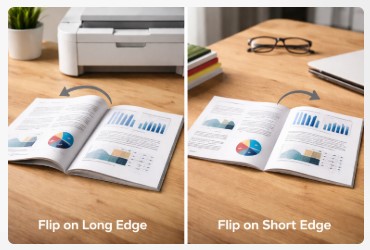
Flip on long edge vs short edge controls how your printed pages turn when you bind them together. Think of it like this:
Long edge means pages flip like a book. You turn them left to right. The top of the page stays at the top on both sides. This is what you want for most portrait documents—reports, essays, anything you’d put in a binder.
Short edge means pages flip like a calendar or a notepad. They turn up and over from the bottom. The top of one side becomes the bottom on the other. This is your go-to for landscape documents—spreadsheets, presentation slides, anything wide.
That’s the simplest duplex printing explained you’ll ever get. Choose the one that matches how you want your final document to open.
But if you’ve ever chosen wrong and ended up with upside-down pages, stick around. I’m about to show you exactly why that happens and how to never do it again.
Flip on Long Edge (Book Style Binding)
Flip on long edge is the setting you’ll use most often, even if you don’t realize it. Let me break down exactly what it does and when to use it.
What Does Flip on Long Edge Mean?
When you choose flip on long edge, your printer binds the pages along the long side of the paper. Think about how a standard book works. You open it, and the pages move left to right. The spine is on the left. That’s long edge binding.
Here’s what happens inside the printer. The machine prints the front page normally. Then it pulls the paper back in, flips it horizontally, and prints the back side. The top of the front page stays at the top on the back. When you flip through, everything lines up perfectly.
The flip on long edge meaning is simple: it’s book-style. Pages turn like you’re reading a novel or a report.
When to Use Long Edge Binding
This setting is your friend for anything portrait-oriented. That means documents taller than they are wide. Standard letter size—8.5 by 11 inches—is portrait.
Reach for long edge when you’re printing:
- Reports and business documents
- Essays and school assignments
- PDFs and eBooks
- Any document meant to be read like a book
- Portrait printing duplex jobs where you want professional-looking results
I’d say about 80 percent of what most people print falls into this category. Resumes, contracts, client proposals. All long edge territory.
Common Mistakes with Long Edge
Here’s where things go wrong. And trust me, I’ve seen it all.
The biggest mistake? Using long edge for landscape documents. When you print something wide—like a spreadsheet or presentation slide—and select long edge, the back page prints upside down. Every single time. The document was meant to flip up and over, not left to right.
I had a client last year who printed 200 landscape brochures with long edge selected. Every back page was rotated 180 degrees. She couldn’t figure out why. “I chose double-sided printing,” she said. “Why is it doing this?” The fix took ten seconds once we checked her settings.
Another common issue? Printer driver defaults. Some printers default to long edge, some don’t. If you’ve never checked your settings, you might be using the wrong one without knowing it. Always look before you hit print.
And please, for the love of paper, check the preview. Most print dialogs show you exactly how the pages will look. That tiny thumbnail can save you from printing 500 upside-down flyers.
Next up, let’s look at the other option—short edge—and when it’s actually the right choice.
Flip on Short Edge (Tablet/Calendar Style)
Now let’s talk about the other option. The one that confuses people. The one that turns your carefully crafted document into an upside-down mess when you choose wrong.
What Does Flip on Short Edge Mean?
Flip on short edge binds your pages along the short side of the paper. Picture a notepad or a wall calendar. You flip pages up and over, not left to right. The spine is at the top instead of the side.
Here’s what happens mechanically. The printer prints the front page. Then it pulls the paper back in, flips it vertically, and prints the back side. The top of the front page becomes the bottom on the back. When you flip the page upward, everything reads correctly.
The flip on short edge meaning is calendar-style or notepad-style. Pages turn like you’re looking at a desk calendar or a legal pad.
When to Use Short Edge Binding
This setting is your go-to for landscape documents. Anything wider than it is tall.
Reach for short edge when you’re printing:
- Spreadsheets with wide columns that need to be read horizontally
- Presentation slides and handouts
- Landscape brochures and pamphlets
- Documents designed to flip up like a legal pad
- Any landscape duplex printing job where pages should turn top-to-bottom
I’ve got a client who runs a real estate agency. She prints property brochures constantly—landscape layout, full color, meant to be flipped through like a magazine. Short edge is her best friend. Took her one upside-down batch to learn that lesson.
Why Does Short Edge Sometimes Print Upside Down?
Here’s the million-dollar question. And the answer is simple: you’re using the right setting for the wrong document.
The most common duplex printing mistake I see is people selecting short edge for portrait documents. Standard letter-size paper, portrait orientation, short edge binding. The back page prints upside down every single time. Why? Because the document was meant to flip like a book, not a calendar.
I had a grad student come in last semester with a 60-page thesis. Printed both sides, every other page upside down. He’d spent an hour trying to figure it out. “I selected double-sided,” he said. “Why is it doing this?”
I looked at his settings. He’d chosen short edge. For a portrait document. The fix took five seconds.
The confusion happens because people think “double-sided” is just one setting. It’s not. You’ve got to match the binding to the page orientation. Portrait needs long edge. Landscape needs short edge. Mix them up, and you get upside-down pages.
Another thing I see? People don’t realize their document orientation until after they print. They throw something together in Word, hit print, and assume the printer knows what they meant. It doesn’t. You have to tell it.
Quick rule of thumb: if your page is taller than it is wide, use long edge. If it’s wider than it is tall, use short edge. Write that on a sticky note if you have to. It’ll save you a lot of paper.
Flip on Long Edge vs Short Edge — Side-by-Side Comparison
Let me make this as simple as I possibly can. Here’s everything you need to know about long edge vs short edge in one handy table. Bookmark this thing.
| Setting | Page Turns Like | Best For | What Happens If You Choose Wrong |
|---|---|---|---|
| Long Edge | Book (horizontal flip) | Portrait docs, reports, essays, resumes | Back side prints upside down |
| Short Edge | Notepad/Calendar (vertical flip) | Landscape docs, spreadsheets, slides, brochures | Pages flip wrong way, text orientation messed up |
Still not sure? Here’s a trick I use with my clients. Grab a piece of paper. Hold it like you’re reading a book. That’s long edge. Now flip it up like a calendar on your desk. That’s short edge. Simple as that.
The flip on long or short edge decision comes down to one question: how do you want your reader to turn the page? Left to right? Long edge. Bottom to top? Short edge.
I’ve had this table hanging on my workshop wall for years. Saved countless people from printing disasters. Hope it does the same for you.
How to Set Duplex Printing Correctly (Step-by-Step)
Alright, let’s get practical. Here’s exactly how to make this work on your computer, step by step. No tech jargon. Just straight instructions.
In Windows
Open your document and hit File → Print. You’ll see a print dialog pop up. Look for a button that says “Printer Properties” or “Preferences.” Click it.
Now you’re in the printer driver. Hunt for an option that says “Two-Sided Printing” or “Duplex Printing.” It might be hiding under a “Layout” or “Finishing” tab. Once you find it, you’ll see the printer settings flip on long edge and short edge options.
Here’s the golden rule: match your choice to your page orientation. Portrait pages need long edge. Landscape pages need short edge.
Before you run the whole job, do yourself a favor. Print one test page. Seriously. It takes ten seconds and saves you from reprinting fifty pages later.
On Mac
Mac users, you’ve got it a little easier. Hit Command + P to open the print dialog. Look for a dropdown menu that says “Two-Sided” or “Duplex.”
Select your binding orientation. The preview window will show you exactly how the pages will look. If the little thumbnail shows the back page upside down, you’ve got the wrong setting. Switch it and watch the preview update.
This preview feature is a lifesaver. I’ve watched clients light up when they realize they can see the mistake before printing. Use it. Love it. Thank Apple later.
Mac users have a handy preview feature that shows exactly how your pages will print. If you want to explore every print setting Apple offers—including duplex options, paper handling, and presets—Apple’s official documentation on Mac print settings has you covered. It’s the definitive guide for macOS printing.
Common Printer Driver Settings by Brand
Different brands call this stuff different names. Here’s what to look for:
HP printers usually label it “Print on Both Sides” with clear orientation options. They’re pretty straightforward.
Epson calls it “Two-Sided Printing” with “Flip Page” choices. You’ll see both long edge and short edge clearly labeled.
Canon uses “Duplex Printing” with binding selection. Might take an extra click to find, but it’s there.
Brother goes with “2-sided Print” and offers “Long Edge/Short Edge” flip. Simple and clear.
The names vary, but the logic stays the same. Long edge for portrait, short edge for landscape. Remember that, and you’ll nail it every time.
Once you’ve got your two sided printing setup dialed in, you’re golden. No more upside-down pages. No more wasted paper. No more frustration.
Different brands label these settings differently. HP printers, for example, typically use ‘Print on Both Sides’ with clear orientation options. For a deeper dive into HP-specific settings—including visuals and troubleshooting—check out HP’s official two-sided printing guide. It covers both Windows and Mac step by step.
Next up, let’s talk about what to do when it still goes wrong. Because sometimes printers just like to mess with us.
Troubleshooting: Why Is My Duplex Printing Upside Down?
You hit print. You walk to the printer. You pick up your document and flip through it. And there it is—every other page staring back at you upside down.
I’ve been there. It’s frustrating. It wastes paper. And it makes you want to throw the whole printer out the window.
Let me tell you exactly why this happens and how to fix it. For good.
The #1 Cause of Upside-Down Back Pages
Here’s the truth. Nine times out of ten, it’s one simple mistake: the wrong flip setting for your document orientation.
Portrait pages—the ones taller than they are wide—need long edge binding. Choose short edge here, and your back pages will print upside down every single time.
Landscape pages—wider than they are tall—need short edge binding. Pick long edge instead, and you’ll get the same upside-down disaster.
That’s it. That’s the whole mystery. I’ve watched accountants, lawyers, and graphic designers stare at me blankly when I explain this. It’s so simple, but nobody ever tells you.
Quick Diagnostic Checklist
Before you reprint that 50-page document, run through this checklist. Takes about thirty seconds.
- [ ] Check your document orientation. Is it portrait or landscape?
- [ ] Verify your flip setting matches the orientation.
- [ ] Look at the print preview. Does the back page look right?
- [ ] Print a single test page with both sides. Just one page.
That test page trick has saved my clients thousands of sheets of paper over the years. Print one page. Check it. If it’s wrong, adjust and try again. Once it’s right, run the whole job.
How to Fix It in 30 Seconds
Found the problem? Here’s how to fix it. Fast.
Step 1: Cancel the current print job. Don’t let it keep spitting out upside-down pages.
Step 2: Open your print settings again. Same place you were before.
Step 3: Switch your setting. If you had long edge, go short edge. If you had short edge, go long edge.
Step 4: Print one test page. Just one. Verify it’s right.
Step 5: Now run your full document. You’re good to go.
If you’ve tried adjusting your flip settings and still get upside-down pages, the problem might run deeper. Sometimes printer driver issues or corrupted settings cause this. Check out our Printer Care & Troubleshooting guide for step-by-step fixes to common printer problems that could be interfering with your duplex printing.
From the Workshop
I had a client come in a few months back with a stack of reports. She ran a small construction company and printed all her project proposals landscape style. Big documents, lots of pages.
“I’ve been dealing with this for six months,” she said, flipping through the stack. Every back page was upside down. She’d been manually flipping and rotating each sheet by hand. Hundreds of pages. Months of frustration.
I walked her to the computer, pulled up her print settings, and pointed. “You’ve got long edge selected. Your document is landscape. It needs short edge.”
Clicked the dropdown. Selected short edge. Printed one test page.
Perfect.
She stared at it for a solid ten seconds. Then she laughed. “That’s it? That’s all it was?”
Thirty seconds. No cost. No new printer. No more flipping pages by hand.
That’s the thing about duplex printing problems. They look big. They feel big. But the fix is almost always tiny. You just need to know where to look.
Next time your printer gives you upside-down pages, run through that checklist. And remember: portrait needs long edge. Landscape needs short edge. Write it on a sticky note if you have to.
Advanced Topics: Booklet Printing and Special Cases
You’ve mastered the basics. Now let’s talk about the weird stuff. The edge cases that confuse even experienced users. I’ve dealt with all of these in my shop, and I’ll walk you through each one.
Flip on Long Edge for Booklets
Booklet printing is a whole different beast. You’re taking multiple pages and arranging them so they fold together like a little book. Think programs for events, instruction manuals, those Ikea assembly guides.
For saddle-stitched booklets—the kind stapled in the middle—flip on long edge booklet is usually your friend. The pages need to flip like a book, left to right. But here’s the catch: most printer drivers have a dedicated “Booklet” mode that handles all this automatically. Use it.
I watched a non-profit director print 200 event programs last year. She spent hours manually arranging pages. Turned out her printer had a booklet setting the whole time. Forty-five minutes of work solved in two clicks.
Flip on Short Edge for Notepads
Now think about documents designed to flip up from the top. Calendars on your desk. Legal pads. Spiral notebooks. These use flip on short edge notepad style.
The binding runs along the top, and pages flip upward. If you’re printing something meant to sit on a desk and be flipped through from the front, this is your setting.
I’ve got a client who prints daily planning pads for her team. Fifty copies a month. She uses short edge binding, and they flip perfectly—like a real notepad from the store.
Mixed Orientation Documents
Here’s where things get tricky. What if your document has both portrait and landscape pages? A report with a wide spreadsheet stuck in the middle? A brochure with fold-out sections?
Honestly? The easiest answer is to split them into separate print jobs. Print all the portrait pages together with long edge binding. Then run the landscape sections separately with short edge. Combine them manually.
Some advanced printer drivers can handle mixed orientations automatically. Adobe Acrobat has settings for this. But in my experience, keeping it simple saves paper. One upside-down batch teaches that lesson fast.
PDF-Specific Considerations
PDFs add another layer to the mix. Adobe Reader and Acrobat have their own duplex settings that can override your printer defaults.
Here’s the thing about long edge vs short edge pdf printing: check both places. Look at the print dialog in your PDF software. Then click into “Printer Properties” and check there too. Sometimes they fight each other.
Before printing any important PDF, do a quick page setup check. Open the document properties. See what orientation each page uses. Some PDFs have mixed pages you don’t notice on screen.
I once had a client print 500 sales sheets from a PDF. Half came out wrong because the PDF itself had two different orientations. We caught it after five sheets, but those five were enough to teach us both a lesson.
Long edge vs short edge landscape documents follow the same rules. Landscape needs short edge. Period. Even in PDFs. Even if your printer “knows” the page is wide. You still have to tell it.
The key with all these advanced cases is the same: check before you print. Run one test page. Verify it’s right. Then run the whole job. Your paper tray will thank you.
FAQ
These are the questions I hear every week at my shop. Straight answers, no fluff—based on real conversations with real people who just wanted their pages to print right.
Why is my double-sided printing upside down?
Because the wrong flip setting was selected for your page orientation. Portrait documents need flip on long edge. Landscape documents need flip on short edge. Switch the setting in your printer preferences and try again. I’ve fixed this for hundreds of clients—it’s always the same fix.
Should I flip on long edge for portrait?
Yes. Portrait documents should always use flip on long edge. This ensures pages flip like a book with text oriented correctly on both sides. Choose short edge only for landscape documents. A client once ignored this and printed 200 upside-down church bulletins. Don’t be that person.
What happens if I choose short edge instead?
If you choose short edge for a portrait document, the back page will print upside down. The text will appear rotated incorrectly, and pages won’t flip naturally. Always match orientation to binding type. One quick test page saves you from this headache.
Is flip on long edge the default?
Most printer drivers default to long edge for portrait printing. However, default settings vary by brand and driver version. Always check before printing important documents, especially for the first time. A quick preview check takes ten seconds and saves reams of paper.
What’s the difference between long edge and short edge?
Long edge binding flips pages like a book—horizontally from left to right. Short edge binding flips pages like a calendar—vertically from top to bottom. Choose based on how you want your final document to open. Think about your reader, not just the printer.
How do I know which setting to use?
Look at your document orientation. Portrait (taller than wide) needs long edge binding. Landscape (wider than tall) needs short edge binding. When in doubt, print a single test page to verify. I keep a stack of test pages by my shop printer for exactly this reason.
Can I change the setting for part of a document?
Standard print drivers apply the same setting to all pages. For mixed orientations, consider printing portrait and landscape sections separately. Some advanced software like Adobe Acrobat can handle mixed orientation duplex printing. For most home users, separate print jobs are simpler and safer.
Why does my printer ignore my duplex settings?
Sometimes printer drivers have conflicting settings. Check both your application’s print dialog and the printer properties. Some HP and Epson models have override settings that can cancel your choices. Clear all settings and start fresh if things get weird.
What’s the best way to test duplex settings?
Print one page with content on both sides. Use a simple document with large text on the front and back. This makes it obvious if the back page is upside down. I use a test page with “FRONT” and “BACK” printed large. Takes two seconds to create and saves hours of frustration.
Do I need to change settings for double-sided copies?
If you’re making double-sided copies on a multifunction printer, the same rules apply. Look for “2-sided copy” settings and choose your binding orientation. Portrait originals need long edge. Landscape originals need short edge. Test one copy before running fifty.
Conclusion
Let’s wrap this up with the stuff I actually want you to remember.
Long edge is book style. Pages flip left to right. Use it for portrait documents—reports, essays, anything taller than it is wide.
Short edge is calendar style. Pages flip up and over. Use it for landscape documents—spreadsheets, slides, anything wider than it is tall.
Choose wrong, and you get upside-down back pages. Every single time. I’ve watched it happen to accountants, lawyers, students, and small business owners. The fix takes thirty seconds. The frustration can last months.
Here’s my final advice. Next time you print double-sided, take five extra seconds. Check your setting. Match it to your document orientation. Print one test page. That’s it. That’s the whole secret to how to print double sided correctly.
I’ve been fixing printers for over a decade, and this one simple habit would solve half the problems I see. People rush. They hit print without looking. Then they’re standing at the machine, flipping through upside-down pages, wondering what went wrong.
Don’t be that person.
Bookmark this flip on long edge vs short edge guide. Share it with your coworkers. Keep it handy for the next time you’re staring at those confusing printer settings.
And if you’ve got questions about a specific printer or software? Drop them in the comments. I read every single one and answer as many as I can. There’s no such thing as a dumb question when it comes to this stuff.
Now go print something. The right way this time.

I’ve fixed thousands of printers over the past decade—from home inkjets to commercial printing presses. Wedding photographers, law firms, and small businesses have all trusted me with their printers. Every guide comes from real workshop experience, not theory.