RGB Print Test Page: The Ultimate Guide to Test Printer Colors
Ever printed something that looked perfect on your screen, only to have it come out looking like a completely different color? I deal with this every week in my Austin shop.
Just last month, a bride walked in clutching $400 worth of wedding invitations. Near tears. On her monitor: soft blush pink. What printed: neon orange. Her wedding was in two weeks.
Here’s what ten years of fixing printers has taught me: most color problems aren’t hardware failures. Roughly 80% of the time, it’s a translation issue between your screen and your printer. Your screen speaks RGB. Your printer speaks CMYK. And sometimes the translator gets it wrong.
That’s where an RGB Print Test Page saves the day. It’s the fastest way to check printer color accuracy and figure out why RGB colors look different when printed—before you waste paper, ink, and sanity on a big job.
In this guide, I’ll walk you through:
- How to print a proper RGB test page (settings matter more than you think)
- What each color block and gradient actually tells you
- How to fix the most common color problems—from weird tints to banding
- The simple trick to matching your monitor to your printer
That bride’s invitations? We ran a printer test page, spotted the issue in two minutes, and fixed her settings. She reprinted in time for the wedding. You can too.
Let’s get started.
What Is an RGB Print Test Page?
So what exactly is an RGB Print Test Page, and why should you care?
The Simple Definition (No Jargon)
It’s just a sheet of paper with red, green, and blue patterns on it. That’s it.
Think of it like a translator checking someone’s work. Your screen speaks RGB. Your printer speaks CMYK. This test page shows you how accurately your printer is doing that translation.
It reveals three things:
- Color accuracy—is your red actually red, or is it drifting toward orange?
- Translation errors—where’s the miscommunication happening?
- Banding—those ugly stripes where colors should blend smoothly but don’t
I like to explain it like this: Imagine you write a recipe in French and hand it to a translator who turns it into English. An RGB test page is like having a French speaker read the English version and say, “Close, but they translated ‘butter’ as ‘margarine.’ Close enough? Or not?”
Why RGB Testing Matters (Even Though Printers Use CMYK)
Here’s where most people get confused—and I don’t blame you. It’s weird.
Your computer monitor, phone, and TV all use RGB (Red, Green, Blue). They mix light to create colors. Think of it like shining colored flashlights on a wall.
Your printer uses CMYK (Cyan, Magenta, Yellow, Black). It mixes ink on paper. Think of it like painting with watercolors.
Two completely different systems trying to talk to each other.
The RGB vs CMYK printer test page difference matters because some bright blues and electric greens on your screen literally can’t be printed. They’re outside what printers call the “gamut”—the range of printable colors. Your printer has to substitute the closest match it can make.
Here’s a quick comparison:
| RGB Test Page | CMYK Test Page |
|---|---|
| Tests screen-to-print translation | Tests ink/toner hardware health |
| Uses Red, Green, Blue patterns | Uses Cyan, Magenta, Yellow, Black blocks |
| Best for photos and monitor matching | Best for finding clogs or low ink |
| Use when colors look “wrong” | Use when you see streaks or gaps |
I had a photographer in here last year convinced his $700 printer was dying. Every print had this weird greenish cast. He was ready to buy a new one. I asked him to run an RGB vs CMYK test print comparison guide style check—an RGB test page first. Pure red was printing as orange. But his CMYK nozzle check? Perfect blocks, no gaps. The hardware was fine. His driver was translating RGB wrong. Twenty minutes of settings tweaks saved him seven hundred bucks.
Once you understand RGB, you’ll also want to learn about the CMYK test page to check your individual ink channels.
What a Professional RGB Test Page Includes
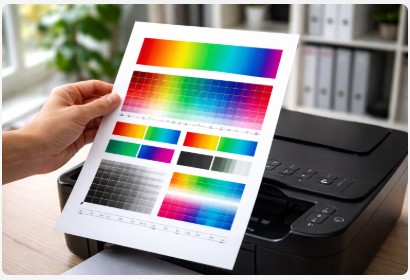
Not all test pages are created equal. A proper rgb color calibration test page printable should have these seven elements:
Pure RGB Color Blocks
Solid red, green, and blue rectangles. If your red looks orange, you’re starving red ink. If blue looks purple, magenta’s overpowering it.
RGB Gradient Bars
Smooth fades from each color to black. Banding here means resolution or driver issues.
Color Mixing Sections
Red+Green should make yellow. Green+Blue should make cyan. Red+Blue should make magenta. These reveal blending accuracy fast.
Skin Tone Patches
Multiple flesh tones. If skin looks right, everything else usually follows. Humans are wired to notice bad skin color.
Neutral Gray Strip
This is the big one. It should print as absolutely neutral gray. If it looks pink, you’ve got a magenta cast. Blue means cyan’s dominating. This single strip has diagnosed more color problems than every other element combined.
Memory Color Targets
Sky blue. Grass green. Your brain knows what these should look like without thinking.
Fine Detail Areas
Tiny colored text and thin lines. These reveal alignment issues that color blocks might hide.
For a broader look at all your printer’s colors, our color print test page covers the full spectrum.
I spent two years refining my shop’s test page. Started with something basic I found online. Kept adding elements as I spotted recurring problems. The gray strip alone has caught more magenta casts than I can count—including one from a law firm that printed pink-tinged contracts for six months without noticing. Their eyes had adjusted. The test page didn’t lie.
[📥 DOWNLOAD: Professional RGB Test Page PDF] — The exact same 300 DPI file I hand to every client who walks into my shop. Free, no email required, actually works.
How to Print an RGB Test Page for Accurate Results
You’ve got the test file. Now let’s make sure you print it right. Because here’s the thing—I’ve seen perfect test pages ruined by one wrong checkbox. And then people blame their printer when the problem was their settings all along.
The 5 Critical Settings Before You Print
These five things will make or break your results. Miss any of them, and you’ll be troubleshooting problems that don’t actually exist.
1. Disable ALL color management
Your printer wants to “help” by adjusting colors. For testing, you don’t want help. You want raw, unfiltered output. In your printer properties, look for anything that says “Color Management,” “Color Correction,” or “Image Enhancement.” Turn it OFF. If you see “Vivid” or “Auto”—turn those off too.
2. Turn off economy/draft mode
Draft mode saves ink by spraying less of it. Great for internal docs. Terrible for color testing. You need normal ink flow to see what’s really happening. Set quality to “Normal” or “Best.”
3. Select the CORRECT paper type
This matters more than most people realize. Your printer adjusts ink volume based on what paper you tell it you’re using. If you’re testing on photo paper but tell the driver “plain paper,” you’ll get wrong results. Match the setting to what’s actually in the tray.
4. Print at 100% scale
Never—and I mean never—select “Fit to Page” or “Scale to Fit.” This resizes your test page and ruins the measurements. Your gradients, color blocks, and fine details need to print at actual size. 100% scale. Always.
5. Use decent paper
I had a client test on paper his grandfather bought in 1995. It was yellowed, brittle, and absorbed ink like a sponge. His results were garbage. You don’t need expensive photo paper, but use fresh, decent quality paper meant for printers. The 20-year-old garage stock? Toss it.
Method 1—Print via Windows 10/11
Here’s the step-by-step for Windows users:
- Open the RGB print test page PDF you downloaded
- Hit Ctrl+P or go to File > Print
- Click “Printer Properties” (usually right above where it shows your printer name)
- Go through those five settings we just covered—disable color management, set quality to normal, select correct paper
- Click OK to save those settings
- Make SURE “Scale” or “Size Options” is set to 100% or Actual Size, not “Fit”
- Hit Print
Quick warning: Windows has a built-in test page option if you right-click your printer in Devices & Printers. Don’t use it for this. That test is basic and usually prints in CMYK. You need the RGB test page PDF for accurate results.
Method 2—Print via macOS
Mac users, I haven’t forgotten you:
- Open your downloaded high resolution rgb test page for printers PDF
- Hit Cmd+P or go to File > Print
- In the print dialog, look for a dropdown menu that probably says “Layout” or “Copies & Pages”
- Find and select “Color Matching” from that dropdown
- Set Color Matching to “Printer” not “Application” (this matters!)
- Go back and select “Print Settings” or “Quality & Media”
- Set media type to match your paper, quality to normal or best
- Check that “Scale” is at 100%
One weird Mac thing: Some versions hide the paper type setting under “Media & Quality” or “Paper Type/Quality.” Poke around—it’s in there.
Method 3—Print Directly from Printer (No Computer)
Sometimes your computer isn’t an option. Maybe you’re helping a family member remotely. Maybe your drivers are acting up. Maybe it’s 9 PM and you just need answers.
Good news: your printer doesn’t need a computer to run tests. The hardware buttons work.
Here’s the cheat sheet I keep taped to my workbench:
| Brand | Button Combo |
|---|---|
| HP | Hold Power button, press Resume (paper icon) 4-5 times, release Power |
| Canon | Hold Resume until power light flashes twice, release |
| Epson | Hold the drop button (ink droplet icon) for 3 seconds |
| Brother | Menu → Print Reports → Print Quality |
These combos look weird. They are weird. But they work.
I got a call from a lawyer at 9:17 PM last month. He had court filings due at 8 AM and his printer was printing blank pages. No joke—completely blank. His computer was at the office. I walked him through the HP button combo over the phone. He printed a test, saw the clog pattern, ran a cleaning cycle from the printer menu, and printed again. Perfect. Filed on time. He brought me donuts the next week.
That’s why I keep these combos handy. Sometimes you need answers and your computer’s not around.
Once you’ve got your test page printed correctly, the real detective work begins. Next up: reading those results like a tech who’s done this thousands of times.
How to Read Your RGB Test Page Like a Technician
Alright, you’ve got your test page in hand. Now comes the part where most people guess—and guessing wastes time, ink, and money. Let me show you exactly how to read it.
The “Perfect Page” Baseline
Before you can spot problems, you need to know what “healthy” looks like.
A perfect RGB test page for color banding and gradients should show:
- RGB blocks that are solid, vibrant, and pure—red that looks like a fire truck, not a faded barn
- Gradients that transition smoothly with no visible steps or lines—like a sunset, not a staircase
- Skin tones that look natural and lifelike, not greenish or purple
- Neutral gray that’s truly neutral—no pink, blue, or green tint whatsoever
When I train new techs in my shop, I make them stare at a perfect test page for five full minutes before they touch a single broken printer. Sounds boring, I know. But you can’t diagnose sick if you don’t know healthy. One kid thought he was ready after thirty seconds. I handed him a page with a subtle magenta cast. “Looks fine,” he said. It wasn’t. Now he stares for five minutes.
Problem 1—One Color Block Is Weak or Missing
What it looks like: Your red block prints orange or pink. Your green looks muddy. Your blue comes out purple or faded.
What’s causing it:
- Low ink in that specific color channel (most common)
- Clogged nozzles affecting just that color
- A cartridge that’s empty but your printer hasn’t warned you yet
How to fix it:
- Check ink levels first—don’t skip this. I can’t tell you how many people run cleaning cycles on empty tanks.
- If low, replace the cartridge
- If levels are fine, run a nozzle check (inkjets) or a cleaning cycle
- Print another test page
- Repeat once if needed, then stop
If your test shows missing colors, run a nozzle print test page next to check for clogs before replacing cartridges.
A photographer came in convinced his printer was dying. He’d spent twenty hours adjusting Photoshop curves, buying new paper, even reinstalling drivers. One look at his test page showed the cyan block at about 30% density. “When did you last change cyan?” I asked. Blank stare. New cartridge. Ninety seconds. Fixed. He’d wasted twenty hours on a $20 problem.
Problem 2—Color Gradients Show Banding or Lines
What it looks like: Instead of smooth fades, you see stair-step transitions or horizontal lines cutting through your gradients. Like someone photoshopped stripes into your sunset.
What’s causing it:
- Print head misalignment (common in inkjets)
- Drum unit wear (common in color lasers)
- Resolution set too low (under 300 DPI)
How to fix it:
- Run your printer’s alignment utility (usually in maintenance menu)
- Increase print quality to 600 DPI or higher
- Check for “Posterization” settings and disable them
- For laser printers, inspect the drum unit—if banding repeats at regular intervals, the drum is likely worn
Diagnostic tip: Banding that appears at exactly the same spacing every time points to a mechanical issue—drum, rollers, or transfer belt. Random banding is usually driver or resolution related.
Banding issues often need an alignment print test page to get everything lined up properly again.
Problem 3—Neutral Gray Has a Color Cast
What it looks like: That gray strip on your test page should be neutral. Instead, it looks pinkish, bluish, or greenish.
This is the single most diagnostic element on any test page. Your eyes adjust to color casts without you noticing—but the test page doesn’t lie.
What’s causing it:
- Color balance settings off in your driver
- Wrong paper profile selected
- Overall calibration drift over time
How to fix it:
- Open printer properties and find “Color Balance” or “Color Adjustment”
- Reset everything to default (don’t tweak—start fresh)
- Verify you’ve selected the correct paper type
- Run your printer’s auto-calibration if available
- For persistent issues, check ICC profiles in your design software
If your grays have a color tint, our grayscale print test page helps diagnose tonal balance issues.
A law firm called me in a panic because clients were “commenting on the documents.” That’s corporate code for “something’s wrong.” They’d been printing contracts for six months with a pink tint. SIX MONTHS. Nobody noticed until a client asked why their name looked “warm.” One driver reset fixed it instantly. They’d adjusted to the pink without realizing it. Test pages don’t adjust.
Problem 4—Colors Print Differently Than Screen
What it looks like: The classic frustration. That perfect blue on your monitor prints purple. Your carefully chosen sage green prints olive brown. You want to throw something.
What’s causing it:
This is the big one—the rgb printer test page for monitor to print calibration moment. Your screen and printer speak different languages. Screens use RGB light. Printers use CMYK ink. And sometimes the translation is just… bad.
Specific causes:
- Your file is in RGB mode, not converted to CMYK
- Your monitor isn’t calibrated (most aren’t)
- Wrong ICC profile selected
- You’re proofing on screen but printing on different paper
How to fix it—the right way:
Step 1: Calibrate your monitor first
You can’t fix printer color if your screen is lying to you. Use a hardware calibrator if you do this professionally—Datacolor Spyder or X-Rite. For home use, Windows and Mac both have built-in calibration tools. Run them. It takes ten minutes.
Step 2: Design in CMYK mode for print
If your final destination is paper, work in CMYK from the start. Photoshop, Illustrator, InDesign—all let you switch color modes. RGB screens show colors printers can’t make. Designing in CMYK shows you only what’s actually possible.
Step 3: Use the SAME paper for tests and finals
Paper changes everything. Glossy, matte, plain—they all handle ink differently. Test on the paper you’ll actually use. Don’t test on cheap copier paper then switch to premium photo stock and wonder why colors shifted.
Step 4: Get hard proofs before production runs
For important jobs, print one copy. Check it under good light. Hold it next to your screen. Make adjustments. Then print the rest. This single habit saves more money than any other.
A branding agency came in with $2,000 worth of brochures that looked like limes instead of forest green. The whole run—useless. Their designer worked in RGB, never converted to CMYK, and the printer did its best to translate. The result? Lime green logos where forest green should be. They reprinted, converted properly this time, and the second batch was perfect. Two thousand dollars is an expensive lesson in color modes.
Advanced Calibration: RGB Test Pages for Professional Results
Alright, you’ve mastered the basics. Now let’s get into the stuff I only share with clients who really care about color. This is the workflow I use for photographers, designers, and anyone who needs prints that actually match what they see.
Printer-Specific RGB Test Strategies
Different brands handle color differently. Here’s what I’ve learned after a decade of wrestling with all of them:
| Brand | Built-in Options | Best RGB Test Approach | Driver Settings to Check |
|---|---|---|---|
| HP | Print Quality Report | Use our PDF + HP Print Scan Doctor | Color Options → sRGB or Adobe RGB |
| Canon | Nozzle Check Pattern | Combine PDF with Canon IJ Printer Utility | Color Adjustment → Match Monitor |
| Epson | Nozzle Check, Power Cleaning | Our PDF + check Color Density | Advanced → Color Controls → ICM |
| Brother | Print Quality Check | Download our PDF, disable Toner Save | Advanced → Color Correction → Off |
The built-in options are fine for quick hardware checks. But for real best rgb test page for inkjet printer calibration work, you want our PDF. It’s consistent across every brand, and I’ve refined it over hundreds of repairs.
HP users: Watch out for “HP Easy Color.” It’s supposed to help, but I’ve seen it introduce weird color shifts on older printers. Try with it both on and off.
Canon users: The IJ Printer Utility has a little-known “Custom Color Correction” setting buried under “Color Adjustment.” Check there if your grays look funky.
Epson users: Some models hide “Color Density” in the Advanced menu. If your prints look washed out, that’s where to look.
Brother users: “Toner Save” mode is the enemy of good color. Make sure it’s off. It reduces density and messes with gradients.
The Professional’s 3-Step Calibration Workflow
This is the system I’ve built over years of trial and error. Follow it in order—skipping steps guarantees frustration.
Step 1—Hardware Check
Print an rgb gradient test page for printer quality check at 300 DPI on standard paper. Look for banding, streaks, or missing colors. Fix ANY mechanical issues before touching color settings. You can’t calibrate what isn’t printing correctly.
Step 2—Monitor Calibration
This step costs money if you want it done right. Hardware calibrators like Datacolor Spyder or X-Rite i1 run about $150-300. Worth every penny if you print professionally.
The standard specs:
- Brightness: 120 cd/m² (candelas per square meter)
- Gamma: 2.2 (standard for Windows and web)
- White point: 6500K (D65 daylight)
If you can’t afford a calibrator yet, at least run your OS built-in tool. Windows has “Calibrate Display Color.” Mac has “Display Calibrator Assistant” in System Settings. Better than nothing.
Step 3—Printer Profile Matching
This is where most pros mess up. You need the right ICC profile for your specific printer AND the exact paper you’re using.
- Download profiles from your paper manufacturer’s website
- Install them in your system’s color management folder
- In your design software, select that specific profile
- Crucial: Disable double management. If your software handles color, turn it off in your printer driver. If your printer handles it, turn it off in software. Never both.
For photographers, pairing RGB tests with a dedicated photo print test page ensures skin tones look natural.
A fine art photographer came in five years ago. Beautiful work. Haunting black and white landscapes. But her prints never matched her screen. She’d tried everything—new printer, new paper, new cables, even new glasses. She was ready to quit selling prints altogether. I walked her through this exact workflow. When we finished step 2—monitor calibration—she actually cried. “I’ve been fighting this for five years,” she said. “The sky in my photos has always printed wrong, and I thought it was me.” It wasn’t her. It was her uncalibrated monitor showing blues that didn’t exist in reality. One hardware calibrator fixed five years of frustration.
When to Use RGB vs CMYK Test Pages—Decision Flowchart
Here’s the quick-reference guide I keep on my workshop wall. Save this:
                    COLOR PROBLEM?
                           │
                           ▼
            ┌──────────────┴──────────────┐
            │                              │
    Screen vs Print mismatch?        Streaks, gaps, or
    (Colors wrong but no gaps)       missing colors?
            │                              │
            ▼                              ▼
    Use RGB TEST PAGE               Use CMYK TEST PAGE
    (Diagnoses translation)          (Diagnoses hardware)
            │                              │
            └──────────────┬──────────────┘
                           ▼
              BOTH issues present?
                           │
                           ▼
        1. RGB TEST FIRST—diagnose translation
        2. THEN CMYK TEST—check for hardware
        3. Fix translation issues before chasing clogs
The golden rule: Always diagnose translation before hardware. You can’t align what isn’t printing, and you can’t fix clogs if the real problem is your driver misinterpreting colors.
For photographers: Run an RGB test before every major shoot delivery.
For designers: Run one when switching paper types.
For everyone: Run one when something looks “off” but you can’t explain why.
RGB Test Page Troubleshooting: When Nothing Seems to Work
Sometimes you do everything right and your printer still acts like it’s possessed. I’ve been there. Let’s talk about those head-scratching moments when standard rgb printer test page troubleshooting color problems doesn’t give you clear answers.
The “Test Page Looks Perfect But Documents Don’t” Mystery
This one drives people crazy. Your test page prints beautifully—perfect RGB blocks, smooth gradients, neutral gray. Then you print your actual document and it looks like garbage.
What’s happening: Your printer hardware is fine. The test page proves it. The problem lives somewhere in your document or software settings.
Here’s how to fix it:
Step 1: Check your document’s color mode
Is your file in RGB or CMYK? If you’re designing for print, it should be in CMYK mode. RGB files give your printer permission to interpret colors its own way—and it often guesses wrong.
Step 2: Verify software color settings
Photoshop, Illustrator, InDesign all have color management settings that can override everything. Look for “Color Settings” and make sure you’re not accidentally applying a monitor profile to print output.
Step 3: Reinstall your printer drivers
Sometimes drivers get corrupted. Sometimes updates break things. A clean install fixes a surprising number of weird color issues.
Step 4: Test with a different application
Print your test page from a different program. If Word prints colors correctly but Photoshop doesn’t, you’ve isolated the problem to Photoshop settings. If everything prints wrong except your test PDF, the issue might be how you’re saving files.
A designer brought me samples that looked perfect on screen but printed muddy every time. Her test page was flawless. I watched her workflow—she had Photoshop set to “Monitor RGB” instead of “Working CMYK.” She’d been designing for print while telling Photoshop to pretend she was designing for web. One dropdown menu change fixed weeks of frustration. She’d been blaming her printer. It was never the printer.
Physical Problems That Mimic RGB Issues
Sometimes the problem isn’t color settings at all. Hardware failures can disguise themselves as RGB issues. Here’s how to spot the difference:
| Symptom | What You See | Real Cause | Fix |
|---|---|---|---|
| Consistent color shift | Everything has same tint (blue/pink/green) | Dying scanner bulb in all-in-ones | Replace bulb or use external scanner |
| Random color variations | Same file prints different colors each time | Failing power supply | Professional repair or replacement |
| One color gradually fading | Cyan weakens over weeks | Clogged ink line, not RGB settings | Deep cleaning or manual flush |
| Colors bleeding | Ink spreads beyond edges | Wrong paper type or too much ink | Match paper profile, reduce ink density |
| Repeating banding | Lines at exact intervals | Worn drum or rollers | Replace drum unit |
When to call a professional:
I’m all for DIY fixes. That’s literally how I make a living—teaching people to solve problems themselves. But there’s a point where you need to wave the white flag.
Call a tech if:
- You’ve run three cleaning cycles with zero improvement
- Your printer makes grinding or clicking noises (this is bad)
- Error codes won’t clear no matter what you try
- You see physical damage—cracked parts, leaks, broken plastic
- The printer is over 5-7 years old and repair costs exceed half of a new one
A client chased what he thought were rgb test page to diagnose clogged nozzles issues for two months. Two months! He replaced cartridges, ran cleaning cycles until his ink was half gone, tweaked every setting he could find. Nothing worked. When he finally brought the printer in, I opened it up and saw the problem in about ten seconds. His print head was physically cracked. You could see the hairline fracture right where the cyan channel runs. No amount of cleaning or calibration would ever fix it. A new printer cost less than the repair. He’d wasted two months and probably $60 in ink chasing a hardware problem with software solutions.
Sometimes you just need a fresh set of eyes—preferably ones that have seen a lot of broken printers.
Prevention: Never See Bad RGB Color Again
I’ll be honest—most of my business comes from people who didn’t do regular maintenance. The ones who call me in a panic at 9 PM the night before a big deadline? They never ran a quick rgb color printer diagnostic test page when things were calm.
Let’s fix that.
The “First of Month” Rule
Here’s the simplest habit I’ve taught hundreds of clients:
Print one RGB test page on the 1st of every month.
That’s it. Two minutes. One sheet of paper. Put it on your calendar if you need to.
Why the first? It’s easy to remember. It gives you a full month of good prints. And if something’s starting to go wrong, you catch it when it’s a tiny adjustment—not an emergency the night before your client presentation.
I’ve had clients text me photos of their monthly test pages for years. “Looks good?” they ask. Nine times out of ten, it does. But that one time it doesn’t? We fix it in five minutes instead of five days.
A real estate office in north Austin prints 200+ client packets every month. Listings, photos, disclosure forms—all of it needs to look professional. They’ve been running the First of Month rule for three years. Know how many color emergencies they’ve had in that time? One. And that was because the new receptionist forgot to run the test. She won’t forget again.
Before Every Critical Print Job
Some prints matter more than others. For those, you need a different timeline:
Run an RGB test page 24 hours BEFORE your deadline.
Not the night before. Not an hour before. Twenty-four hours.
This gives you:
- Time to actually look at the results (not just glance)
- Time to run a cleaning cycle if needed
- Time to replace a cartridge if it’s low
- Time to call someone like me if things go really wrong
What counts as critical?
- Wedding invitations (ask that bride from earlier)
- Client presentations
- Legal documents
- Portfolio prints
- Holiday cards (yes, people notice bad color on holiday cards)
- Any job where reprinting would cost time or money you don’t have
A marketing consultant once told me she never ran test pages because “it’s just extra work.” Then she printed 50 client proposals with a purple color cast. She had to redo them all at a copy shop—$180 and four hours she didn’t have. Now she runs a test the day before every big job. “Cheapest insurance I never bought,” she said.
After Any Change
Printers are creatures of habit. They like things consistent. When something changes, they sometimes… react.
Run an RGB test after:
New ink or toner cartridges
Even genuine OEM cartridges can vary slightly batch to batch. Run a test to establish a new baseline.
Moving your printer
Seriously. Bumping, shifting, or relocating your printer can throw off alignment. I’ve seen printers print perfectly for years, get moved three feet to clean behind them, and suddenly develop color shifts. Run a test.
Software or driver updates
Updates are supposed to help. Sometimes they reset your carefully tuned settings. Always run a test after any update to make sure nothing changed that you didn’t want changed.
Seasonal changes
This one sounds weird, but hear me out. Humidity and temperature affect ink and paper. If you print year-round, run a test when seasons shift—especially if you go from humid summer to dry winter. Your prints might need small adjustments.
That real estate office I mentioned? They also run a test after any change. New receptionist? Run a test. New paper supplier? Run a test. IT guy pushed an update? Run a test. Three years, one emergency. That’s not luck—that’s system.
The when should you use an rgb printer test page question has a simple answer: often. Monthly. Before big jobs. After changes. It takes almost no time and saves almost all the frustration.
Next up: let’s wrap this up with some real answers to the questions I hear most often.<|end▁of▁thinking|>
Conclusion
Look, I’ve been fixing printers for over a decade. And if there’s one thing I’ve learned, it’s this: most color disasters are completely preventable.
That bride with the orange invitations? She’d never run an RGB test page. The photographer who almost bought a $700 printer? Never checked his color blocks. The law firm that printed pink contracts for six months? Never looked at a neutral gray strip.
An RGB Print Test Page is the cheapest insurance policy your printer will ever have. One sheet of paper. Two minutes of your time. And you’ll never again wonder why your colors look wrong.
Here’s what I want you to do:
- Download the test page (it’s free, no email required—just a tool I believe every printer owner should have)
- Print it today—not tomorrow, not when you have time, today
- Compare it to this guide and see where your printer stands
- Fix any issues while they’re small
- Share this with someone who’s always complaining about their printer colors
That real estate office with zero emergencies in three years? They do step one through four every month. It works.
[📥 Download Your Free RGB Test Page PDF Now]
And hey—if you get stuck, drop a comment below. Tell me what your test page looks like. Tell me what you’ve tried. I read every single one, usually while wiping ink off my fingers with a shop rag.
Let’s get those colors right.
FAQ
I’ve answered these questions so many times in my shop, I practically say them in my sleep. Here are the ones I hear most often—along with the straight answers my clients actually use.
What is an RGB print test page used for?
An RGB print test page checks how accurately your printer reproduces red, green, and blue colors. Since screens display in RGB but printers use CMYK ink, this test reveals translation errors, color shifts, banding, and monitor-to-print mismatches. It’s essential for photo printing and any project where screen color accuracy matters. I use one on every printer that comes into my shop before touching anything else.
How do I print an RGB test page for color accuracy?
Download a high-resolution RGB print test page PDF, open it, and select “Print.” Critical settings: disable any “color correction” in your printer driver, set quality to “Normal” or “Best” (not Draft), choose the correct paper type, and print at 100% scale. Use at least 80gsm paper. Skip any of these steps and your results won’t be reliable—I’ve seen it happen hundreds of times.
Why do my RGB colors look different when printed?
This happens because screens use emitted light (RGB) while printers use reflected ink (CMYK). RGB has a wider color gamut—some bright blues and greens on your screen literally cannot be reproduced with standard printer inks. Your printer must map these out-of-range colors to the closest printable option, which causes shifts. Monitor calibration and CMYK conversion help minimize this. A photographer once told me this explanation saved her hours of frustration.
What’s the difference between RGB and CMYK test pages?
RGB vs CMYK printer test page differences matter. RGB test pages check screen-to-print translation using red, green, and blue patterns—ideal for photo printing and monitor matching. CMYK test pages check individual ink channels (Cyan, Magenta, Yellow, Black)—better for diagnosing clogged nozzles, low ink, and cartridge health. Use RGB first for color problems, then CMYK for hardware issues. That order saves time.
How often should I run an RGB printer test page?
Monthly for general maintenance, before every critical print job (weddings, presentations, client work), after changing ink cartridges, and anytime you notice colors looking “off.” The “First of Month” rule works great—2 minutes saves hours of troubleshooting later. A real estate office I work with has followed this for three years with zero color emergencies.
Can I use the same RGB test page on HP, Canon, and Epson printers?
Yes! RGB test pages for HP Canon Epson printers are universal—they work on any brand (Brother, Samsung too) and type (inkjet, laser, all-in-one). The test page design is standard; only your printer driver settings vary by brand. Download one high-quality PDF and use it on all your printers. I keep the same file on my workshop computer for every repair.
How do I fix incorrect RGB color printing?
First, run an RGB test page to diagnose clogged nozzles or translation issues. Weak/missing colors = low ink or clogs. Banding = alignment or resolution problems. Gray with color cast = balance settings off. Screen mismatch = monitor calibration or CMYK conversion needed. Fix the specific issue, then test again. A designer once fixed weeks of frustration by following this exact order.
What should a good RGB test page include?
Professional rgb color calibration test page printable sheets include: pure red/green/blue color blocks, smooth gradient bars for each color, color mixing sections (red+green=yellow), skin tone reference patches, neutral gray strip, and memory colors (sky, grass). These elements together reveal every common color printing problem. The gray strip alone has diagnosed more issues than everything else combined in my shop.
Disclaimer: This article is based on personal expertise and industry knowledge gained over more than a decade of printer repair. Always consult your printer’s manual or seek help from a certified technician for model-specific issues.

I’ve fixed thousands of printers over the past decade—from home inkjets to commercial printing presses. Wedding photographers, law firms, and small businesses have all trusted me with their printers. Every guide comes from real workshop experience, not theory.